
Appearance
Creating Links
TL;DR: Go to Link Manager → Pretty Links and click New Pretty Link. Enter a destination URL, set a custom slug, choose a redirect type (default: 301), and configure attributes. You can also add password protection, scheduling, parameter forwarding, and conditional routing rules.
Create, configure, and manage redirect links with full control over behavior, scheduling, attributes, and conditional routing.
Link Components
Every link supports the following fields:
| Field | Type | Description |
|---|---|---|
| Destination URL | URL, required | The full URL visitors redirect to. Max 2,048 characters |
| Slug | Text, optional | Short URL path (e.g., running-shoes). Auto-generated if you leave it blank. Max 64 characters, must be unique |
| Redirect Type | Select, default 301 | 301 = permanent (default), 302 = temporary, 307 = temporary preserving HTTP method |
| Link Attributes | Toggles | nofollow, noopener, noreferrer, and sponsored |
| Keywords | Text list | Keywords used for auto-linking in post content |
| Enable Auto-Linking | Toggle | Turn auto-linking on or off for this link |
| Auto-Link Priority | Number, default 10 | Range 0–100. Lower number = higher priority when keywords conflict across links |
| Forward URL Parameters | Toggle | Forward query parameters from the redirect URL to the destination |
| Password Protection | Text, optional | Restrict access with a password prompt. Max 128 characters |
| UTM Campaign Parameters | Text fields | utm_source, utm_medium, utm_campaign, utm_term, utm_content. Max 255 characters each |
| Active From | Date and time, optional | Link activates after this date. Before this date, the link shows as "scheduled" |
| Expires At | Date and time, optional | Link stops working after this date. After expiry, the link shows as "expired" |
| Categories | Taxonomy | Assign to link categories (each category supports a color label) |
| Tags | Taxonomy | Assign to link tags |
| Conditional Routing Rules | Rule list | Condition-based alternate redirects (see Conditional Routing Rules) |
Creating a Link
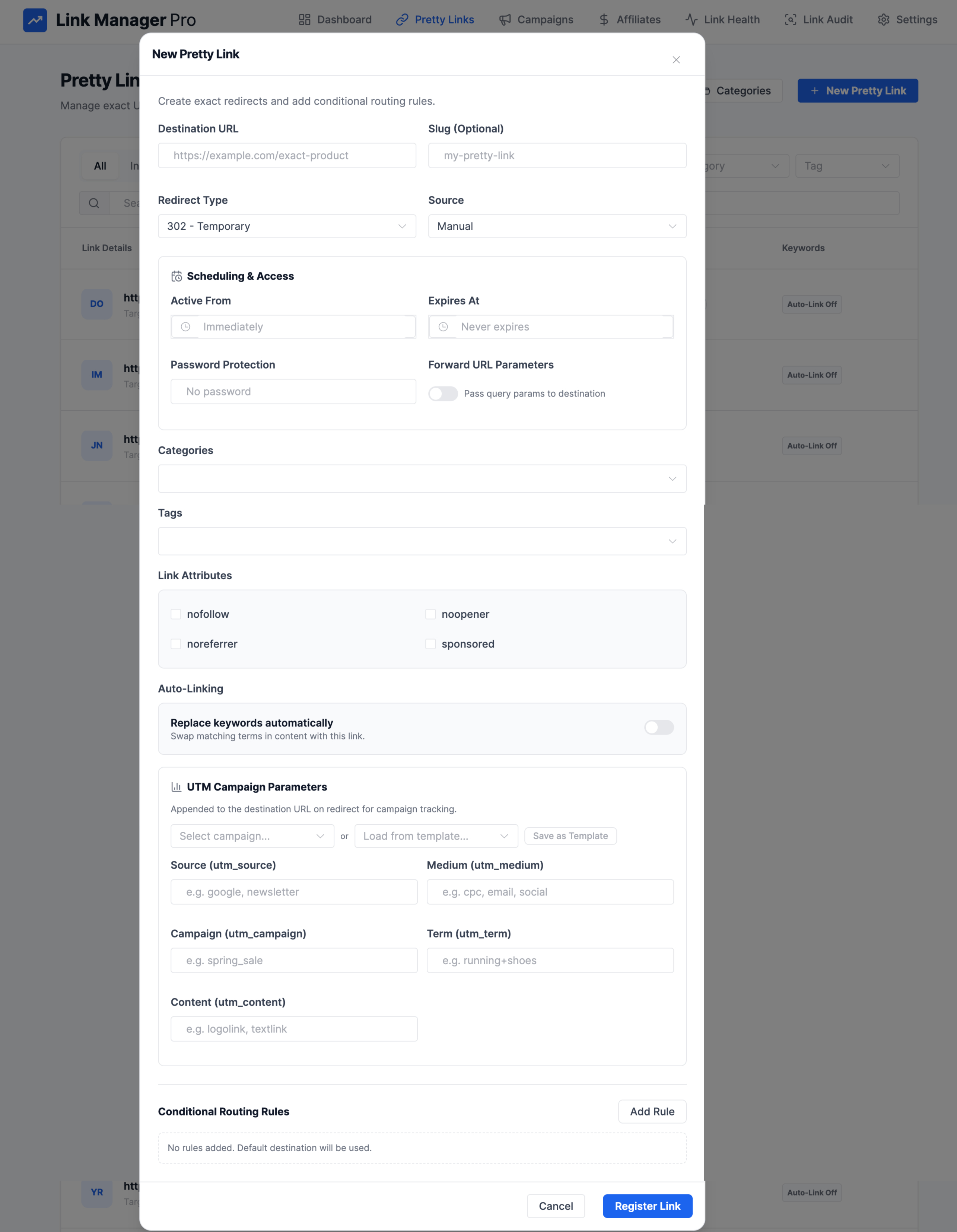
- Go to Link Manager → Pretty Links.
- Click New Pretty Link.
- Enter the Destination URL — the full URL where visitors redirect to.
- Enter a Slug or leave it blank for an auto-generated code. The slug becomes part of your masked URL:
yoursite.com/go/your-slug. - Select a Redirect Type:
- 301 (default) — permanent redirect. Use for links that never change. Search engines cache this.
- 302 — temporary redirect. Use for links you may change later.
- 307 — temporary redirect that preserves the original HTTP method (POST stays POST).
- Configure Link Attributes — toggle nofollow, noopener, noreferrer, or sponsored as needed.
- Add Keywords and enable Auto-Linking if you want this link inserted automatically into post content.
- Set Auto-Link Priority if multiple links share overlapping keywords.
- Toggle Forward URL Parameters to pass query strings from the masked URL through to the destination.
- Set a password under Password Protection if you want to gate access behind a password prompt.
- Add UTM Campaign Parameters to append campaign tracking values to the destination URL.
- Set Active From and Expires At dates to schedule the link's availability window.
- Assign Categories and Tags to organize the link.
- Add Conditional Routing Rules for advanced redirect logic.
- Click Register Link.
Link Attributes
Configure rel attribute values on each link to control SEO signals and browser behavior.
| Attribute | What It Does | When to Use |
|---|---|---|
| nofollow | Tells search engines not to pass link equity | Affiliate links, paid placements, untrusted URLs |
| noopener | Prevents the destination page from accessing window.opener | Any link that opens in a new tab — protects against reverse tabnapping |
| noreferrer | Hides your site as the traffic source from the destination | When you do not want the destination to know where the click came from |
| sponsored | Marks the link as a paid or sponsored placement | FTC-compliant affiliate links, sponsored content, paid partnerships |
You can combine multiple attributes on a single link. For affiliate links, enable both nofollow and sponsored.
Slug Best Practices
Your slug is the readable part of the masked URL. Keep it clean and descriptive.
Good slugs: amazon-echo, hosting-recommendation, wordpress-course
Bad slugs: link1, prod123, a-very-long-slug-that-nobody-will-remember-or-type
Tips:
- Use lowercase letters and hyphens only.
- Keep it under 50 characters.
- Make it descriptive — readers should understand the destination from the slug.
- Avoid special characters and spaces.
- The slug must be unique across all your links (max 64 characters).
Auto-Linking per Link
Auto-linking automatically replaces keyword matches in your post content with this link.
- In the link editor, add one or more Keywords.
- Toggle Enable Auto-Linking to on.
- Set Auto-Link Priority (default: 10). Lower numbers take priority when two links compete for the same keyword.
Auto-linking respects the global settings for case sensitivity, max replacements per keyword, max links per page, excluded headings, and applicable post types. Configure those at Link Manager → Settings → Auto-Linking.
UTM Campaign Parameters
Append UTM campaign tracking values to the destination URL for each link.
| Parameter | Purpose | Example |
|---|---|---|
| utm_source | Identifies the traffic source | newsletter, twitter |
| utm_medium | Identifies the marketing medium | email, social, cpc |
| utm_campaign | Identifies the campaign name | spring-sale, product-launch |
| utm_term | Identifies paid search keywords | running-shoes, best-hosting |
| utm_content | Differentiates similar content or links | header-cta, sidebar-banner |
When a visitor clicks the masked link, the plugin appends these values as query parameters to the destination URL before redirecting.
Password Protection
Restrict access to a link by requiring a password before redirect.
Setting a Password
- In the link editor, enter a password in the Password Protection field.
- Save the link. The plugin never stores the plain text password.
When you edit a password-protected link, the password field is blank with the placeholder "Leave blank to keep current." Enter a new password to change it, or leave it blank to keep the existing password.
Visitor Experience
When a visitor clicks a password-protected link:
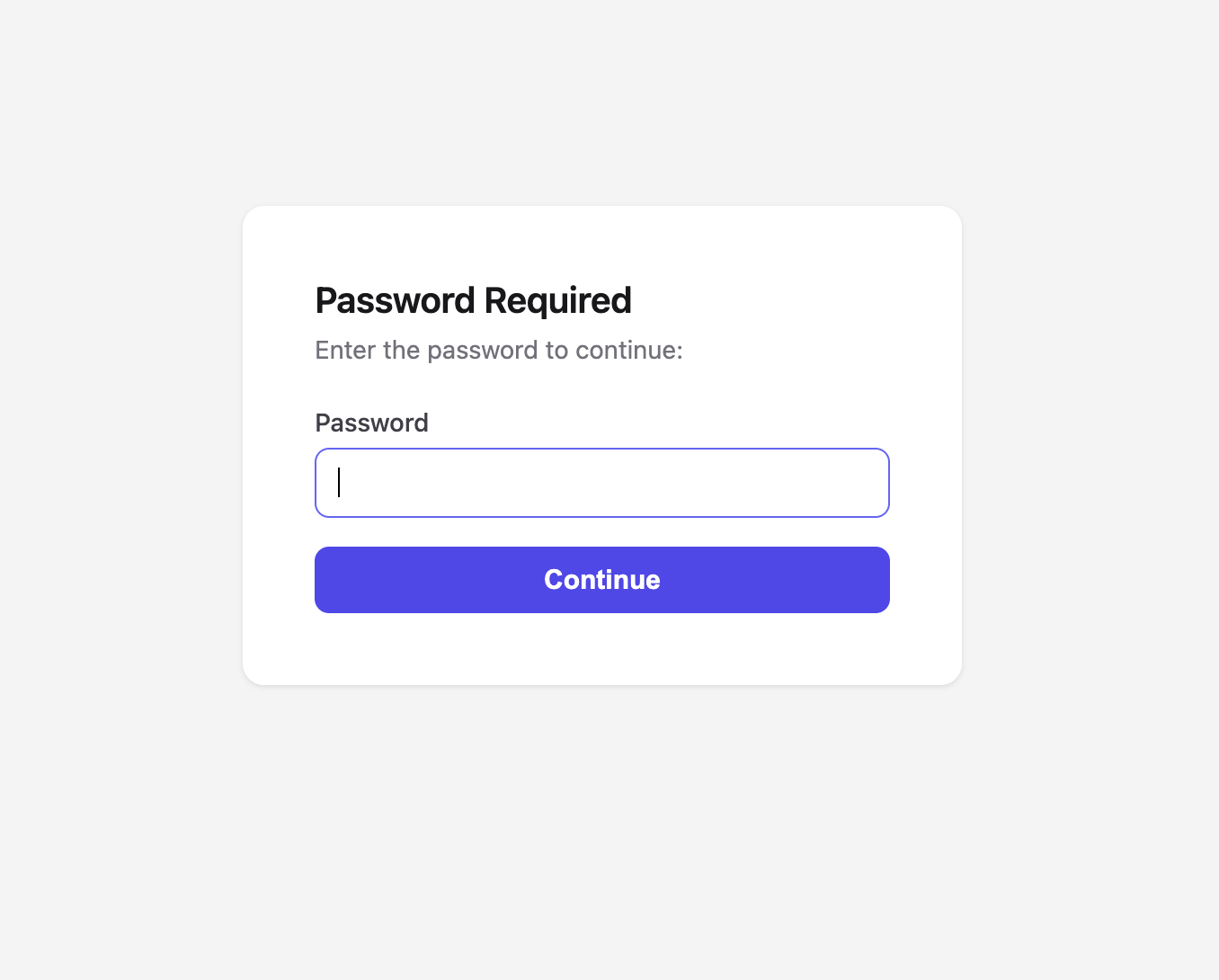
- The plugin displays a password prompt instead of redirecting.
- The visitor enters the password.
- If the password matches, the visitor redirects to the destination URL.
- If the password is wrong, the prompt redisplays with an error.
Link Scheduling
Control when a link is active using date-based scheduling.
| Field | Behavior |
|---|---|
| Active From | The link only works after this date and time. Before this date, the link status shows as scheduled and does not redirect visitors. |
| Expires At | The link stops working after this date and time. After expiry, the link status shows as expired and does not redirect visitors. |
You can use either field independently or combine both to create a specific availability window.
Examples:
- Set only Active From to launch a link at a future date.
- Set only Expires At to create a limited-time link.
- Set both to run a link during a specific promotion window.
Forward URL Parameters
When you enable Forward URL Parameters, the plugin passes any query parameters from the masked URL through to the destination URL.
Example:
A visitor clicks: yoursite.com/go/product?color=red&size=large
- Forward URL Parameters off: Visitor redirects to
https://shop.example.com/item-123 - Forward URL Parameters on: Visitor redirects to
https://shop.example.com/item-123?color=red&size=large
This is useful for passing tracking IDs, variant selectors, or referral codes without creating separate links for each combination.
Conditional Routing Rules
Conditional routing lets you redirect visitors to different destination URLs based on rules you define. Each link can have multiple rules.
Rule Fields
| Field | Type | Description |
|---|---|---|
| Name | Text, optional | A descriptive label for the rule. Max 120 characters |
| Is Active | Toggle, default on | Turn the rule on or off without deleting it |
| Priority | Number, default 100 | Range 0–100. Lower numbers evaluate first |
| Match Mode | Select, default all | all = every condition must match (AND). any = at least one condition must match (OR) |
| Target URL | URL, required | The alternate destination when this rule matches. Max 2,048 characters |
| Redirect Type | Select, default 302 | 301, 302, or 307 for this specific rule |
| Start At | Date and time, optional | Rule only evaluates after this date |
| End At | Date and time, optional | Rule stops evaluating after this date |
| Conditions | Condition list | One or more conditions (see below) |
Condition Types
| Condition | Operators | Value | Description |
|---|---|---|---|
| total_clicks | gt, gte, eq, lt, lte | Number | Match based on the link's total click count |
| country_in | in | Array of 2-letter country codes | Match the visitor's country (e.g., ["US", "CA", "GB"]) |
| date_after | gt, gte | Date string | Match if the current date is after the specified date |
| date_before | lt, lte | Date string | Match if the current date is before the specified date |
How Rule Evaluation Works
- The plugin loads all active rules for the link, sorted by priority (lowest number first).
- For each rule, the plugin checks whether the current date falls within the rule's Start At / End At range (if set).
- The plugin evaluates the rule's conditions using the match mode:
all— every condition must be true (AND logic).any— at least one condition must be true (OR logic).
- The first matching rule wins. The visitor redirects to that rule's target URL with that rule's redirect type.
- If no rules match, the visitor redirects to the link's default destination URL.
Creating a Rule
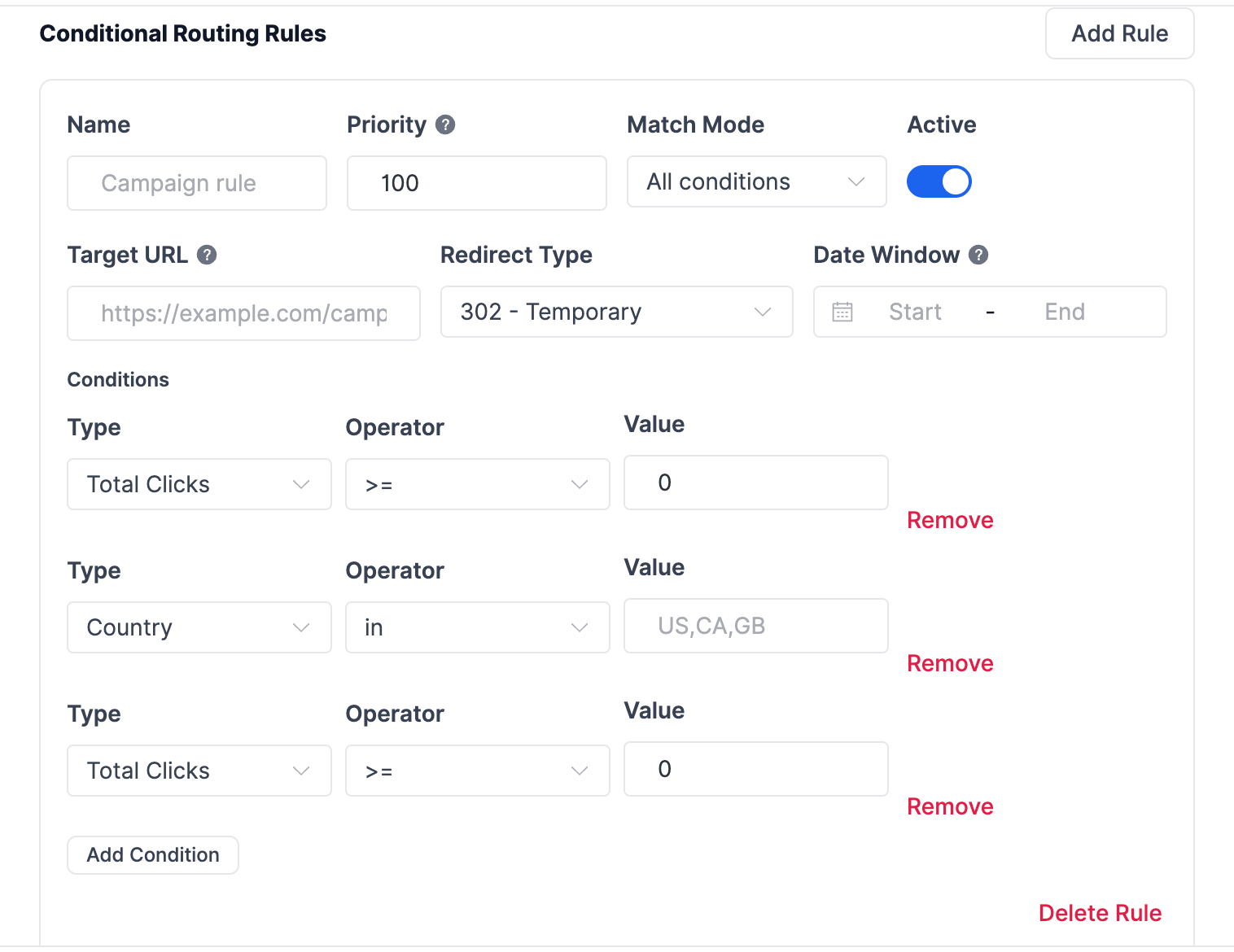
- In the link editor, scroll to Conditional Routing Rules.
- Click Add Rule.
- Enter a Name (e.g., "US visitors after 1000 clicks").
- Set the Priority (lower = evaluated first).
- Choose a Match Mode (
allorany). - Enter the Target URL for this rule.
- Select a Redirect Type.
- Optionally set Start At and End At dates to limit when the rule is active.
- Add one or more Conditions using the condition types above.
- Verify Is Active is on (it defaults to on for new rules).
- Save the link.
Rule Examples
Geo-targeting: Redirect US and Canadian visitors to a regional landing page.
- Match Mode:
any - Condition:
country_in→in→["US", "CA"] - Target URL:
https://shop.example.com/north-america
Click threshold: Switch to a new destination after 5000 clicks.
- Match Mode:
all - Condition:
total_clicks→gte→5000 - Target URL:
https://shop.example.com/updated-offer
Time-limited promotion: Redirect to a sale page only during a specific date range.
- Match Mode:
all - Condition 1:
date_after→gte→2026-04-01 - Condition 2:
date_before→lte→2026-04-15 - Target URL:
https://shop.example.com/spring-sale
Combined geo + time: Redirect UK visitors to a regional page only in April.
- Match Mode:
all - Condition 1:
country_in→in→["GB"] - Condition 2:
date_after→gte→2026-04-01 - Condition 3:
date_before→lte→2026-04-30 - Target URL:
https://shop.example.com/uk-april-promo
Categories and Tags
Organize your links using categories and tags.
- Categories group links into broad topics. Each category supports a color label for visual identification in the link list.
- Tags add flexible, cross-cutting labels to links.
To assign categories or tags:
- In the link editor, find the Categories and Tags sections.
- Select existing categories/tags or create new ones inline.
- Save the link.
You can filter the link list by category or tag to find links quickly.
Editing Links
- Go to Link Manager → Pretty Links.
- Click the edit icon on the link you want to modify.
- Update any fields.
- Click Update Link.
Your masked URL (yoursite.com/go/slug) stays the same when you change the destination URL. Existing shared links and bookmarks continue to work.
Deleting Links
- Go to Link Manager → Pretty Links.
- Click the trash icon on the link you want to remove.
- Confirm the deletion in the popup.
Warning: Deletion is permanent. Any visitor who clicks the deleted link's URL receives a 404 error. If you want to temporarily disable a link, use link scheduling instead.
Step-by-step guides: