
Appearance
Quick start: setup
Choose how your short links look, decide what gets tracked, and start with your first link or an import. Every part of setup is optional.
Link Manager Pro setup asks you three things: how your short links look, what gets tracked when someone clicks them, and which links to start with. Every part is optional. You can change your choices later in Settings, or go through setup again with Run setup again.
Before you start
- You need to be an administrator. Setup saves site settings, so editors never see it, even when they can manage links.
- The plugin is installed and active (Install and activate).
- Moving from another link plugin? Keep its data on the site. Setup offers the import when it finds that data.
When does setup open?
Setup opens by itself on the first admin page an administrator loads within 60 seconds of activating the plugin. It fills the screen next to the WordPress menu. A rail on the left lists the steps: Welcome, 1 Your short links, 2 Tracking & privacy and 3 Bring your links. After the last one comes You’re all set.
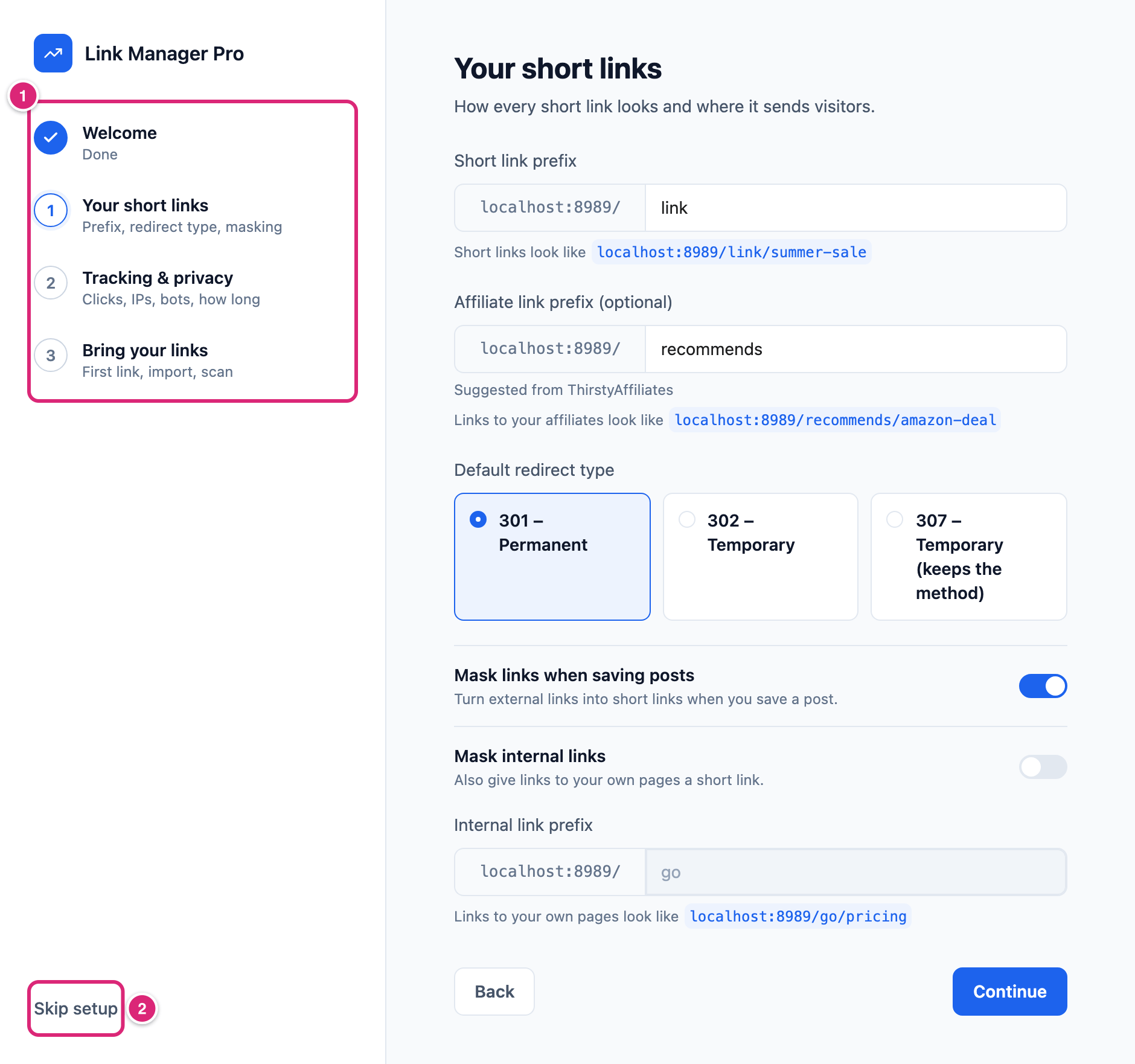
- The rail 1 ticks off each step you finish and shows what you chose under it, for example
/link/and the redirect type. - Skip setup 2 sits at the foot of the rail. It asks first: select Keep setting up to stay, or Skip setup to close setup and go to the Dashboard. Anything you already saved stays, and the defaults cover the rest.
- Continue saves that step's choices at once. If you leave part-way after Get started, setup opens again on your next visit to the Dashboard, once per browser session, at the first step you haven't saved.
- Once finished or skipped, setup stays closed for the whole site. To go through it again, go to Link Manager › Settings › General and select Run setup again. It starts at Welcome and shows your current settings; read the warning in step 1 first.
Setup doesn't open by itself in these cases:
- You activated several plugins at once with Bulk actions › Activate.
- You activated it with WP-CLI, and no administrator opened an admin page within 60 seconds.
- Setup was already finished or skipped on this site, and you're activating it again.
In those cases, use Run setup again. Link Manager Pro can't be network-activated on a multisite network (Install and activate).
Welcome
The Welcome screen sums up Link Manager Pro in three tiles: Short links, Click tracking and Link health. Select Get started to begin. That records that you started, which is what lets an unfinished setup reopen later.
Choose your short link prefix and redirect type
The Your short links step decides the address of every short link and how it redirects. On a new site it shows link and 301, and an empty optional affiliate prefix.
WARNING
Changing the prefix on a site that already has short links changes all their addresses. Links with the old prefix keep opening their short links, including links you shared in emails, posts or print. A page or redirect on your site at an old address always wins. For 90 days, an old address also comes before other links' other addresses. After that, it opens only where nothing else answers. Updating the links is still cleaner: after you save a changed prefix, Settings offers Update links in posts. This matters most when you came here with Run setup again.
- Enter the Short link prefix: the path between your domain and the slug. The line under the field shows the result, like
yoursite.com/link/summer-sale. Use lowercase letters, numbers and hyphens. If you type anything else, the field says what it would become (My Dealsbecomesmy-deals), and Continue waits until you fix it. The prefix can't be empty. - If you want affiliate links to have their own path, enter an Affiliate link prefix (optional), for example
recommends. Short links to your affiliates' domains then look likeyoursite.com/recommends/amazon-deal. Leave it empty and they use the Short link prefix. It follows the same rules, and the prefixes must differ from one another. Every prefix opens every short link, so nothing you shared breaks. If ThirstyAffiliates data is found, the field may be filled in with its prefix and a line Suggested from ThirstyAffiliates. With Run setup again, the field stays empty and a line offers that prefix with Use it. Nothing is saved until you select Continue. Clear the field to keep the Short link prefix for affiliate links. - Choose the Default redirect type from three cards: 301 (permanent), 302 (temporary) or 307 (temporary, keeps the method). New short links start with this type. The first link you can make in step 3 of setup gets the affiliate's type when its destination is an affiliate's domain, and this default otherwise. You can pick another type per link.
- Leave Mask links when saving posts on if external links in your posts should become short links whenever you save a published, scheduled or private post or page. It changes post content, so turn it off if you'd rather add short links yourself. Short links in your posts explains what it changes.
- Turn on Mask internal links only if links to your own pages should become short links too. They use the Internal link prefix (
goon a new site), which you can edit once the switch is on. - Select Continue. If a prefix matches a page on your site, or another plugin still uses it, a warning appears under the field and setup waits. The prefix is saved. Select Continue again to move on.
Tracking & privacy
The Tracking & privacy step decides what's recorded when someone clicks a short link, and for how long. A new site starts with all three switches on and Keep everything selected.
- Click tracking records every click for your reports. With it off, short links still send visitors on, but new clicks aren't recorded.
- Anonymize IP addresses shortens visitor IPs before they're stored. It uses WordPress's own anonymizer, which sets the last part of an IPv4 address to 0. Clicks stored before you turn it on don't change.
- Ignore bots leaves known bots and crawlers out of your numbers.
- Under See which countries your clicks come from, select Download database to get the GeoIP country database. Once it's downloaded, the step shows Installed. With the default settings, clicks have no country without it, so country reports and Country conditions in routing rules have nothing to work with. Behind Cloudflare, its
CF-IPCountryheader gives the country on its own. Another CDN'sCF-IPCountryorX-Country-Codeheader can stand in for the database, but only after you turn on Trust proxy headers or list your CDN as a trusted proxy (System requirements). On PHP older than 8.1, the step shows no button, because the database can't be read there. The download doesn't hold up setup, and you can also do it later under Link Manager › Settings › Tracking. - Under Keep click data for, choose 30, 90 or 180 days, 1 year, 2 years, or Keep everything. Setup starts with your saved period selected, and a saved number of days that isn't one of these (for example 45 days) shows as its own option. Older click records, with their IP addresses, are deleted every day. Keep everything deletes nothing.
- Select Continue.
Bring your links
The Bring your links step offers three optional ways to start with real links. Use any of them, all of them or none, then select Finish setup.
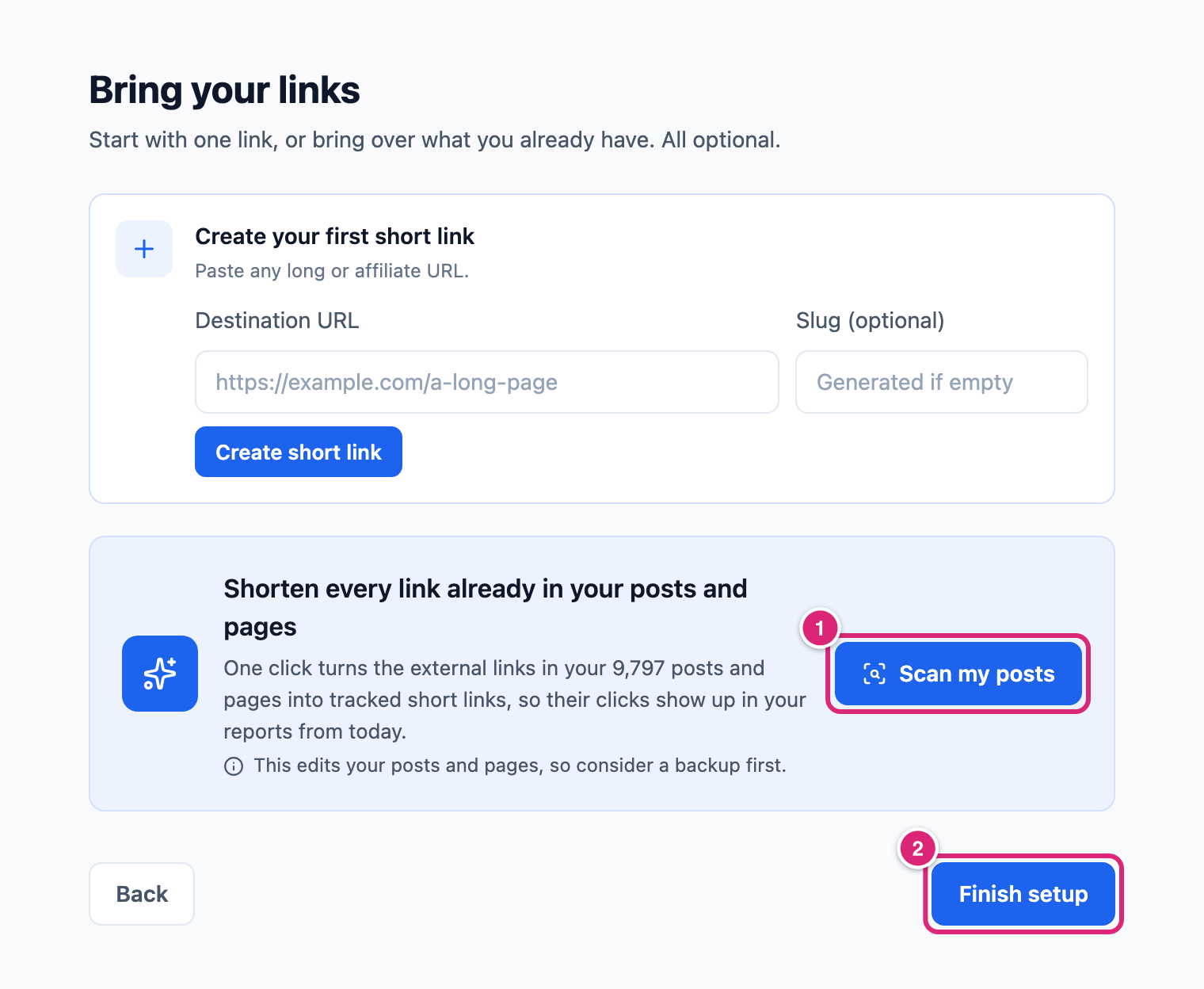
Create your first short link: enter a Destination URL, a full address that starts with https:// or http://. Add a Slug (optional) if you like: up to 64 characters, no spaces. Leave it empty and one is generated. Select Create short link, then Copy link and open the link in a private window to test it. Create your first short link covers testing it and every other option.
The import row, titled Import from and the plugin names, shows only when Link Manager Pro finds data from Pretty Links, ThirstyAffiliates or BetterLinks that you haven't imported, started importing or dismissed. It says how many short links it found, added up across the plugins. Its Import button opens Link Manager › Settings › Migration in a new tab, so setup stays open in this one. Migrate to Link Manager Pro walks you through the import.
Shorten every link already in your posts and pages: the text says how many posts and pages the scan checks.
WARNING
Scan my posts leads to a scan that edits your posts: it replaces external link URLs in their content with short links. Back up first under Link Manager › Settings › Backup & restore, and read Shorten every link in your posts before you start, including how to undo it.
Scan my posts 1 opens the Scan posts dialog, the same one Scan my site opens on the Dashboard. Nothing changes until you select Scan posts in that dialog, and Cancel closes it. The scan covers published, scheduled and private posts and pages. Drafts and pending ones are left alone. Once a scan finishes, setup counts as finished: select Done in the dialog, then Finish setup, to see the summary.
When you're done, select Finish setup 2. If you typed a destination but didn't select Create short link, Finish setup creates that link first. If the destination isn't a full URL, setup stays on the step and says what to fix.
You’re all set
The last screen sums up what you chose: Short links (your address with the prefix), Affiliate links (only when you set an affiliate prefix), Redirect type, Click tracking and Keep click data for. If you made a link in step 3, it shows as Your first short link, with Copy link.
Three next steps follow, each with Open: Add an affiliate, Set up auto-linking and Check link health. Go to dashboard takes you to the Dashboard. Setup is finished at this point, and the rail shows Setup complete.
What a new site starts with
A site that never had Link Manager Pro gets these values. Setup shows the first ten, so you see them before anything is saved.
| Setting | New site | Change it later in |
|---|---|---|
| Short link prefix | link | General |
| Default redirect type | 301 | Redirection |
| Mask links when saving posts | On | General |
| Mask internal links | Off | General |
| Internal link prefix | go | General |
| Affiliate link prefix | Empty | General |
| Click tracking | On | Tracking |
| Anonymize IP addresses | On | Tracking |
| Ignore bots | On | Tracking |
| Keep click data for | Keep everything | Tracking, any number of days up to 3650 |
| Scheduled health scans | Weekly | Link Intelligence |
| Add them to redirects within this site | Off | Redirection |
Three of these differ from the plugin's usual defaults: Anonymize IP addresses, Scheduled health scans and Add them to redirects within this site. Each is set only if its settings tab was never saved. A site that had Link Manager Pro before keeps its earlier values: Anonymize IP addresses off unless someone turned it on, Scheduled health scans Never unless changed, and Add them to redirects within this site on. A site whose data was deleted along with the plugin counts as new again (Install and activate).
Get more out of it
- Settle the prefixes now. Every short link you share carries one. A later change keeps old addresses opening their links, but a page or redirect at an old address always wins, and Update links in posts can move the links in your posts (the warning in step 1).
- Set a retention period if you don't need old IPs. 1 year keeps a full year of reports and drops older click records with their IP addresses. Keep everything keeps them for as long as the site runs.
- Download the GeoIP database during setup if your site runs PHP 8.1 or later. Country reports and Country conditions in routing rules then get a country, and here it's one button. Behind Cloudflare, countries come from its header without the database. Behind another CDN, skipping it leaves clicks without a country until you trust the CDN's header (System requirements).
- Type your first link, then select Finish setup. You don't have to select Create short link first: Finish setup creates the link and shows it on the last screen, ready to copy.
If something goes wrong
- If setup didn't open after activation, then go to Link Manager › Settings › General and select Run setup again. Setup opens by itself only on an admin page loaded within 60 seconds of activating, and never after a bulk activation.
- If a step shows Couldn’t save these settings, then your choices are still on screen. Check your connection and select Continue again.
- If Continue doesn't move on, then look under the prefix fields. A prefix with capitals, spaces or symbols shows what it would become. Change it to that, or to another lowercase word. A prefix that matches another one, or a WordPress path like
page, shows a message after you select Continue. - If an editor can't find setup, then that's expected: setup is for administrators only, and editors land on the Dashboard instead.
- If the import row is missing, then no other plugin's data was found, or an import from it was already finished, started or dismissed. Open Link Manager › Settings › Migration to import from there.
More fixes are on Troubleshooting.