
Appearance
The Short Links list
Find any short link by tab, search or filter, then copy, share, edit or delete it from one list.
The Short Links list is where you manage short links in WordPress: every short link on your site, ten to a page, newest first. You find a link with the tabs, the search box and the Category and Tag filters. Each row has buttons to copy the link, show its QR code, edit it or delete it. Select a row to open the link's report.
Before you start
- You need access to Link Manager Pro. Administrators always have it. Editors have it only when an administrator allows it (Access for editors).
- To add a link, select New short link at the top of the list. The form is explained in Create and edit a short link.
How do I find a short link?
The fastest way to find a link is to type part of its slug, its destination or one of its keywords into the search box. Tabs and filters narrow the list further, and they all work together.
Link Manager › Short Links- Select a tab 1: All, Internal or External.
- Enter a word in Search short links… 2. The list updates as you type.
- To narrow by category or tag, select the filter icon at the right end of the search box. Choose a Category, a Tag or both. The list updates as you choose; Done closes the panel.
- Select the link's slug, or anywhere else on its row, to open its link report.
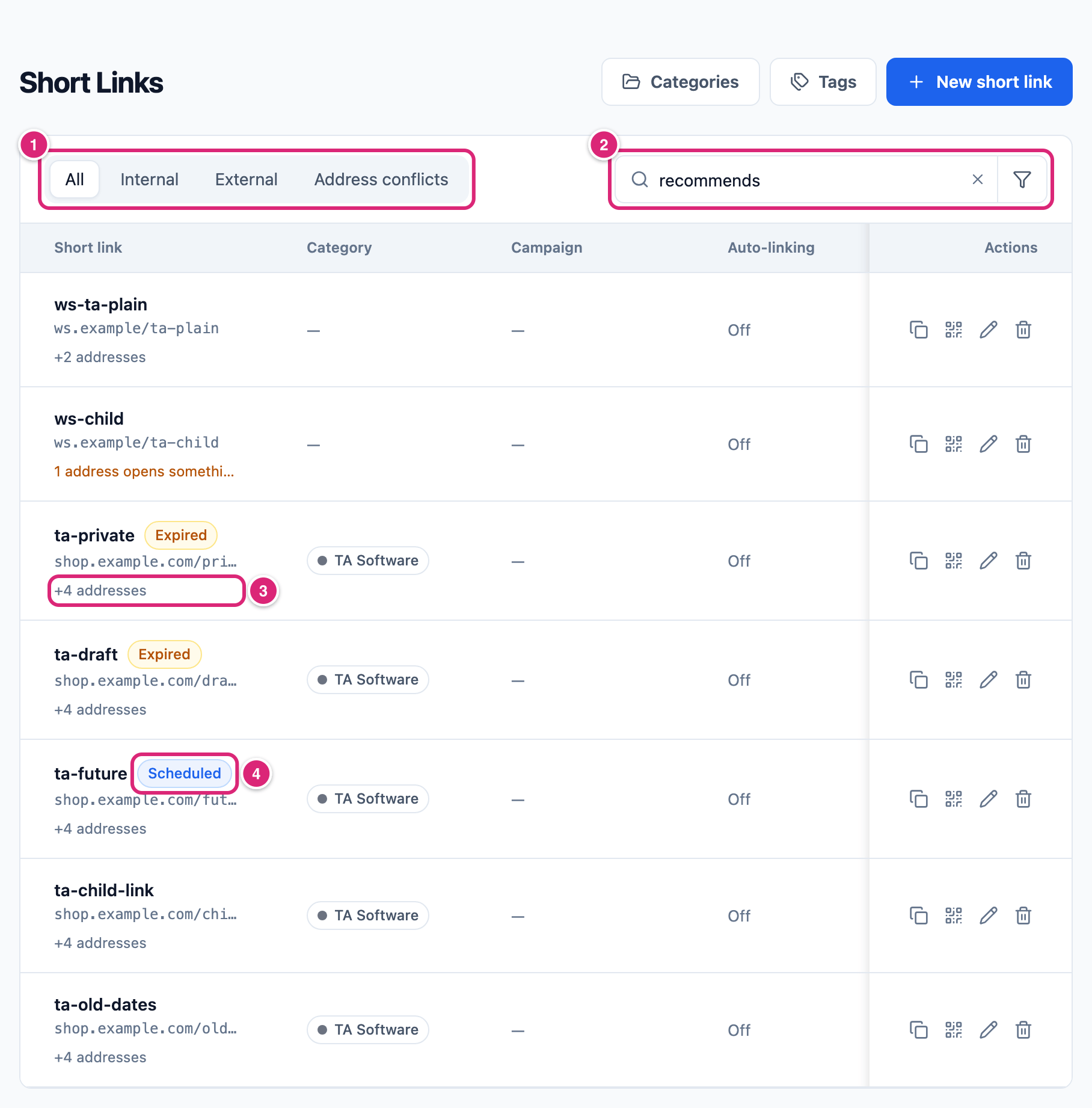
Every change of tab, search or filter takes the list back to page 1. The line under the table, like "Showing 10 of 43 short links", counts the links that match.
The tabs
The tabs split your links by where they send visitors.
| Tab | Shows |
|---|---|
| All | Every short link |
| Internal | Links whose destination is on your own site's domain. www. doesn't matter, but a subdomain like shop.yoursite.com counts as External |
| External | Links whose destination is on any other domain |
| Address conflicts | Links with at least one other address that opens something else. The tab shows only while there's at least one (it stays while you're on it) |
Search short links
Search short links… matches any part of a link's slug, its Destination URL or its auto-linking keywords. It also looks in the path of the link's other addresses. So recommends finds every link that kept an old /recommends/... address after a migration.
- Searching
dealfinds the slugsummer-deal, the destinationhttps://example.com/deals/and the keywordvpn deal. - The search doesn't look in category, tag or campaign names. Use the filters or the Campaign column for those.
- For other addresses, only the path is searched (Other addresses and conflicts).
When nothing matches, the list says so and offers Clear search, with the hint "Try part of the slug or the destination."
Filter short links by category or tag
The filter icon in the search box opens Filters, with a Category list and a Tag list. Each entry shows how many short links use it.
- While a filter is on, the filter icon shows a number, so you can tell the list is narrowed.
- Clear filters in the same panel removes both filters and keeps your search.
- You pick one category and one tag at a time. With both chosen, a link must have both.
What each column shows
Each row is one short link. The columns, from left to right:
| Column | What it shows |
|---|---|
| Short link | The slug, the destination without https://, and the badges and other addresses described below |
| Category | The first category, with its color, and "+1" or more when the link has other categories. Point at it to see all their names |
| Campaign | The link's utm_campaign value, if it has one. Select it to open that campaign's report (Campaigns) |
| Auto-linking | Off, or "On · 3 keywords" with the number of keywords. "On · no keywords" means auto-linking is on but has nothing to link yet (Auto-linking keywords) |
| All-time clicks | The link's lifetime click counter |
| Created | The date the link was added. Links imported from Pretty Links, ThirstyAffiliates or BetterLinks keep the date from the old plugin |
| Actions | Copy, QR code, edit and delete (next section) |
Under the slug you may see:
- "+4 addresses" 3: the link has 4 other addresses. That's a count, not a promise that each one opens the link: for example, an address of an expired link, or one the old plugin still answers, counts too. The link's report shows what each one opens today. When some of them open something else, the line reads "1 address opens something else" instead, in orange.
- Scheduled 4: the link's Starts time is still ahead, so it sends nobody anywhere yet.
- Expired: its Expires time has passed, so it doesn't send visitors any more.
Both badges follow your site's time zone. While a link is scheduled or expired, a visit to it gets whatever WordPress shows at that address, usually its 404 page. When auto-linking is on for the link, its keywords don't turn into links in your posts while it's scheduled or expired.
All-time clicks keeps counting while Click tracking is off. So it can be higher than the Clicks in reports, which count only recorded clicks. Keep click data for also removes old recorded clicks without lowering the counter (How clicks are counted). Tags have no column: use the Tag filter to see which links have a tag.
Copy, share or edit a short link
The four icons at the end of each row act on that link. Point at an icon to see its name.
| Icon | What it does |
|---|---|
| Copy link | Copies the full short address, like https://yoursite.com/link/deal, and shows Link copied. If your browser blocks copying, a message asks you to copy it by hand |
| QR code | Opens a QR code of the same address. Download QR saves it as a PNG named short-link-deal.png. Close shuts the dialog |
| Edit | Opens Edit short link with every setting of the link. Save changes saves and keeps you on the list. Cancel closes it without saving, and asks first if you changed something |
| Delete | Asks first, then deletes the link (next section) |
The address uses your Short link prefix (link unless you changed it). A link to one of your affiliates' domains uses your Affiliate link prefix when you set one, and a link to your own site uses the Internal link prefix while Mask internal links is on (General settings). How to share a link with UTM tags is in Share a link or QR code.
Delete a short link
Deleting a short link removes the link with its clicks, routing rules and other addresses, and the confirmation tells you what goes. Nothing is moved to a trash.
WARNING
Deleting can't be undone. These go with the link:
- every recorded click, so its report is gone and its clicks leave the Dashboard totals.
- its routing rules.
- its other addresses, so old addresses that opened it stop working.
- the other details stored with it, such as the note of which imported link it came from.
- Link Health's note of which short link fixes a broken link to another site, when Fix with a redirect made this link. That note never redirects anyone; Link Health just stops showing the fix.
Posts that use the link keep its address, but it no longer redirects anyone. To keep the history, back up first with Short links, Routing rules, Clicks, Categories and Tags ticked. To keep the report instead, give the link an Expires date (see Get more out of it for what that still does).
- In the link's row, select Delete (the trash can icon).
- Read the confirmation. It names the link and says it stops working everywhere it's shared or used in your posts. When the link has clicks, routing rules or other addresses, it lists them, for example: "Also deleted: its click history and 2 routing rules. Its 4 other addresses stop working too."
- Select Delete to go ahead, or Cancel to keep the link.
The link's categories and tags stay; only this link leaves them. Link Health and Link Audit results stay too. Saving a post that still links to the deleted link doesn't bring the link back. The slug is free again, so you can create a new link with the same slug. That makes the address work again, but the clicks and other addresses don't come back.
Categories and tags
The Categories and Tags buttons at the top of the list open a side panel where you manage them without leaving the list.
- Categories: add one with New, give it a name and a color, rename it or delete it. Deleting a category takes it off its links; the links keep working.
- Tags: add, rename or delete tags the same way.
The filters and rows update after a change. How to plan and use them is in Categories and tags.
Details
| Item | Detail |
|---|---|
| Order | Newest first, by when the link was added to Link Manager Pro. Imported links keep their old Created date, so dates don't always run in order. Columns can't be sorted |
| Page size | 10 links per page |
| Search fields | Slug, Destination URL and auto-linking keywords (any part), plus the path of other addresses. The address part looks at up to 200 matching addresses |
| Search timing | Runs 0.3 seconds after you stop typing, or at once when you press Enter |
| Internal or External | Compares the destination's domain with your site's, ignoring www. and any port |
| Not listed | Your Redirects. They aren't short links and are managed only under Link Manager › Link Intelligence › Redirects |
| Bulk actions | None. There are no checkboxes, and every action works on one link |
| Who can use it | Anyone with access to Link Manager Pro (Access for editors) |
To turn many links in your posts into short links at once, see Shorten every link in your posts.
Get more out of it
A few habits make a long list quick to work with.
- Find a link by its old address. After a migration, search for part of the old path, like
recommends. The list shows every link that kept such an address, even when its slug is different. - Give links a category as you create them. The Category filter then shows how many links each one has. Pick a color per category, for example one per partner, so you can tell categories apart at a glance.
- Expire a link when you want to keep its report. Set Expires on a link you no longer want visitors to reach. It gets the Expired badge and sends nobody, while its report and clicks stay. Posts that link to it then show your 404 page until you change them, and its keywords keep linking to it: turn Replace keywords automatically off on the link too. To bring it back, clear the date and turn Replace keywords automatically on again if you turned it off.
- Check the Address conflicts tab after an import. When the tab appears, some old addresses open something else. Fix them from each link's report (Fix a short link address conflict).
- Use the Internal tab for links to your own pages. It lists the short links that point to your site, for example the ones you share in a newsletter to send readers to a post.
If something goes wrong
- If a search finds nothing, then try a shorter part of the slug or the destination. The search doesn't look in category or tag names, so use the filters for those.
- If the list shows fewer links than you expect, then check the tab and the filter icon. A number on the icon means a Category or Tag filter is still on: select Clear filters.
- If a link shows Scheduled or Expired and visitors get a 404 page, then the link isn't live. Select Edit and change Starts or Expires under Schedule & access.
- If Copy link says it couldn't copy, then your browser blocked the clipboard. Open the link's report: the address is under Short link in At a glance, where you can select and copy it by hand. It's shown without
https://. - If you deleted a link by mistake, then restore a backup made before you deleted it (Backup and restore). A restore replaces your current data in the items you pick, so changes made since the backup are lost there. Or create a new link with the same slug, which makes the address work again without its clicks.
More fixes are on Troubleshooting.