
Appearance
Migrate from ThirstyAffiliates
See how ThirstyAffiliates links, categories, keywords, rules and clicks map over, how your /recommends/ addresses are kept, and what each note means.
When you migrate from ThirstyAffiliates, each link the import can bring over becomes a short link. Its clicks come along with Click history. Its old /recommends/ addresses open it once ThirstyAffiliates is off, unless something else on your site uses them. Below: how each part maps over, and what the notes mean.
Looking for a ThirstyAffiliates alternative? Link Manager Pro imports your ThirstyAffiliates links, categories, keywords and clicks, and keeps your /recommends/ addresses working.
Can you replace ThirstyAffiliates and keep your /recommends/ links?
Yes, for every link the import brings over. ThirstyAffiliates answered each link at an address like yoursite.com/recommends/deal. The import makes a short link for it, for example yoursite.com/link/deal, and keeps /recommends/deal as one of its other addresses. Once ThirstyAffiliates is off, /recommends/deal opens the short link, as long as no page, redirect or other short link on your site uses that address.
The steps are the same for every plugin and are on Migrate to Link Manager Pro. Under Link Manager › Settings › Migration, choose ThirstyAffiliates in Import from. It can be active or deactivated, as long as its links and clicks are still in your database.
What you can import from ThirstyAffiliates
The ThirstyAffiliates import offers seven items. Each one shows how many it found, and an item with nothing to import shows (0) and can't be ticked. Affiliates is the exception: it shows how many destination domains it found and can be ticked while there's at least one.
| Item | What it becomes |
|---|---|
| Short links | One short link per ThirstyAffiliates link, with its old addresses kept. The count leaves out trashed links and ThirstyPay payment links, which the notes still name. Other links without a web address are counted and skipped |
| Categories | Categories with the same names, added to the imported links |
| Click history | Each recorded click, on its imported link |
| Auto-linking keywords | The link's keywords, with auto-linking switched on for that link |
| Redirect rules (geo, schedule) | Routing rules for each link's country links and its before-start and after-expiry addresses |
| Settings | The default redirect type. Never ticked to start with: tick it when it shows a number above 0. WP-CLI needs --items=...,settings |
| Affiliates | An affiliate for each destination domain you tick |
On the affiliates step, every domain is ticked, and Why it’s ticked reads "ThirstyAffiliates link". Untick any that aren't partners; their links still come in as short links.
Tick everything you want on the first run. A later import fills in categories, keywords and redirect rules for a link it brought over earlier, but only when that item was never imported for the link and the link has none. It never brings back what you removed. Links that were already in Link Manager Pro before the import are never changed. A later import also adds new clicks (and affiliates, if you tick Affiliates).
Note
Auto-linking keywords switches auto-linking on for the links that have keywords. Link keywords in posts automatically is on by default. The imported keywords wait: they start linking once ThirstyAffiliates is switched off, so the same words aren't linked twice. To hold them back after that, turn that setting off under Link Manager › Settings › Auto-linking before you import. It pauses all auto-linking on your site, not only the imported keywords. Unticking the item instead leaves those keywords out of the run.
How your /recommends/ addresses come over
The import keeps these ThirstyAffiliates addresses as other addresses of the short link, marked From ThirstyAffiliates:
- The plain address:
/recommends/<slug>. - One category address, when the link has a category:
/recommends/<category>/<slug>. It uses the category ThirstyAffiliates put in the link's URL, or else the first one by name. - For a link nested under another link, the parent's slug comes first:
/recommends/<parent>/<slug>. - Both forms again under each earlier prefix ThirstyAffiliates remembers, for example
/go/<slug>if you once usedgo.
ThirstyAffiliates answers these addresses while it's active, Link Manager Pro once it's off. A note names any address that wasn't kept. An old address that is also the link's own address under your Short link prefix or Internal link prefix shows Same as its short address: it already works.
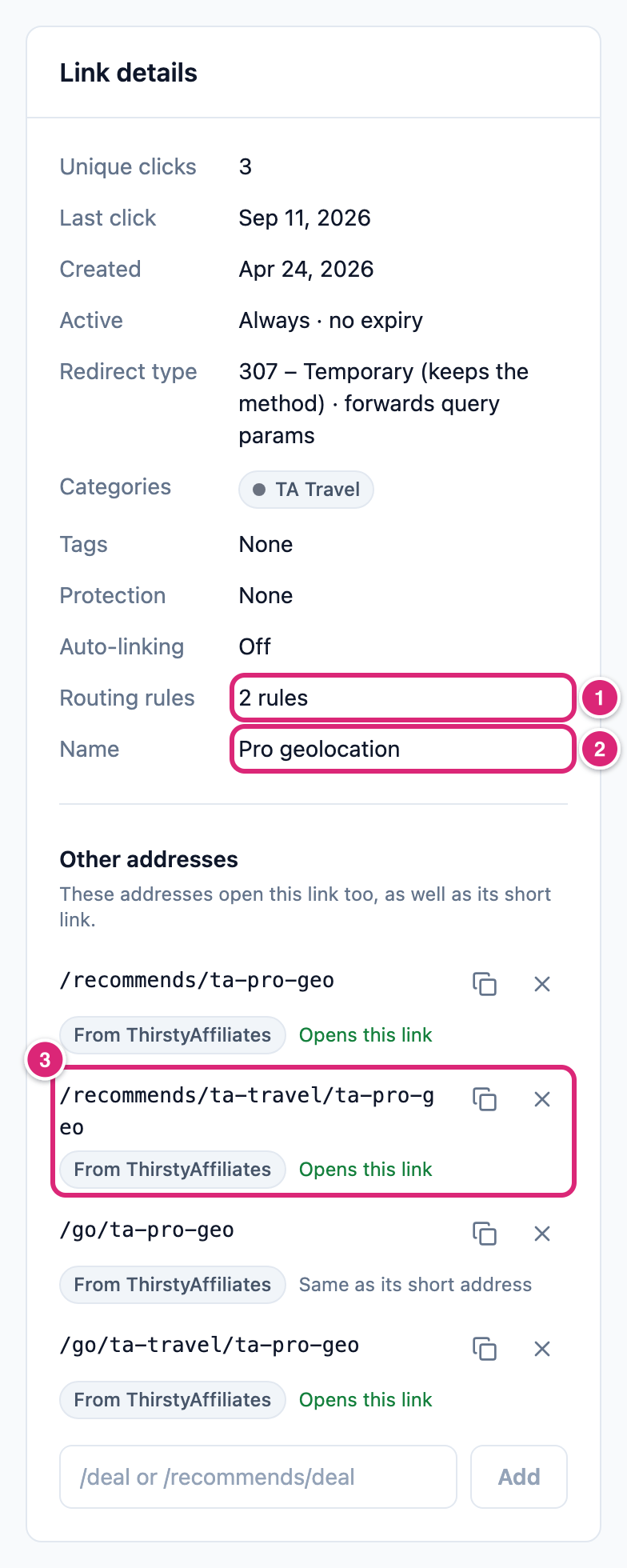
To check one link, open its report from Link Manager › Short Links. Link details shows its categories, routing rules and Name, and Other addresses shows what each old address opens today.
Use your ThirstyAffiliates prefix for affiliate links
When an import from ThirstyAffiliates finishes and your Affiliate link prefix is empty, Link Manager Pro offers the prefix ThirstyAffiliates used, recommends by default. It offers it only when the prefix passes the same rules as any prefix on the General tab. Nothing is saved until you choose it. With the prefix set, short links to your affiliates' domains get addresses like yoursite.com/recommends/amazon-deal (General settings).
On the Migration screen, a note under the result reads "ThirstyAffiliates used /recommends/ for its links."
- Select Use /recommends/ for affiliate links. It saves the prefix and shows "Settings saved."
- The note changes to "Affiliate links now use /recommends/. Links already in your posts can move to it."
- To move the links already in your posts, select Update links in posts and follow the dialog. Back up first, because it edits posts.
If the save fails, the note shows the reason, for example that the prefix breaks a rule. With WP-CLI, import prints two lines before "Migration completed successfully." and sets nothing:
text
Use /recommends/ for affiliate links: set it as "Affiliate link prefix" in Settings > General.
Then move the affiliate links in posts with: wp link-manager-pro replace-prefix-links --affiliate --dry-run
Set the prefix under Link Manager › Settings › General, then run the second command. It is explained in WP-CLI commands.
How a ThirstyAffiliates link maps over
Each link keeps its slug, destination, created date and options. Where a link used a global setting, the import uses that setting's value, so the link behaves as before.
| In ThirstyAffiliates | In Link Manager Pro |
|---|---|
| Slug | The same slug. One a short link can't carry (for example over 64 characters) or one already used by another short link gets a new one, and the old addresses still work |
| Title | Name in the link report |
| Destination URL | Destination URL. A destination with no scheme gets http://, and one that starts with / gets your site's address |
| Redirect type 301, 302 or 307 | The same Redirect type. "Global" uses the ThirstyAffiliates default, which is 302 unless you changed it. Any other type becomes 302, with a note |
| No follow (yes, no, global or by category) | The link's nofollow tick, worked out the same way |
| Rel tags (the link's own, else the global ones) | The sponsored, nofollow, noopener and noreferrer ticks. ugc is stored on the link too, but has no tick in the edit dialog. Other values are kept with the link, with a note |
| Pass query string | Forward query parameters |
| Scheduled for later | Starts on its publish date |
| Draft, pending or private | Switched off: it expires at the moment of the import, with a note |
| Start date and expiry date | Starts and Expires, unless a redirect rule takes their place (see below) |
| Created date | The same Created date, shown in Link details |
Imported links start with auto-linking off, unless you import their keywords. Those keywords still wait for ThirstyAffiliates to be switched off.
How categories and keywords come over
Categories become Link Manager Pro categories with the same names, on the links that had them. Link Manager Pro categories aren't nested, so a subcategory becomes a category of its own, with a note. When a subcategory's name is used more than once, it becomes "Parent › Child", so the two stay apart. A category that already exists with the same name is reused.
Auto-linking keywords from the ThirstyAffiliates autolinker become the link's Keywords, added to any it has, with Priority 10.
- A keyword that doesn't fit the limits (120 characters each, 50 per link) is left out. A note lists those links.
- The autolinker's per-link options (link limit, inside headings, random placement) are kept but not used. A note lists the links whose options differ from the ThirstyAffiliates global setting. Your settings under Link Manager › Settings › Auto-linking apply instead, such as Max links per keyword (default 1) and Skip headings (default on).
How redirect rules come over
Redirect rules (geo, schedule) turns the extra destinations of ThirstyAffiliates Pro into routing rules on the link. Each rule uses the link's redirect type and starts switched on.
| In ThirstyAffiliates | Routing rule | It sends visitors to |
|---|---|---|
| Geolocation link for some countries | "Geo: US, CA", rule Country is US, CA | That country link |
| Start date with a "before start" address | "Before the start date", rule Before the start date | The before-start address |
| Expiry date with an "after expiry" address | "After the expiry date", rule After the expiry date | The after-expiry address |
Date rules are checked before country rules, and the first match wins. Date rules have priority 10 and 11, and country rules start at 20, up to 100. A Country rule matches only when your site knows the visitor's country. Otherwise the visitor gets the link's own destination.
A date that becomes a rule isn't also set on the link. This applies when the address is a web address (http or https) and Redirect rules (geo, schedule) is ticked. A link with an after-expiry address has no Expires date, and Active in Link details shows no expiry. From the expiry date on, its rule sends visitors to that address. A start date with a before-start address works the same way for Starts. A date without such an address, or with one that isn't a web address, stays as Starts or Expires, and a note says the address was not imported.
If you untick the item, every date becomes Starts or Expires. A note names the links whose before-start or after-expiry address was left out. Another note names links with country links that were kept without rules. Country links are kept with the link but not used.
When a ThirstyAffiliates slug is already taken
One of your short links counts as the same link only when it has the imported link's slug and destination. Your choice under If a slug already exists decides what happens to it.
- Keep existing short links (an imported link with the same slug gets a new one): your link gets the old addresses and the clicks. Nothing else changes.
- Update a short link with the same slug and destination with the imported settings (its clicks are kept): your link takes the imported settings. It keeps its slug, clicks and created date.
WARNING
With the Update choice, your matching link's Name becomes the ThirstyAffiliates title, if it has one. When you import Categories and the link has some, they replace yours. Its redirect type, link attributes, forwarding and dates are overwritten. With Redirect rules (geo, schedule) ticked, it also gets the imported rules. Its auto-linking and Priority stay as they were. Back up first.
A short link with the same slug but another destination is never changed. The ThirstyAffiliates link comes in under a new slug, with a note.
How clicks come over from ThirstyAffiliates
Click history brings each ThirstyAffiliates click onto its imported link, with its date, referrer, IP address and, when recorded, country.
- UTM parameters in the clicked address show under Campaign traffic in the link report.
- ThirstyAffiliates keeps no full browser details, so device and browser show as Other. Its own device text is kept with the click, but no screen shows it.
- A click counts toward Unique clicks when it's the first from its IP address on that link. A click without an IP address always counts as unique.
- IP addresses are stored as your Anonymize IP addresses setting says at import time. A new install turns it on, unless Tracking settings were saved before.
- Clicks of links that weren't imported, like trashed ones, are skipped. A note gives the count.
- Click details from ThirstyAffiliates add-ons are kept with each click, and a note names them.
A second import adds only newer clicks, so none is counted twice.
What doesn't come over, and what the notes say
The result groups the notes by data type. Most give a count and name up to 10 links, then "…".
| Case | What the import does | What the note says, in short |
|---|---|---|
| Link in the ThirstyAffiliates trash | Not imported | ThirstyAffiliates links were in the trash |
| ThirstyPay payment link | Not imported | ThirstyPay payment links need ThirstyAffiliates to take payments |
| Destination isn't a web address, or is empty | Not imported | links without a web address (http or https) to go to |
| Draft, pending or private link | Imported switched off (expired) | Clear the expiry date to use them |
| Slug that's too long or taken | New slug, old addresses kept | Their old ThirstyAffiliates addresses keep working |
| Redirect type other than 301, 302 or 307 | Imported with 302 | they redirect with 302 |
| Before-start or after-expiry address, rules item unticked | Dates kept, address left out | import "Redirect rules" for that |
| Before-start or after-expiry address that isn't a web address | Date kept, address not imported | the address is not a web address (http or https), so it was not imported |
| Geolocation links, rules item unticked | Kept with the link | import "Redirect rules" to keep them |
| The link's own auto-link options | Kept with the link, not used | Link Manager Pro uses its Auto-link settings instead |
| Opens in a new window | Kept with the link, used only when you replace shortcodes | Link Manager Pro has no per-link setting for that |
| CSS classes | Kept with the link, used only when you replace shortcodes | They are kept with the link and added when you replace its shortcodes in posts |
| Uncloaked link | Imported as a short link, setting kept and used when you replace shortcodes | It is imported as a short link |
| Rel values other than nofollow, sponsored, ugc, noopener and noreferrer | Kept with the link, used only when you replace shortcodes | They are kept with the link |
| Attached images | Left in your media library | The images stay in the media library |
| Settings from ThirstyAffiliates add-ons | Kept with the link | They are kept with the link, then the setting names |
| Nested category | Imported as a category of its own | Link Manager Pro categories are not nested |
| Old address WordPress uses, or past the most other addresses a link can have | Link imported, address not kept | was not kept |
Another note counts the old addresses kept. Data "kept with the link" stays stored on it, but no screen shows it.
Replace [thirstylink] and <ta> shortcodes
Link Manager Pro doesn't run the [thirstylink] shortcode or the block editor's <ta> tag, so replace them while ThirstyAffiliates is still on. Old shortcodes in your content on the Migration screen counts them. Review and replace lists each post with one example before anything is saved. WordPress keeps a revision of each post only while revisions are on, and a revision limit can remove it (a limit of 1 at once), so back up first. Each one with an imported link becomes a normal link to its short link, with the same text. An uncloaked link goes straight to its destination. The steps are on Replace old shortcodes.
Plain /recommends/ addresses in your posts need no change, unless a note says an address wasn't kept.
Import ThirstyAffiliates with WP-CLI
The WP-CLI source name for ThirstyAffiliates is thirstyaff. This imports every item with data, and every new destination domain as an affiliate:
bash
wp link-manager-pro import --source=thirstyaffFor ThirstyAffiliates, --items takes links, categories, clicks, keywords, rules, settings and affiliates. categories, keywords, rules and clicks can come in a later run than links. A later run adds a category, keywords or rules only to an imported link that never got them and has none. Every other option and its default is on Migrate to Link Manager Pro.
The default leaves out settings. Name it to import it:
bash
wp link-manager-pro import --source=thirstyaff --items=settingsIt writes the ThirstyAffiliates default redirect type (301, 302 or 307) over your Default redirect type (default 301, under Link Manager › Settings › Redirection). No other setting changes: the other ThirstyAffiliates defaults, like no follow, are already applied to each link.
Get more out of it
A few habits help after a ThirstyAffiliates import.
- Tune imported keyword links. Each gets Priority 10, and a lower number wins when keywords clash; affiliates always win. Lower it in the link's edit dialog for the links that matter most.
- Keep a keyword to the right posts. In the link's edit dialog, Auto-link only on limits its keywords to posts in the categories or tags you pick.
- Check your country rules. The At a glance card of the link report lists each rule, like "When country is US, CA". Country rules need the visitor's country: Send visitors by country or device shows how to set that up.
If something goes wrong
- If Settings shows (0), then ThirstyAffiliates' settings wouldn't change yours, so there is nothing to import.
- If keywords or rules are missing after a second import, then the link may already have its own, you may have removed them, or the link was already in Link Manager Pro, which an import never changes. A later run fills in only a link that never got the item and has none. Add them in the link's edit dialog, or restore your backup and import again with every item ticked. Read the warning below first.
WARNING
A restore replaces your current data with the backup's. The Restore dialog ticks every item except Posts and pages, so untick what you want to keep. Anything you changed after the backup is lost, and the way back is another backup taken first.
- If posts show new keyword links, then ThirstyAffiliates is switched off and the imported keywords now link. While it's active they don't. To stop them, turn off Link keywords in posts automatically (see the Note).
- If an old
/recommends/address opens a page instead of its short link, then a page on your site uses that path, and wins. See Other addresses and conflicts. - If posts show
[thirstylink]as text, then replace the shortcodes with Replace old shortcodes.
More fixes are on Troubleshooting.