
Appearance
Send visitors by country or device
Add routing rules so visitors from a country you name, or on an operating system you pick, go to their own destination.
To make geo redirect links in WordPress with Link Manager Pro, add routing rules to a short link. A visitor from a country you name, or on a system you pick, goes to that rule's own destination. Everyone else goes to the link's usual Destination URL.
This tutorial sets up two common cases: one store per country, and one app store per phone system. Routing rules explains every condition, the order rules are checked in and what else applies to a matched visit.
Before you start
- You need access to Link Manager Pro. Administrators always have it, and editors only when an administrator allows it (Access for editors).
- For country rules, Link Manager Pro needs a way to find the visitor's country. An administrator sets this up, because only administrators can open Settings. Under Link Manager › Settings › Tracking, select Download database in the GeoIP database row (free, about 7.5 MB, PHP 8.1 or later). The status then reads Installed (GeoIP database).
- Download the country database under Link Manager › Settings › Tracking with Download database. Your site needs PHP 8.1 or later.
- Is your site behind a CDN or proxy, like Cloudflare? Then the database alone isn't enough. Unless your server already passes on the visitor's address, Link Manager Pro may see only the CDN's address. Then many visitors can get the CDN's country. To fix that, go to Link Manager › Settings › Advanced. Turn on Trust proxy headers, or list the CDN's addresses under Trusted proxy IPs or CIDR ranges. Its
CF-IPCountryorX-Country-Codeheader then gives the country. Without a header, the database looks up the visitor's own address. - With neither a database nor a trusted header, a Country condition is never met (where the country comes from).
- Device and app store rules need nothing extra. They read the name the visitor's browser sends.
- Have every address ready in full, starting with
https://: your main destination and each store's.
Redirect a link by country to a local store
This is how you set up geo-targeted affiliate links: one rule per country, each with that store's own affiliate tag in its Destination URL (Get more out of it).
You keep your main store as the link's Destination URL and add one rule per regional store. Here, visitors from the UK and Ireland go to a UK store, and visitors from Canada to a Canadian one. Everyone else goes to https://example.com/shop.
Find the short link that points to your main store, and select the Edit icon (the pencil) in its row. Edit short link opens. For a new link, select New short link and enter your main store as its Destination URL first.
Turn on the switch on the Routing rules row. It's already on when the link has rules.
Select Add rule. Enter a Name you'll recognize, like
UK store(visitors never see it), and set Priority to10. Lower numbers are checked first.Leave Match when 1 on All conditions. With one condition, both choices work the same.
Enter the UK store in the rule's Destination URL 2, for example
https://example.co.uk/shop. Redirect type starts as the link's own; change it if you like.Select Add condition 3. Choose Country under Type, keep in under Operator, and enter
GB,IEunder Value.Note
A new condition starts as Clicks
>=0, which every visitor meets. Change its Type and Value before you save, or the rule sends everyone to its destination.Repeat steps 3 to 6 for Canada: Name
Canada store, Priority20, Destination URLhttps://example.ca/shop, and Country withCA.Select Save changes (or Create short link for a new link).
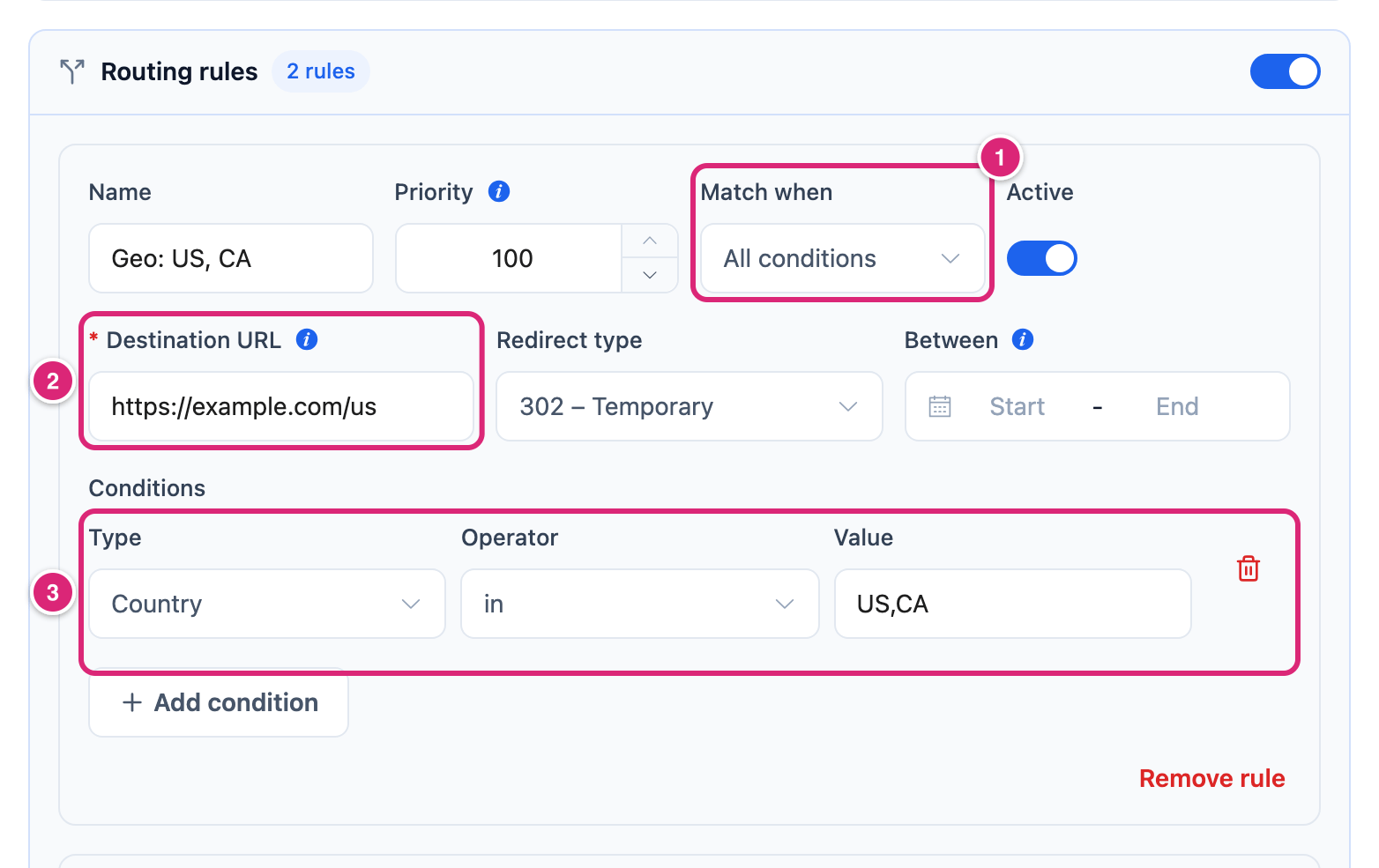
Short link updated. appears, and you stay on the Short Links list. A new link shows Short link created. and opens its report. The rules work from the next click.
Country codes are two letters, separated by commas: GB for the United Kingdom, not UK. Lowercase is fine, because codes are saved in capitals. While Link Manager Pro can't find a visitor's country, no Country condition is met. Unless another rule matches them, they get the link's own Destination URL.
Device-based redirect: send phones to their app store
Use the Operating system condition to send iPhones to the App Store and Android phones to Google Play. Your website stays the destination for everyone else. Operating system works whatever browser the phone uses: Chrome on an iPhone still counts as iOS.
- Open the link's form as in step 1 above. Its Destination URL is your app's page on your site, like
https://example.com/app. - Turn on the switch on the Routing rules row and select Add rule.
- Enter Name
iPhone, Priority10, and your app's App Store address as the Destination URL. - Select Add condition, choose Operating system under Type, and pick iOS from the Value list.
- Repeat steps 2 to 4 for Android: Name
Android, Priority20, your Google Play address, and Operating system with Android. - Select Save changes (or Create short link for a new link).
Why Operating system and not Device? Device with Mobile catches iPhones and Android phones alike, so it can't tell the two stores apart. Use Device when the destination is the same for every phone, like a mobile page.
Some devices land on your website instead of a store:
- Safari on an iPad usually reports itself as a Mac, so it counts as macOS. iPads that report themselves as iPads count as iOS.
- A phone whose browser is set to show the desktop site sends a computer's name, so it counts as a computer.
- Android tablets count as Android, so they go to Google Play too.
- Computers, and anything Link Manager Pro doesn't recognize, match neither rule.
So make the default page useful on its own, for example with a button for each store.
How do you test a routing rule?
Open the short link from a place or a device the rule should catch, and check where you land. A VPN set to another country tests a Country rule, and a real phone tests an Operating system or Device rule. Then check the click in the link's report.
- Open the link's report: select its slug in the Short Links list. Under At a glance, the Routing rules row counts the active rules. It describes the first two in the order they're checked, like "When country is GB, IE → example.co.uk/shop · 301". The number at the end is the rule's Redirect type.
- Copy the link with Copy link at the top right of the report.
- For a country rule, connect your VPN to a server in that country, like the UK. Open a private window, paste the link and press Enter. You should land on the UK store. Without the VPN, you get your own country's rule, or the default.
- For a phone rule, select the QR code icon at the top of the report and scan the code with the phone's camera. The link opens in the phone's browser. An iPhone should land on the App Store, an Android phone on Google Play.
- Reload the report. The top row of Recent clicks shows your test click with the Country and Device · browser Link Manager Pro saw. Unknown under Country means it found no country, so no Country condition could be met. The list shows the device and browser, not the operating system: an iPad that shows as Desktop · Safari reported itself as a Mac.
What to keep in mind while you test:
- No screen shows which rule a click matched. Where you land is the test.
- Each test counts like any visitor's click and raises the link's All-time clicks (Does your own test count as a click?). That matters if a rule uses a Clicks condition.
- Recent clicks shows only recorded clicks. With Click tracking off, or for clicks past the 30th in 5 minutes from one IP address, you're still sent on, but no row appears.
- A VPN works as a test because Link Manager Pro uses the country of the address it sees. Your visitors on a VPN get the VPN's country too.
- Short link visits are sent with headers that tell browsers and caches not to keep the redirect, so the rules run on every visit. A host or CDN cache that ignores them can hand everyone one stored answer (see If something goes wrong).
How do you change or remove a routing rule later?
Open the link's form under Link Manager › Short Links with the Edit icon. Change the rule's fields, or turn its Active switch off to pause it. To delete a rule, select Remove rule under it, or Remove condition for one condition. Then select Save changes.
With every rule removed or paused, visitors go to the link's Destination URL from the next click. Clicks already recorded stay as they were.
Details
The two setups use these values. The full field list, with starting values and limits, is on Routing rules.
| Condition | Operator | Value you enter or pick |
|---|---|---|
| Country | in | Two-letter country codes, separated by commas, like GB,IE |
| Operating system | in | One or more of Windows, macOS, iOS, Android, Linux, Other |
| Device | in | One or more of Desktop, Mobile, Tablet, Other |
- Rules are checked from the lowest Priority number up, and the first match wins. Its Destination URL and Redirect type are used. With no match, the visitor gets the link's own.
- With All conditions, every condition must be met; with Any condition, one is enough. A rule with no conditions sends everyone to its destination.
- A rule's Destination URL is used as you enter it. Your UTM parameters and forwarded query parameters are added to it as usual (what else applies).
- A rule saved with Priority 0 reopens as 100, and is saved as 100 the next time you change any rule. Start at 1 or higher.
- Saving a change to the rules replaces all of the link's rules with what the form shows.
- Rules route visitors whatever Click tracking says.
Get more out of it
- Put each store's own tag in its rule. Link Manager Pro uses the rule's own Destination URL, plus your UTM and forwarded parameters, and never copies the tag from the link's main destination. So a UK store's affiliate or tracking tag must be in the UK rule's address.
- Number your rules 10, 20, 30. The gaps leave room for a new rule later.
- Combine country and device. One rule with All conditions, Country in
GBand Operating system in iOS sends UK iPhone users to a UK App Store page. Give it a lower Priority than your plain UK rule, so it's checked first. - Tell your rules apart in your store's analytics. Since no report counts clicks per rule, add a marker to each rule's destination, like
?ref=uk-rule(more about this tip). - Pause a rule instead of deleting it. Turn off its Active switch and save: the rule is kept but skipped.
If something goes wrong
- If a Country rule never matches and Recent clicks shows Unknown, then Link Manager Pro has no country for your visitors. Download the country database under Link Manager › Settings › Tracking, or trust your CDN's header under Link Manager › Settings › Advanced.
- If Recent clicks shows the same country for visitors from different places, then Link Manager Pro probably sees only your CDN's or proxy's address. Go to Link Manager › Settings › Advanced. Turn on Trust proxy headers, or list the proxy's addresses under Trusted proxy IPs or CIDR ranges. To undo, turn the switch off or empty the list, and save.
- If the country shows but the rule still doesn't match, then check the code:
GB, notUK. Also check the rule's Active switch, and whether a rule with a lower Priority matches first. - If every visitor goes to a rule's destination, then that rule has no conditions, or still has the starting Clicks
>=0. Change its Type and Value, or turn its Active switch off while you fix it. - If tests from two countries land on the same page, then a host or CDN cache may be answering before WordPress runs. Leave your short link prefixes out of that cache (caching and short links).
More fixes are on Troubleshooting.