
Appearance
AI Link Assistant
List a post's plain links and turn them into short links. When an administrator turns on suggestions, get AI picks of your own short links to insert.
The AI Link Assistant gives you AI internal link suggestions in WordPress while you write. It picks your own short links that fit the post, so you can link the right words to them. It also lists a post's plain links so you can turn them into short links, without any AI. A few steps work differently in the block editor, and each section says how.
It has two parts, each with its own switch under Link Manager › Settings › AI Link Assistant:
- Suggestions: Analyze content asks an AI provider which of your short links fit the post. AI Link does the same for words you select. Off by default (Link suggestions), and the AI Link button appears only while it is on.
- Links to shorten: Scan content lists the post's links that aren't short links yet, so you can shorten them. On by default (Find untracked links). It sends nothing to an AI provider.
Before you start
You can use the AI Link Assistant if you can edit posts, and only on posts you can edit. That includes Authors and Contributors, without access to the Link Manager menu (Access for editors). Authors can create short links from it. A Contributor can only reuse a short link that already exists: Use existing short link replaces Create & insert, and with no short link for the address it stops with a message.
- Link suggestions needs an AI provider. Only an administrator can turn it on and connect one: AI Link Assistant settings.
- Find untracked links works on its own, with no provider.
- When an administrator turns both switches off, the assistant doesn't appear at all.
Where to find the AI Link Assistant in Gutenberg and the classic editor
The assistant sits next to your post in both editors. In Gutenberg, the block editor, it's a sidebar and a panel. In the classic editor, it's a box in the right-hand column.
| Block editor | Classic editor | |
|---|---|---|
| Links to shorten and Suggestions | The AI Link Assistant sidebar: open it from the editor's Options menu (⋮), or with its link icon at the top of the editor while it's pinned there. The same sections show as an AI Link Assistant panel on the Settings sidebar's Post tab (Page for pages) | The AI Link Assistant box in the right-hand column |
| AI Link for selected words | In the toolbar of a text block, such as a paragraph, under the More menu (the down arrow) | A button named AI Link in the first row of the toolbar, on the Visual tab |
The sidebar and the panel on the Settings sidebar's Post tab each keep their own results. A scan you run in one doesn't show in the other.
Get AI link suggestions for your post
Analyze content sends your post to the AI provider and lists up to eight short links to add. Each card shows the words in your post that should link to that short link.
- Open the AI Link Assistant (see where to find it).
- Under Suggestions, select Analyze content. Analyzing your content… shows while it works.
- Read the cards. Each one shows the words to link, the short link's slug and address, and its destination after
Links to:. The first card has the Best match badge. People with access to Link Manager also see the click count afterClicks:. - Select Insert link on a card you want (Insert in the classic editor), or Dismiss to hide it.
- Save or update your post as usual.
In the block editor, Insert link finds the words in paragraphs, headings, lists and other text blocks. If the words changed since the analysis or are already linked, it shows Couldn’t find that phrase in the content. and changes nothing.
In the classic editor, Insert turns the first place those words appear into a link to the short link's address, for example https://yoursite.com/link/tent-deal. The button then shows Inserted. The link has no rel and opens in the same tab. To set Nofollow or Sponsored, use AI Link instead. A suggestion's address uses the prefix its destination calls for: your Affiliate link prefix, if you set one, for an affiliate's domain (General settings).
The suggestions come only from your own short links that anyone can open. Expired, scheduled and password-protected short links are never offered, and neither is the short link behind a redirect. A short link is considered only when its slug, destination or keywords contain one of your post's most frequent words. Exactly what the provider receives is on AI Link Assistant settings.
When no short link fits, you see No internal link matches found. If you analyze the same unchanged post again within an hour, you get the earlier result, with Showing results from the last analysis.
Link selected words with AI Link
AI Link suggests short links for the words you select and links exactly those words. It also lets you set the link's attributes before you insert it. It works in the block editor's text blocks and in the classic editor.
- In your post, select the words you want to link.
- Select AI Link (in the block editor, open the More menu in the block toolbar first).
- Turn Open in new tab, Nofollow or Sponsored on or off. Nofollow starts on, the other two start off.
- Wait for the list of short links, then select Insert next to the one you want.
Your selected words become a link to that short link. Sponsored adds sponsored, Nofollow adds nofollow, and Open in new tab adds target="_blank" and noopener. In the block editor, Link inserted. confirms it. With nothing selected, you get Select some text first.
AI Link sends the whole post plus your selection, and short links that match the selected words come first. Sometimes the AI can't answer: no provider is set up, the request fails, or you're over the request limit. The box then says why and searches your short links for the selected text instead, showing up to five. If none match, it shows No matches found.
AI Link needs Link suggestions on. While that switch is off, the AI Link button doesn't appear in the block editor's format bar or the classic editor's toolbar. Use the Short link button for a plain search.
Find untracked links in a post and shorten them
Scan content lists the links in your post that aren't short links yet. Create & insert turns one into a short link and puts the short link's address in its place, so its clicks are counted. No AI is involved.
- Open the AI Link Assistant.
- Under Links to shorten, select Scan content 1.
- Check the list. Each address carries Untracked, and links to your own site also carry Internal.
Before you select Create & insert
- Create & insert saves the short link straight away, even if you never save the post.
- A Contributor sees Use existing short link instead. It reuses a short link that already exists for the address, and with none it stops with a message.
- In the block editor, embed blocks (an embedded video or social post) aren't listed, and Create & insert never changes an embed's address. A video that is both embedded and linked in a paragraph is listed for the paragraph link. In the classic editor, an embedded address on its own line is listed. Dismiss it instead, because Create & insert would point the embed to your short link.
- Select Create & insert 2 to shorten one, or Dismiss to leave it as it is. A dismissed link stays off the list for this post.
- Save or update your post as usual.
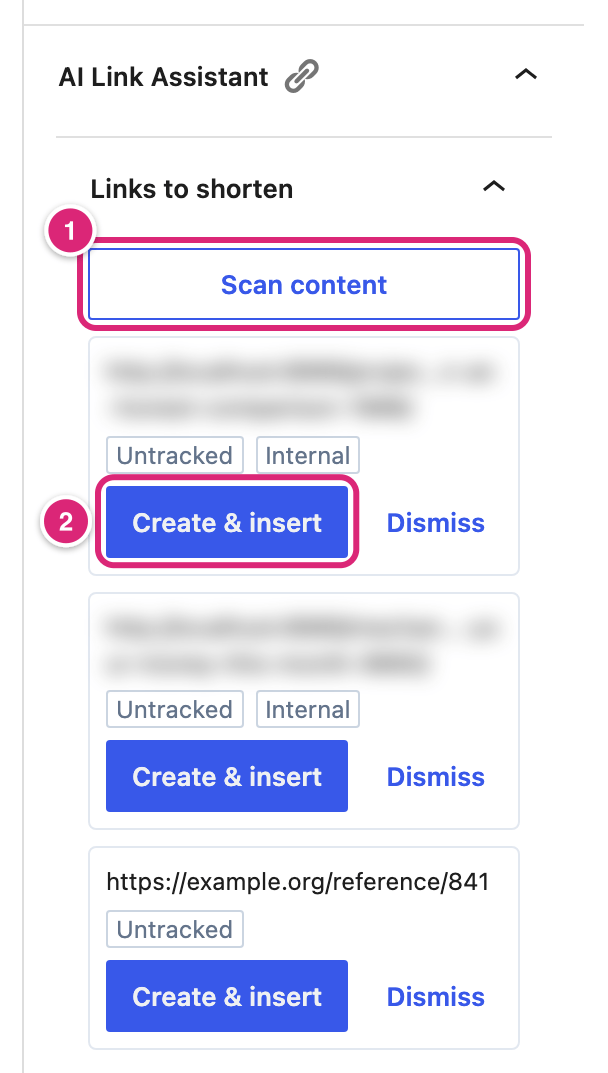
What Create & insert does:
- If you already have a short link to that address, it uses that one. That's true even when the link is expired, scheduled or password-protected. An expired or scheduled one opens your 404 page, and a password-protected one asks for its password.
- Otherwise it creates a new short link with a random slug and your Default redirect type. On an affiliate's domain, it gets the affiliate's redirect type and tag instead. Auto-linking and Forward query parameters are off.
- The address that goes into the post uses the prefix the link's destination calls for. For an affiliate's domain that's your Affiliate link prefix, when you set one (General settings).
- It replaces the address in the post's links, and where the address is written as text. That includes paragraphs, headings and lists in the block editor. A period, comma or similar mark after the address is fine when a space, quote, tag, bracket or the end of the text follows it. A longer address that starts the same way, such as
/a.htmlfor/a, is left alone. - Image, audio and video file sources keep their real address.
- Only the address changes. The link text and any
relthe link had stay as they were. An address written as plain text stays plain text, now showing the short link's address.
Short link created and inserted. confirms that the address was replaced somewhere. In the block editor, that can be a button or an image link while the same address in your text stays as it was, so check the text. Short link created, but the URL couldn’t be replaced in the content. means the short link exists but its address wasn't put into the post. That happens when the address is no longer in the post.
What the scan finds: up to 50 addresses starting with http:// or https://, from link targets and from text. It skips your short links (under your Short link prefix, Internal link prefix or Affiliate link prefix, and under a previous prefix) and links you dismissed in this post. It also skips your site's /wp-admin/, /wp-content/, /wp-includes/ and /wp-json/ addresses. When nothing is left, it shows No untracked URLs found.
Does the AI Link Assistant save your post?
No. The AI Link Assistant changes only what's in the editor, and your post changes for good when you save or update it. Two actions change your site's data at once: Create & insert saves a short link, and Dismiss under Links to shorten remembers that link for the post.
- Dismiss under Suggestions only hides the card. Nothing is saved.
- Analyze content and AI Link keep their result on your site for an hour, and add to your request count.
- Both analyses and the scan read the post as it is in the editor, unsaved changes included. You don't need to save a draft first.
How many AI analyses can you run?
Each person can run 30 analyses every 5 minutes by default. An administrator sets that number with Max AI requests and Per window (the AI request limit).
- These don't count: Scan content, and an analysis answered from the saved result of the last hour.
- These don't count either: attempts while Link suggestions is off, while no provider is set up, while you're over the limit, or when the post is empty or no short link matches.
- Every other Analyze content and AI Link counts.
- Inserting a link changes the post, so the next analysis is a new one and counts.
Over the limit, Analyze content shows Couldn’t analyze the content. Try again. AI Link shows Couldn’t get AI suggestions. Try again later. with matching short links from the search, or No matches found. Both work again once your window ends.
Messages you may see
Each message comes from one part of the assistant. The table says what it means.
| Message | Where | What it means |
|---|---|---|
| Set up an AI provider to get suggestions. with Open AI settings | Suggestions, AI Link (administrators) | No provider is connected. Open AI settings opens the AI tab |
| Ask an administrator to set up an AI provider to get suggestions. | Suggestions, AI Link (everyone else) | The same, for people who can't change Settings |
| Couldn’t analyze the content. Try again. | Suggestions | The request failed, for example because you're over the request limit |
| Couldn’t get AI suggestions. Try again later. | Suggestions, AI Link | The provider refused or gave no usable answer, With AI Link, also when you're over the limit |
| Couldn’t search short links. Try again. | AI Link | The search it runs when the AI can't answer failed |
| Add some text to analyze first. | Suggestions | The post is empty, so nothing was sent and no request was counted |
| No internal link matches found. | Suggestions | No short link fits the post |
| No matches found. | AI Link | No short link fits the selection |
| Couldn’t find that phrase in the content. | Suggestions | The words changed since the analysis, or they're already linked. The classic editor looks only at their first appearance |
| Short link created, but the URL couldn’t be replaced in the content. | Links to shorten | The short link was made, but its address wasn't put into the post |
| No untracked URLs found. | Links to shorten | The post has no links left to shorten: each one is a short link, an embed, dismissed or skipped |
Details
| Item | Value |
|---|---|
| Who can use it | Users with edit_posts, on posts they can edit (edit_post). Developers can change the capability with the link_manager_pro_picker_capability filter |
| Where it shows | The post editor of any content type: the block editor's sidebar and the panel on the Settings sidebar's Post tab, or the classic editor's box in the right-hand column |
| Defaults | Link suggestions off, Find untracked links on |
| Text analyzed | The post as it is in the editor, HTML removed, first 8,000 characters. A suggestion's words must appear in that part |
| Short links offered to the AI | Up to 50 live, public short links, ranked by clicks. Each one's slug, destination or keywords contain one of the post's 15 most frequent words, or the selection's |
| Suggestions | Up to 8, sorted by the AI's confidence. The first is Best match |
Clicks: on a card | Only for people with access to Link Manager |
| Saved results | One hour, for the same post text with the same provider, model and Max tokens per request (and the same selection, for AI Link) |
| AI Link starting ticks | Nofollow on, Open in new tab and Sponsored off. Filter: link_manager_pro_picker_toolbar_defaults |
| AI Link search fallback | Up to 5 short links whose slug, keywords or destination contain the selected text as one phrase. The destination isn't searched for password-protected links. Scheduled and password-protected links can show; expired links and affiliates don't |
| Scan | Up to 50 http and https addresses per scan. Links to your own site are marked Internal |
| Dismissed links | Kept per post, up to 200 |
| A new short link from Create & insert | Random slug of Slug length characters (8 by default), your default or the affiliate's redirect type, the affiliate's tag. No keywords, categories or tags; auto-linking off |
Text without spaces between words, such as Chinese or Japanese, isn't split into words. Each phrase between punctuation counts as one word, so these posts rarely find a match.
Get more out of it
- Use AI Link for affiliate short links. It sets Sponsored and Nofollow as it inserts, which Insert link doesn't.
- Dismiss links you want to keep, such as sources you cite as plain links. They stay off that post's list, so a later scan stays short.
- Check the short link you got. Create & insert reuses the short link you already have for an address, so its clicks stay in one report. That reused link can be expired, scheduled or password-protected. Check it under Link Manager › Short Links, or ask someone with access to Link Manager to check it.
- Give the AI better short links to choose from. It only sees short links that share a word with your post, so clear slugs like
tent-dealhelp. Keywords count too. That field shows only under Replace keywords automatically, which also links those words in your posts (Auto-linking keywords). To add keywords without that, turn it on, type the keywords, turn it off again and save: the keywords are kept. - Let saving shorten the rest. Mask links when saving posts is on by default. Saving a published, scheduled or private post or page turns each full link to another site into a short link (Short links in your posts). It works in both editors. Other content types aren't covered.
If something goes wrong
- If you don't see the AI Link Assistant, then an administrator may have turned both its switches off, or you can't edit this post. In the block editor, look in the Options menu (⋮).
- If Insert link shows Couldn’t find that phrase in the content., then select Analyze content again: the words changed or are already linked.
- If Create & insert shows Short link created, but the URL couldn’t be replaced in the content., then the short link exists but the address is no longer in the post. Select the linked words, use the Short link button and search for the destination. A reused expired or password-protected link won't show in that search: ask someone with access to Link Manager to check it.
- If you don't see AI Link, then Link suggestions is off (the default). Ask an administrator to turn it on under AI Link Assistant settings.
- If you see Couldn’t analyze the content. Try again. or Couldn’t get AI suggestions. Try again later., then wait 5 minutes (or your Per window). If it keeps happening, an administrator can select Test connection (AI Link Assistant settings).
More fixes are on Troubleshooting.