
Appearance
Shorten every link in your posts
Back up your posts, turn full links to other sites into short links with Scan posts, check the result, and know how to undo it.
To convert links to short links in WordPress posts you already have (also called masking or cloaking them), run Scan posts from the Scan my site button on the Dashboard. It checks your published, scheduled and private posts and pages. Each full link to another site becomes a short link on your own domain, like yoursite.com/link/aB3dE9xQ. It edits your posts, so back up first. One WP-CLI command puts the original addresses back.
Posts you save from now on don't need a scan: Mask links when saving posts (on by default) masks them on every save. How masking treats each kind of link is on Short links in your posts.
Before you start
- To run Scan posts, you need access to Link Manager Pro. Administrators always have it, and editors only when an administrator allows it (Access for editors). Posts your account can't edit are left as they were.
- Only administrators can make a backup or change the masking settings. If you're an editor, ask an administrator to do both first.
- Plan to keep the browser tab open while the scan runs. Your browser asks the server to scan the next 20 posts, again and again, until it's done.
Back up your posts first
A backup with Posts and pages ticked holds the content of every post and page. If the result isn't what you wanted, you can put that content back.
Link Manager › Settings › Backup & restore- On the Backup card, select Backup.
- Under What to back up, keep Posts and pages ticked.
- Select Back up now.
- Wait until the button reads Completed, keep the file that downloads, then select Close.
Before the scan changes a post, Link Manager Pro also saves a revision of it, but only where WordPress keeps revisions. The backup is the copy you can count on (Backup and restore).
Check your masking settings
The scan follows the same rules as masking on save, and every link it masks keeps what it got at that moment. So settle these before you start.
Link Manager › Settings › General- Decide on Mask internal links. Off (the default), only links to other sites change. On, full links to your own pages become short links too, under the Internal link prefix (
goby default). The scan uses this switch even while Mask links when saving posts is off. - Check the Short link prefix (
linkby default): every masked link to another site carries it, except links to an affiliate's domain while an Affiliate link prefix is set (they carry that one). Change it now if you're going to, becauseunlinkrestores only links that use your current prefixes (General settings). - Leave Mask links when saving posts on if links in posts you save later should be masked too. The scan works either way.
- If you changed anything, select Save changes.
Masking also adds rel values to each link, the part of a link's HTML that tells search engines how to treat it (what a masked link looks like). Links to other sites get nofollow noopener by default. The values come from your Redirection settings and your affiliates, and they're written into the post once, so set them up now.
Bulk shorten links in your posts with Scan posts
Scan posts goes through your posts and pages in order and replaces each full link to another site with a short link, in place. A destination that already has a short link reuses it.
WARNING
Scan posts edits your posts: it replaces link addresses in their content. Make the backup above first. There's no undo button in the dialog. The undo is a WP-CLI command or a restore of your backup (see below).
- Select Scan my site. The Scan posts dialog opens.
- Read Posts and pages to check 1. It counts the posts and pages the scan goes through, with the total next to it. Below, it splits them by status, like
120 published · 2 scheduled · 5 private. - Read This edits your posts and pages 2. If you haven't made a backup yet, select Cancel and make one.
- Select Scan posts. A bar shows how many posts and pages are done and how many links became short links so far.
- Keep the tab open until it finishes. To end it early, select Stop: posts already scanned keep their changes, and the rest stay as they were.
- Read the summary, then select View short links to open your short links, or Done.
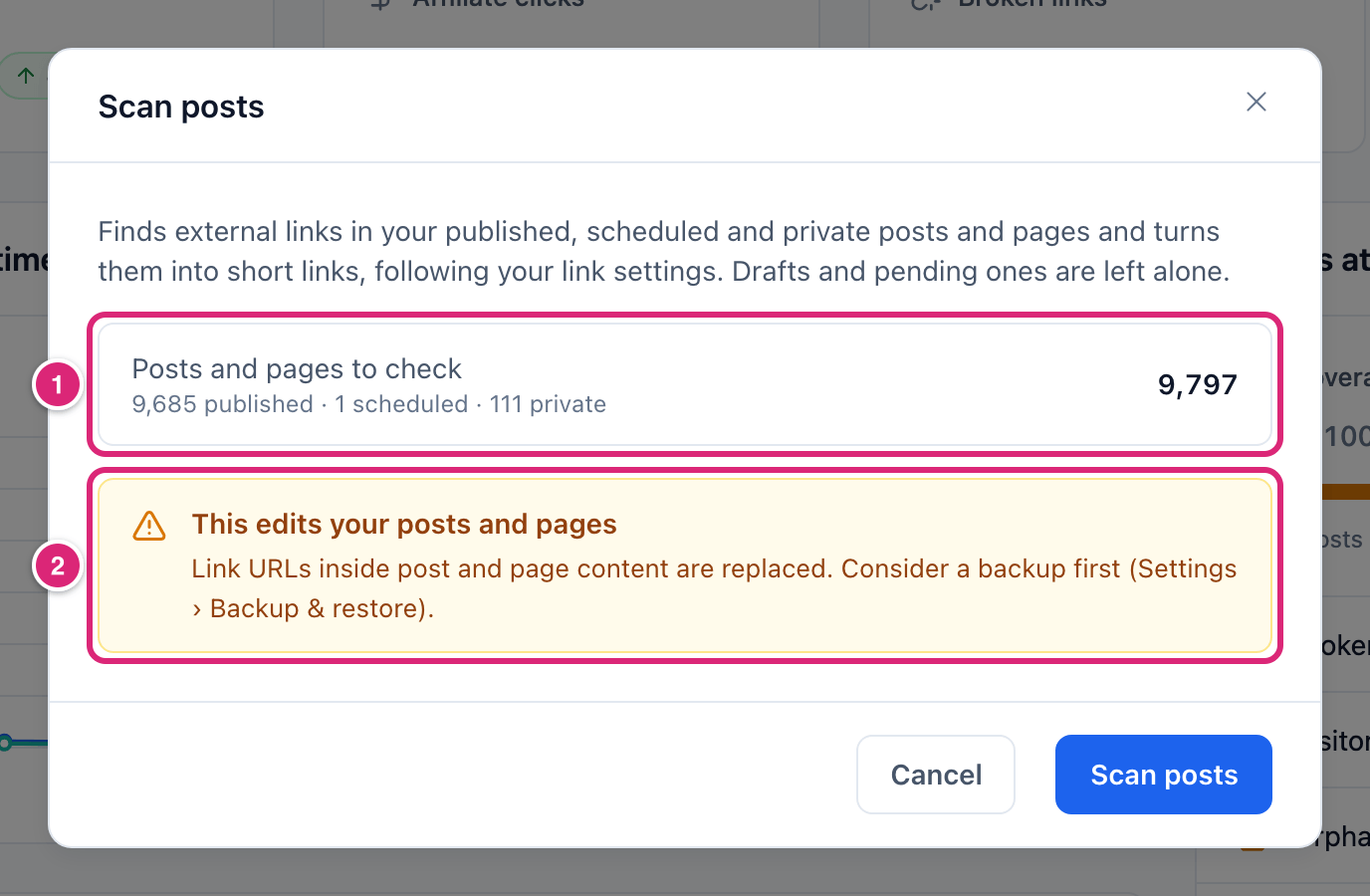
Leaving the page during a scan asks first, then stops it after the current posts. Setup offers the same dialog as Scan my posts, in its Bring your links step (Quick start: setup).
Which posts and links does the scan leave alone?
The scan changes only full links (http:// or https://) to other sites, in posts and pages that are published, scheduled or private. Links to your own pages change only while Mask internal links is on. It leaves alone:
- Drafts and pending posts.
- Other content types, like products or portfolio items from another plugin.
- Links in blocks that keep their address in the block's settings, like the File block. The summary counts them.
- Links that are already short links, relative links like
/about/, anchors, andmailto:ortel:links.
The full list, with menus, widgets and comments, is in which links masking changes.
Shorten links with WP-CLI instead
wp link-manager-pro link runs the same scan from your server's command line, so no browser tab has to stay open. It checks the same posts as Scan posts.
Run the dry run. It counts the posts it would check, by status, and doesn't change anything. It doesn't say which links would change.
bashwp link-manager-pro link --dry-runRun the real scan. Its question names how many posts it will check: compare that with the dry run before you answer
y.WARNING
linkedits your posts, like Scan posts. Back up first.bashwp link-manager-pro linkRead the
Successline, likeMasking complete. Posts updated: 30, links turned into short links: 45 (new short links: 12).AWarningafter it counts posts that were skipped or couldn't be saved (WP-CLI commands).
You don't need --user. Type options carefully: WP-CLI stops link with an error when an option is mistyped, such as --dryrun, and nothing runs. The real scan asks first unless you add --yes. Every option is on WP-CLI commands.
How do you check that your links became short links?
The scan's summary tells you how many posts it checked and how many links became short links, in how many posts. It also says how many new short links it created. That number can be lower, because a destination that already had a short link reuses it.
The summary can add notes:
- Links left as they were because their block keeps the address in its settings.
- Posts left as they were. A post is left when it changed during the scan or your account can't edit it. It's also left when WordPress would remove some of its content, or when saving it would also change its status or URL slug.
- Posts WordPress couldn't save. Run the scan again to retry them.
Then check a post. Open one on your site and hover over a link to another site: it now starts with your domain and prefix, like yoursite.com/link/. View short links opens Link Manager › Short Links, newest first, where the new links have random slugs. A short link's report shows Placed in, the number of published posts that link to it (Link report).
Can you track outbound links in your posts?
Yes, once they're short links. A visit through a short link is counted on your server, so each masked link in a post has its own clicks. Open a link's report and read Clicks and Top posts sending clicks (Track clicks on a link). Counting needs Click tracking on under Link Manager › Settings › Tracking, which is the default.
How do you undo the scan?
You undo the scan with the WP-CLI command wp link-manager-pro unlink. It puts the original address back in every post where Link Manager Pro masked links, including the posts the scan changed. The rel values masking added stay. There's no button for this in the admin.
WARNING
unlink edits your posts. Back up first, and read the post count in its question before you answer y.
- Go to Link Manager › Settings › General, turn off Mask links when saving posts, then select Save changes. While it's on, the next save of a restored post masks it again.
- Run
wp link-manager-pro unlink --dry-runand check the counts. It answers likeSuccess: Posts would change: 30. Links restored: 45, short links kept: 0, unresolved: 0. - Run
wp link-manager-pro unlink. - Turn Mask links when saving posts back on if you want posts you save later to be masked again.
What unlink doesn't put back:
- The
relvalues masking added, likenofollow noopener. Add--strip-relto remove them, but it removes the wholerelof each restored link, values you wrote yourself too. While asponsoredstays, a post still counts for the affiliate disclosure. - Short links you added yourself, for example from the editor. To remove every short link from your posts, say before you delete the plugin, run
wp link-manager-pro unlink --scope=all --restore-shortlinks --dry-run. If the counts look right, run it again without--dry-run(Uninstall and delete data). - Links that don't use your current Short link prefix, Internal link prefix or Affiliate link prefix.
The short links stay in your Short Links list, with their clicks (what unlink keeps). Like link, unlink stops with an error when an option is mistyped, and nothing runs. Read its question before you answer y. A dry run skips WordPress's save checks, so the real run can still leave some posts as they were.
Undo with your backup instead
Restoring the backup you made puts back each post's content as it was in the file. It also undoes every edit made to those posts since the backup.
WARNING
The Restore dialog ticks every item except Posts and pages to start with. Restoring with those ticks also replaces your short links, clicks, settings and the other ticked items with the backup's. Clicks recorded since the backup would be lost.
- On the Restore card, select Restore.
- Choose your backup file.
- Under What to restore, tick Posts and pages and untick every other item.
- Tick the box below the list that starts with "I understand that restoring posts".
- Select Restore, then Restore again in the confirmation.
The full steps and what each item replaces are on Backup and restore.
Details
| What | How it works |
|---|---|
| Content checked | Posts and pages. Other content types are never masked |
| Statuses checked | Published, scheduled and private. Drafts and pending posts are left alone |
| Posts and pages to check | Counts every author's posts in those statuses. The WP-CLI dry run shows the same count |
| Batches | Scan posts: 20 posts per request. link: 100 posts per batch (--per-batch). After 20 seconds, a request or batch stops starting new posts, and the next one carries on |
| Settings used | Mask internal links, both prefixes, Slug length, your Redirection rel rules and your affiliates. Mask links when saving posts doesn't need to be on |
| Running it again | Links that are already short links stay as they are, and a post with nothing to change isn't saved again |
| Undo | WP-CLI unlink (the rel values masking added stay), or a restore of Posts and pages from a backup |
Get more out of it
- Try one post before the whole site. With Mask links when saving posts on, open a post that has a few links to other sites and update it. Then view it on your site and check the links. Run Scan posts once that post looks right.
- Keep followed links to the sources you cite. There's no list of domains to skip, but a developer can skip single links with the
link_manager_pro_mask_urlfilter (Link masking). With the default Nofollow setting (All links), every masked link to another site getsnofollow. Turn Nofollow off to switch it to Selected domains only, then list your partners as bare domains likeshop.example.com(Add nofollow or sponsored). - Set up affiliates before you scan. On an affiliate's domain, a new short link gets the affiliate's tag and Redirect type. Links to your partners then come out of the scan ready (Affiliates).
- See which posts earn clicks. Each short link in a post carries the post's ID on the page. The link's report then lists the posts that send it clicks under Top posts sending clicks.
- Add your affiliates before you turn on the disclosure. With Affiliate disclosure on, a post of the types you chose shows the notice when it links to an affiliate's domain, directly or through a short link, or has a
sponsoredlink. A short link to a site that isn't listed under Affiliates doesn't bring it (Affiliate disclosure settings).
If something goes wrong
- If the dialog says The scan stopped before it finished, then posts already scanned keep their changes. Check your connection and select Scan posts again.
- If the dialog says The number of posts and pages to check couldn’t be loaded., then select Retry. You can also scan without it: the count shows while it runs.
- If the summary says posts were left as they were, then run the scan again for posts that changed during the scan. Ask an administrator about posts your account can't edit. Open posts whose save would also change their status or slug in the editor, for example a scheduled post whose time has passed.
- If a link didn't become a short link, then check it against which links masking changes. Also check its post: it must be a post or page, and published, scheduled or private.
- If a masked link opens a 404 page, then it may have reused a short link that's scheduled or expired. Find that link under Short Links and check its dates.
- If
unlinkleaves short links in your posts, then you added them yourself (add--restore-shortlinks), or a prefix changed since masking (WP-CLI commands).
More fixes are on Troubleshooting.