
Appearance
Run Black Friday and other sale links
Send visitors to a sale page only between two dates, with no change to the links in your posts. Tag the sale's links to read its clicks together.
To run Black Friday affiliate links, add a routing rule with Between dates to each deal's short link. The rule sends visitors to the sale page during the sale only. The links in your posts stay the same, and after the last date visitors go back to the normal destination by themselves.
This tutorial uses a Black Friday and Cyber Monday (BFCM) sale from November 27 to December 1 as the example. The same setup works for any dated offer. Routing rules explains every condition and the order rules are checked in.
Before you start
- You need access to Link Manager Pro. Administrators always have it, and editors only when an administrator allows it (Access for editors).
- Back up your short links. Saving a link's rules replaces all of that link's rules with what the form shows, so a backup is your way back (Back up and restore).
- Have each deal's sale page address ready in full, starting with
https://. - Know which short links you will use. Each deal needs one short link that your posts already point to (Create your first short link).
- For affiliate programs, check your program's terms about sale links.
How do dates in a routing rule work?
Between works in whole days, in the time zone set under Settings › General in WordPress. The first day starts at 00:00 and the last day counts until it ends. A sale set to November 27 to December 1 starts at 00:00 on November 27 and stops when December 2 begins.
Before the first date and after the last one, the rule is skipped. Visitors then go to the link's own Destination URL, so nothing needs switching back.
Send a short link to the sale page during the sale
To schedule affiliate links for a sale, add the rule below to each deal's short link.
WARNING
Saving a link replaces all of its rules with what the form shows. Back up first, and check the link's existing rules before you save. To undo, restore the backup or remove the new rule and save.
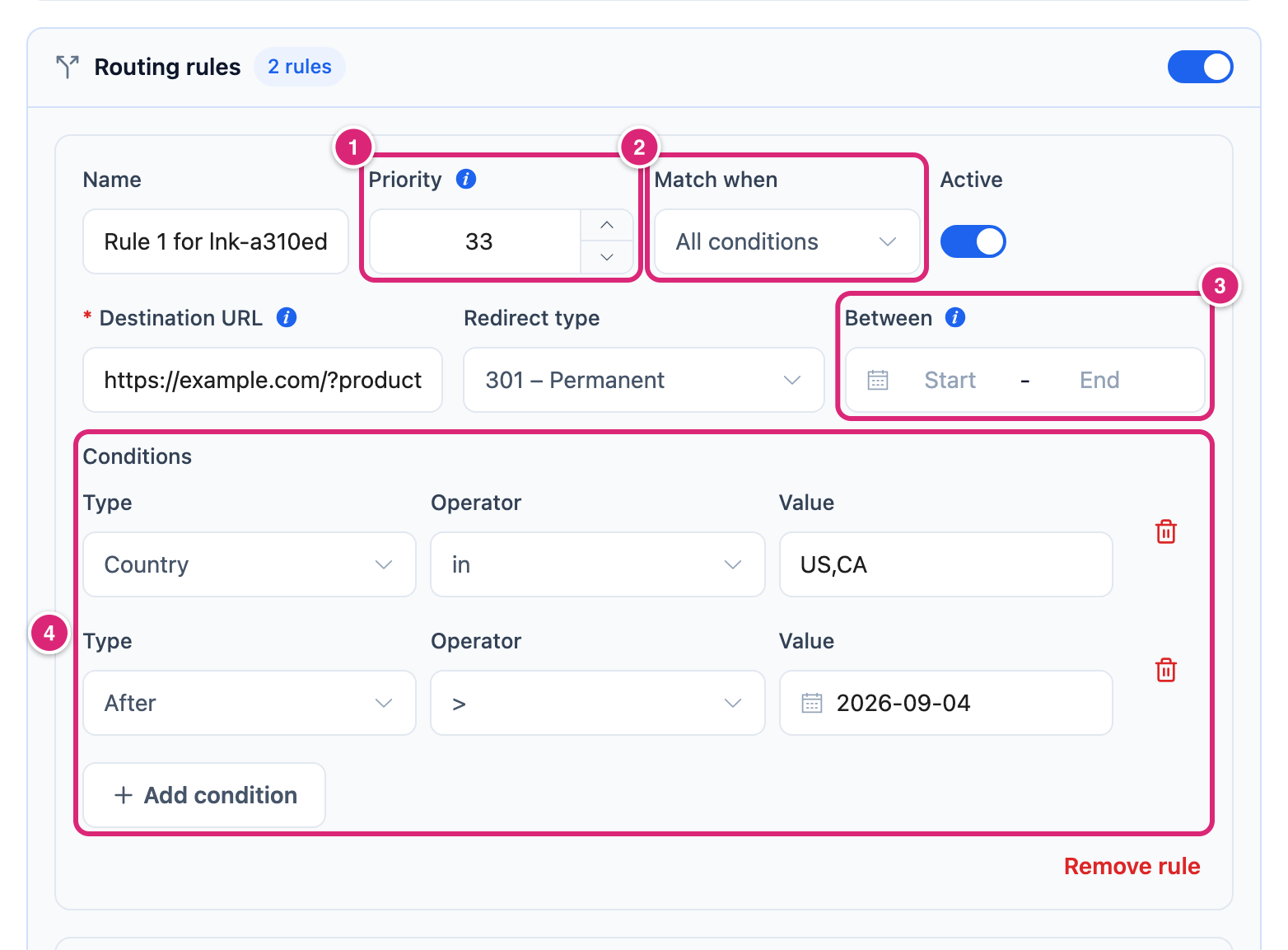
Add one rule to the short link. It has no conditions, so every visitor who opens the link inside the dates goes to the sale page.
Link Manager › Short Links- Select the Edit icon (the pencil) in the link's row. Edit short link opens.
- Turn on the switch on the Routing rules row. It's already on when the link has rules.
- Select Add rule. Enter a Name you'll recognize, like
BFCM 2026(visitors never see it). - Enter the sale page address in Destination URL. Redirect type starts as the link's own. 302 and 307 are temporary types, if you want one.
- Under Between 3, pick the first and the last day of the sale.
- Set Priority 1. Lower numbers are checked first, so give the sale rule a lower number than any other rule on the link, like
5. - Don't select Add condition. A rule with no conditions matches every visitor.
- Select Save changes.
Repeat steps 1 to 8 for each deal link.
Note
If you do add a condition, a new one starts as Clicks >= 0, which every visitor meets. Change its Type and Value, or remove it with Remove condition, before you save.
The rule works from the next click. Opening the short link records a click like any visitor's, so your test counts too (Does your own test count as a click?).
Test the rule before the sale starts
Before the first date, the link goes to its normal destination, so there's nothing to see yet. To watch the rule work, set Between to include today, save, and test. Then set the real dates and save again.
- Select the slug in the Short Links list to open the link's report. Select Copy link.
- Open a private window, paste the link and press Enter. You land on the sale page.
- Reload the report. The top row of Recent clicks shows your test click at once. Cards such as the chart can wait for the saved copy to refresh.
- Set the real Between dates and select Save changes.
Track the sale with one campaign
Give every link of the sale the same utm_campaign value, like bfcm_2026. Then its clicks show together in one campaign report.
- Edit the link and open UTM parameters.
- Enter
bfcm_2026in Campaign (utm_campaign). Use lowercase letters, numbers,_and-. - Select Save changes.
Link Manager Pro adds the tags to the sale page address too, so the sale destination also receives them. Open Link Manager › Campaigns and select the campaign to read its totals, its channels and each link's clicks.
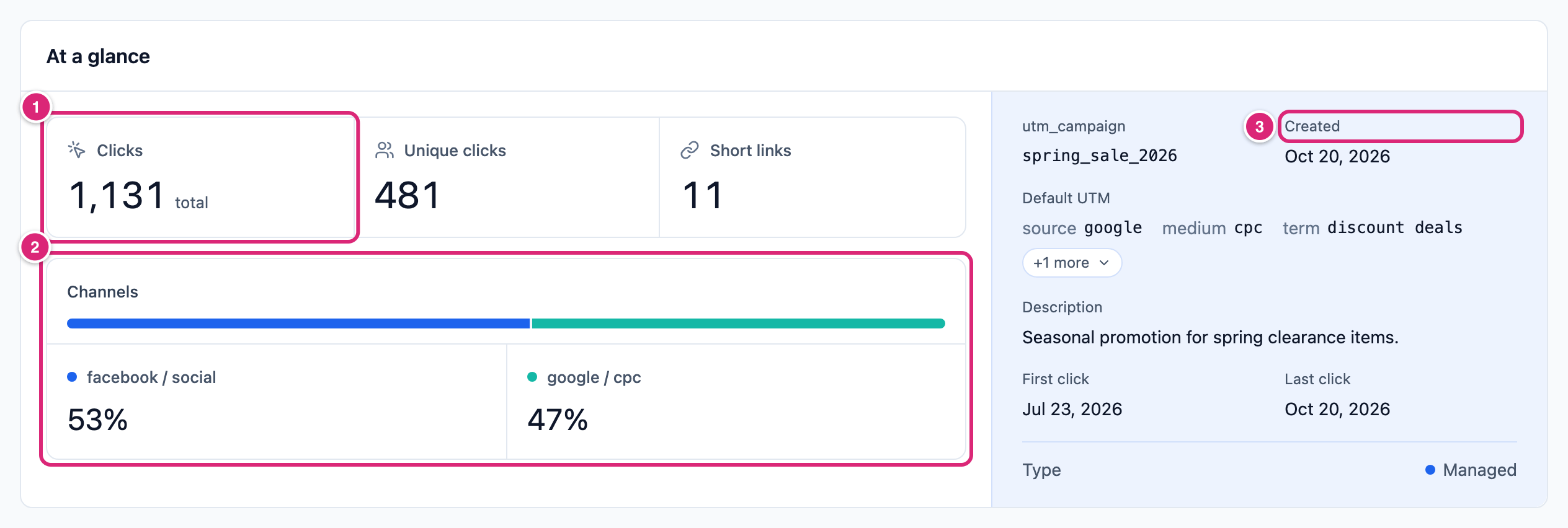
A campaign counts the short links that carry its value, so tag every deal link the same way. Tag links for a campaign covers the tags in full.
Share the sale links
Share the short link, not the sale page. In the link's report, the Share buttons add utm_source set to the network and utm_medium=social to the shared address. The email button uses utm_medium=email. QR code gives a code for print or a video (Share a link or QR code).
Which links stop working after the sale?
Don't use the link's own Expires date to end a sale for links in your posts. After Expires, the short link stops working altogether, and WordPress answers its address as if the link didn't exist (Create and edit a short link). A dated routing rule is different: outside its dates the link keeps working and goes to its normal destination.
What to do after the sale
The rule stops by itself after its last day, so you have nothing to switch off. Delete the rule, or keep it and change its dates for next year. Select Remove rule and save to delete it, or turn off its Active switch to keep it unused.
Link Health scans a short link's own Destination URL, not the destinations of its routing rules. So it won't flag a sale page that went away. Open the sale address yourself if you reuse the rule (Link Health).
Use the same setup for any sale
Prime Day, a holiday sale, a flash sale or a launch all work the same way. Add a routing rule with Between dates to each link, and the links in your posts never change. For a flash sale of a few hours, remember that Between counts whole days.
Get more out of it
- Reuse the rule next year. Change its Between dates and the campaign value (
bfcm_2026tobfcm_2027), so each year's clicks stay in their own campaign. - Give the sale rule a lower Priority than a country rule. A rule checked first wins, so decide which should win on sale days (Send visitors by country or device).
- Put each store's own tag in the sale address. Link Manager Pro uses the rule's Destination URL as you enter it, and doesn't copy the tag from the link's main destination.
- Keep the normal destination current. Visitors go there before and after the sale.
If something goes wrong
- If visitors still get the normal page on sale day, then most likely a host or CDN cache is handing out a stored answer. Short link visits are marked not to be cached, but a cache can ignore that (Routing rules).
- If the sale starts a day early or late, then check your time zone under Settings › General in WordPress. Between switches at midnight there.
- If another page opens instead of the sale page, then a rule with a lower Priority number may match first. Check the order.
- If the link answers with your 404 page, then check its Starts and Expires dates.
- If every visitor goes to a rule's destination all year, then check the rule's Between dates. A rule with no dates and no conditions always matches.
- If the campaign report shows nothing yet, then check Recent clicks in the link's report. The report cards can wait for the saved copy to refresh.