
Appearance
Back up and restore
Back up your short links and data to one file, restore it, and know what a restore replaces.
To back up short links in WordPress with Link Manager Pro, you pick what to include and download one JSON file. Restoring that file later replaces the data you tick with what's in the file.
A Link Manager Pro backup isn't a full backup of your site. It holds most of the plugin's data and your posts and pages. Keep your host's or a full-site backup as well.
Before you start
- You need an administrator account. Only administrators can make or restore backups, even when editors may use Link Manager Pro (Access for editors).
- Both tasks start under Link Manager › Settings › Backup & restore.
- Keep the tab open while a backup or a restore runs. Your browser drives it step by step. Leaving the page stops a backup and pauses a restore.
- Plan a restore for a quiet time. Each item you restore is emptied before it's refilled. With Short links ticked, some short links don't work while it runs.
Back up your short links and data
A backup saves the items you tick to a JSON file, which downloads to your computer when it's ready. All twelve items are ticked to start with.
Link Manager › Settings › Backup & restore- On the Backup card, select Backup.
- Under What to back up 1, untick anything you don't want in the file. Select all and Select none tick or clear every item at once.
- Select Back up now 2. A bar shows how many records are done so far.
- Wait until the button reads Completed. The file downloads, and a message says Backup ready. The download has started. Save that file now: you can't download it again.
- Select Close.
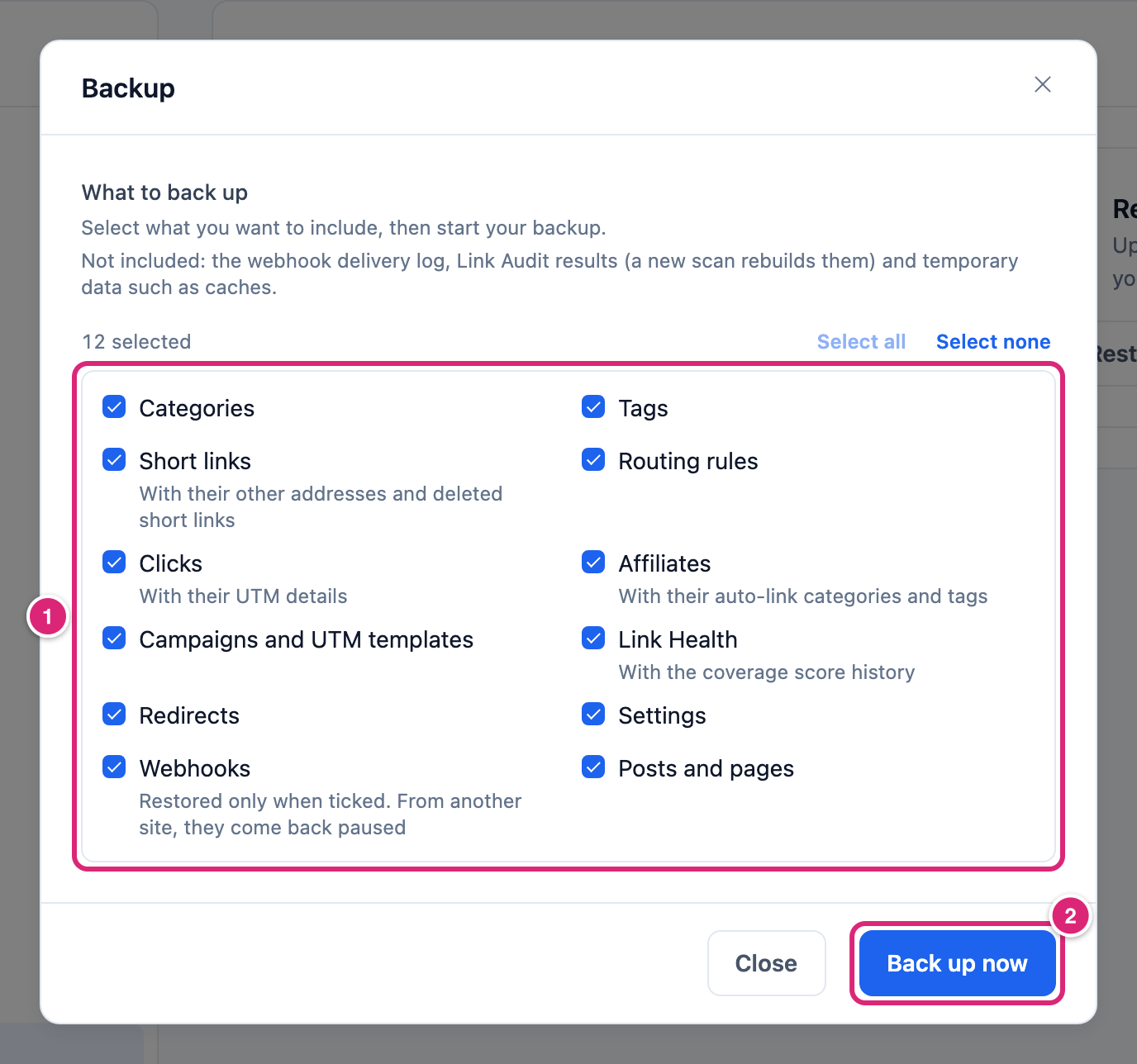
You get a file named like link-manager-pro-backup-20261021-143015.json (the date and time in UTC) in your downloads folder.
The download starts once, by itself. The dialog has no download link, and there's no list of earlier backups. Move the file somewhere other than your site, such as your computer or cloud storage. If no file arrived, select Close, then Backup and Back up now again.
What's in a backup file?
A backup file is plain JSON with a section for each item you ticked. A few lines describe the file: the site address it came from, when it was made and its format.
| Item | What it holds |
|---|---|
| Categories | Your short link categories, with their color and which links have each one |
| Tags | Your short link tags, and which links have each one |
| Short links | Every short link and its settings, with its other addresses and your deleted short links. It also holds each redirect's destination and redirect type, which are stored on a short link of their own |
| Routing rules | Every link's routing rules |
| Clicks | Every click record, for example its time, link, country, referrer and browser (user agent). It also holds the visitor cookie ID, the IP address as stored, a logged-in visitor's WordPress account and the UTM details visitors arrived with |
| Affiliates | Your affiliates and their settings, including Auto-link only on |
| Campaigns and UTM templates | Your campaigns and your UTM templates |
| Link Health | Broken links found in your content and visitor 404s, with the page that referred to them, and the coverage score history |
| Redirects | Every redirect's old address and status |
| Settings | Every Link Manager Pro setting. The AI API key stays encrypted, as your database holds it |
| Webhooks | Your webhooks and their settings. Restored only when ticked. From another site, they come back paused |
| Posts and pages | Every post and page of your site, in any status, as WordPress stores it: content, title, author, dates and so on. Each post's link map and dismissed AI suggestions come along |
Personal data is in it. Clicks holds IP addresses, cookie IDs and user agents. IP addresses are anonymized only if Anonymize IP addresses was on when the click came in. Treat the file like a copy of your visitor data.
Some data is never in a backup file:
- Link Audit results, the webhook delivery log and temporary data such as caches
- Other post types, post meta (page-builder data, for example), media and your theme
Restore a Link Manager Pro backup
A restore uploads a backup file and puts back the items you tick. Each ticked item is emptied first and refilled from the file, so what you have in it now is replaced. Items you don't tick stay as they are.
WARNING
A restore replaces your current data in every item you tick, and it can't be undone once it finishes. Make a backup first (see Back up your short links and data), so you can go back to today's data.
- On the Restore card, select Restore.
- Drag your backup file onto Drop backup file here or click to browse 1, or click it and choose the file. Only
.jsonfiles are taken. The file's name and size appear, with Remove to pick another. - Under What to restore 2, untick each item you want to keep as it is now. Every item except Posts and pages and Webhooks is ticked to start with. Read What does a restore replace? before you go on.
- If you tick Posts and pages, also tick the box below the list that starts with "I understand that restoring posts". Restore stays disabled until you do.
- Select Restore 3. A confirmation names your file and lists the items it will replace.
- Select Restore in the confirmation to start, or Cancel to go back.
- Keep the tab open until the button reads Completed and the message says Restore finished.
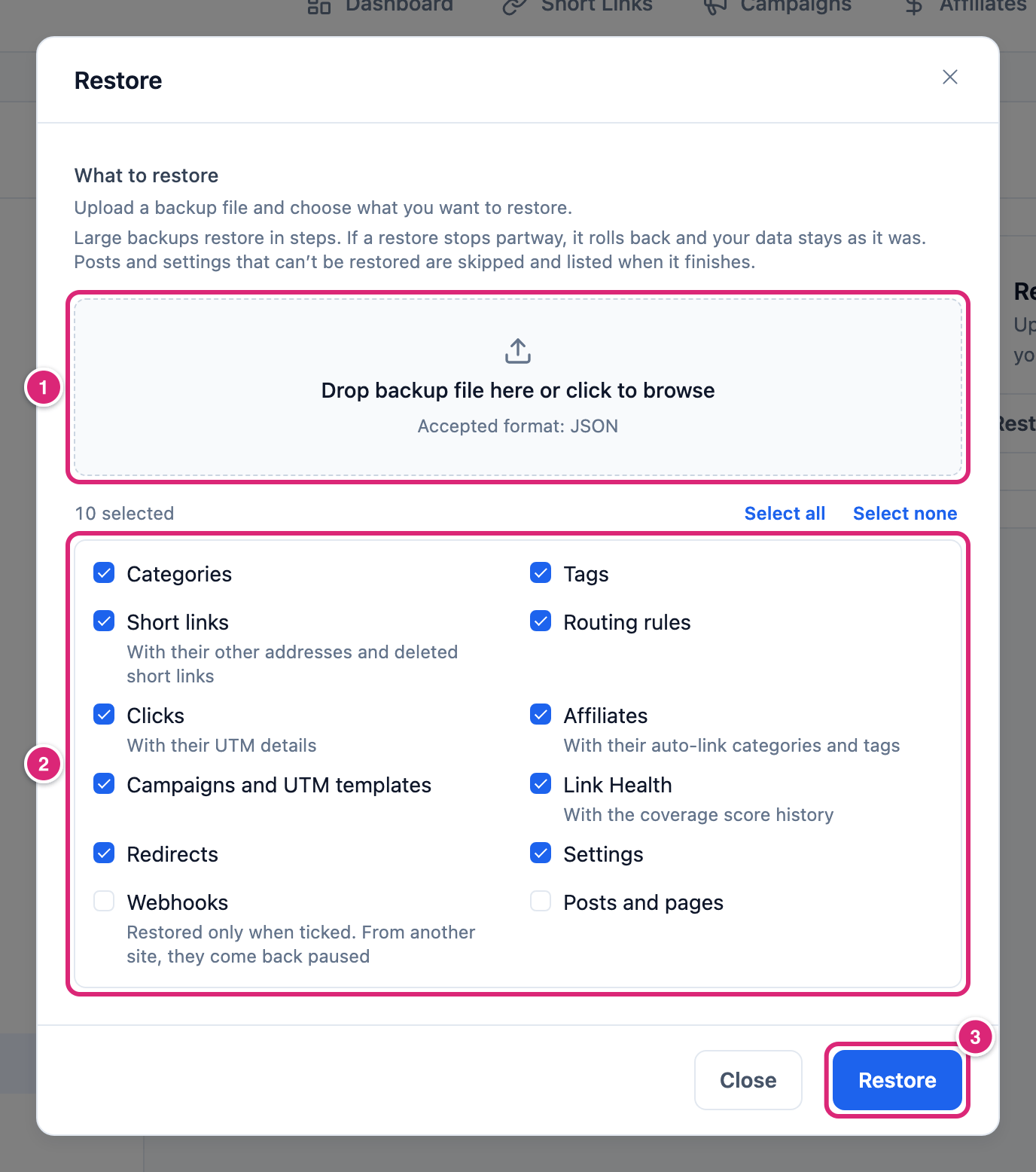
A file larger than your server takes in one upload goes up in parts, with a bar that reads "Uploading…" and a percentage, before the restore starts. A browser restore takes files up to 1 GB. For a bigger file, or when your web server refuses even small parts, use WP-CLI (Back up and restore with WP-CLI).
When it's done, the items you ticked hold the data from the file. If something was skipped, a second message says what for 10 seconds. Examples are posts that no longer exist, or redirects whose short link wasn't restored.
What does a restore replace?
Most items are replaced in full: everything you have in that item now goes, and the file's records come in. Settings and Posts and pages work differently, as the table shows.
| Item | What a restore does |
|---|---|
| Categories, Tags | Deletes all your current categories (or tags), creates the file's, and adds them to short links that exist afterwards |
| Short links | Replaces every short link, with its other addresses. Links keep their IDs from the file. Address conflicts are checked again in the background |
| Routing rules | Replaces every rule |
| Clicks | Replaces every click record. With Short links ticked too, each link's click count is recounted from the restored clicks. The file's counts stay when they're higher, for example after old clicks were deleted |
| Affiliates | Replaces every affiliate. With Short links ticked too, their click totals are recounted from the restored links. Auto-link only on categories and tags are matched by slug. The restore message lists any that this site doesn't have |
| Campaigns and UTM templates | Replaces every campaign and UTM template |
| Link Health | Replaces every broken-link result and visitor 404 |
| Redirects | Replaces every redirect |
| Settings | Puts back each setting in the file and keeps the rest. Values go through the same checks as when you save them. Nothing is deleted. A different Short link prefix, Internal link prefix or Affiliate link prefix is handled as if you had saved it on the General tab: the previous one keeps opening its short links (General settings). A prefix in the file that breaks a prefix rule is left out and this site keeps its own. Such a prefix is a WordPress path like page, not a slug, or equal to another prefix. The restore message says how many were skipped |
| Webhooks | Replaces every webhook. From another site, they come back paused, and a signing secret or custom headers this site can't read are left out. The restore message says to generate a new secret or add the headers again in the Webhooks settings |
| Posts and pages | Puts back only the content of posts and pages that still exist here. Title, author, status, publish date and password don't change. Each restored post gets a new modified date and, where revisions are on, a revision. Posts that aren't in the file are kept, and deleted posts aren't re-created |
Some items belong together:
- Redirects need Short links, because each redirect's destination lives on a short link. Restore both, plus Clicks for their hit history. Redirects alone can leave redirects without a destination, and the restore message says how many.
- Routing rules, Clicks, Categories and Tags point at short links by ID. Restore them with Short links, unless your links haven't changed since the backup.
- Posts and pages are saved through WordPress, one post at a time. A post is skipped if you can't edit it, or if WordPress would filter its content for your account. It's also skipped if saving it would change its status or address. The restore message counts the skipped posts.
Restored clicks follow this site's privacy settings: with Anonymize IP addresses on now, their IP addresses are anonymized as they come in.
Restore a backup on another site
You can restore a backup made on another site, for example after a move to a new domain. The plugin compares the file's site address with this site's. It ignores http or https, a leading www., the port, letter case and a trailing slash.
When the file comes from another site:
- Posts and pages is refused. Untick it to restore the rest.
- Items that point at each other must come together, or the restore is refused before anything changes. The message names the items to add. For example, with Short links ticked, every item that points at short links and already has data on this site must be ticked too. That means this site's clicks, routing rules, redirects, categories and tags are replaced as well.
- The AI API key isn't restored, and this site keeps its own (AI Link Assistant settings).
- Restored clicks lose their link to WordPress accounts, since those accounts belong to the other site.
- Redirects keep their old addresses and still match here. The old site's address is recorded as one of this site's, and the last four addresses are kept.
WARNING
Restoring Short links from another site onto a site that already has links replaces all of them. With the linked items, it also replaces that site's click history. Back up the site you restore onto first.
Resume or roll back an unfinished restore
A restore that stopped part-way leaves your data half restored, for example after you closed the tab or the server timed out. Some short links may not work until you resume it or roll it back.
You'll see it in three places:
- On Link Manager › Settings › Backup & restore: A restore did not finish., with the record count and the buttons Roll back and Resume.
- On every admin screen, for administrators, once the restore has made no progress for two minutes. Its Resume or roll back link opens the tab above.
- In WordPress under Tools › Site Health, as a critical issue, also after two minutes.
What each button does:
- Resume reopens the Restore dialog and carries on where the restore stopped, without uploading the file again.
- Roll back asks you to confirm, then puts back the safety copy taken when the restore reached each item. The message reads Restore rolled back. Nothing was changed. In those items, though, clicks and edits made since the restore started are lost.
Which to pick: Resume when you still want the backup's data, which is usually the case. Roll back when you started the wrong restore, and do it right after it stopped, so fewer new clicks are lost.
While a restore is unfinished, you can't start a backup or another restore. Once a restore finishes, it can't be rolled back: restore your earlier backup instead.
Back up and restore with WP-CLI
For a technical reader: wp link-manager-pro backup export and wp link-manager-pro backup restore <file> run the same backup and restore from your shell, with no upload limit.
bash
wp link-manager-pro backup export --file=/tmp/links-backup.json
wp link-manager-pro backup restore /tmp/links-backup.json --items=links,clicks
The options, the item names and the --user that restoring posts needs are on WP-CLI commands. The same warning applies: a restore replaces the items you choose.
Where backup files are kept and for how long
The server keeps its own copy of each backup file in your uploads folder, usually for one to two days. A daily WordPress scheduled task deletes it.
- Where: your uploads folder (usually
wp-content/uploads), underlink-manager-pro/backups-<code>/, one folder per job. The folder has an.htaccessrule that denies web access, plus empty index files. That rule works on Apache servers that allow.htaccessfiles. On other servers, such as Nginx, only the folder's hard-to-guess name protects it. - Who can download it: the plugin's download link works only for an administrator. It checks your account and a security code tied to that backup. It stops working once a later backup or restore finishes.
- How long: the task deletes a backup's folder once a day has passed since its last activity. WordPress runs scheduled tasks when your site gets visits (or when a server cron calls them), and not while the plugin is deactivated. So a copy can stay longer on a quiet site.
- A file uploaded in parts waits in an
upload-folder next to the job folders. It's deleted after a day without a new part. - An uploaded restore file is deleted when the restore finishes or is rolled back. An unfinished restore keeps its upload and its safety copy until you resume or roll it back.
- Your downloaded files are yours to keep safe and delete. The Keep click data for setting and WordPress's erase requests don't reach them (Privacy and personal data).
Deleting the plugin with Delete all data when the plugin is deleted on also removes the backups folder on the server (Uninstall and delete data).
Details
| What | Value |
|---|---|
| File format | JSON (.json), and the file must contain JSON |
| Records per step | 500 (when restoring posts and pages: 10, since each is saved through WordPress) |
| Files of 8 MB or more | Split into parts as they're read, instead of being loaded into memory whole |
| Restore order | Categories, Tags, Short links, Routing rules, Clicks, Affiliates, Campaigns and UTM templates, Link Health, Redirects, Settings, Webhooks, Posts and pages, whatever order you tick them in |
| A newer backup format | Refused before anything changes, with a message to update the plugin. The plugin that made the file isn't checked otherwise |
| Fields this site doesn't know | Dropped without a message, for example from a file made by a newer plugin in the same format |
| Item ticked but not in the file | Refused before anything changes. The message names the item in words, for example "Selected item is missing from backup file: link rules" or "...Link Health records" |
| A record can't be written | For Short links (with their other addresses), Routing rules, Clicks, Affiliates, Link Health and Redirects, the whole restore rolls back to the safety copies. The message reads "Restore failed while restoring", the item, the reason, then "All data was rolled back; nothing was changed." |
| A post can't be saved | Skipped, and the restore message counts it among posts that could not be restored |
| A category or tag can't be created | Skipped without a message |
| A prefix in the file breaks a prefix rule | That prefix is skipped, this site's prefix stays, and the restore message counts it |
| A saved key can't be decrypted | Skipped, and the restore message counts it |
| A roll back fails | The safety copies are kept in database tables with __lmpsnap in their names, and the message lists them |
| Disk full during a backup | The backup fails with a message, and no cut-off file is offered |
| One at a time | A second restore, or a backup during an unfinished restore, is refused |
| Who | Administrators (manage_options) |
| WP-CLI | backup export and backup restore <file> (WP-CLI commands) |
| Largest file in the browser | 1 GB. Larger files restore with WP-CLI |
Get more out of it
- Back up right before a big change. The import confirmation, Replace old shortcodes and the switch that deletes all data on uninstall each offer a link to this tab. It reads Back up first, except in Replace old shortcodes, where it reads Back up posts and pages first. Before anything that edits posts, keep Posts and pages ticked. That backup can put your posts' content back (Replace old shortcodes).
- Set up a new live site from staging. Restore the staging backup on a live site with no short links yet, with Posts and pages unticked. The default ticks also replace Settings, Affiliates and Link Health with staging's, so untick what the live site should keep. On a live site that already has links, clicks or redirects, the restore replaces them all, so back up the live site first.
- Undo a mistake in one area. Restore only the items that went wrong, for example Affiliates after you deleted an affiliate. Everything you don't tick stays as it is today. In Affiliates, every affiliate goes back to the backup's version, including Auto-link only on.
- Keep old backups from bringing back erased data. A restore puts click records back as they were in the file. After you erase a visitor's data, delete older files that hold Clicks. Anonymize IP addresses (Tracking settings) anonymizes the IP addresses of restored clicks, but not their other details. It's on by default on new sites.
If something goes wrong
- If no file downloads after Completed, then your browser may have blocked the download. Allow downloads for your site. Then close the dialog, select Backup again and run Back up now.
- If the restore says the backup is from another site and names items, then tick those items too and restore again. Nothing was changed.
- If the restore says posts and pages can only be restored on their own site, then untick Posts and pages and restore again.
- If the restore says the backup file can't be uploaded here, then your web server refuses even small parts. Ask your host to raise the upload limit, or restore the file with
wp link-manager-pro backup restore <file>. - If the message says the backup is larger than a browser restore takes, then the file is over 1 GB. Restore it with WP-CLI.
- If a notice says a restore did not finish, then open Link Manager › Settings › Backup & restore. Select Resume, or Roll back to return to your data from before the restore.