
Appearance
Redirection settings
Choose the default redirect type, add site-wide UTM parameters, and set nofollow and sponsored for links the plugin adds to posts.
The Redirection tab holds the default redirect type setting for new links, the site-wide UTM parameters added to short link clicks and redirects, and the rel switches (nofollow, noopener, noreferrer, sponsored) for the links Link Manager Pro adds to your posts.
Where to find it
Link Manager › Settings › RedirectionOnly administrators see Settings. Changes take effect when you select Save changes (or press Ctrl+S, ⌘S on a Mac). Until then, each changed row shows Edited, and Cancel puts back the saved values. If saving fails, Couldn’t save. Your edits are kept. appears next to the buttons and Save changes becomes Retry.
Settings and defaults
Each row links to its section below, with the details and what a change does.
| Setting | Default | Choices | What it does |
|---|---|---|---|
| Default redirect type | 301 | 301, 302 or 307 | The type new short links, redirects and affiliates start with. Existing ones keep their own type. More |
| Site-wide UTM parameters | Empty | Parameters written as name=value&name=value | Added to the destination on every short link click, and on redirects to other sites. Preview: shows the result. More |
| Add them to redirects within this site | On (Off on new sites) | On or off | Also adds the site-wide parameters when a redirect sends visitors to one of your own pages. Does something only while Site-wide UTM parameters has a value. More |
| Nofollow | On (All links) | All links, or Selected domains only with a domain list | Adds nofollow: tells search engines not to pass ranking credit through the link. More |
| Noopener | On (All links) | The same | Adds noopener: stops the opened page from controlling your page when the link opens in a new tab. More |
| Noreferrer | Off (Selected domains only, empty list) | The same | Adds noreferrer: your page address isn't sent to the destination site. More |
| Sponsored | Off (Selected domains only, empty list) | The same | Adds sponsored: marks paid and affiliate links, as search engines recommend. More |
The four rel switches apply only to masked links, auto-links and replaced shortcodes, and a link to your own site never gets nofollow or sponsored from them (where they apply).
Default redirect type setting
Default redirect type is the redirect type a new short link starts with: 301 (permanent) unless you change it. Each link stores its own type when it's created, so changing the default never changes links, redirects or affiliates you already have.
Where the default is used, for example:
| Where | What the new item gets |
|---|---|
| The short link form | Redirect type starts on your default. Left untouched on a link to an affiliate's domain, the link saves the affiliate's type instead (the form). |
| Masking when a post is saved, and Scan posts | The affiliate's type for an affiliate's domain, otherwise your default. |
| The Quick Add widget on the WordPress dashboard | The affiliate's type for an affiliate's domain, otherwise your default. |
| The editor's Short link and Insert short link buttons | For everyone, the affiliate's type for an affiliate's domain, otherwise your default. |
| New redirect, New affiliate and the Link Health redirect fix | The type starts on your default. You can pick another. |
| Imports from Pretty Links, ThirstyAffiliates or BetterLinks | Not your default. A link keeps its old type when it's 301, 302 or 307; other types become 302 (a BetterLinks cloaked link becomes 307). A ThirstyAffiliates link set to its global type takes that plugin's default. The WP-CLI settings import can replace your default (Migrate to Link Manager Pro). |
| Other ways links are made, for example the AI Link Assistant and AutomatorWP | The affiliate's type for an affiliate's domain, otherwise your default. |
After you save, new links you make in Link Manager use the new type straight away, without reloading the page. To change an existing link, edit its Redirect type. Short link redirects send no-cache headers, so the next click uses the new type.
Not sure which type to pick? Which redirect type should you choose? explains 301, 302 and 307.
Site-wide UTM parameters
Site-wide UTM parameters are query parameters Link Manager Pro adds to the destination each time a visitor goes through a short link. It's empty by default. They're also added when one of your redirects sends a visitor to another site.
- Write them as a query string without the
?:utm_source=yoursite&utm_medium=shortlink. Any parameter name works, not onlyutm_ones. - Preview: under the field shows the result on a sample address as you type, for example
example.com/target?utm_source=yoursite&utm_medium=shortlink. - The field is saved as plain text. HTML tags are removed. Percent codes like
%20are kept as typed, even a double-encoded one like%2541, and a+is saved as%20. Names and values are encoded again on save. Use letters, digits, hyphens and underscores. - They're added at the moment of the redirect. Every short link gets them at once, old and new, however the visitor opens it: a post, an email or a QR code. Nothing stored in your links changes.
- A short link whose destination is one of your own pages gets them too. Only redirects have a switch to leave your own pages out.
- When a routing rule matches, they're added to the rule's destination.
In what order parameters are added
Site-wide parameters come first, and each later source replaces a parameter of the same name:
- Site-wide UTM parameters. They also replace a parameter of the same name already in the destination URL.
- The link's own UTM parameters (UTM parameters).
- The affiliate's UTM parameters, only when the visitor goes to that affiliate's domain.
- Forwarded query parameters, when the link has Forward query parameters on.
An example: the site-wide value is utm_source=blog&utm_medium=shortlink, and a link to https://example.com/deal has the Source newsletter. A click opens https://example.com/deal?utm_source=newsletter&utm_medium=shortlink.
Add them to redirects within this site
Add them to redirects within this site decides whether your site-wide parameters are added when a redirect sends visitors to one of your own pages. New sites start with it off. On a site where the plugin was installed earlier, it may be on, so check it.
- It applies only to redirects under Redirects, never to short links.
- "Your own pages" means the same domain as your site, with or without
www.. - Redirects to other sites always get the site-wide parameters.
Leave it off when you redirect moved or renamed pages. The new address then stays as it is, without campaign tags that search engines and your analytics would see.
Nofollow and sponsored settings
The rel attribute is a part of a link's HTML that tells browsers and search engines how to treat the link (Glossary). The four switches set it on the links Link Manager Pro adds to your posts: masked links, auto-links and replaced shortcodes. By default, these links to other sites get nofollow noopener.
Each switch has two states:
- On, shown as All links 1: every one of these links gets the attribute from this setting (exceptions in the table below). The domain list below 2 is grayed out and ignored.
- Off, shown as Selected domains only: only links to the domains in the list get it from this setting. With an empty list, none do.
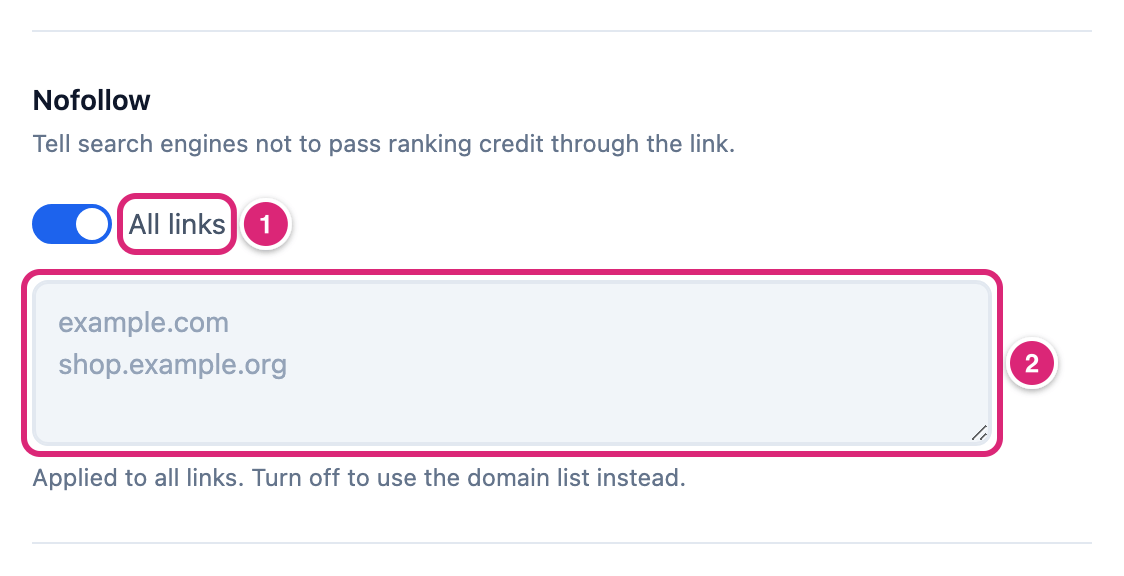
To add sponsored only to partner domains:
- Go to Link Manager › Settings › Redirection.
- Leave Sponsored off, on Selected domains only.
- Enter each domain on its own line, for example
example.com. - Select Save changes.
To give every link sponsored instead, turn Sponsored on. Turn it off again to go back to your list, which stays saved.
How the domain list matches:
- Write the bare domain, like
example.com. An entry likehttps://WWW.Example.com/shopalso matches asexample.com: capitals,https://,www., a path or a port are ignored. example.comcovers links toexample.comandwww.example.com. A subdomain likeshop.example.comneeds its own line.
Where the rel settings apply
| Link | What it gets |
|---|---|
| A masked link (when a post is saved, or by Scan posts) | These settings, added to any rel you wrote and to the link's own Link attributes when masking reuses an existing short link. Written into the post once: a later change here doesn't update it, even when you save the post again. |
| An auto-link | These settings plus the link's own Link attributes. Worked out each time the page is shown, so a change shows on the next view (a page cache can lag). |
| A replaced shortcode from your old plugin | These settings, the link's own Link attributes and the shortcode's own rel (Replace old shortcodes). Written into the post once, like a masked link: a later change here doesn't update it. |
| A link to an affiliate's domain | For masked links and the affiliate's own keywords, the affiliate's Link attributes replace these settings when it has any ticked. A new affiliate starts with nofollow and noopener ticked. |
| A link to your own site | Never nofollow or sponsored, whatever these settings or an affiliate say. noopener and noreferrer can still be added. |
| A link inserted with the editor's Short link or Insert short link button | What you tick in that button's dialog, not these settings. |
The rel attribute lives in your page's HTML. It doesn't change the redirect itself. Per-link ticks are explained in Forward query parameters and link attributes.
Get more out of it
- Pick your Default redirect type before you run Scan posts on many posts. Each new short link stores its type, so changing your mind later means editing links one by one.
- Tag every click from your site with one site-wide value, like
utm_source=yoursite&utm_medium=shortlink, and set Campaign per link. A link that needs another source sets its own Source, which replaces the site-wide one for that link only. - Mark affiliate links
sponsoredin two places. For a domain under Affiliates, ticksponsoredin that affiliate's Link attributes: that covers masked links and the affiliate's own keywords. Also list the domain under Sponsored: that covers auto-links from a short link's keywords and replaced shortcodes. For other paid partners, the list alone is enough. - Set the
relswitches before masking existing posts or replacing old shortcodes. Masked links and replaced shortcodes keep therelthey got, while auto-links follow your current settings. - Keep Add them to redirects within this site off unless you want campaign tags on moves within your site, for example to count visits from an old campaign address.
If something goes wrong
- If you can't type in a domain list, then its switch is on (All links). Turn it off to use the list. Turn it on again to undo.
- If links to a listed domain don't get the attribute, then check the spelling of the domain, and give each subdomain its own line. If the domain belongs to an affiliate, check the affiliate's Link attributes. Masked links and replaced shortcodes from before your change keep their old
rel. - If the destination is missing your site-wide parameters, then check whether the link's UTM parameters, an affiliate or forwarded parameters replace them. For a redirect to your own pages, turn on Add them to redirects within this site, and turn it off to undo.
- If part of a parameter value disappeared after saving, then it had an HTML tag. Write the value without them.
- If a link redirects with another type than your default, then check how it was made. A new link to an affiliate's domain gets the affiliate's type when you leave Redirect type untouched. Pick a type in the form to override it. Imported links keep their old type, and a matching routing rule sends with its own.
More fixes are on Troubleshooting.