
Appearance
Add an affiliate disclosure
Turn on the affiliate disclosure, check its text and position, and confirm the notice shows on your own site.
To add an affiliate disclosure in WordPress with Link Manager Pro, turn on Affiliate disclosure in the settings, check the text and where it goes, and save. Your notice then shows on single posts and pages that link to one of your affiliates, directly or through a short link, or that have a link marked sponsored. You don't add it to posts one by one.
The notice is added each time a post is shown and never saved into your posts, so turning the switch off removes it everywhere at once. A page cache keeps its old copies until you clear it. Why it shows where it does is explained on Affiliate disclosure. This tutorial takes you from setup to a notice you've checked on your own site.
Note
Link Manager Pro places your notice by fixed rules. It doesn't check whether your wording or placement meets the rules that apply to your site, and these docs give no legal advice.
Before you start
- You need to be an administrator, because only administrators see Settings.
- Your partners need to be set up under Link Manager › Affiliates, or your links need
sponsored. The notice follows the partner's domain, not the link's look (which links count). - Pick one published post that links to one of your affiliates, directly or through a short link. You'll use it to check the result.
Do you need an affiliate disclosure?
These docs can't tell you whether you need an affiliate disclosure. In the US, the usual reason sites show one is the Federal Trade Commission (FTC). Read the FTC's own guidance on endorsements, and the terms of each affiliate program you join.
The notice is sometimes called an affiliate disclaimer or statement. Link Manager Pro handles where it goes. Once it's set up, every post that counts gets your notice, including posts you publish later.
Add the disclosure to your posts automatically
You set the disclosure up once, on one settings tab. It's off until you turn it on.
Link Manager › Settings › Affiliate disclosure- Turn on Affiliate disclosure. The rows for the text, position, style and post types appear below it, ending with Preview.
- Read Disclosure text. It starts with a ready-made sentence that you can keep or change. Write plain text: HTML tags are removed when you save, so a link keeps only its words (tips for the wording).
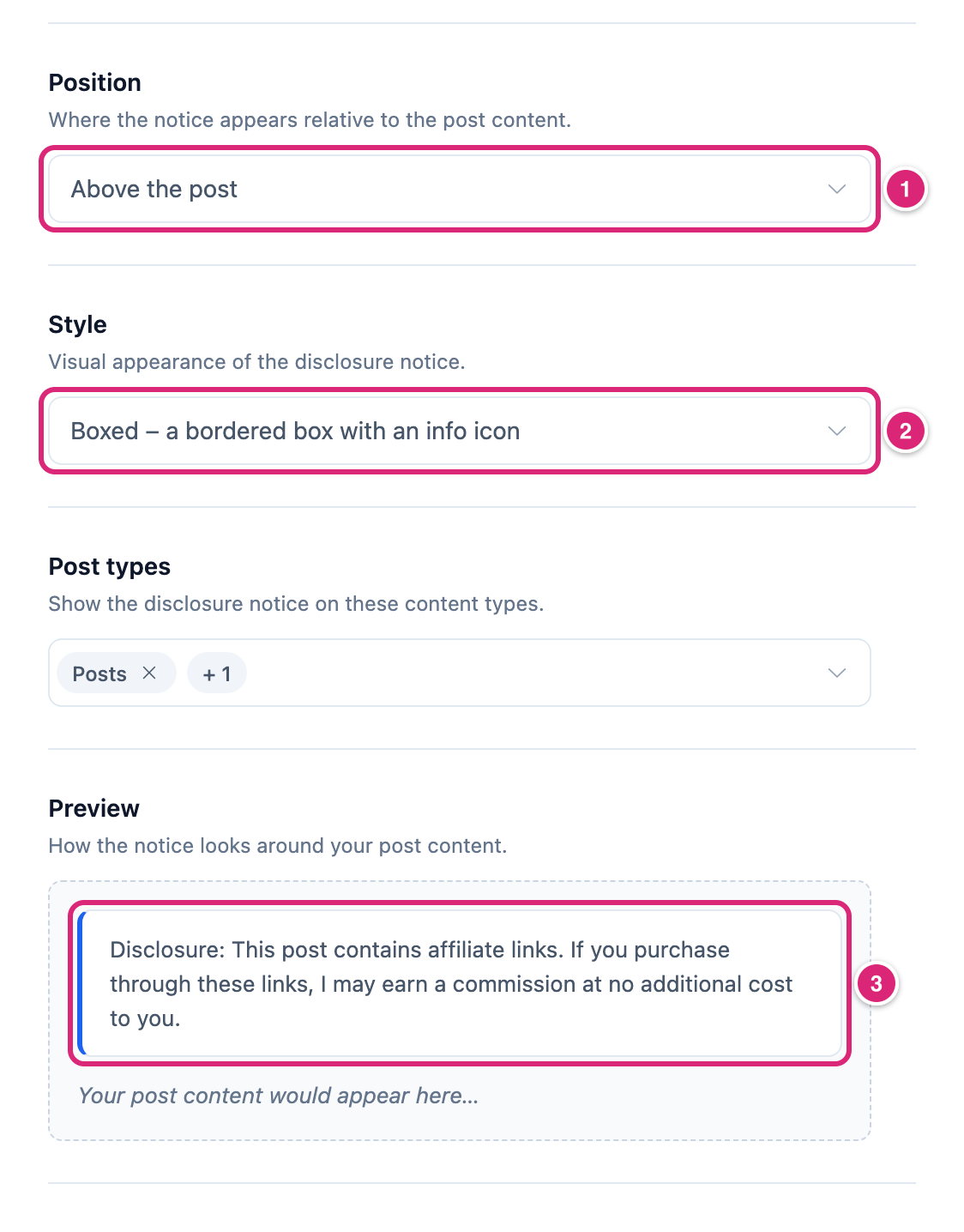
- In Position 1, keep Above the post to put the notice before the first paragraph. Or choose Below the post to put it after the last one.
- In Style 2, keep Boxed, or choose Minimal or Custom (what each looks like). Custom adds a Custom CSS class row, and it needs CSS for that class in your theme.
- Check Post types. Posts and Pages are picked to start with, so the field shows Posts and +1. If your affiliate content lives in another post type, add it here.
- Look at Preview 3, then select Save changes.
Settings saved. appears. Until you save, each changed row shows Edited, and Cancel puts back the saved values. If saving fails, Couldn’t save. Your edits are kept. appears next to the buttons and Save changes becomes Retry.
Preview is only a sketch, drawn with the admin's own styles. On your site, the notice takes your theme's font and colors, so check a real post next.
How do you check that the disclosure shows?
Open your test post, first while logged in and then in a private window. The notice should sit at the start of the post text, or at the end with Below the post. Then open a post without short links: it should have no notice. If the private window doesn't show it, clear your page cache.
- Open your test post while logged in. You see the notice too: it doesn't depend on who's viewing.
- Open the same post in a private window, where you're logged out like your visitors. If the notice is missing there but showed in step 1, most likely a page cache is serving an older copy of the post. Clear it. Saving the tab doesn't clear page caches.
- Open a post that has no link to an affiliate's domain and no
sponsoredlink. It shows no notice. - Open a category or archive page. It never shows the notice, even when it lists posts that do.
How do you turn the disclosure off or change it later?
To change the notice, edit Disclosure text, Position or Style on the same tab and select Save changes. To remove it, turn Affiliate disclosure off and save. Nothing is saved into your posts, so the change reaches every post the next time it's shown. Clear your page cache so visitors see it.
Link Manager › Settings › Affiliate disclosureMake sure your affiliate links count
The disclosure follows the partner a link leads to. A post counts when its content links to the domain of one of your affiliates, or has a link marked sponsored. Add each partner under Link Manager › Affiliates first (Affiliates).
For your affiliate links, that means:
- A short link counts when its destination is on an affiliate's domain. Its address can use your Short link prefix, Internal link prefix or Affiliate link prefix, like
https://yoursite.com/link/deal. Auto-links from your keywords count too. - A plain link straight to an affiliate's domain counts, with or without a short link.
- Any link whose
relcontains the wordsponsoredcounts, to any site. The check readsrelwith or without quotes. - These don't count: a link marked only
nofollow, a short link to a site that isn't one of your affiliates, and a short link to one of your own pages. - A domain matches exactly. A subdomain like
shop.example.comneeds its own affiliate. - Masking turns pasted links into short links, on posts and pages only. Mask links when saving posts is on by default. Then saving a published, scheduled or private post or page turns its full links to other sites into short links. Links a block keeps in its own settings stay as written. Other post types are left alone, and an older post changes only when it's saved again (Short links in your posts).
- To convert the posts you already have in one go, Scan my site on the Dashboard does it. It edits your saved posts, so read the warning and back up first (turn links in existing posts into short links).
- After you change a prefix, links in your posts that still use the old one count only by their
rel. Update links in posts on the General tab moves them to the new prefix (General settings).
The full list, with edge cases like path-only links, is under When does the disclosure show?
Details
Every row is explained in Affiliate disclosure settings.
| Setting | Default | What it does |
|---|---|---|
| Affiliate disclosure | Off | Turns the notice on for every post that counts |
| Disclosure text | A ready-made sentence | The notice, in plain text and shown as one paragraph. If it's empty, no post gets a notice |
| Position | Above the post | Start or end of the post content |
| Style | Boxed | Boxed, Minimal, or Custom with your own CSS class |
| Post types | Posts and Pages | Which single entries can get it. With none picked, every type can, including media attachment pages where your site has them |
- The notice shows on single posts, pages and other single entries only, never on archive or category pages.
- There's no switch to hide it on one post. To keep it off a post, the post must not count, or its post type must not be picked.
- It isn't added in the WordPress admin, REST API responses, AJAX requests or cron jobs.
- For technical readers: the notice is added through WordPress's
the_contentfilter, after auto-linking, as an<aside>with the classlmp-affiliate-disclosureandaria-label="Affiliate disclosure". A theme or page builder that shows posts withoutthe_contentgets no notice. - The Cookie notice row on the same tab is about the click tracking cookie, not affiliate links. Its switch, I handle cookie consent for my visitors, is saved but changes nothing (the cookie notice).
Get more out of it
- Test with two posts before you rely on it: your test post with a link to an affiliate, and a post without one. Only the first should show the notice. If the second shows it too, most likely one of your auto-linking keywords is in its text and leads to an affiliate, or the post has a link marked
sponsored. - Keep Above the post when links start early in your posts. Readers then pass the notice before any link in the post text, including one in your opening paragraph. Below the post suits posts whose links all sit at the end.
- Point readers to your full disclosure page in plain words. Links can't go in the notice, so write the address as text, for example "Full disclosure: yoursite.com/disclosure".
- Cover a review or product post type. Pick it under Post types. Masking on save doesn't run there, but a link straight to an affiliate's domain counts as it is. A partner link on another domain needs
rel="sponsored". - Recheck a few posts after you change Short link prefix, Internal link prefix or Affiliate link prefix. Posts whose short links still use the old prefix lose the notice until you select Update links in posts, or until their links carry
sponsored.
If something goes wrong
- If the notice doesn't show, then check that Affiliate disclosure is on and saved, and Disclosure text isn't empty. Open a single post of a picked post type that links to an affiliate's domain, directly or through a short link with a current prefix, or has a
sponsoredlink. Then clear your page cache. - If you see the notice while logged in but not in a private window, then most likely a page cache is serving an older copy. Clear the cache, then reload the private window.
- If the notice shows on a post without affiliate links, then that post has a link to an affiliate's domain, a short link to one, or a
sponsoredlink. The fix for each cause is in Affiliate disclosure settings. - If every condition is met but the notice is missing, then your theme or page builder may show the post without WordPress's usual content output, which is where the notice is added.
More fixes are on Troubleshooting.