
Appearance
Tracking settings
Control which clicks are recorded, how long click data is kept, and how IP privacy and the country database work.
The Tracking tab holds your click tracking settings. They decide whether clicks are recorded, which ones are left out and how long the data is kept. They also cover IP privacy and the country database.
Where to find it
Link Manager › Settings › TrackingOnly administrators see Settings. Changes take effect when you select Save changes (or press Ctrl+S, ⌘S on a Mac). Until then, each changed row shows Edited, and Cancel puts back the saved values. If saving fails, Couldn’t save. Your edits are kept. appears next to the buttons and Save changes becomes Retry. The buttons in the GeoIP database row are the exception: they act straight away, without Save changes.
Settings and defaults
Each row links to its section below, with the details and what a change does.
| Setting | Default | Choices | What it does |
|---|---|---|---|
| Click tracking | On | On or off | Records each click on a short link or redirect for your reports. More |
| Track clicks on internal links | Off | On or off | Records clicks on links to your own pages inside your posts. Works only while Click tracking is on. More |
| Content selector | .entry-content | A CSS selector | The part of the page whose links are tracked. Shows only while Track clicks on internal links is on. More |
| Keep click data for | 0 days (keep forever) | 0 to 3650 days | Deletes click records older than this, once a day. More |
| Anonymize IP addresses | Off (On on new sites) | On or off | Shortens each visitor's IP address before it's stored. More |
| Blocked IP addresses | Empty | One address per line | Clicks from these addresses aren't recorded. More |
| Ignore bots | On | On or off | Leaves bots and crawlers out of your click numbers. More |
| Extra bot patterns | Empty (built-in list) | One pattern per line | Your own bot list, used instead of the built-in one. Shows and works only while Ignore bots is on. More |
| GeoIP database | Not downloaded | Download database, Update database, Remove | The country database that gives clicks a country. More |
Anonymize IP addresses is turned on for a new site only if its Tracking tab was never saved. A site that had Link Manager Pro before keeps its earlier value: off unless someone turned it on (Starting settings on a new site).
Click tracking
Click tracking records every click on your short links and redirects, so your reports have something to show. It's on by default.
Each recorded click keeps its time, the link, the visitor's country if known, browser details, the page they came from and their IP address. It also keeps the post the click came from, the routing rule that matched, and the WordPress user of a logged-in visitor. Reports, the Dashboard and a link's Recent clicks are built from these records.
With Click tracking off:
- Short links and redirects still send visitors on, and routing rules still apply.
- New clicks aren't recorded, so reports stop changing. The Dashboard shows a notice while tracking is off. A link, affiliate, campaign or redirect report with past clicks shows the same Click tracking is off notice above At a glance, with a link to Tracking settings for administrators.
- The All-time clicks number of each short link still goes up, and so do a redirect's Hits.
- Clicks on internal links stop being recorded too, whatever Track clicks on internal links says.
- Link Manager Pro sets no new tracking cookie.
Clicks you make yourself as an administrator count like anyone's. Some clicks are never recorded, even with tracking on. Bots aren't, while Ignore bots is on, and neither are addresses in Blocked IP addresses. Nor is the 31st click and beyond within 5 minutes from one IP address on the same short link. Those clicks don't add to All-time clicks either. The full rules, including Unique clicks, are on How clicks are counted.
Track clicks on internal links and Content selector
Track clicks on internal links counts clicks on links between your own pages, without changing the links. It's off by default.
- It works on single posts and pages, and only while Click tracking is on too.
- A small script in the page sends each click on a link to your own site. Visitors whose browser runs no JavaScript aren't counted.
- Only links inside the Content selector area count: by default
.entry-content, the element many themes put around the post text. If your theme uses another, enter its selector. An invalid selector is refused when you save. A few invalid forms are caught only by the browser. Only the first matching element on the page is used. - Short links in the post aren't counted here, because they're counted as clicks on the short link. A link with the
data-lmp-notrackattribute is skipped. - Blocked IP addresses and Ignore bots apply, and Anonymize IP addresses shortens the stored IP.
The Content selector row shows only while the switch is on. What these clicks show and where is on Clicks on links to your own pages.
Keep click data for
Keep click data for sets how many days click records are kept. The default, 0, keeps them forever. You can enter any number from 0 to 3650 days (about 10 years); the arrows move by 30.
Once a day, Link Manager Pro deletes every click record older than that number of days. That covers clicks on short links, hits on redirects and clicks on internal links. Each record goes with its stored details, such as IP address and browser. A new period takes effect at the next daily run, not when you save.
The daily run is a WordPress scheduled task (WP-Cron). WordPress starts those when someone visits the site, so on a quiet site the run can come later than a day. If WP-Cron is turned off on your server, the purge needs your server's own cron to run WordPress's tasks. The WP-CLI command below also works.
What stays and what goes:
- The All-time clicks number of each short link and a redirect's Hits don't go down. They're kept apart from the click records.
- Reports, the Dashboard and Recent clicks count records, so older periods show fewer clicks or none.
- A visitor whose earlier clicks were deleted can count as a unique click again.
- Each daily run works for about 25 seconds. A large backlog of old clicks is cleared over the next days.
WARNING
Deleted click records are gone for good. Setting the period back to 0 doesn't bring them back. If you might want the old data, make a backup with Clicks ticked first (Back up and restore).
Run setup again (on the General tab) starts this setting at Keep everything. Continuing past that step saves it over your period (Quick start: setup). Check this row after you go through setup again.
For a technical reader: wp link-manager-pro purge-clicks deletes old clicks right away, using this setting, or --days=N for another number of days. It runs until done, with no time limit and no confirmation, so the same warning applies. It stops with an error when the number of days is 0.
Anonymize IP addresses
Anonymize IP addresses shortens each visitor's IP address before it's stored. It uses WordPress's own anonymizer: an IPv4 address keeps its first three parts (203.0.113.0), an IPv6 address only its network part.
- Whether it starts on depends on the site's age (see the note under the table).
- Only clicks recorded from now on change. Clicks already stored keep their full addresses. To clear those, see Privacy and personal data, or let Keep click data for delete them over time.
- Country detection, Blocked IP addresses and the limit of 30 clicks per 5 minutes read the full address. They do so before anything is stored, so they work the same with this on.
- Unique clicks compare stored addresses. With this on, two visitors on the same network with the same browser count as one.
While it's off and clicks are recorded, WordPress Site Health lists a recommendation to turn it on, with a link to this tab.
Blocked IP addresses
Blocked IP addresses lists addresses whose clicks aren't recorded. Enter one address per line, like 203.0.113.7.
- The visitor is still sent on. The click just isn't recorded and doesn't add to All-time clicks.
- Each line must be a full, exact address. Ranges like
203.0.113.0/24and wildcards aren't read. - It's the address your site sees. Behind a CDN or proxy, that's the proxy's address unless you set up Trust proxy headers under Link Manager › Settings › Advanced.
- It applies to redirects and clicks on internal links too.
Ignore bot clicks and Extra bot patterns
Ignore bots keeps bots and crawlers out of your click numbers. It's on by default. A bot's visit still gets redirected; it just isn't recorded and doesn't add to All-time clicks.
Link Manager Pro checks the name a browser sends with each visit (the user agent). A visit counts as a bot when that name contains one of the patterns, in any letter case. A visit that sends no name at all is treated as a bot too.
The built-in list has 48 patterns. It starts with the general words bot, crawler, spider, slurp and fetch. Then it names search engines, SEO tools, AI agents, link previews in chat apps, uptime monitors and command-line tools.
Extra bot patterns shows only while Ignore bots is on. Leave it empty to use the built-in list.
WARNING
Any entry in Extra bot patterns replaces the built-in list. It doesn't add to it. With only MyMonitor in the box, Googlebot and every other crawler count as clicks again. To keep the built-in patterns, paste the list below and add yours under it.
The built-in list, one pattern per line, ready to paste:
text
bot
crawler
spider
slurp
fetch
Googlebot
Bingbot
BingPreview
YandexBot
Baiduspider
DuckDuckBot
AhrefsBot
SemrushBot
MJ12bot
DotBot
Screaming Frog
Rogerbot
Majestic
facebookexternalhit
Twitterbot
LinkedInBot
WhatsApp
Slackbot
TelegramBot
Discordbot
GPTBot
ChatGPT-User
Claude-Web
CCBot
Anthropic
Bytespider
PetalBot
UptimeRobot
Pingdom
GTmetrix
StatusCake
Site24x7
curl
wget
python-requests
Go-http-client
HeadlessChrome
PhantomJS
Puppeteer
Apache-HttpClient
Java/
libwww-perl
mechanize
GeoIP database
The GeoIP database row gets the country database that tells Link Manager Pro which country a click came from. It isn't included in the plugin: it's a free download of about 7.5 MB, with no account or key.
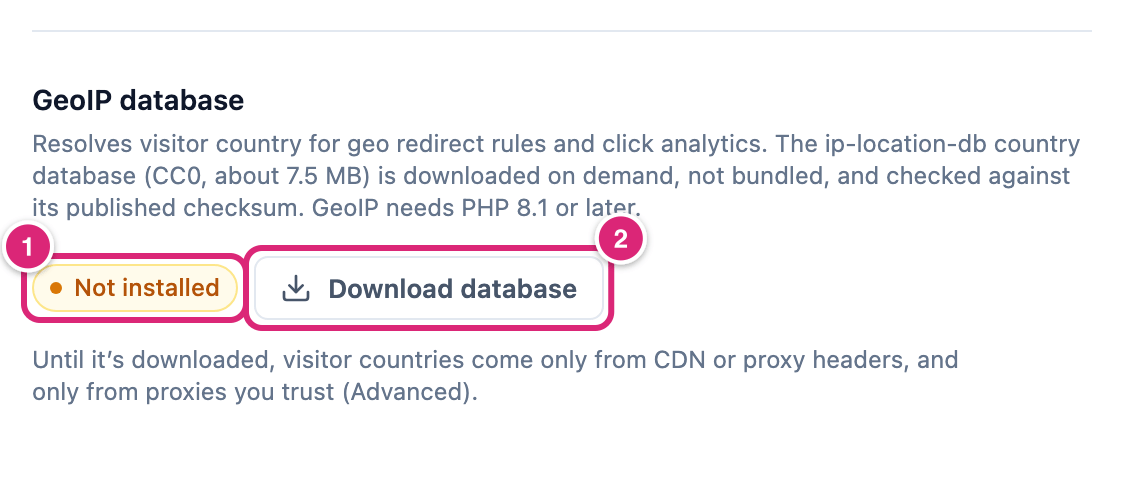
- The status shows Installed or Not installed. Once installed, the line under it gives the file size and when it was downloaded.
- Download database gets the database. The download stops if it takes longer than two minutes. When it's done, you see GeoIP database downloaded. and the status changes to Installed.
The row's help line says that until the database is downloaded, visitor countries come only from CDN or proxy headers, and only from proxies you trust. The PHP line says the same on PHP older than 8.1. Link Manager Pro reads a CF-IPCountry or X-Country-Code header only in two cases. Either Trust proxy headers is on, or your proxy is listed under Trusted proxy IPs or CIDR ranges. Both are on the Advanced tab (System requirements).
Until you download the database, WordPress Site Health recommends it, with a link to this tab. It says visitor countries are not recorded and country rules on short links do not apply, unless trusted proxy headers supply the country. On PHP older than 8.1, Site Health recommends updating PHP instead.
Once it's installed, the button reads Update database, and Remove appears next to it.
- Update database downloads the same release of the database again. It doesn't bring newer country data.
- Remove deletes the file straight away, without asking. New clicks then get no country, unless a trusted CDN header gives one.
- WordPress Site Health calls the database out of date 90 days after the download. Update database clears that notice, but the country data stays the same.
Each download is checked against the release's published checksum and refused if it doesn't match. The file is stored in your uploads folder, under link-manager-pro/geoip.
Reading the database needs PHP 8.1 or later. On an older PHP, the row says the database can't be read on this server. Countries are looked up when a click happens, so clicks recorded before the download keep having no country.
Get more out of it
- Set a retention period that fits your reports. With 365 days, a year of detailed clicks stays for your reports. Older records and their IP addresses go, and each link's All-time clicks keeps its total.
- Add a bot without losing the built-in list. Paste the list from Extra bot patterns first, then your pattern, like the name of your uptime monitor.
- Get countries behind Cloudflare without the database. Cloudflare can send a
CF-IPCountryheader. Once you turn on Trust proxy headers under Link Manager › Settings › Advanced, clicks get a country on any PHP version. Do this only if every visit comes through Cloudflare. Otherwise a visitor can fake their country and IP address. A faked IP also gets past Blocked IP addresses and the 30-click limit (the warning on System requirements). - Keep Anonymize IP addresses on and keep the features. Countries, blocking and the click limit still use the full address. Only Unique clicks change: visitors on the same network with the same browser count as one.
- Get a baseline before you change your internal links. Track clicks on internal links adds one running total, Internal link clicks on the Dashboard's All time card, not a count per link. To see which links between your posts readers use, make them short links (Clicks on links to your own pages). Link Audit shows which posts have too few links.
If something goes wrong
- If reports show no countries, then check the GeoIP database row for Installed and the PHP message. Behind a CDN, you can turn on Trust proxy headers to read its country header instead, and turn it off again to undo. Do that only if every visit comes through the CDN, or visitors can fake their country and IP address (System requirements).
- If Download database shows an error, then read the message. A failed download or a checksum mismatch means the file didn't arrive whole: select the button again, and check that your server can reach
cdn.jsdelivr.net. If it says the folder isn't writable, ask your host to makewp-content/uploadswritable. If a download is already in progress, wait up to 5 minutes. If the row says Status unavailable, select Retry. - If crawler visits show up as clicks, then check Extra bot patterns. Any entry there replaces the built-in list; empty it or paste the built-in list back.
- If reports show fewer clicks than All-time clicks, then the report may not have refreshed yet. By default it refreshes every 600 seconds (Refresh reports every, Advanced tab). Other causes, for example: Keep click data for deleted older records, or Click tracking was off for a while. Bots and blocked addresses don't explain it: they count in neither number.
- If clicks on internal links don't show up, then check that Content selector matches the element around your post text. Also check that Click tracking is on. Turning it on starts recording all clicks again; turn it off to undo.
More fixes are on Troubleshooting.