
Appearance
General settings
Set the short link prefixes, slug length and link masking, and know what each change does to your links.
The General tab sets how your short links look and whether links in your posts become short links. It holds the short link prefix, the internal link prefix, the optional affiliate link prefix, slug length and the two masking switches, plus a way back into setup.
Where to find it
Link Manager › Settings › GeneralIn the screenshot, the General tab 1 is open. The first rows to know are Mask links when saving posts 2, Short link prefix 3 and Slug length 4.
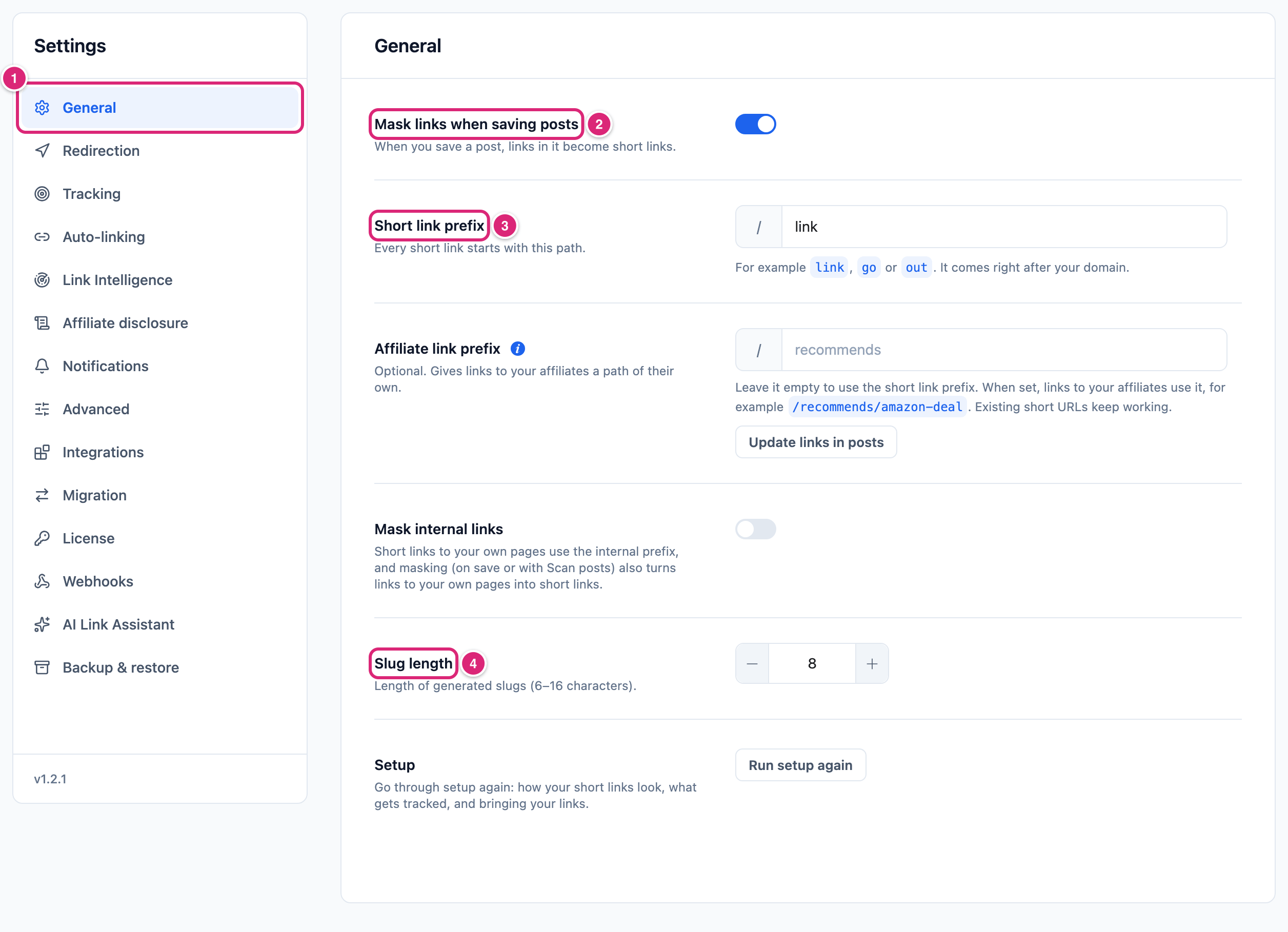
General is the first tab under Settings. Changes take effect when you select Save changes (or press Ctrl+S, ⌘S on a Mac). Until then, each changed row shows Edited, and Cancel puts back the saved values. If you leave the tab with unsaved changes, Link Manager Pro asks before it discards them.
Settings and defaults
Each General setting starts with the default below. New sites get the same values.
| Setting | Default | Choices | What it does |
|---|---|---|---|
| Mask links when saving posts | On | On or off | When you save a post or page, full links to other sites in it become short links. More |
| Short link prefix | link | Text, saved as a URL slug; not empty | The path between your domain and the slug: yoursite.com/link/spring-sale. More |
| Affiliate link prefix | Empty | Text, saved as a URL slug; may be empty | The prefix for short links to your affiliates' domains: yoursite.com/recommends/amazon-deal. Empty means they use the Short link prefix. More |
| Mask internal links | Off | On or off | Also turns links to your own pages into short links. Works on save only while Mask links when saving posts is on, and when you run Scan posts. More |
| Internal link prefix | go | Text, saved as a URL slug; not empty | The path for short links to your own pages: yoursite.com/go/aB3dE9xQ. Shows only while Mask internal links is on. More |
| Slug length | 8 | 6 to 16 | How many characters a random slug gets. More |
| Setup · Run setup again | A button | Opens setup again with your current settings. More |
Mask links when saving posts
Mask links when saving posts turns the links in a post into short links each time you save it. It's on by default, so it changes post content.
- It works on posts and pages that are published, scheduled or private. A draft is masked when you publish it. Autosaves and revisions are left alone.
- It changes only links written as a full address (
http://orhttps://) to another site. Links to your own site stay as they are unless Mask internal links is on. - A link whose destination already has a short link reuses that short link. Otherwise a new one is made, with a random slug of Slug length characters.
- The link's address changes, and
relvalues from your Redirection settings or the link's affiliate are added to your own. Your link text and other attributes stay as you wrote them. - Links in blocks that keep their address in the block's settings, like the File block, are left as written.
Turning the switch off stops masking when posts are saved. Scan posts, which opens from Scan my site on the Dashboard, still masks when you run it. Turning it off doesn't put back the original links in posts already saved. The WP-CLI command wp link-manager-pro unlink does that. Short links in your posts covers masking, scanning existing posts and undoing it.
Short link prefix
The Short link prefix is the path every short link starts with, right after your domain. With the default link, the slug spring-sale opens at yoursite.com/link/spring-sale.
- It's saved as a URL slug. Capitals become lowercase, so
My-Dealsis saved asmy-deals. The field keeps showing what you typed until you reload the tab. A space or a symbol is refused instead:My Dealsshows Use lowercase letters, numbers and hyphens (it becomes “my-deals”). and nothing is saved. - It can't be empty, or only symbols that a slug drops (like
!!!). Short links need a prefix to work. If you save one, the message shows under the field and Couldn’t save. Your edits are kept. shows next to the buttons, and Save changes becomes Retry.
WARNING
Changing the prefix changes the address of every short link. Addresses with the old prefix keep opening their links, wherever you shared them: posts, emails, social posts and printed QR codes. For 90 days after you save, nothing can take their place. After that, a page or redirect you create at the same address wins, and a scheduled or expired link stays closed. After five more prefix changes, the oldest prefix stops. Update the links you control, with Update links in posts for your posts.
A previous prefix still counts as yours while it opens links, within the 90 days or among the last five:
wp link-manager-pro unlinkstill restores links that use it.- Masking leaves those links as written, so they don't become new short links.
- Affiliate disclosure counts them like links with the current prefix.
To change the prefix:
- Go to Link Manager › Settings › General.
- Enter the new prefix in Short link prefix.
- Select Save changes.
What follows a change:
- Auto-links use the new prefix the next time a post is shown, because they're added at that moment. A page cache can serve the old page until it clears.
- Links saved in post content keep the old prefix until you update them. That includes links masked on save and short links you inserted yourself. They keep opening, with the limits above.
- Changing back to the old prefix makes the old addresses work again.
After you save a new prefix (any of the three), a notice Links in your posts still use a previous prefix shows on this tab. Select Update links in posts to review the old-prefix links in your posts and pages, then update them. Link Manager Pro saves a revision of each post first, so back up your site before you confirm. The steps are in Change your short link prefix.
Affiliate link prefix
The Affiliate link prefix gives short links to your affiliates a path of their own. It's optional and empty by default. Set it to recommends, and a short link to an affiliate's domain with the slug amazon-deal shows as yoursite.com/recommends/amazon-deal.
- A link counts as an affiliate link when its destination is on the domain of one of your affiliates. A leading
www.and capitals are ignored. - Links to your own site follow Mask internal links and the Internal link prefix. All other links use the Short link prefix.
- Empty means affiliate links use the Short link prefix, like any other link.
- The hidden link behind a redirect never uses it.
The prefix decides which address Link Manager Pro builds and shows: in links masked in your posts, in auto-links, in links the link picker creates and in each link's short URL on the plugin's screens. It doesn't limit what opens. Every prefix you own opens every short link, so yoursite.com/link/amazon-deal and yoursite.com/recommends/amazon-deal open the same link. A previous prefix does too: with full priority for 90 days, and after that wherever WordPress has nothing at that address.
The field follows the same rules as the other prefixes, and each message shows under the field:
- Use lowercase letters, numbers and hyphens. Capitals are fixed on save, so
My-Dealsbecomesmy-deals. - A prefix that would become a different slug, like
My Dealswith a space, is refused and shows Use lowercase letters, numbers and hyphens (it becomes “my-deals”). A prefix with no letters or numbers shows Use lowercase letters, numbers and hyphens. - WordPress paths are refused, such as
wp-admin,wp-json,feed,page,search,author,categoryandtag. The message is WordPress uses /page/ for its own pages. Choose another prefix., with your prefix in place ofpage. - It can't match another prefix of yours. The message is Already used as the short link prefix. Choose another one., or the same with “internal link prefix” or “affiliate link prefix” for the other prefixes.
- Unlike the other two, it can stay empty.
- A warning, not an error, shows when a page or post is published at
/recommends/, or when ThirstyAffiliates is active and uses that path. You can still save. - The same rules apply when you restore a backup. A prefix in the file that breaks one is left out, and your site keeps its own (Backup and restore).
To set it:
- Go to Link Manager › Settings › General.
- Enter the prefix in Affiliate link prefix, for example
recommends. - Select Save changes.
Addresses you already shared keep opening, because every prefix you own opens every short link. Changing the prefix is recorded like the other two: the one you replace opens its links for 90 days, and the last five replaced prefixes are remembered (Change your short link prefix).
Links already saved in posts keep the address they have. Under the field, Update links in posts (it waits for you to save first) opens Update affiliate links in posts. It finds links in your published, scheduled and private posts and pages that lead to an affiliate short link under another prefix of yours. Those links move to the affiliate prefix, and every other link stays as it is. After you save a new affiliate prefix, the notice Links in your posts still use a previous prefix shows here too, without a reload. The button stays. Back up your site first: the update edits posts, though WordPress saves a revision of each first. With the prefix empty, the button only moves affiliate links from a previous affiliate prefix back to the Short link prefix.
To do the same from WP-CLI, run wp link-manager-pro replace-prefix-links --affiliate. Add --dry-run to list the changes first. You can't combine it with --from.
After you import from ThirstyAffiliates, the import result on the Migration tab offers Use /recommends/ for affiliate links, with ThirstyAffiliates' own prefix in place of recommends. Selecting it saves that prefix. The WP-CLI import prints the same suggestion. In setup, when it finds ThirstyAffiliates data and the field is empty, Affiliate link prefix (optional) shows Suggested from ThirstyAffiliates and pre-fills the prefix. It's saved when you select Continue.
Mask internal links and the Internal link prefix
Mask internal links makes links to your own pages short links too, under the Internal link prefix. It's off by default, and the prefix is go. It works on save only while Mask links when saving posts is on. It also applies when you run Scan posts.
- With the switch on, saving a post turns a full link to your own site, like
https://yoursite.com/about/, into a short link such asyoursite.com/go/aB3dE9xQ. A link to the same domain with or withoutwww.counts as your own site. A relative link like/about/is left alone. - The same rules as Mask links when saving posts apply: which posts, which statuses, reused short links.
- Link Manager Pro doesn't add
nofolloworsponsoredto masked links to your own pages, so search engines can still follow them. That holds whatever your Redirection settings or an affiliate say. It can still addnoopenerandnoreferrer, and arelyou wrote yourself stays. - Internal link prefix shows only while Mask internal links is on. To change it, turn the switch on first. Saved values follow the same rules as the short link prefix: a URL slug, never empty.
Note
The internal prefix opens every short link, not only masked internal ones, and it does so even with Mask internal links off. With the defaults, yoursite.com/go/spring-sale opens the same link as yoursite.com/link/spring-sale.
Changing the Internal link prefix works like changing the short link prefix. Addresses with the old one keep opening their links in the same way.
Slug length setting
Slug length sets how many characters a random slug gets: 8 by default, anywhere from 6 to 16. The field won't go past those limits; typing 20 leaves 16.
A random slug mixes upper and lower case letters and digits, like eLhQMWKU. It's used when you leave Slug (optional) empty in the link form, and for short links made by masking. Changing Slug length affects only new random slugs. Existing slugs, and slugs you type yourself (up to 64 characters), don't change. Slug rules has the rest.
Run setup again
Run setup again opens setup from the start, showing your current settings. It's in the Setup row at the bottom of the tab. You'll want it when setup didn't open after activation, or when you want to change your prefix and redirect type in one place.
WARNING
In setup, Keep click data for starts at Keep everything. Continue on that step saves it over the period you set under Link Manager › Settings › Tracking. Choose your period again before you continue, or older clicks may be kept longer than you planned.
Selecting the button marks setup as unfinished for the site, then opens it. If you leave it part-way, it opens again on your next Dashboard visit (once per browser session). Finish it, or select Skip setup. Each step is described in Quick start: setup.
Get more out of it
- Settle the prefixes before you share links. Every shared, printed or emailed address carries it, and a change leaves them to update. A short, plain word like
linkoroutis easy to read aloud. Avoidgounless you change the internal prefix: that's its default. - Use another prefix when it reads better. Every short link also opens under the Internal link prefix, so
yoursite.com/go/dealworks whereveryoursite.com/link/dealdoes. Clicks on either count for the same short link. Those addresses then depend on the Internal link prefix too, whose row stays hidden while Mask internal links is off. - Type your own slug for anything people will type. A random slug of 8 characters is fine for links in posts, but
spring-salebeatseLhQMWKUon a flyer or in a podcast. Leave random slugs, and Slug length, to the links masking makes. - Check your disclosure before masking internal links. With Affiliate disclosure on, a single post of the types you chose gets the disclosure when it links to an affiliate's domain, directly or through a short link, or has a
sponsoredlink. Masked internal links don't count, so posts that link only to your own pages don't show it (Affiliate disclosure settings). - Count clicks between your pages without changing them. Track clicks on internal links on the Tracking tab counts them and leaves your links as written (Clicks on links to your own pages).
If something goes wrong
- If you can't find Internal link prefix, then Mask internal links is off. Turn it on to show the row.
- If Couldn’t save. Your edits are kept. shows next to the buttons, then check that Short link prefix and Internal link prefix aren't empty or only symbols, and that no two prefixes match.
- If the prefix field still shows capitals after saving, then reload the tab. The saved value is the slug form, like
my-deals. - If old short link addresses stopped working, then most likely a page or redirect now uses that address, or the link is scheduled or expired. Update the links, or change the prefix back.
- If Mask internal links seems to do nothing, then check that Mask links when saving posts is on too.
More fixes are on Troubleshooting.