
Appearance
Webhooks and AutomatorWP
Send short link events to Zapier, Make or your own server, check that deliveries arrive, and use the same events in AutomatorWP.
A short link webhook tells another service, such as Zapier, Make or your own server, when something happens in Link Manager Pro. It covers four events: a short link is clicked or created, or a broken link is found or fixed. The same four events are triggers in AutomatorWP, which also gets a Create a link action.
Webhooks live under Link Manager › Settings › Webhooks. The AutomatorWP triggers appear in AutomatorWP by themselves once both plugins are active.
Before you start
- You need an administrator account. Webhooks stay with administrators, even when Who can use Link Manager Pro lets editors in (Access for editors).
- Have the receiving address ready, from the other service or your own server. It must start with
https://and point to a public server. Addresses on a private network or your own computer, such ashttps://192.168.1.20orhttps://localhost, are refused. - Deliveries go out through WordPress's scheduled tasks (WP-Cron), which run when your site gets visits. If WP-Cron is turned off on your site, a server cron job has to run it, or deliveries wait.
Add a webhook for Zapier, Make or your own server
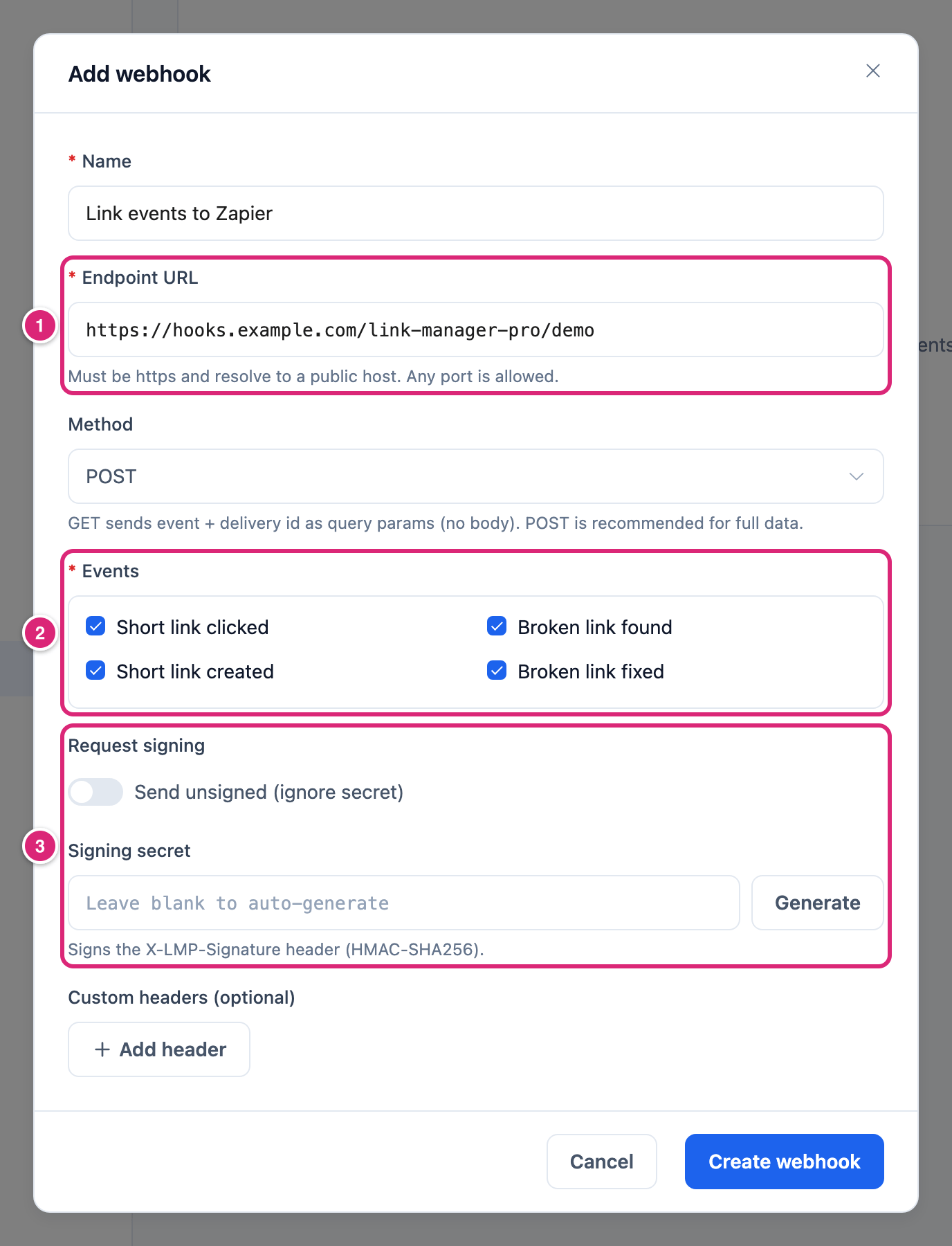
A webhook needs a name, the endpoint URL that receives it and at least one event. Everything else can stay as the dialog opens: POST, signed, no extra headers.
- Select Add webhook.
- Enter a Name you'll recognize in the list, for example
Clicks to Zapier. - Enter the Endpoint URL 1: the address the other service gave you for incoming webhooks, like
https://hooks.example.com/catch/123. - Leave Method on
POST. WithGET, the endpoint gets only the event name and a delivery ID, no event data (what a delivery contains). - Under Events 2, tick the events this address should get (which events there are).
- Under Request signing 3, leave Send unsigned (ignore secret) off, so deliveries carry a signature your receiver can check.
- Leave Signing secret blank to have one made for you. You can also select Generate, or paste the secret your receiver already expects.
- Optional: select Add header under Custom headers (optional), then enter a Header and its Value, for example a token your receiver checks.
- Select Create webhook.
The message Webhook created. appears, and the webhook is in the list as Active and Signed. If the site's security keys later change, Signing shows a red Secret unreadable badge instead (If something goes wrong). If the address is refused, the field says why (If something goes wrong).
To copy a secret that was made for you, select Edit (the pencil) on the webhook's row, then Reveal current and Copy. Close with Cancel and then Discard: the dialog counts the revealed secret as a change, and discarding saves nothing.
Send a test and check deliveries
Send test sends a test delivery to the endpoint right away and tells you whether it arrived. Use it after you add a webhook and whenever you change the receiving side.
- On the webhook's row, select Send test (the paper plane).
- Read the message. Test delivered (HTTP 200). means the endpoint answered with a success code (
200to299). If it wasn't delivered, the message starts with "Test not delivered:" and then gives the HTTP code the endpoint answered with, the connection error, that the address must use https and point to a public host, or that the signing secret can’t be read ("Test not delivered: the signing secret can’t be read. Edit the webhook and generate a new secret."). - To see real event deliveries, select Deliveries (the clock) on the row. The Recent deliveries panel lists the last 50, newest first, and has its own Send test button.
The test isn't added to Recent deliveries. Its result is only in the message. Send test also works on a paused webhook, whatever events are ticked. The test is signed and sent like any delivery, with the event ping (what's in it).
Recent deliveries has these columns:
| Column | What it shows |
|---|---|
| Event | For example Short link clicked |
| Status | Pending (waiting for its first try or a retry), Sending, Delivered or Failed (every try failed) |
| Code | The HTTP code the endpoint answered with on the last try |
| Tries | How many tries so far, up to 5 |
| Detail | The last error, such as http_500, or "Secret unreadable. Edit the webhook and generate a new secret.", and the time it was delivered or queued |
Which events can a webhook send?
A webhook can send four events, and it sends only the ones you tick. Each one fires at a set moment, and some similar moments don't send it:
| Event | Sent when | Not sent when |
|---|---|---|
| Short link clicked | A visitor opens a short link and the click counts. Visits through your redirects send it too. It's sent even with Click tracking off | Ignore bots or Blocked IP addresses leaves the visit out, or it's the 31st click or more within 5 minutes from one IP address on that link (how clicks are counted) |
| Short link created | A new short link is saved, for example in the link form, by Mask links when saving posts, by the AI Link Assistant, when you save an affiliate, or by AutomatorWP's Create a link | Links come from an import or a backup restore, you add a redirect, or Fix with a redirect makes a short link. Also when masking, the AI Link Assistant or Create a link reuses an existing short link to the same destination instead of making one |
| Broken link found | A Link Health scan logs a broken link in a post for the first time. An issue you deleted or cleared counts as new, so it's sent again when a scan finds the link still broken | Visitor 404s. An issue that's still in the list and turns up again, also after it was fixed or ignored |
| Broken link fixed | You fix an issue with Fix with a redirect, in your content or a visitor 404 (Link Health) | A scan marks an issue Fixed by itself, because the link works again or left the post |
A paused webhook gets no new events, and the ones it misses aren't sent later.
What does a webhook delivery contain?
With POST, PUT, PATCH or DELETE, each delivery is a JSON body with the event name, a delivery ID, the time, your site address and the event's data. With GET there's no body: only the headers and two query parameters. No delivery carries a visitor's IP address, browser details, cookie ID or WordPress account (what leaves your site).
Here's a Short link clicked delivery:
json
{
  "event": "link_clicked",
  "delivery_id": "3f2b6c1e-8a4d-4e7a-9b1f-2c5d7e9a0b13",
  "timestamp": 1792573200,
  "site": "https://example.com",
  "data": {
    "link_id": 42,
    "slug": "deal",
    "target_url": "https://shop.example.com/product",
    "click_count": 318,
    "country_code": "US",
    "referrer_domain": "news.example.org"
  }
}
timestamp is the time of this try, in Unix seconds. data depends on the event:
| Event | event value | Fields in data |
|---|---|---|
| Short link clicked | link_clicked | link_id, slug, target_url (the link's saved destination, without parameters added at the redirect, even when a routing rule sent the visitor elsewhere; no rule is named), click_count (the link's All-time clicks, this click included), country_code (empty when unknown), referrer_domain (the referring site, lowercase and without www.; empty when there's none). For a visit through a redirect, link_id, slug and click_count belong to the redirect's own internal link, which isn't listed under Short Links, and target_url is the redirect's target |
| Short link created | link_created | link_id, slug, target_url, redirect_type (301, 302 or 307), created_by (the WordPress user ID, 0 when nobody was logged in, as with WP-CLI run without --user) |
| Broken link found | broken_link_found | url, source_post_id, status_code (0 when there's no code), health_type (content), detected_at (UTC, like 2026-10-21 14:05:00) |
| Broken link fixed | broken_link_fixed | url, source_post_id, health_type (content, or traffic for a visitor 404), resolution (redirect_created) |
| Send test | ping | message: Link Manager Pro webhook test |
Every delivery has these headers:
| Header | Value |
|---|---|
X-LMP-Event | The event, for example link_clicked |
X-LMP-Delivery | The delivery ID. It stays the same on every retry |
X-LMP-Timestamp | The time of this try, in Unix seconds |
X-LMP-Signature | sha256= and the signature, unless the webhook is Unsigned |
Content-Type | application/json, except with GET |
User-Agent | LinkManagerPro-Webhook/1.0 (+https://example.com), with your site address. A custom User-Agent header replaces it |
Your custom headers come on top. A custom header named Content-Type or like one of the four X-LMP- headers is left out, so it can't replace them. With GET, the endpoint URL gets lmp_event and lmp_delivery added as query parameters.
How do I check the signature?
The X-LMP-Signature header is sha256= followed by an HMAC-SHA256 of t=<timestamp>.<body>, keyed with the webhook's signing secret, in hexadecimal. Your receiver builds the same string from the X-LMP-Timestamp header and the raw body, signs it with the same secret and compares the two.
- Read the raw body exactly as it arrived, before you parse the JSON.
- Join
t=, theX-LMP-Timestampvalue, a period (.) and the body. - Compute HMAC-SHA256 of that string with your secret, as lowercase hex.
- Compare
sha256=plus your result withX-LMP-Signature, using a constant-time comparison (one that takes the same time whatever the input, such as PHP'shash_equals).
In PHP:
php
$body      = file_get_contents('php://input');
$timestamp = $_SERVER['HTTP_X_LMP_TIMESTAMP'] ?? '';
$expected  = 'sha256=' . hash_hmac('sha256', 't=' . $timestamp . '.' . $body, $secret);
$valid     = hash_equals($expected, $_SERVER['HTTP_X_LMP_SIGNATURE'] ?? '');
With GET the body is empty, so the signed string is t=<timestamp>. only. Because the timestamp is signed, your receiver can also turn away deliveries older than a few minutes. A retry is signed again with a new timestamp, so it passes this check.
Every webhook has a secret, even an unsigned one, so turning signing back on later uses the same secret. Link Manager Pro stores it encrypted. A new secret applies from the next try, including deliveries still waiting for a retry, so change it on both sides at the same time.
How are failed deliveries retried?
A delivery counts as delivered only when the endpoint answers with a 2xx code within 5 seconds. Anything else is retried, up to 5 tries in all. The waits between tries are about 1 minute, 5 minutes, 30 minutes and 2 hours (each wait can be up to a fifth shorter or longer). A retry then goes out on the next run of the delivery task, which runs every 5 minutes, so the first retry usually comes about 5 minutes later. After the fifth failed try, the delivery is Failed and isn't sent again.
- Redirects count as failures. Link Manager Pro doesn't follow a
301or302from the endpoint, so enter the final address. - When deliveries go out. An event is queued at once and sent on the next run of the delivery task, which starts on the next page request and also every 5 minutes. Each run sends up to 20 deliveries and stops after 15 seconds, so against an endpoint that doesn't answer, a run may get through only a few.
- Automatic pause. When 15 deliveries in a row end Failed, the webhook is paused. A secret that can't be read is one cause: those deliveries fail and retry like any other. A delivered one resets the count. So does a delivered Send test, turning a paused webhook back on, and saving a new secret, but not saving the same one.
- Queue limit. Each webhook holds at most 500 deliveries waiting to go out. While it's full, new events for that webhook are dropped.
- Delivery log. Delivered entries are deleted after 7 days and Failed ones after 30 days, once a day. Entries still waiting stay until they're done.
WordPress's Site Health screen (under Tools) gets a webhook check, marked Link Manager Pro, once you have a webhook. It warns "1 webhook was paused after repeated delivery failures" (or "2 webhooks were paused after repeated delivery failures") or A webhook delivery queue is at capacity. Otherwise Webhook deliveries are draining normally is listed under the passed tests.
Edit, pause or delete a webhook
Each row in the list has icon buttons: Send test, Deliveries, Edit and Delete. Point at one to see its name.
To change or pause a webhook:
- Select Edit (the pencil) on its row.
- Change what you need. Turn off the Active switch under Status to pause the webhook, or on to start it again. Leave Signing secret blank to keep the current secret.
- Select Save changes.
Deliveries already waiting when you pause a webhook are kept. Any that come due while it's paused are moved about an hour later, so after you turn it back on they go out within about an hour.
WARNING
Deleting a webhook also deletes its delivery log, and it can't be undone. Deliveries still waiting are never sent. If you might need the webhook again, pause it instead.
To delete one, select Delete (the trash can) on its row, then Delete in the confirmation.
Use Link Manager Pro in AutomatorWP
When the AutomatorWP plugin is active, it lists a Link Manager Pro integration with four triggers and one action. There's nothing to turn on in Link Manager Pro. Each trigger fires at the same moment as the webhook event of the same kind (Which events can a webhook send?).
| Trigger | AutomatorWP automation type | Tags you can use in actions |
|---|---|---|
| A link is clicked | Anonymous | Event, Link ID, Slug, Destination URL, Total clicks, Country code, Referrer domain |
| A broken link is found | Anonymous | Event, Broken URL, Source post ID, HTTP status code, Health type |
| A broken link is fixed | Anonymous | Event, Resolved URL, Source post ID, Health type, Resolution |
| A link is created | Logged-in | Event, Link ID, Slug, Destination URL, Redirect type |
In AutomatorWP, choose the automation type first. AutomatorWP lists each trigger only in its own type: an Anonymous automation shows A link is clicked, A broken link is found and A broken link is fixed, and takes one trigger per automation. A Logged-in automation shows only A link is created of the Link Manager Pro triggers. That trigger runs only when a logged-in user made the link, and its actions run for that user. Links made by a scheduled task, or by WP-CLI run without --user, don't start it.
Create a link makes a short link from two fields, which both accept AutomatorWP tags: Destination URL: (required) and Slug (optional):.
- The destination must be a web address. One with another scheme, such as
mailto:, creates nothing. - If a short link to that destination already exists, it's reused: no new link is made and the slug is ignored.
- If the slug belongs to a link with another destination, no link is made. The rest of the automation still runs.
- A new link gets the affiliate's tag and redirect type on an affiliate's domain, and your Default redirect type otherwise. Without a slug, one is generated at your Slug length.
- Webhooks get Short link created for it, except when the automation started from A link is created. Then the new link sends no event at all, which is what stops that automation from looping.
Get more out of it
- Start with the quiet events. Broken link found and Broken link fixed arrive only when a scan finds something new or you fix it, which suits an alert in your team's chat through Zapier or Make. Short link clicked sends one request per counted click, redirects included, so a busy site sends many.
- Handle repeats on the receiving side. The delivery ID (
X-LMP-Delivery, alsodelivery_idin the body) stays the same on every retry. Store the IDs you've handled and skip one you've seen. - Add a token header when your receiver can't check signatures, for example
AuthorizationwithBearerand your token. Keep signing on as well, so a receiver that can check it does. - Keep a note of each webhook's secret. Backups include webhooks, but a restore brings them back only when you tick them. They come back paused from another site, and their secret and custom headers are encrypted in the file (Back up and restore).
- Look at Site Health after you set up webhooks. Its webhook check, marked Link Manager Pro, tells you when one was paused, which otherwise only shows as Paused in the list.
If something goes wrong
- If saving says The webhook URL must use https and point to a public host., then the address starts with
http://, its name doesn't resolve, or it points to a private or local address. A host with only an IPv6 address is refused too. Use thehttpsaddress the service gave you. - If deliveries stay Pending, then WordPress's scheduled tasks aren't running. Open a page of your site, or check that a server cron job runs WP-Cron when it's turned off.
- If the test answers with a
3xxcode, then the endpoint redirects, and Link Manager Pro doesn't follow redirects. Enter the address it redirects to. For401or403, check your custom header or your receiver's signature check. - If a webhook shows Paused and you didn't pause it, then 15 deliveries in a row failed. Fix the endpoint and use Send test until it's delivered. Then turn Active back on under Edit and select Save changes.
- If your receiver rejects every signature, then it's likely checking parsed JSON instead of the raw body, or an old secret. Use the raw body and the
X-LMP-Timestampvalue, and copy the secret again with Reveal current. If the row shows a red Secret unreadable badge in Signing, WordPress's security keys (AUTH_KEY) most likely changed, for example on a copied site, so the saved secret can't be read. Deliveries fail, retry, and then pause the webhook after 15 in a row. Detail shows "Secret unreadable. Edit the webhook and generate a new secret." The edit dialog shows a Secret unreadable alert. Select Edit, Generate, then Save changes, and give the receiver the new secret. Turning the webhook back on starts the failure count again. - If AutomatorWP doesn't list the trigger you want, then the automation has the other type. A link is clicked, A broken link is found and A broken link is fixed need an Anonymous automation; A link is created needs a Logged-in one.