
Appearance
Redirect an old URL
Send an old address to the page that replaced it, so visitors and search engines land there instead of on a 404. Then check that it works.
To redirect an old URL in WordPress with Link Manager Pro, create a redirect from the old address to the page that replaced it. Anyone who opens the old address, visitor or search engine, lands on the new page instead of a 404. It works for a page you moved, renamed or deleted.
A redirect keeps an address you already had working. If you want a new address to share instead, like yoursite.com/link/deal, create a short link (short link or redirect?).
Before you start
- You need access to Link Manager Pro. Administrators always have it, and editors only when an administrator allows it (Access for editors).
- Know the old address, like
/old-pricing, and the full new one, likehttps://yoursite.com/pricing/.
Create a 301 redirect in WordPress
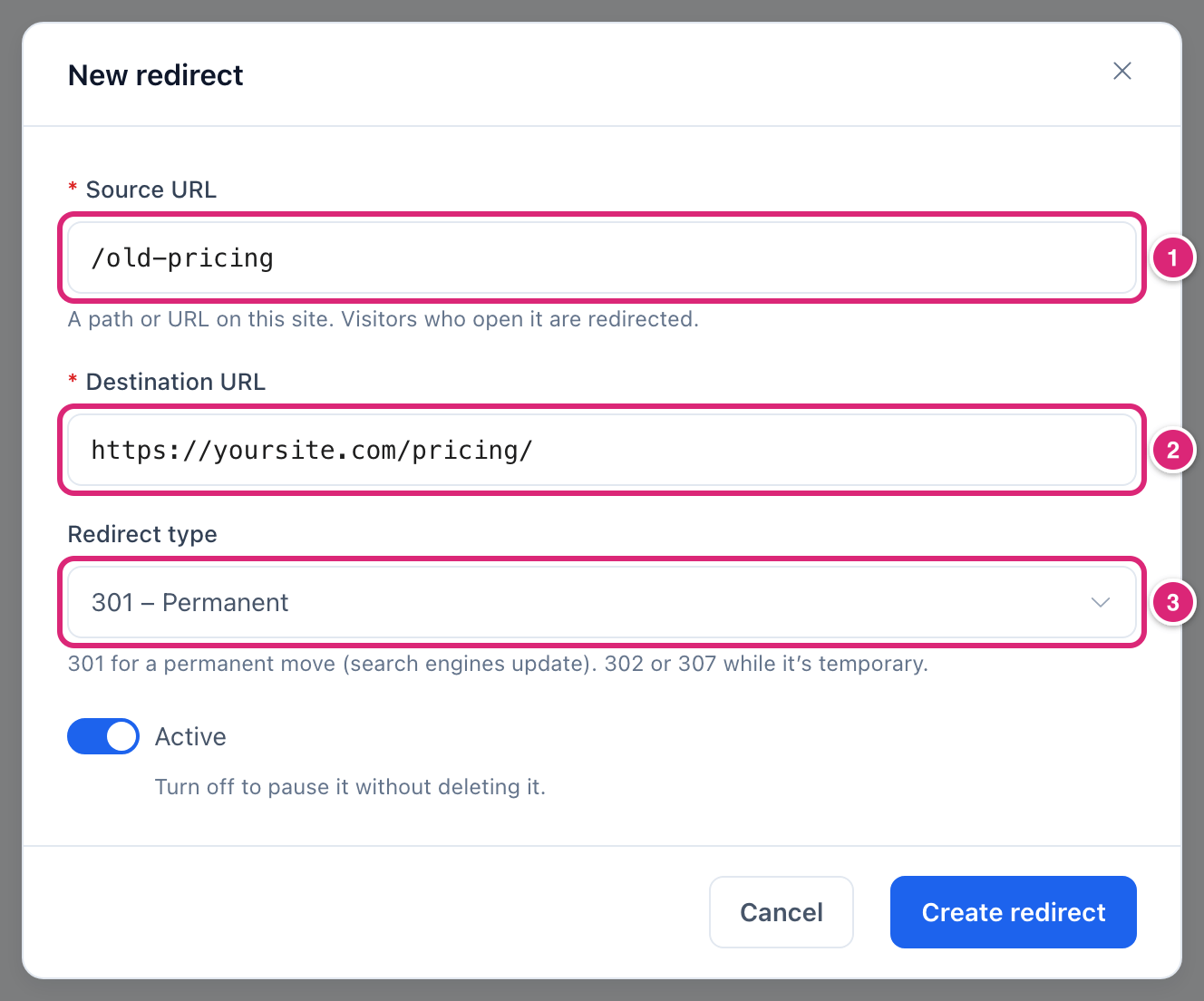
You create a redirect in the New redirect dialog: the old address, the new address, and the redirect type. For a page that moved or was deleted for good, keep the type on 301.
Link Manager › Link Intelligence › Redirects- Select New redirect at the top right. On a site with no redirects yet, the New redirect button under No redirects yet does the same.
- Enter the old address in Source URL 1, for example
/old-pricing. A path is enough. If WordPress lives in a folder, likeyoursite.com/blog/, include it:/blog/old-pricing. - Enter the new address in Destination URL 2, starting with
https://, for examplehttps://yoursite.com/pricing/. It can be on another site, too. - Check the Redirect type 3. It starts on your Default redirect type: 301 (permanent), unless you or a settings import from another plugin changed it. Choose 302 if the old address will come back (301, 302 or 307?).
- Leave Active on.
- Select Create redirect.
Redirect created. appears and the dialog closes. The newest redirect comes first, so on the All tab's first page, with no search, yours is at the top.
If a message shows under a field instead, the list of messages explains it. Changed your mind? Select Cancel. If you typed anything, Discard changes? asks first, and Discard closes the dialog without saving.
How do you check that the redirect works?
Open the old address in a private browser window. You should land on the new page. For a counted visit, the redirect's Hits in the list goes up by one. Your own visit counts like anyone's, even while you're logged in as an administrator.
- Open a private window, so nothing your browser kept from earlier visits gets in the way.
- Go to the old address, for example
yoursite.com/old-pricing. The address bar switches to the destination. - Reload the Redirects screen. Hits for your redirect is one higher.
Hits doesn't go up for these visits, although the visitor is still sent on:
- A visit from a bot or crawler, while Ignore bots is on (the default).
- A visit from one of your Blocked IP addresses.
- More than 30 visits from the same IP address to this redirect within 5 minutes.
Select the redirect to open its report. Recent hits and Hits over time show the new hit at once. The first hit shows in the totals under At a glance on the next load. Later hits can take up to 600 seconds (10 minutes). That's the default of Refresh reports every under Link Manager › Settings › Advanced.
Link Manager Pro tells browsers not to cache its redirects. So you can change the destination or type later, and browsers don't hold on to the old answer.
How do you change or remove a redirect later?
To change a redirect, select Edit on its row in the list, change the Destination URL or Redirect type, and select Save changes. To stop it and keep its history, turn Active off. Delete it only when you don't need its hits, because deleting removes them (edit or delete a redirect).
Example: a 302 redirect for a short campaign
Use 302 when an address on your site should point somewhere only for a while. Say you mention yoursite.com/summer-sale in a newsletter, and it should open your sale page until the sale ends.
- Create a redirect with Source URL
/summer-sale, Destination URLhttps://yoursite.com/shop/summer-sale/and the Redirect type 302. - When the sale ends, select Edit on its row in the list.
- Turn off Active, and select Save changes. Visitors to
/summer-salenow get the page at that address, or your 404 page. If a short link has/summer-saleas an other address, that short link can answer instead. - For the next sale, edit it again: change the destination if it moved, turn Active back on, and save.
Pausing keeps the redirect and its hit history (what pausing does).
Details
| Field | Default | What you can enter |
|---|---|---|
| Source URL | Empty | A path or a full address on your own site, up to 2,048 characters. Not the home page. A Source URL with a ? part matches that exact query too. One without it matches the path whatever the query |
| Destination URL | Empty | A full http:// or https:// address, on your site or another one, up to 2,048 characters |
| Redirect type | Your Default redirect type (301) | 301, 302 or 307 |
| Active | On | Off saves the redirect paused |
- A redirect matches one exact path. Letter case counts, there are no wildcards, and a slash at the end is ignored (which visits match).
- Only one active redirect can use a source.
- There's no 410 (gone) type. For a page with no replacement, point the old address at the closest page or leave it to your 404 page.
Get more out of it
- Find the old addresses people still open. First set Track visitor 404s to All URLs under Link Manager › Settings › Link Intelligence. The default, Smart (sitemap-based), logs addresses in your sitemap and 404s visitors reached from a link on your own pages. A moved or deleted page usually isn't in the sitemap any more, and visitors from search or typed addresses aren't logged. Then Visitor 404s in Link Health lists the addresses visitors hit, and Fix with a redirect turns one into a redirect.
- Fix your own links too. When a redirect's report lists your own domain under Referring sites, a page on your site still links to the old address. Point that link at the new page.
- Pause before you delete. Retire in a redirect's report means nobody used it for 90 days. The verdict shows only when click tracking is on and the recorded history covers those 90 days without a gap. Pause redirect switches it off and keeps its history, while deleting removes every hit (edit or delete a redirect).
- Making mostly temporary moves? Set Default redirect type under Link Manager › Settings › Redirection to 302, and new redirects start there. New short links do too (Redirection settings).
If something goes wrong
- If the old page or a 404 still shows, then check that the redirect's Status is Active. The source must match the address exactly, letter case and folder included. Then clear your page cache.
- If saving says "An active redirect for this source URL already exists.", then another redirect uses that source. Search the list for it and edit that one.
- If saving says "The target_url format is invalid.", then add
https://to the start of the destination. - If you land on a short link's destination, then the source is that short link's own address, like
/link/deal(under any of your prefixes), and the short link wins. Pick another source. - If Hits didn't go up after a reload, then your visit wasn't counted. Check Blocked IP addresses under Link Manager › Settings › Tracking for your own IP address.
More fixes are on Troubleshooting.