
Appearance
Tag links for a campaign
Tag a campaign's short links with UTM parameters and test a click. Then read the results in the campaign report, the link report or your analytics tool.
To add UTM parameters to links in WordPress with Link Manager Pro, fill in the UTM parameters section of each short link. Give it a Source, Medium and Campaign, and Link Manager Pro adds them to the destination address on every click. The link you share stays short, and analytics tools on the destination site can read the tags.
UTM parameters are tags like utm_source=newsletter in a page's address. This tutorial takes one campaign from start to finish: save it, tag its links, test a click, then read the results.
Before you start
- You need access to Link Manager Pro. Administrators always have it, and editors only when an administrator allows it (Access for editors). Site-wide parameters are in Settings, which only administrators can open.
- Keep Click tracking on under Link Manager › Settings › Tracking. It's on by default, and the reports need it.
- Decide your values first. Write them in lowercase, with
_or-instead of spaces. A saved campaign's value takes only lowercase letters, numbers,_and-, and one spelling per value keeps a campaign's clicks together.
| Tag | What it tells you | Example |
|---|---|---|
Source (utm_source) | Where the link was placed | newsletter, google |
Medium (utm_medium) | The kind of channel | email, cpc, social |
Campaign (utm_campaign) | The campaign it belongs to | spring_sale_2026 |
Term (utm_term) | Optional: a paid search keyword | running+shoes |
Content (utm_content) | Optional: which link or spot | header, sidebar |
Where do you build a UTM link?
Link Manager Pro has no separate UTM builder screen. The UTM parameters section of the short link form is where you build them, and Preview shows the finished address.
Save the campaign first
A saved campaign stores the campaign value and the Source and Medium its links share, so every link gets the same spelling. It's optional, but it's how you reuse a set of UTM values: Link Manager Pro has no separate UTM templates.
Link Manager › Campaigns- Select New campaign.
- Enter a Name, for example
Spring Sale 2026. Campaign value (utm_campaign) fills in from it:spring_sale_2026. - Open Default UTM values and enter Source (utm_source)
newsletterand Medium (utm_medium)email. - Select Create campaign.
The campaign shows in the list as Managed, with 0 short links. Saving a campaign doesn't tag any link; that's the next step. Every field is explained in Create a campaign.
Add UTM parameters to a short link
A short link's own tags go in the UTM parameters section of its form, and they're added on every click of that link. Do this for each link in the campaign.
Link Manager › Short Links- Select Edit (the pencil) on the link's row, or New short link for a new one.
- If the section is closed, select UTM parameters to open it. It opens by itself when the link already has tags. Its switch only shows or hides the fields: switching it off doesn't clear them.
- In Select campaign… 1, choose
Spring Sale 2026. This fills all five fields from the campaign and replaces what was in them, empty values included. Without a saved campaign, enter Source (utm_source), Medium (utm_medium) and Campaign (utm_campaign) yourself. - Set what only this link needs, for example Content (utm_content)
headerfor the link at the top of your newsletter. - Check Preview 2. It shows the Destination URL with this link's tags, for example
https://example.com/sale?utm_source=newsletter&utm_medium=email&utm_campaign=spring_sale_2026&utm_content=header. - Select Save changes (Create short link for a new link).
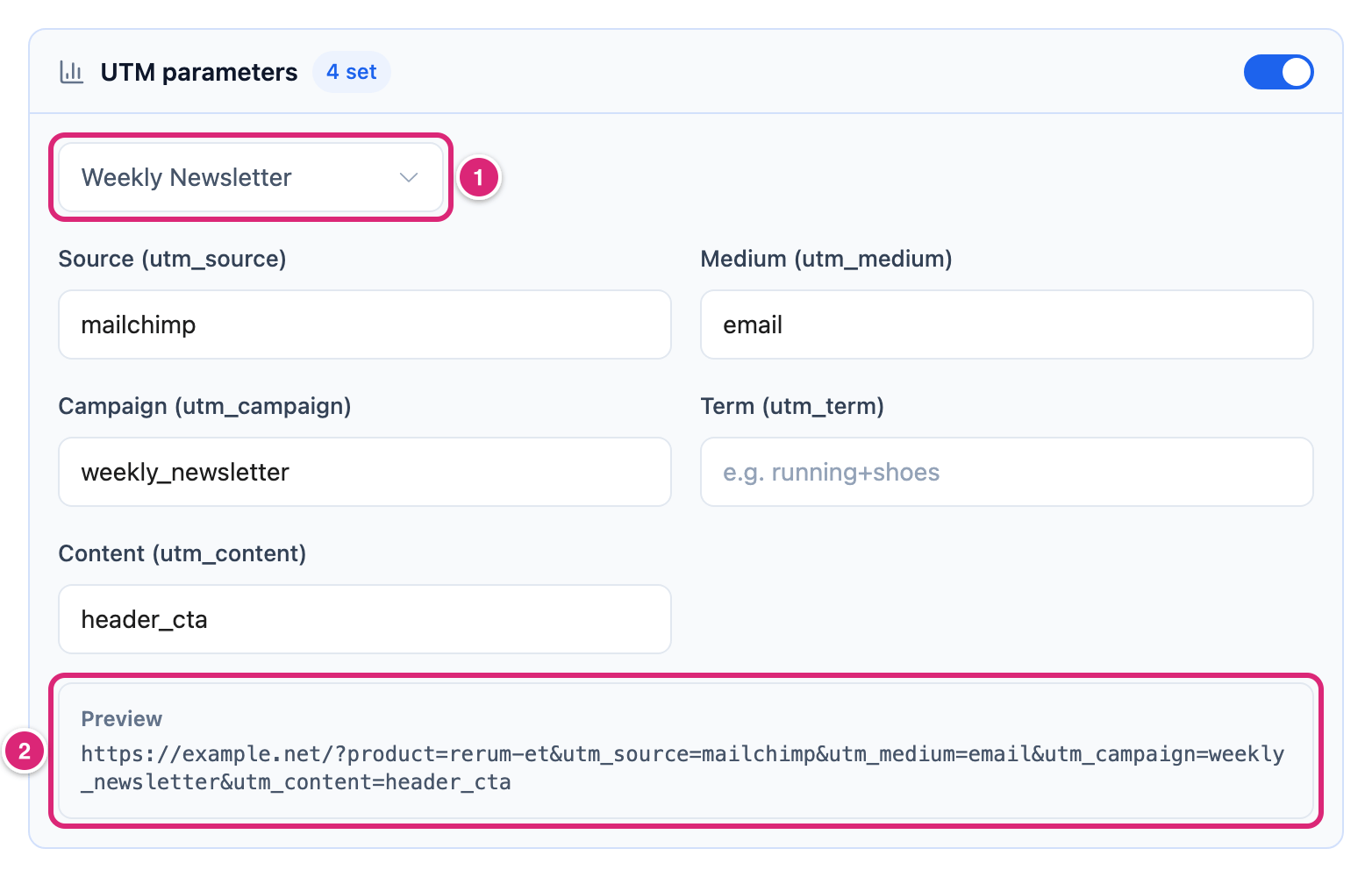
Preview shows only this link's tags. Site-wide, affiliate and forwarded parameters are added later, at the redirect. Details are in Add UTM parameters to a short link.
Picking a campaign copies its values at that moment. If you change the campaign's defaults later, links that already use it keep the values they have.
Add UTM tags to every link automatically
Site-wide UTM parameters go on every short link click, old and new, without editing any link. Use them for the tags every click from your site should carry, and keep the campaign on each link.
Link Manager › Settings › Redirection- In Site-wide UTM parameters, enter the tags as one line without the
?, for exampleutm_source=yoursite&utm_medium=shortlink. - Check Preview: under the field.
- Select Save changes.
A link's own value replaces a site-wide one of the same name, so a link with Source newsletter keeps newsletter. Short links to your own pages get the site-wide parameters too; only redirects have a switch to leave your own pages out. Site-wide parameters also go on redirects to other sites. Redirects to your own pages get them only with Add them to redirects within this site on (Redirection settings).
Which UTM value wins when tags overlap?
When two places set the same tag, the later one in this order wins: site-wide, the link, the affiliate, then the visitor's forwarded parameters. Each step also replaces a tag of that name already in the Destination URL. An empty field on a link or an affiliate never replaces anything.
- Your Site-wide UTM parameters.
- The link's own UTM parameters.
- The affiliate's UTM parameters, when the visitor goes to that affiliate's domain.
- The parameters in the address the visitor opened, when the link has Forward the visitor’s query parameters to the destination on.
Two cases catch people out:
- An affiliate's Campaign (utm_campaign) replaces the link's on every click to that domain, links of other campaigns included. To track campaigns per link, leave the affiliate's Campaign empty.
- A forwarded parameter replaces even when it's empty. A visitor who opens
?utm_source=reaches the destination with an emptyutm_source, not the link's value.
The full order, with a worked click, is in UTM parameters and forwarding.
Check the tags on a test click
Open the short link in a private browser window. The address bar shows the destination with every tag Link Manager Pro added, including the site-wide and affiliate ones that Preview leaves out.
- Select Copy link at the top of the link's report. A new link's report opens by itself when you select Create short link. For a link you edited, the row's Copy link under Link Manager › Short Links does the same.
- Open a private browser window, paste the link into its address bar and press Enter.
- Read the address bar. You should see your tags, for example
?utm_source=newsletter&utm_medium=email&utm_campaign=spring_sale_2026.
Your test click is recorded like any visitor's click, and it stays in the link's and the campaign's counts. With the click, Link Manager Pro keeps only the utm_ tags in the address you opened, not the ones it adds. So a click on the plain short link records none of its own. Tags you add to the address yourself, like ?utm_source=test, are kept with the click and show in the link's Campaign traffic. That's why you test with the plain short link.
If a tag you expected isn't there, the destination site may have removed it after the redirect. Or another step replaced it (Which UTM value wins when tags overlap?).
Read the campaign results
Results show in three places, and each one counts a little differently. Link Manager Pro counts at the short link, while your analytics tool sees what reached the destination.
The campaign's report
Select a saved campaign under Link Manager › Campaigns. Campaigns count clicks by the link's own Campaign (utm_campaign) value, and new clicks show within a minute.
- Channels: each source and medium's share of the campaign's clicks.
- Short links in this campaign: each link with its Clicks.
- UTM variants: the links' Source, Medium, Term and Content combinations, side by side.
Every number is explained in Read a UTM campaign report.
The link's report
Under Link Manager › Short Links, select the link's row to open its report. Campaign traffic counts Source, Medium and Campaign separately. A click that arrived with one of those tags in its address counts under that tag. Any other click counts under the link's own value, and site-wide and affiliate parameters aren't counted there (Campaign traffic).
The card updates after the Refresh reports every time under Link Manager › Settings › Advanced, 600 seconds by default. Reload the report to see it. Recent clicks shows your test click straight away (When the numbers update).
The Campaign column in Short Links shows each link's campaign value. Selecting the value opens that campaign's report, for a virtual campaign too.
Your analytics tool
Tools on the destination site, such as Google Analytics, can show the tags when the destination keeps them in its address. Link Manager Pro sends nothing to them itself. When the destination is a partner's site, it's the partner's analytics that can see them.
The numbers can differ for good reason. An affiliate's or a forwarded utm_campaign can replace the link's in the address. Your analytics tool can then show that campaign, while Campaigns still counts the click under the link's own.
Details
Where each set of tags comes from, and its limits.
| Tags | Where you set them | Added to | Limit |
|---|---|---|---|
| Site-wide UTM parameters | Settings › Redirection | Every short link click; redirects to other sites | One line of name=value pairs; any parameter name |
| A link's UTM parameters | The short link form | Every click of that link | Five fields, up to 255 characters each |
| A campaign's Default UTM values | Campaigns | Nothing by itself: copied into a link or an affiliate when you pick the campaign | Source, Medium, Term and Content |
| An affiliate's UTM parameters | Affiliates | Clicks to that affiliate's domain | Five fields, up to 200 characters each |
| Tags in the visitor's address | Nothing to set | The destination only with Forward the visitor’s query parameters to the destination on; recorded with the click either way | The five utm_ names, 191 characters each, while Click tracking is on |
- Values are saved as plain text. HTML tags and percent codes like
%20are removed when you save, so write values without them. - Every tag is added at the moment of the click. Nothing is written into your Destination URL, so a change applies from the next click.
How do you change or remove UTM parameters later?
Edit the link under Link Manager › Short Links and open UTM parameters. Change a value, or empty the fields you want gone, and select Save changes. A link with all five fields empty adds no tags of its own. The change applies from the next click, because nothing is written into your Destination URL.
Site-wide tags go the same way: empty Site-wide UTM parameters under Link Manager › Settings › Redirection and save. Clicks already recorded keep the tags they came with. The switch on the UTM parameters section only hides the fields, so empty them to remove the tags.
Get more out of it
- Tag each spot with Content. Keep Source, Medium and Campaign the same across a campaign, and give each link its own Content (utm_content), like
headerandfooter. UTM variants in the campaign's report then compares the spots. - Share one link in several places. Turn on Forward the visitor’s query parameters to the destination under the link's Schedule & access. Then share
yoursite.com/link/deal?utm_source=podcastin your show notes and?utm_source=newsletterin your email. The visitor's Source replaces the link's, and Campaign traffic splits the clicks (Forward query parameters). - Let the Share buttons tag social posts. Share in the link's report adds
utm_sourcewith the network's value, likefacebook,xfor X (Twitter) oremail. Theutm_mediumissocialon every button except Email, which setsemail. Those tags show in Campaign traffic either way, and reach the destination only while the link forwards parameters. - Give print its own link. A QR code holds the plain short link, and the link's tags are added when someone scans it. For a flyer, make a separate short link with Source
flyerand Mediumprint, and use its QR code. - Keep the split in your own report only. Leave forwarding off and share tagged addresses like
?utm_source=podcastanyway. Campaign traffic still records each Source, while the destination gets your usual tags, not the visitor's.
If something goes wrong
- If a tag is missing at the destination, then check the address bar after a test click. An affiliate's value or a forwarded one may have replaced the link's, or the destination removed it.
- If your analytics tool shows another campaign than Campaigns does, then an affiliate's or a visitor's
utm_campaignprobably replaced the link's. Check the address after a test click. Leave the affiliate's Campaign (utm_campaign) empty, or turn off forwarding on that link. - If a link is missing from its campaign, then compare its Campaign (utm_campaign) with the campaign's value character by character. Picking the campaign in Select campaign… sets it exactly.
- If Campaign traffic still says No campaign data yet right after your test click, then the report hasn't caught up yet. Reload it after the Refresh reports every time (600 seconds by default, under Link Manager › Settings › Advanced). Recent clicks shows the click at once. If it stays, no recorded click carries a Source, Medium or Campaign: give the link one, and check that Click tracking is on.
- If a value lost characters after saving, then it had a percent code like
%20or an HTML tag. Write it without them.
More fixes are on Troubleshooting.