
Appearance
Find and fix broken links
Scan your content for broken links and fix each one with a redirect or a post edit. See the 404s your visitors hit too.
To find broken links in WordPress with Link Manager Pro, run Scan content in Link Health and open the In your content tab. Then fix each link: with a redirect when the broken address is on your own site, or by editing the post when it points to another site.
Link Health is the broken link checker built into Link Manager Pro. The same screen lists the 404s your visitors hit. Every setting and limit is on the Link Health page.
Before you start
- You need access to Link Manager Pro. Administrators always have it, and editors only when an administrator allows it (Access for editors).
- By default, a scan checks published Posts and Pages. To add a content type, choose it under Content types to check in Link Manager › Settings › Link Intelligence.
- Changing settings needs an administrator: only administrators see the Settings tabs.
- Editing a post changes it. For a copy you control, back up Posts and pages first (Back up and restore).
Find and fix broken links in your posts
You scan once, then work down the In your content list. The fix depends on where the broken link points.
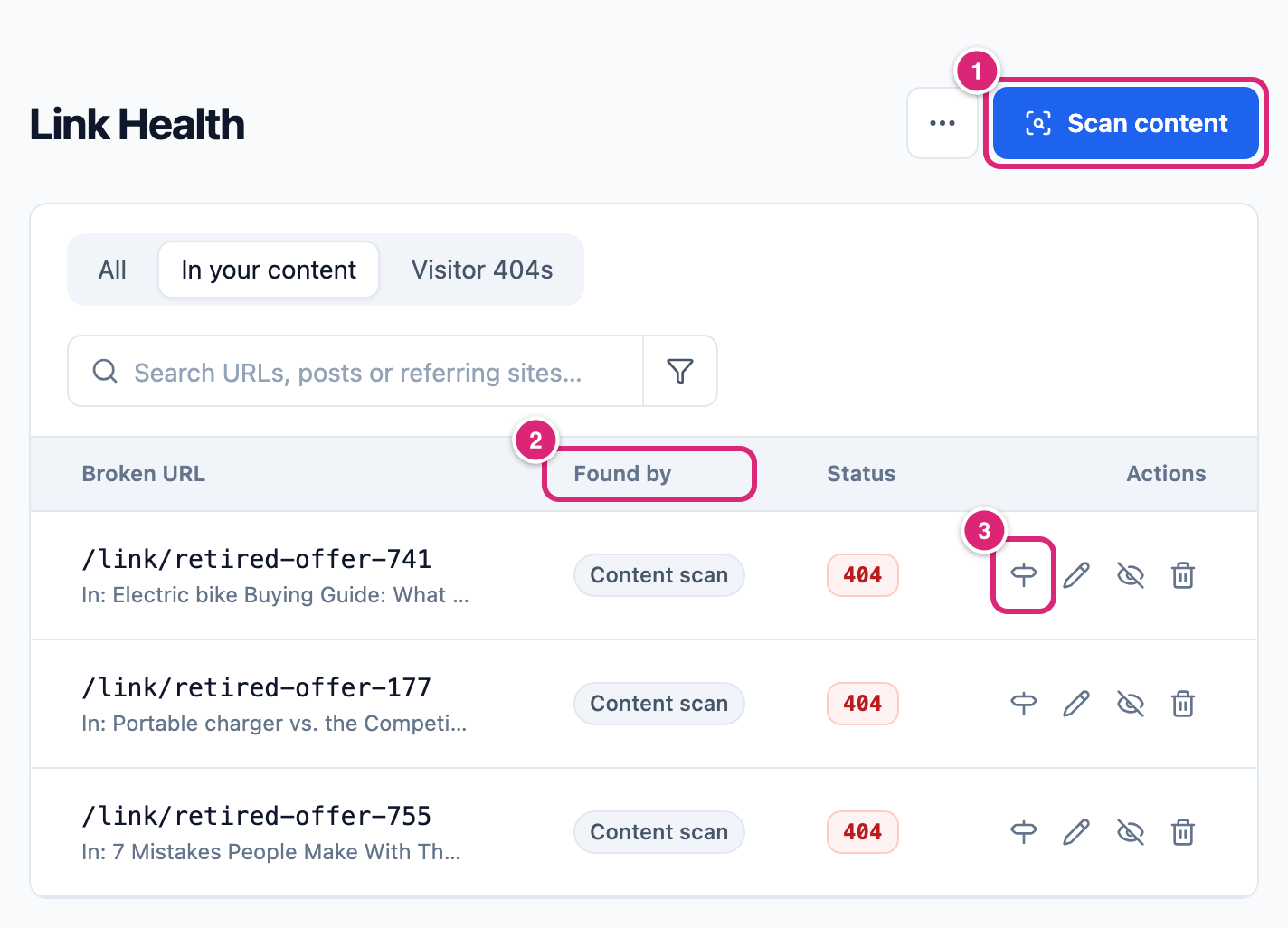
Link Manager › Link Intelligence › Link Health- Select Scan content 1. Keep the page open until the end message, for example "Scan complete. 3 broken links found." The bar shows how many posts are done; a big site takes a while.
- Select the In your content tab. Each row shows the broken address and, below it, the post it's in ("In: …"). Found by 2 says Content scan.
- Fix each row the way that fits it:
- An address on your site (it shows as a path, like
/old-pricingor/link/old-offer): select Fix with a redirect 3, the signpost icon. Enter the working page in Destination URL, starting withhttps://, and select Create redirect. - A row that says "Via short link": a short link of yours sends visitors here. Select View link (or, when the row names several short links, the one you want in the row), then Edit short link (the pencil) on the report, and change its Destination URL (Create and edit a short link). Every post that uses the short link is fixed at once.
- A link to another site: select Edit the post (it opens in a new tab). Replace or remove the link, and save the post.
- An address on your site (it shows as a path, like
- Select Scan content again once you've edited posts or short links (how to check).
Stop, or leaving the page after a prompt, ends a scan early; what it found stays. On a link to another site, Fix with a redirect makes a short link to paste into the post instead (what each fix does).
How do you check that a broken link is fixed?
A redirect fix marks the issue Fixed at once, and the row leaves the list. An edited post or short link turns Fixed at the next scan; saving a post doesn't update Link Health.
- After a redirect: open the broken address in a private window. You should land on the new page (check a redirect).
- After editing a post or a short link: select Scan content again. An issue turns Fixed when its link is gone from the post or now ends on a working page (after any redirects).
- To see fixed issues: select the filter button inside the search box. Under Filters, choose Fixed instead of Needs attention.
If a later scan finds it broken again, it goes back under Needs attention. New sites also scan every week on their own (scheduled scans).
Monitor the 404s visitors hit
In WordPress, a 404 monitor shows which missing addresses visitors open. Visitor 404s lists addresses on your site that visitors opened and that ended on your 404 page. The default, Smart (sitemap-based), logs addresses your sitemap lists and broken links visitors follow from your own pages (not bots) (every 404 while it can't read a sitemap), so it also catches a deleted page that your own pages still link to. Old addresses from outside aren't listed, so choose All URLs while you move or delete pages.
Link Manager › Settings › Link Intelligence- Under Track visitor 404s, choose All URLs, and select Save changes.
- Go to Link Manager › Link Intelligence › Link Health and select the Visitor 404s tab. Each row shows the address, the site the visitor came from ("From: …") and its Hits.
- Select Fix with a redirect on a row, enter the page that replaced it in Destination URL, and select Create redirect. If the address has a
?part, like/old-page?utm_source=news, a fix from that row redirects only that exact address, and/old-pageitself still ends in a 404. Create the redirect for/old-pageinstead (Redirect an old URL): it also answers every?version.
The redirect answers before WordPress shows its 404 page, so the address isn't logged again. Changed your mind? The redirect is listed under Link Manager › Link Intelligence › Redirects, where you can pause it or delete it; deleting also removes its hits (pause a redirect). The list shows the most recently seen first; Hits shows which addresses people open most (Smart or All URLs).
How do you undo a fix or change it later?
Each fix is undone where it was made, and the issue goes back to Needs attention when a later scan finds the link broken again.
- A redirect: pause it or delete it under Link Manager › Link Intelligence › Redirects. Visitors then get the 404 page again (pause a redirect).
- A short link made for a link to another site: change its Destination URL in its report, as in step 3 above.
- A post you edited: edit it again, or restore an earlier revision in WordPress. Revisions exist only while they're on for your site.
What about a link that isn't really broken?
Select Ignore (the crossed-out eye) on its row. It leaves Needs attention at once; Undo in the message brings it back. It stays ignored when a scan finds it again (ignore, delete or clear).
Details
| What | How it works |
|---|---|
| What counts as broken | Only an answer of 404 (not found) or 410 (gone). A 403, a 5xx server error or a timeout isn't listed |
| What a scan reads | Links written as full addresses (https://…) in the saved content of published posts, including links to your own site |
| Left out | Relative links like /about/, links a shortcode or block adds only when the page is shown, and links to private network addresses like localhost |
| Visitor 404s skipped | Files (images, CSS, scripts, PDFs), WordPress's own paths like /wp-admin/, and addresses an active redirect answers |
| Visitor 404s kept | Up to 5,000 addresses. Past that, new ones aren't added until you delete or clear rows (limits) |
Get more out of it
- Scan right after a big change, like moving pages or importing posts, instead of waiting for the next scheduled scan. Scans check your short links through their destination and never open them, so they add no clicks.
- Keep Scheduled health scans on Weekly under Link Manager › Settings › Link Intelligence. New broken links then show up without a manual scan, and the Dashboard's Broken links card counts them.
- Read "From: …" on a visitor 404. When it names your own domain, a page on your site still links to the old address. The row shows only the domain, so select Scan content before you add the redirect: In your content then names the post, when it links with a full address. Fix that link too.
If something goes wrong
- If Scan content is grayed out, then no content type is chosen. Choose one under Content types to check in Link Manager › Settings › Link Intelligence.
- If a scan ends "Not fully checked", then it ran out of time or hit a limit. Select Scan content again right away; each run gets further (why).
- If a fixed link to another site comes back under Needs attention, then the post still has the old link. Replace it with the short link the fix made, from Short Links.
- If a link you know is broken isn't listed, then it didn't answer
404or410, or it isn't a full address in the post. Scheduled or expired short links aren't listed either, although visitors get the 404 page.
More fixes are on Troubleshooting.