
Appearance
Activate your license
Activate your license key, see what each status means, and know when to use Refresh, Deactivate or Remove license.
To activate your Link Manager Pro license, enter your license key under Link Manager › Settings › License and select Activate. The License screen describes the key as your access to plugin updates and support. This page explains each status the screen can show, what to do about it, and how Refresh, Deactivate and Remove license differ.
Before you start
You need a WordPress administrator account and your license key.
- Only users who can manage WordPress options, which means administrators on a normal site, can open Settings and the License tab. That stays true when you let editors use Link Manager Pro.
- You get your license key when you buy Link Manager Pro from linkmanagerpro.com. Keep a copy: once the key is saved, the License screen shows only its last four characters.
How to activate your Link Manager Pro license key
Activating takes one field and one button.
Link Manager › Settings › License 1- In the Activate license row, paste your key into the Enter your license key field 2.
- Select Activate 3. The button stays grayed out until the field holds more than spaces.
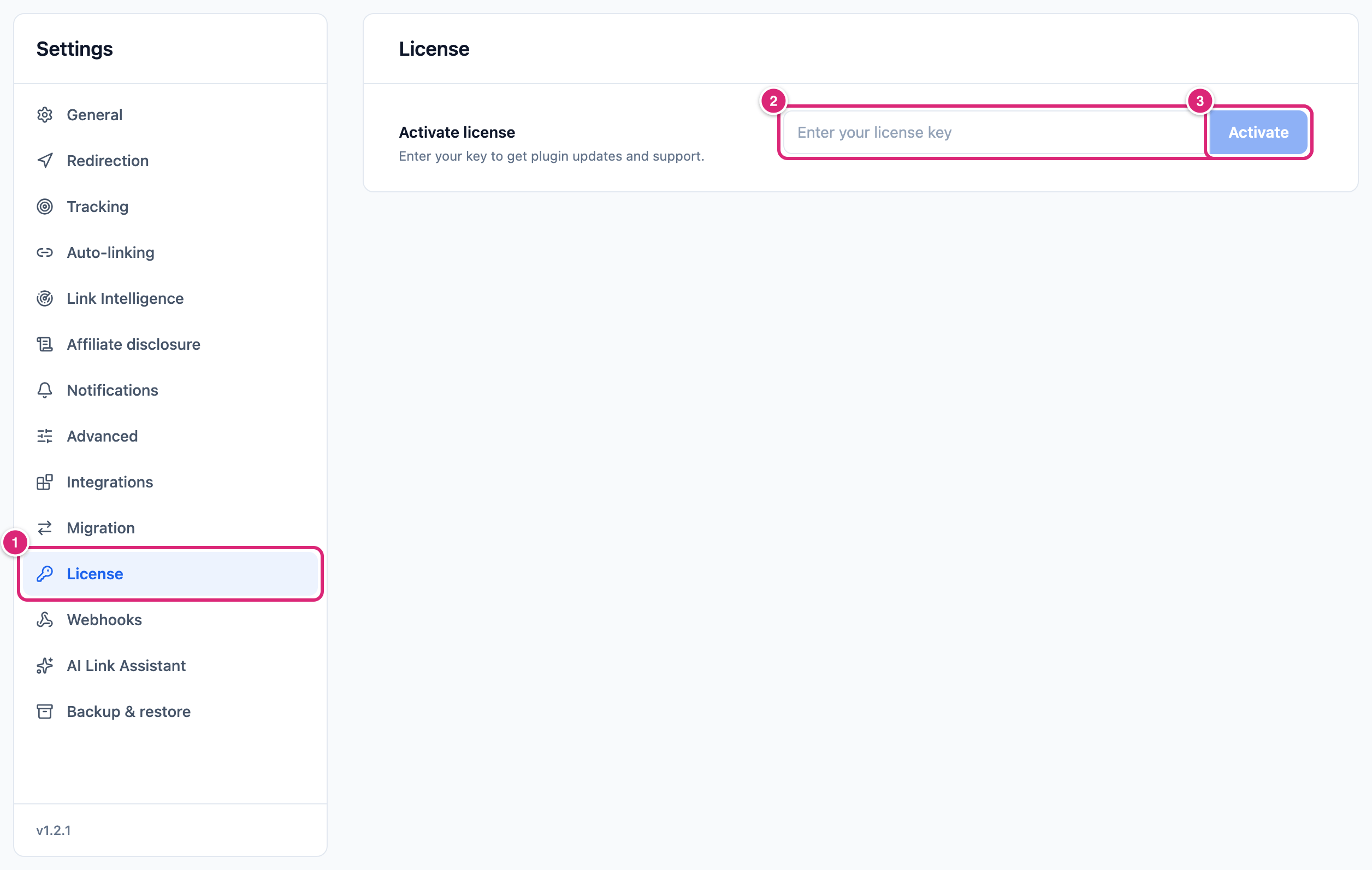
Link Manager Pro sends the key to the license server, together with your site's home address. When the server accepts it, a message confirms the activation, the field disappears and the license details take its place. If the server refuses the key, a message says why and nothing is saved, so you can correct the key and try again.
What you see once your license is active
An active license shows four rows and its buttons. On a trial or in a grace period, a banner above them says so.
| Row or button | What it shows or does |
|---|---|
| Status | Active, Trial or Grace period |
| License key | Your key as asterisks, ending in its last four characters |
| Expires on | The expiry date, or Never (lifetime license) for a lifetime license |
| Activated on | The day this site was activated, or Not available |
| Renew license or Manage license | Opens linkmanagerpro.com in a new tab. Renew license shows when the license has an expiry date, Manage license otherwise |
| Deactivate, Remove license | See Deactivate or remove your license |
| Refresh | At the top right of the License card. See Refresh and Check license again |
What does each license status mean?
The License screen shows the status as a colored banner above the details, or, while the license is active, in the Status row. Each banner carries a message from the license check that says what happened. The table gives each status and what to do.
| What you see | What it means | What to do |
|---|---|---|
| Activate license and an empty key field | No key is saved on this site | Enter your key and select Activate |
| Status: Active, no banner | The key is active on this site | Nothing |
| Status: Trial, banner Trial active | The license is a trial | Convert the trial before it ends, as the banner says. Renew license or Manage license opens linkmanagerpro.com |
| Status: Grace period, banner Grace period | The screen still shows the license details, with Grace period in the Status row. The banner says your license couldn’t be confirmed, so it runs in a grace period, and that updates keep working for now. That happens after a failed payment, or when your site couldn't reach the license server, for up to 7 days after the last successful check | If a payment failed, update it in your account, then select Refresh. If it's a connection problem, select Refresh once your site can reach the server again |
| Banner License expired | The license term has ended. The banner gives the end date when it's known | Renew it (Renew or manage opens linkmanagerpro.com), then select Check license again |
| Banner License suspended | The license server has suspended the license, for example because the key is over its site limit | Contact support from Help & Support (the life-buoy icon at the right end of the plugin's header) › Get support. Once it's resolved, select Check license again |
| Banner License inactive | A key is saved on this site but isn't active. The message names the reason when it's known: a canceled subscription, an expired activation, a changed site address, or a key the server didn't recognize. After a deactivation it says This site’s license is turned off. and asks you to select Check license again | For a canceled subscription, reactivate it first. Then select Check license again. Your key is still saved, and the screen shows Check license again instead of a key field, so you don't need to type the key first |
| Banner License revoked | The license was revoked, or the license server no longer recognizes the key | Refresh can't bring it back. Select Contact support (it opens support.solvixstudio.com), or select Remove license and enter another key |
With License expired, License suspended and License inactive, the screen shows Saved license key with your masked key. Your key stays saved, so you don't type it again after you fix the cause.
Refresh and Check license again
Refresh and Check license again run the same check: they ask the license server for your license's current state, right now. You never re-enter the key for either one.
- Refresh sits at the top right of the License card whenever a key is saved on this site.
- Check license again is the main button when the license needs attention (expired, suspended or inactive).
The check first uses this site's existing activation. If that activation no longer works, it activates the saved key for this site again. That happens, for example, after you select Deactivate or when the server reports that your site address changed. Afterwards a message says License status refreshed. when the license is active, or repeats the status message when it isn't.
You don't have to select Refresh for the status to change. Link Manager Pro also checks the license once a day, through a WordPress scheduled task. Use Refresh when you've just renewed or fixed something and don't want to wait.
Deactivate or remove your license
Deactivate takes the license off this site and keeps your key saved here. Remove license takes it off and deletes the key and every other license detail saved on this site.
| Deactivate | Remove license | |
|---|---|---|
| Shown when | The license is active (also on trial or in a grace period) | A key is saved, in any status |
| License server | Sent a request saying this site no longer uses the key | Sent a request saying this site no longer uses the key |
| Your key on this site | Stays saved, shown masked | Deleted |
| What the screen shows after | Saved license key with your masked key, and Check license again | Activate license and an empty key field, as on a new site |
| To activate again | Select Check license again | Enter the key and select Activate |
If your site can't reach the license server at that moment, only this site changes. The server isn't told, and the success message looks the same. Do either one while your site is online. If you're unsure the server got it, ask support to check, from Help & Support › Get support.
WARNING
After Deactivate, this site stops receiving plugin updates and support until you activate the license again. Remove license also clears the saved key on this site. To undo either one, activate the license again: Check license again after Deactivate, or the full key after Remove license.
To deactivate:
- On Link Manager › Settings › License, select Deactivate.
- A dialog asks you to confirm and says your key stays cached. Select Deactivate, or Cancel to keep everything as it is.
WARNING
Remove license deletes your saved key from this site. To activate again, you'll need the full key, and the screen can't show it to you. Check that you have a copy first.
To remove the license:
- On Link Manager › Settings › License, select Remove license.
- The dialog names your masked key and says you'll need to re-enter it. Select Remove, or Cancel.
Pick Deactivate for a pause on a site you'll come back to. Pick Remove license when you're done with the key on this site or want to enter a different key.
Details
For site admins: the exact rules behind the License screen.
| Topic | Behavior |
|---|---|
| Who can use it | Users with the manage_options capability (administrators). The License tab and its requests check this capability, whatever Who can use Link Manager Pro is set to |
| Key format | 8 to 255 characters. Spaces before and after the key are trimmed. A shorter key is refused |
| What an activation is tied to | Your site's home address (Site Address (URL) under Settings › General in WordPress). After it changes, WordPress shows administrators a notice that the site URL changed. When the license server reports the change too, the next license check shows License inactive until you select Refresh |
| Daily check | A WordPress scheduled task, licenzo_background_sync_link-manager-pro, set to run once a day. wp cron event list shows it |
| Grace when the server can't be reached | The license keeps its status for up to 7 days after the last successful check. After that, it shows License inactive until a check succeeds |
| Server not reachable on Deactivate or Remove | The change still happens on this site, but the license server isn't told. Offline, the message is still License deactivated. or License removed from this site., so it doesn't tell you. |
| Deactivating the plugin | Deactivating Link Manager Pro under Plugins is a different Deactivate. It leaves your license as it is. It only stops the daily check until you activate the plugin again |
| Load error | The license status couldn’t be loaded. with Retry. Nothing else shows until the status loads, and your license is unchanged |
| Buttons that leave the site | Renew license, Manage license and Renew or manage open linkmanagerpro.com in a new tab. Contact support opens support.solvixstudio.com. In Help & Support, Account & license opens solvixstudio.com/account |
| Deleting the plugin | Deleting Link Manager Pro under Plugins removes the saved license from the site, without contacting the license server. This happens even when the plugin's other data is kept (Uninstall and delete data) |
| WP-CLI | There's no WP-CLI command for the license. Use the License screen |
Get more out of it
A few habits keep your license trouble-free.
- Moving to a new site? Select Remove license on the old site while it's still online, then activate the key on the new one. Deleting the plugin alone doesn't tell the license server that the old site is gone. The screen can't confirm that the server got the request, so if the new site's activation is refused, ask support to check.
- Changed your domain, or switched from
httptohttps? Both change your site's home address. Select Refresh on the License screen. It makes a new activation for the new address with your saved key, with no typing. If the server refuses it, the message says why. - Just renewed? Select Check license again (or Refresh) instead of waiting for the daily check. Your key is still saved, so there's nothing to enter.
- Asking for help? Open Help & Support › System information and select Copy. The report includes a License line with the raw status, such as
activeorinactive, which saves a round of questions. - Taking a short break from a site? Use Deactivate rather than Remove license. Your key stays saved, so you come back with Check license again instead of digging out the key.
If something goes wrong
- If Activate stays grayed out, then the key field is empty or holds only spaces. Paste the full key again.
- If activation fails, then read the message. It comes from the license server, from WordPress when your site can't reach the server, or says Couldn’t activate the license. Check the key and try again. Check that you copied the whole key: a key needs at least 8 characters.
- If the screen says The license status couldn’t be loaded., then select Retry. Your license is unchanged. If it keeps failing, reload the page.
- If WordPress says your site URL has changed, then go to Link Manager › Settings › License and select Refresh.
- If the banner says License revoked, then Refresh can't restore the license. Select Contact support, or select Remove license and enter a different key.