
Appearance
Notifications settings
Turn on the link health email report, choose how often it arrives and who gets it, and see what it shows.
The Notifications tab turns on the email digest, a link health email report with your Coverage score, broken links, orphaned posts and top links. It goes out daily, weekly or monthly, and it's off until you choose how often.
Where to find it
Link Manager › Settings › NotificationsIn the screenshot, the Notifications tab 1 is open. It has two rows: Email digest 2 and Send digest to 3.
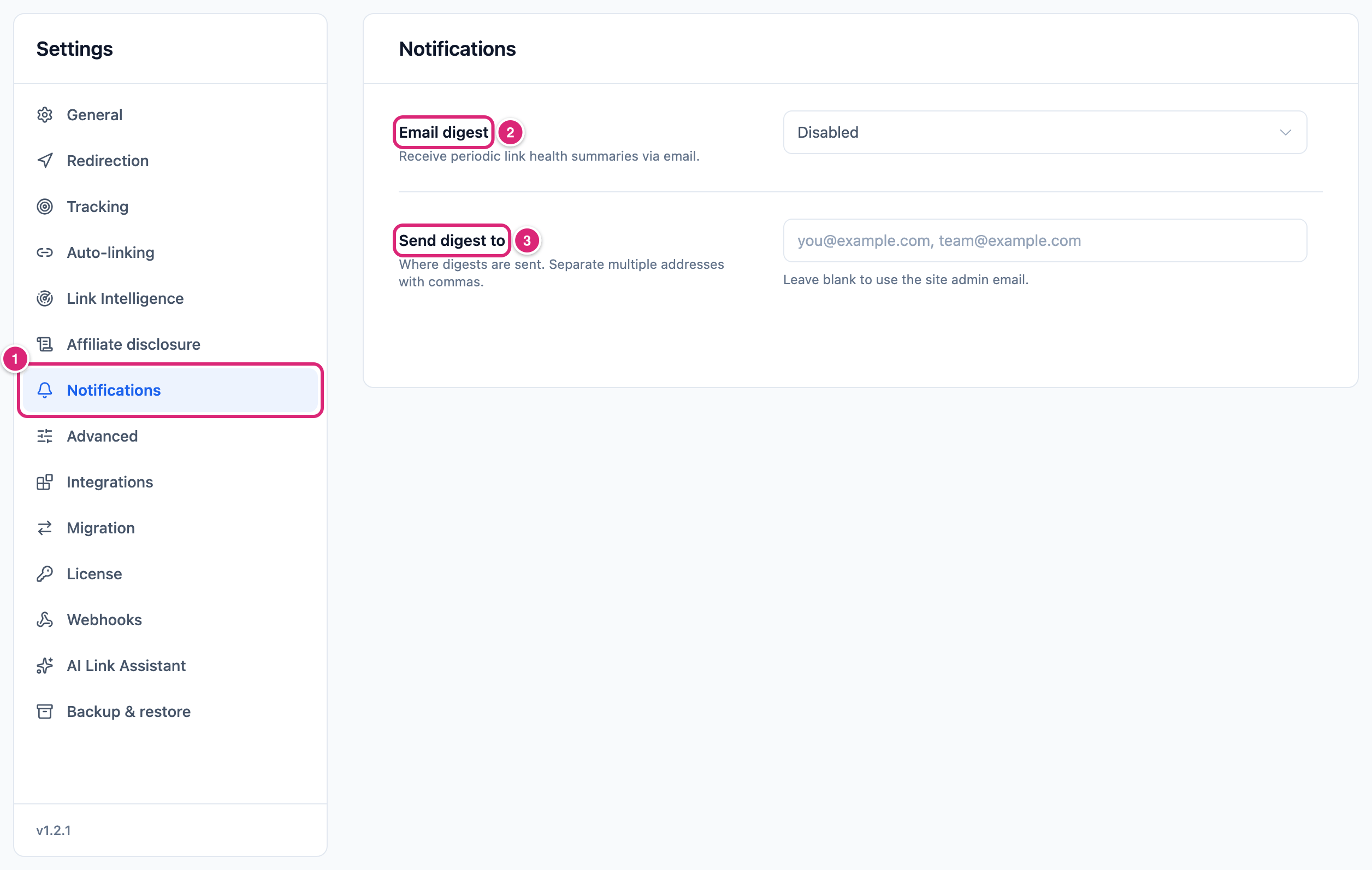
Only administrators see Settings. Changes take effect when you select Save changes (or press Ctrl+S, ⌘S on a Mac), and Settings saved. confirms it. Until then, each changed row shows Edited, and Cancel puts back the saved values. If saving fails, Couldn’t save. Your edits are kept. appears next to the buttons and Save changes becomes Retry.
Settings and defaults
Both settings start with the default below, on new sites too.
| Setting | Default | Choices | What it does |
|---|---|---|---|
| Email digest | Disabled | Disabled, Daily, Weekly, Monthly | How often the link health report is emailed. Disabled sends nothing. More |
| Send digest to | Empty (the site admin email) | One or more email addresses | Who gets the digest. Works only while Email digest isn't Disabled. More |
Get a weekly link report email
A weekly link report email takes one choice and a save.
Link Manager › Settings › Notifications- Under Email digest, choose Weekly.
- Optional: under Send digest to, enter the addresses that should get it, separated by commas, like
[email protected], [email protected]. - Select Save changes.
The first digest goes out the next time WordPress runs its scheduled tasks (WP-Cron), which a visit to your site starts. The next one follows 7 days later. To check it worked, look for an email titled [Your site name] Your link health report, in your spam folder too.
When the digest is sent
Email digest sets the rhythm: Daily sends every 24 hours, Weekly every 7 days and Monthly every 30 days. The count starts from the first digest, not from a set weekday or date.
- Switching frequency, for example from Weekly to Daily, starts over: a digest goes out at the next WP-Cron run and the new rhythm counts from there. Deactivating and activating Link Manager Pro does the same.
- Changing only Send digest to doesn't move the schedule.
- Disabled removes the scheduled digest the next time a page of your site loads.
- Each digest covers Last 24 hours, Last 7 days or Last 30 days, counted back from the moment it's sent, even when nothing happened.
WP-Cron runs only when someone visits, so on a quiet site a digest can come late. The next one keeps the original time slot, and each digest counts back a full period from when it's sent. So a few hours of clicks can fall between two digests or be counted in two. With WP-Cron turned off on your server, the digest needs a server cron to run WordPress's tasks.
For a technical reader: the event is link_manager_pro_email_digest, and wp cron event list shows its next run. wp cron event run link_manager_pro_email_digest sends a digest now and moves the next scheduled one to a full period from now. Monthly uses the lmp_monthly interval of 30 days, shown as Once a month (Link Manager Pro).
Who gets the digest
Send digest to takes one or more email addresses. Leave it empty and the digest goes to your site admin email: the Administration Email Address under Settings › General in WordPress.
- Separate addresses with commas. Semicolons and spaces work too.
- Saving keeps only valid addresses and drops repeats, without a message. The field still shows what you typed, so reload the page to see what was kept. If none was valid, the field is saved empty.
- Everyone on the list gets the same email, with every address in its To line, so each recipient sees the others.
- The email has no unsubscribe link. To stop it for one person, remove their address. To stop it for everyone, choose Disabled.
What the link health email report contains
The digest is one HTML email headed Link health report, your site name and the period, like Last 7 days. Below that, from top to bottom:
| Part | What it shows |
|---|---|
| Score and grade | The Coverage score from Link Audit when the email is built: 100 minus points for orphaned posts, weak posts and broken links. Grade A from 90, B from 75, C from 60, D from 40, F below. |
| since last report | The change from the score in the last digest that was sent. The first digest has no change line. |
| Total Links | All your short links. Redirects aren't counted. |
| Clicks · vs previous | Recorded clicks on short links in the period (no redirect hits or internal link clicks), and the change from the period of the same length before. |
| Orphaned · Broken | Posts with no internal links pointing to them (Link Audit), and open broken links in your content (Link Health), without ignored issues or visitor 404s. |
| Top performing links | Up to five short links with the most clicks in the period, by slug, like /spring-sale. |
| Top performing posts | Up to five posts visitors were on when they clicked a short link, by title, ranked by most clicks in the period. |
| Top countries | Up to five countries, as two-letter codes like US, ranked by most clicks in the period. Only clicks with a known country count. |
| Top Affiliates | Up to five affiliates by clicks on links to their domain, over all time. Each row shows the site name, or the domain when the name is empty. Affiliates with no clicks aren't listed. |
| Action items | What to fix and the points it's worth, like "Fix 4 orphaned posts to improve your score by up to 8 points." |
| View full dashboard | A button that opens the Link Manager Pro Dashboard. |
| Footer | "This report was sent by" your site name, linked to your site, "via Link Manager Pro." |
A list with nothing to show is left out, and so is Action items when there's nothing to fix. A quiet period still sends the score, Total Links, Clicks, Orphaned, Broken and the button.
The digest doesn't scan: the score, Orphaned and Broken are as fresh as your last scans. With Keep click data for shorter than two periods (say 30 days with Monthly), some or all of the previous period is gone, so vs previous looks higher than it is (Tracking settings).
Get more out of it
- Pair Weekly with the weekly broken link scan new sites get (Scheduled health scans, Link Intelligence settings). A daily digest can repeat one Broken count until the next scan.
- Send it to the people who fix things, like
[email protected], [email protected]. A client on the list sees every other address, so add your team as one shared address, not each person's own. - Work through Action items in the plugin: the email's lines aren't links. In Link Audit, filter Orphaned and Weak posts; Link Health lists the broken links.
If something goes wrong
- If no digest arrives, then check your spam folder, and check the addresses as described in Who gets the digest.
- If other WordPress emails don't arrive either (try a password reset), then your server isn't sending mail. The digest goes through WordPress's own mail function, with no retry or log of a failed send. An SMTP plugin's log or test email shows whether mail goes out.
- If the digest comes late or not at all on a quiet site, then WP-Cron isn't running often enough, or it's turned off (
DISABLE_WP_CRONinwp-config.php). Ask your host to run WordPress's cron from the server. - If Top countries is missing, then no click in the period has a country: check the GeoIP database row on Tracking settings.
More fixes are on Troubleshooting.