
Appearance
Link report
Read a short link report to see how many clicks it got and where they came from, then check that the link works.
A short link report shows what Link Manager Pro has recorded for one short link: how many clicks it got, where they came from, who clicked and when. The report covers every click you still keep for the link, from its first day to today. There's no date range to pick.
Read a link report in a minute
On a wide screen, a report looks like this. The buttons 1 sit at the top right. At a glance 2 comes first. Below it, the wide column holds Clicks over time 3, Visitors by country 4, Top posts and sites 5 and Recent clicks 7. The narrow column on the right holds Link details 6, Devices & browsers 8 and Campaign traffic 9.
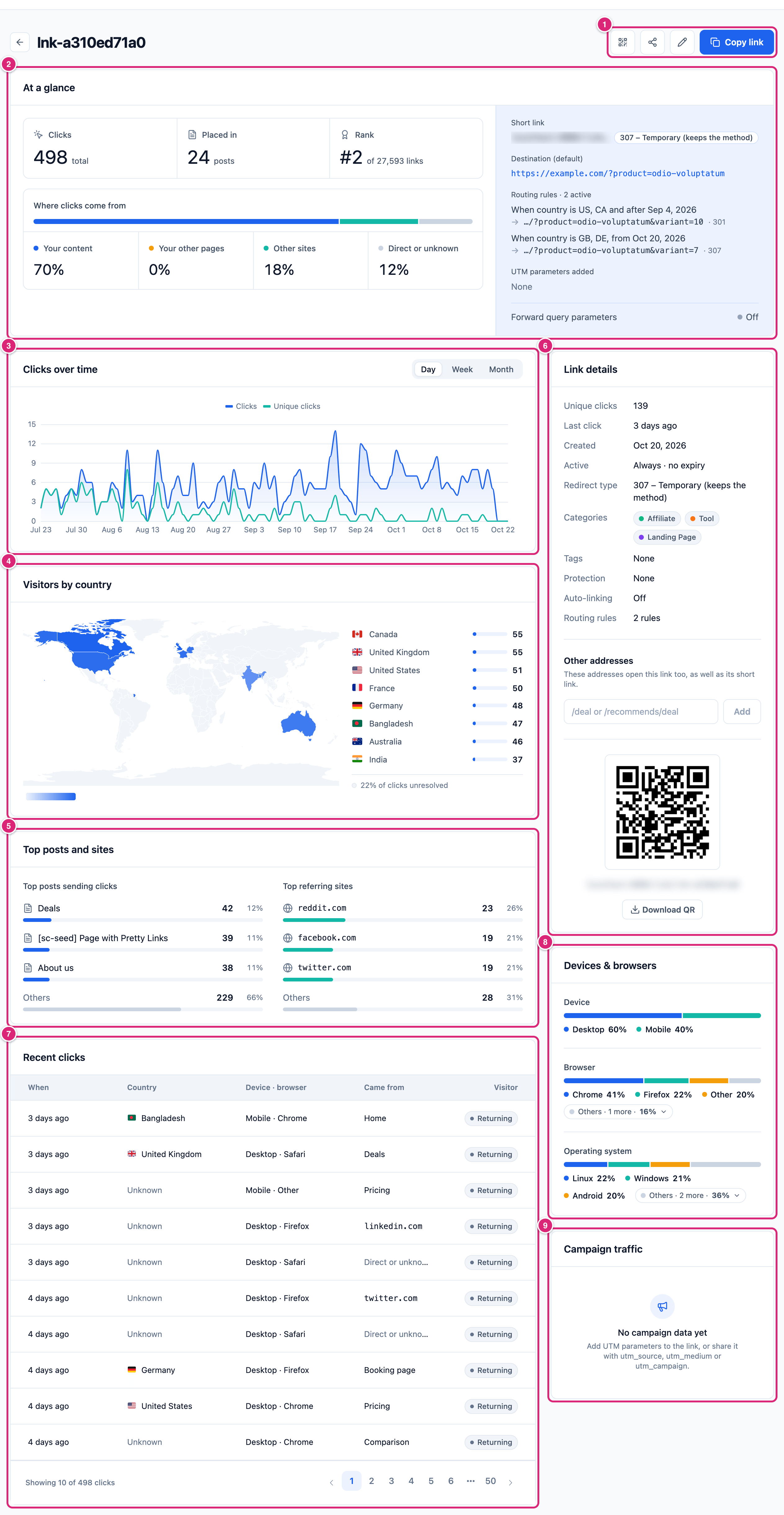
Five places on the report answer most questions. Look at them in this order, and act on what you see:
- Clicks under At a glance: how many clicks the link has had. Far fewer than you expected? Check Placed in: it says how many of your posts carry the link.
- Recent clicks, further down: when the latest click happened. Nothing for weeks on a link you still use? Check Placed in and Top posts sending clicks: the posts or emails that sent visitors may no longer carry it.
- Where clicks come from: whether people click in your own posts, arrive from other sites, or come with no referring page. Mostly Direct or unknown? Tag the places you share it, so Campaign traffic can tell them apart (Get more out of it).
- Top posts sending clicks: which of your posts make readers click. Those posts show you which placements work.
- Clicks over time: whether the link is growing, steady or fading. Match a spike to what you published or sent that day.
To compare links with each other, use Rank here, or What’s working on the Dashboard, which ranks your five most-clicked short links.
Open a link's report
Any short link's report is one click away in the Short Links list.
- Go to Link Manager › Short Links.
- Select the link's slug, or anywhere else on its row. The Short Links list shows how to search and filter for it.
The report's title is the slug. The arrow before it takes you back to the list. At the top right are four buttons: QR code, Share, Edit short link (the pencil) and Copy link, covered in Share, copy or edit the link.
Anyone who can open Link Manager can open reports (who can use Link Manager Pro).
At a glance: Clicks, Placed in and Rank
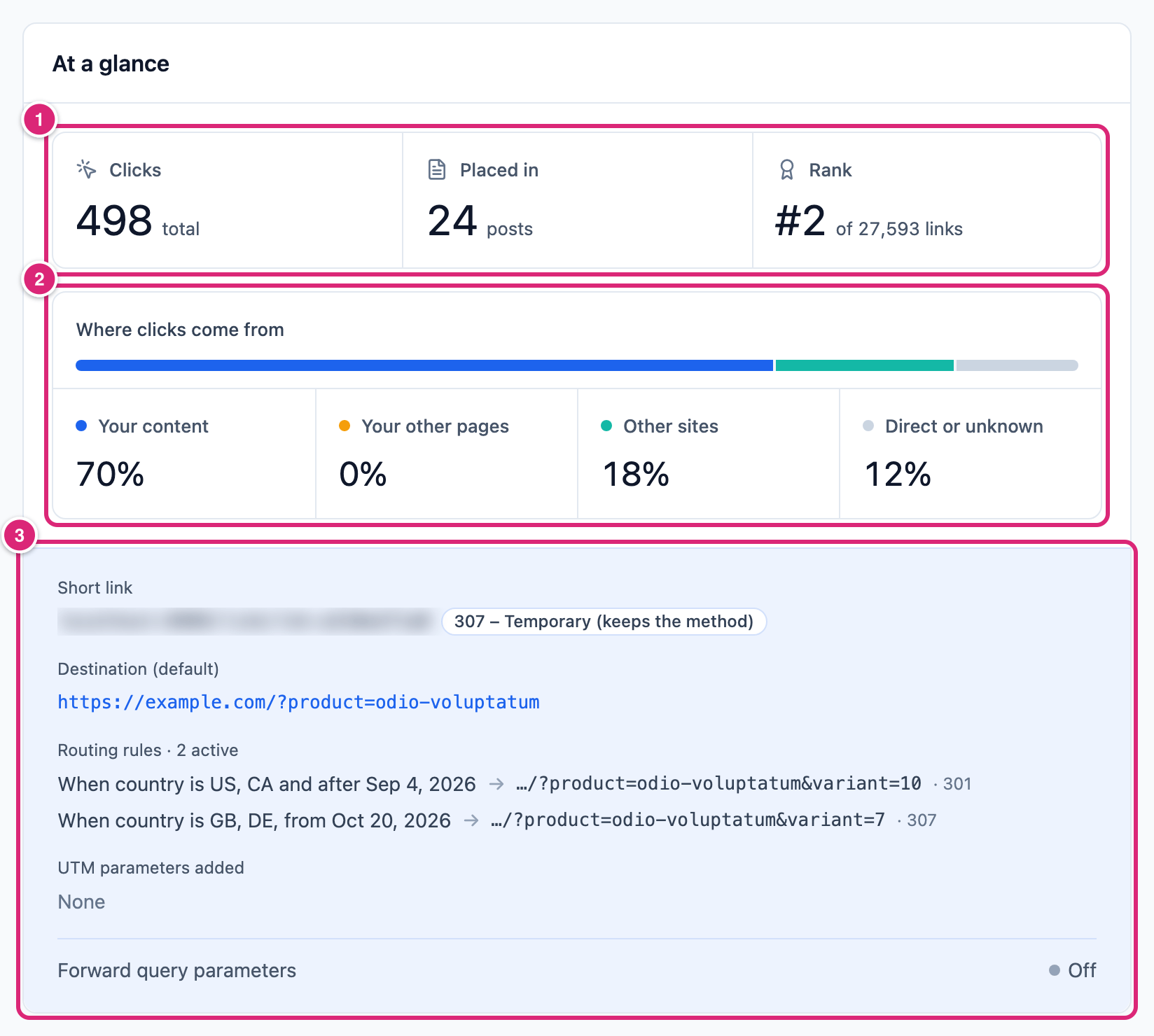
At a glance is the report's first card. It shows three figures 1 and how the clicks split by where they came from 2. A tinted panel 3 holds the facts that decide where a click lands. On a wide screen the panel sits on the right; on a narrower one, below.
| Figure | What it counts |
|---|---|
| Clicks | Every click record you still keep for this link. Bots the bot filter catches, blocked addresses and fast repeat clicks aren't in it (How clicks are counted). |
| Placed in | How many published posts and pages have a link to this short link in their content. Each post counts once, and a link under any of your prefixes counts: Short link prefix, Internal link prefix or Affiliate link prefix. Auto-linked keywords aren't counted: they're added when a page is shown, not saved in the post. |
| Rank | Where this link stands among your short links by All-time clicks. A redirect's hidden link has no rank. Links with the same number share a place. Hover over it to see the link's share of all clicks. |
Clicks can differ from the link's All-time clicks in the Short Links list, which is usually higher. Clicks counts the click records you still keep; All-time clicks is a lifetime counter. Why there are two numbers explains the causes.
The "of N links" under Rank counts your short links only. The hidden link behind each of your redirects is left out.
Where do link clicks come from?
Where clicks come from splits a link's clicks into four parts. Your content is clicks on the link inside your own posts and pages. Your other pages is clicks from your own site outside post content, like menus, widgets, the home page and archives. Other sites is clicks where another website sent the visitor. Direct or unknown is the rest: no referring page and no post. The shares are rounded.
| Part | A click counts here when |
|---|---|
| Your content | The visitor clicked the link in the content of a post or page on your site, including a link made by an auto-linked keyword. When a post is shown, Link Manager Pro adds the post's ID to each short link in it (?pid=123), and the click is credited to that post. |
| Your other pages | The referring page was on your own site, but no post was credited. That's a click from a menu, a sidebar widget, a footer, your home page or an archive. |
| Other sites | The browser sent a referring page that isn't your site, and no post was credited. Usually that's another website, a social network or a search engine. |
| Direct or unknown | No referring page was sent and no post was credited. Common cases are email and chat apps, bookmarks, a typed address, a QR code scan, and sites or browsers that hide where a visitor came from. |
A click is credited to a post only when all of these hold:
- The link was in the content of a post or page, as your site showed it. Links in other post types, menus and widgets get no post ID.
- The post is published, or it's private and the visitor can read it.
- The referring page was on your site, or the browser sent none. So a copied address that still has
?pid=keeps its credit in an email app that sends no referring page, but loses it when posted on another website.
The Top posts and sites card, under the map, names the sources:
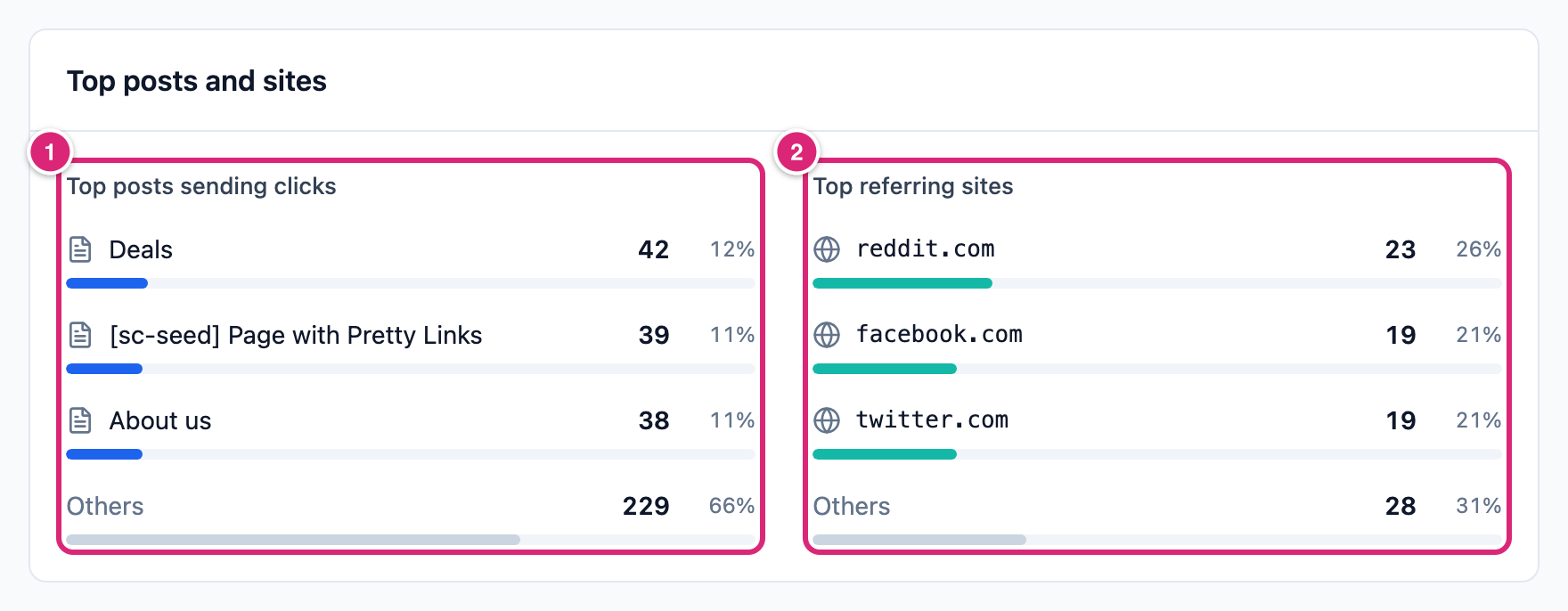
- Top posts sending clicks lists the three posts with the most clicks, each with its share of the Your content clicks. All other posts are added up under Others. A post that no longer exists shows as "Post #" plus its ID.
- Top referring sites lists the three domains that sent the most Other sites clicks, with the rest under Others. Your own domain doesn't appear there.
In the picture, the posts 1 are on the left and the referring sites 2 on the right.
The facts panel: where a click lands
The tinted panel of At a glance shows where the link sends visitors and what can change that.
- Short link: the address, shown without
https://, and the link's redirect type next to it. It uses the prefix that fits the destination: the Affiliate link prefix for a link to one of your affiliates' domains, once you set one (General settings). - Destination (default): where visitors go when no routing rule matches. Select it to open the page in a new tab. That opens the destination directly, so it doesn't count as a click.
- Routing rules: the link's active rules, in the order they're checked. Each line gives the rule's condition, its destination and its redirect type. The first two show, and a line like "+3 more" stands for the rest. The heading says how many are active, like "Routing rules · 2 active". Dates show as you entered them in the link's form, in your site's time (dates and your site's time zone).
- UTM parameters added: the link's own UTM tags, without the
utm_part, likesource facebook. The first three show; select "+1 more" (or similar) for the rest. Site-wide and affiliate parameters aren't listed (UTM parameters and forwarding). - Forward query parameters: On or Off. While it's on, parameters a visitor brings in the address go on to the destination. In the edit dialog, the switch is Forward the visitor’s query parameters to the destination.
If the panel can't load, it says These details couldn’t be loaded. Select Retry to try again.
Clicks over time
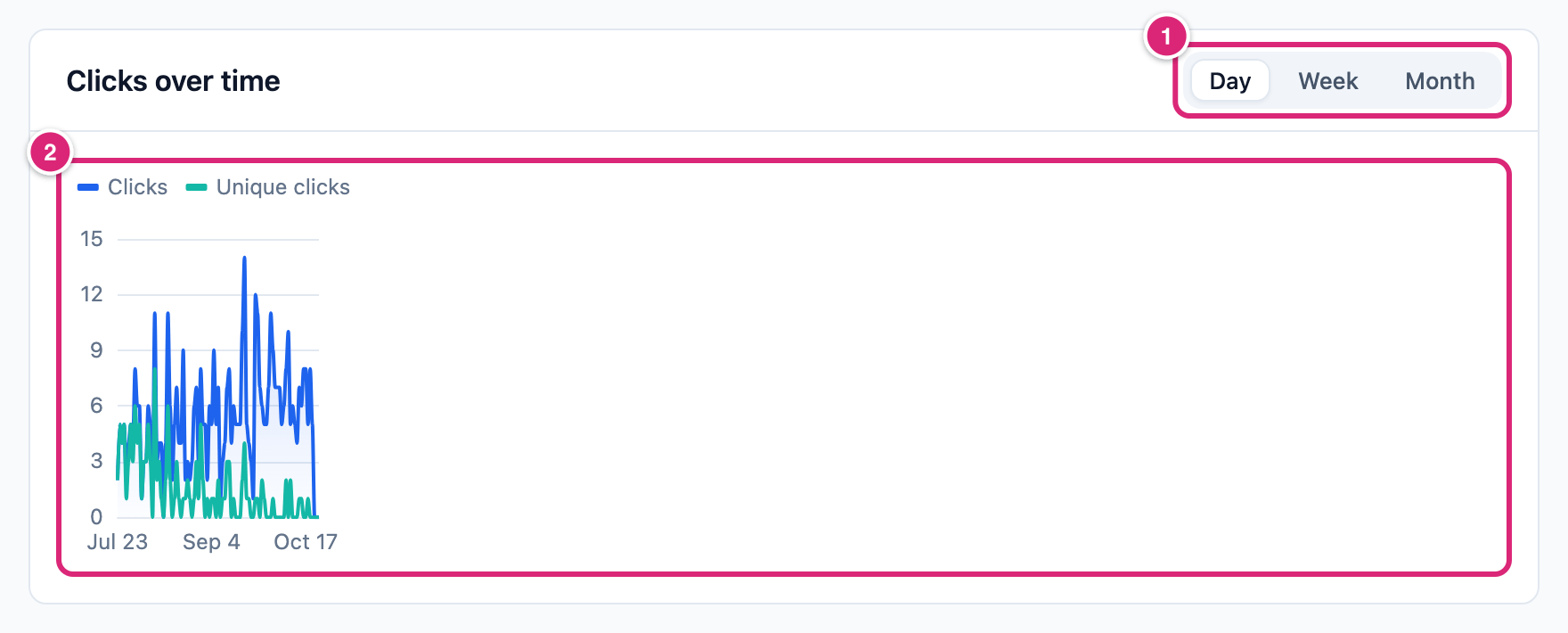
Clicks over time draws two lines, Clicks and Unique clicks, per day over the link's whole kept history, in your site's time zone. A switch at the top right groups the chart by Day, Week or Month. Weeks start on Monday. A link with more than 120 days of history opens on Week, and one with more than 730 days on Month.
- Hover over the chart to see one day's, week's or month's numbers.
- The last point is today. Today isn't over yet, so it usually looks low.
- An imported link can have clicks from before its Created date. The chart then starts at the first click.
In the picture, the Day, Week and Month switch 1 sits at the top right of the card. The chart 2 draws Clicks and Unique clicks.
A link without clicks shows No clicks yet here, with a Copy link button. Say Click tracking is off and the link has no clicks at all. Then the card says Click tracking is off instead, and administrators get Open Tracking settings. A report that already has clicks shows the Click tracking is off notice at the top, above At a glance (Tracking settings).
Unique clicks vs clicks
Every click counts in Clicks. A visitor's first click on this link also counts as a unique click. You find the total under Link details as Unique clicks. The chart draws both lines, and Recent clicks marks each click New (a first click) or Returning. Visitors are told apart by the tracking cookie, or by IP address plus browser.
Read the two numbers together. If a link has 400 clicks and 120 unique clicks, that often means people come back to it. If the two are close, most people click once. Who counts as "the same visitor", and why a private window doesn't make a test a first click, is on How clicks are counted.
Countries, devices and browsers
The report shows each click's country on a map, and its device, browser and operating system in the right column.
Visitors by country shows a map and the eight countries with the most clicks, then Others for the rest. A line like "22% of clicks unresolved" under the list says how many clicks have no country.
In the picture, the map 1 shades each country by its clicks. The list 2 gives the counts. The last line 3 counts the clicks with no country.
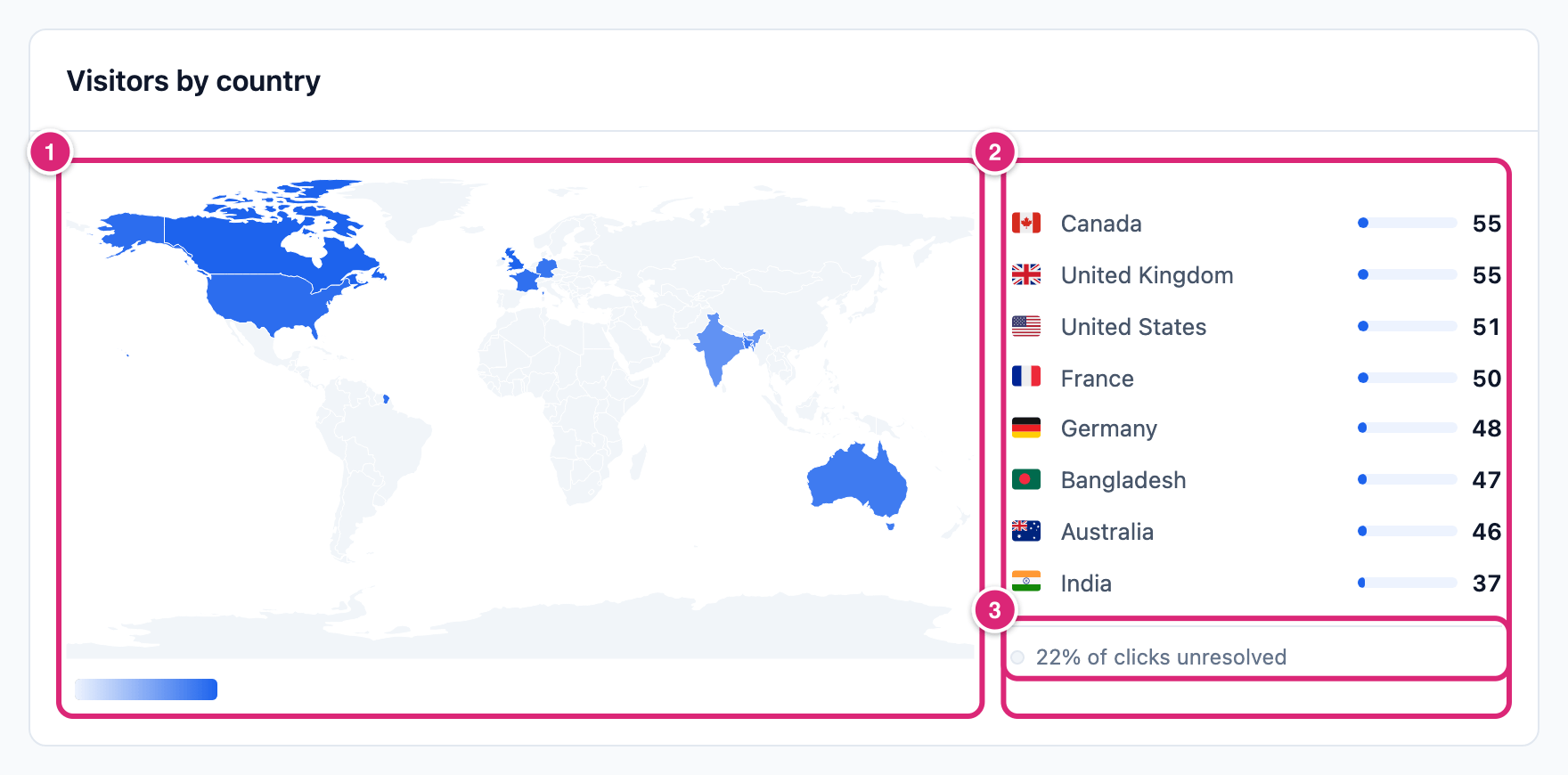
Unresolved clicks show as Unknown in Recent clicks. A country comes from the GeoIP database, or from your CDN's country header (where a click's country comes from). The header is read only when the CDN's address is in Trusted proxy IPs or CIDR ranges, or, while that list is empty, with Trust proxy headers on.
When a link has clicks but none of them has a country, the card says No location data yet, and administrators get Open Tracking settings. A link with no clicks at all shows No visitors yet there, with "Countries appear here once your links get clicks."
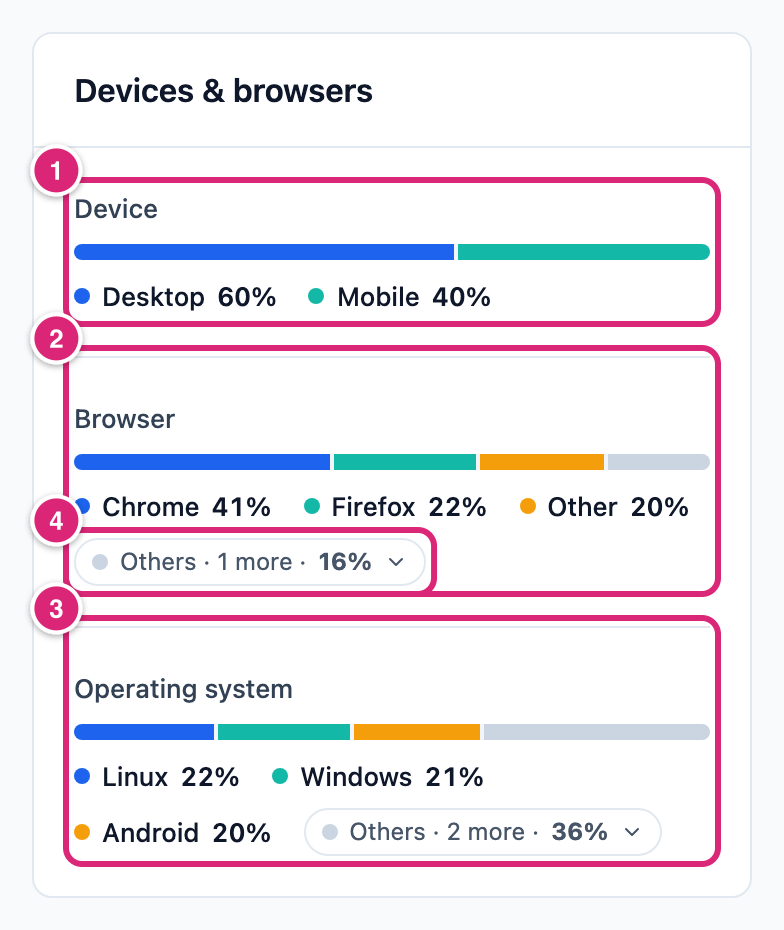
Devices & browsers has three bars: Device, Browser and Operating system. Each bar shows the three most common values with their share. The rest are under Others: select it to see which they are. All three come from the browser details each click sends.
In the picture, the bars are Device 1, Browser 2 and Operating system 3. The Others button 4 opens the values behind it.
Campaign traffic
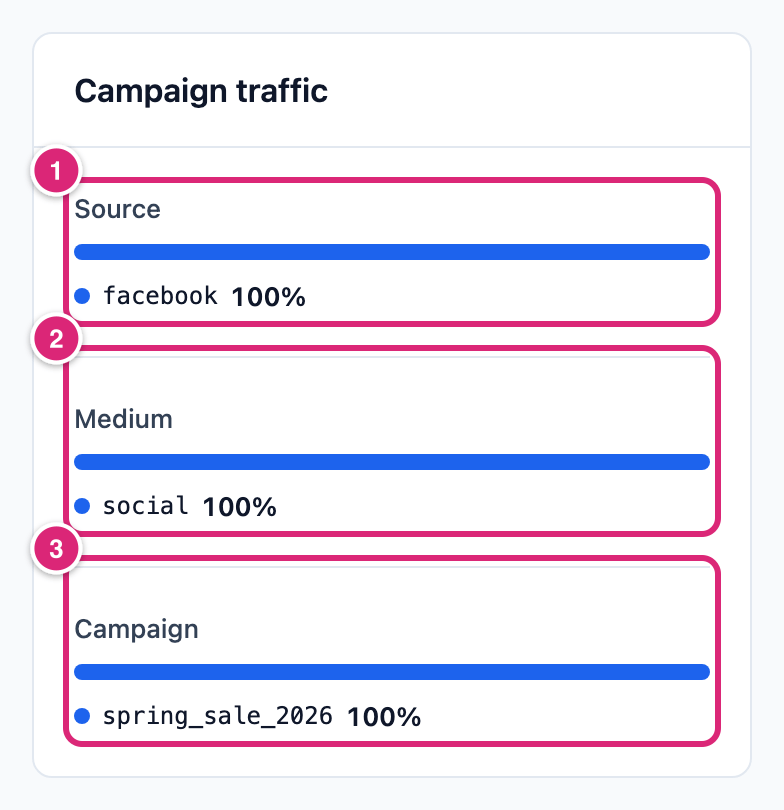
Campaign traffic shows each Source, Medium and Campaign value's share of the link's clicks. A click that arrived with a utm_source, utm_medium or utm_campaign tag in the address counts under that tag. Every other click counts under the link's own value, when the link has one.
- A link with its own Campaign (utm_campaign) shows that campaign at 100% until visitors bring other tags.
- Without a value of its own, the shares are of tagged clicks only, not of all clicks.
- The link's own value is read as it is now. Change it, and earlier untagged clicks move to the new value.
- Site-wide and affiliate UTM parameters aren't counted here.
- The tags a visitor brings are kept with the click whether forwarding is on or off.
The picture is a different test link, one with its own UTM values. Its Source 1, Medium 2 and Campaign 3 bars each show one value at 100%.
No campaign data yet means none of the recorded clicks carries a Source, Medium or Campaign, from the visitor's address or from the link itself. A link's own Term and Content don't count. A link with UTM values but no clicks yet shows it too.
Campaigns count clicks differently: only by the link's own Campaign (utm_campaign) value, so tags a visitor brings show only in this card.
Recent clicks
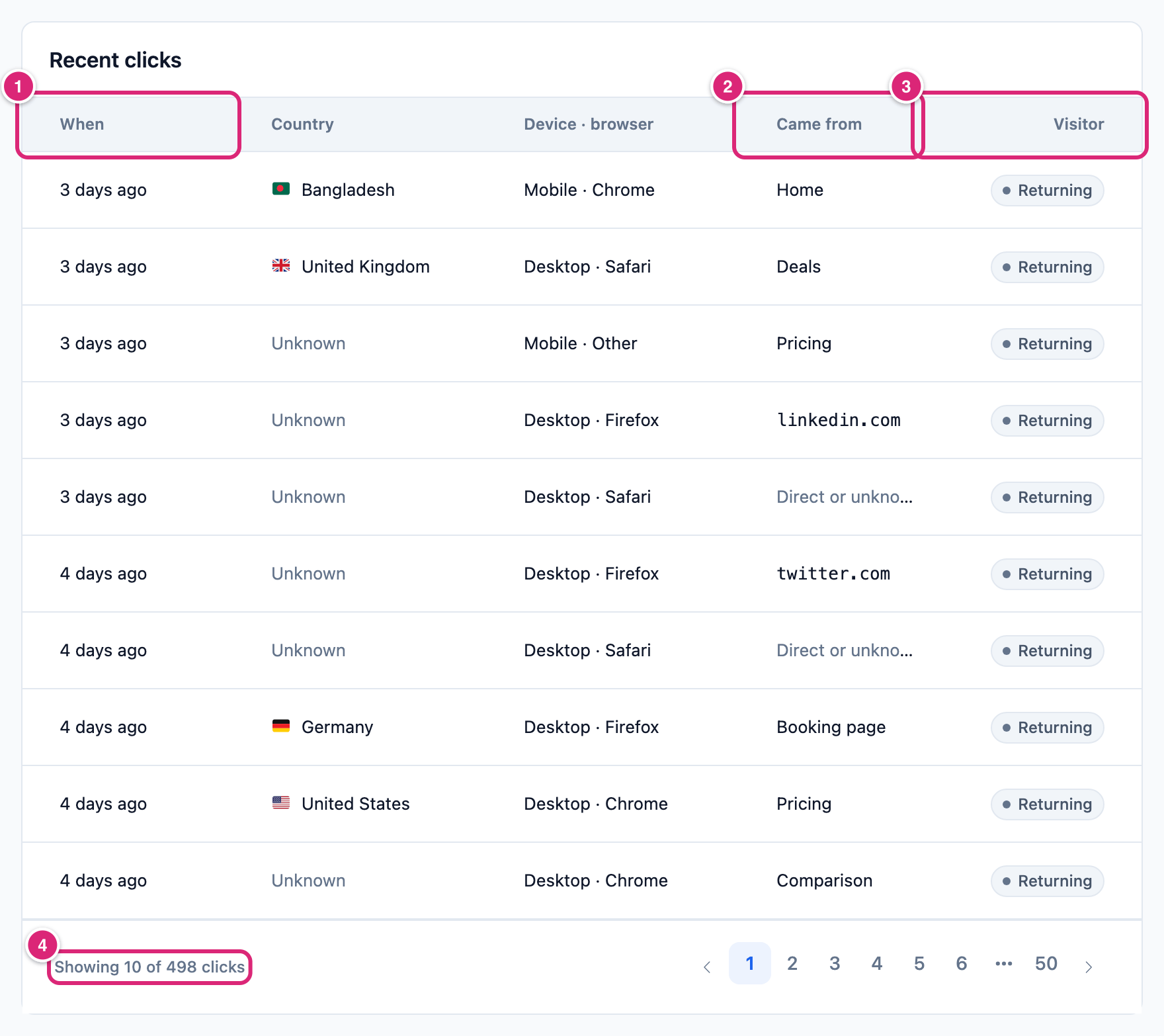
Recent clicks lists every recorded click, newest first, 10 to a page. It's read fresh every time you open the report, so a new click shows here before it reaches Clicks under At a glance.
| Column | Shows |
|---|---|
| Came from | The post's title for a click from your content, the referring site's domain, or Direct or unknown |
| Visitor | New for a visitor's first click on this link, Returning for later ones |
The other columns are When (hover for the exact date and time), Country and Device · browser. The list shows no IP addresses.
In the picture, 1 is When, 2 is Came from and 3 is Visitor. Under the list, 4 says how many clicks the link has and pages through them.
Link details, other addresses and the QR code
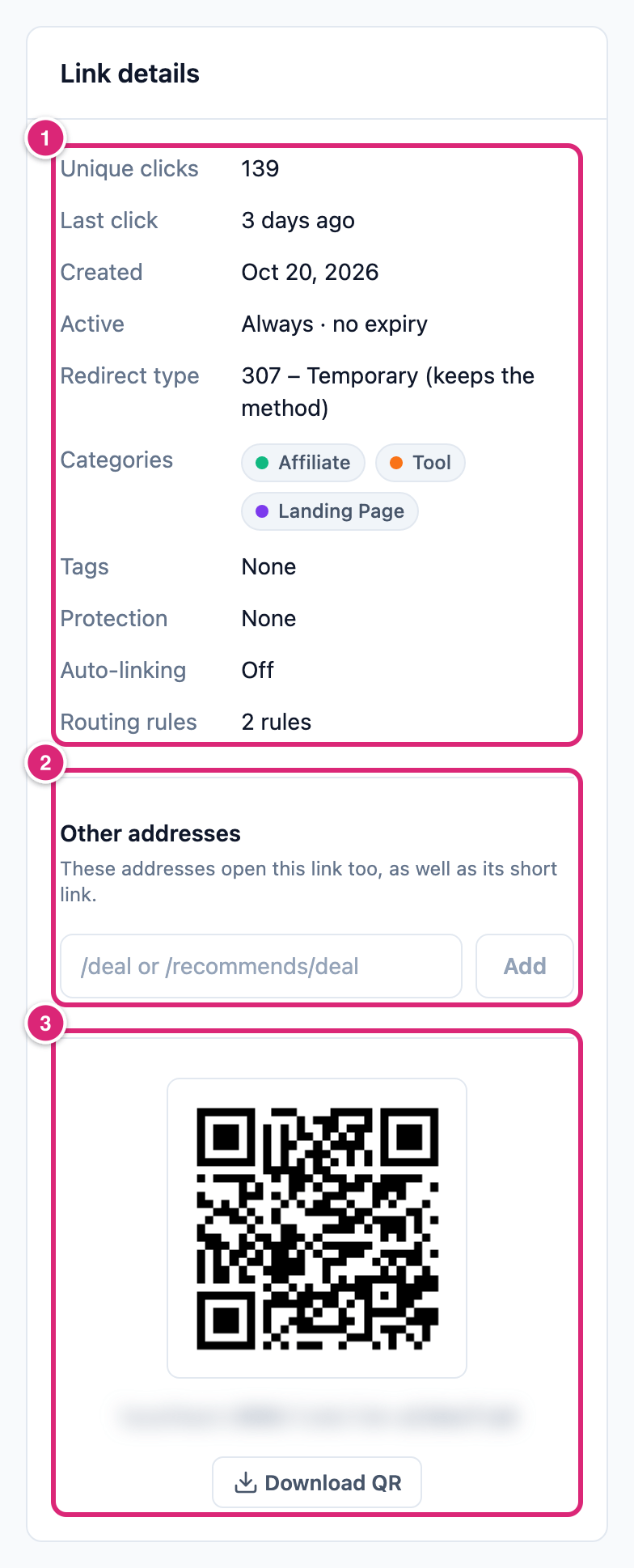
The Link details card in the right column sums up the link's settings and the two click figures At a glance leaves out.
| Row | Shows |
|---|---|
| Unique clicks | First clicks per visitor on this link |
| Last click | How long ago the latest click was; hover for the date and time. Never before the first click |
| Created | The day the link was made. Imported links keep the date from their old plugin |
| Active | Always · no expiry, or the dates and times set under Schedule & access, in your site's time |
| Redirect type | 301, 302 or 307, with "forwards query params" added when forwarding is on |
| Categories, Tags | The link's categories and tags, or None |
| Protection | Password when the link has one, otherwise None |
| Auto-linking | Off, or On with the number of keywords |
| Routing rules | How many rules the link has, active or not, or None |
| Name, Note | Only on imported links: the name and note the link had in its old plugin |
Below the rows come Other addresses, the extra paths that open this link (Other addresses and conflicts), and the link's QR code with Download QR.
In the picture, 1 is the rows, 2 is Other addresses and 3 is the QR code with Download QR.
Share, copy or edit the link
The four buttons at the top right of the report act on the link itself.
- Copy link copies the full short address, like
https://yoursite.com/link/deal, and says Link copied. - QR code shows a QR code of the short link. Download QR saves it as a PNG file named
short-link-<slug>.png. - Share opens buttons for X (Twitter), Facebook, LinkedIn, WhatsApp, Telegram, Reddit and Email. Each one shares the short link with
utm_sourceset to the network (for examplefacebookorx) andutm_medium=social. Email usesutm_medium=email. The report records those tags either way. They reach the destination only while forwarding is on (Share a link or QR code). - Edit short link opens the link's edit dialog. When you save, the report reloads with your changes (Create and edit a short link).
When the numbers update
Not every part of the report shows a new click at once. Clicks, Where clicks come from, Unique clicks and Last click come from a saved copy of the report, once the link has a click. So do Visitors by country, Top posts and sites, Devices & browsers and Campaign traffic. That copy is rebuilt after the Refresh reports every time under Link Manager › Settings › Advanced: 600 seconds (10 minutes) by default, and 0 turns it off.
- Recent clicks is read fresh, and so are Placed in and Rank.
- Clicks over time reads its days fresh too. A report with no clicks isn't saved, so the first click shows on the next load.
- Saving a change to any short link rebuilds the saved copy of every report.
- The page doesn't update by itself. Reload it to see new numbers.
The first click shows on the next load, because a report with no clicks isn't saved. Later clicks follow the refresh time. For a partner's report with no clicks, the saved copy lasts 1 minute.
Check that a short link works
A link works when it sends visitors where you expect. New rows in Recent clicks show people are using it. To check one:
- Under At a glance, select the Destination (default) address. It opens in a new tab. Check it's the right page, with your affiliate tag if it needs one.
- Read Routing rules. A rule that matches first sends its visitors to its own destination instead.
- Look at the top row of Recent clicks for the latest click.
- To test the link yourself, open it in a private browser window, then reload the report. With Click tracking on, your click shows at the top of Recent clicks. It stays in the link's numbers like any visitor's click (Does your own test count as a click?).
To have destinations checked for you, use Link Health. It checks the main destination of the short links in your posts and pages.
Details
What each part of the report counts, and its limits. Which parts come from the saved copy is under When the numbers update.
| Part | Counts | Limits |
|---|---|---|
| Where clicks come from | Post credit first, then the referring page | Shares rounded |
| Top posts sending clicks, Top referring sites | Clicks per post, clicks per referring domain | 3 shown, the rest under Others |
| Visitors by country | The country stored with each click | 8 countries listed |
| Devices & browsers | The browser details stored with each click | 3 values per bar |
| Campaign traffic | Source, Medium and Campaign tags on the click, else the link's own value | 3 values per bar |
| Clicks over time | Clicks and unique clicks per day, in the site's time zone | Shown once Clicks is above 0 |
| Recent clicks | Every kept click, newest first | 10 per page |
Get more out of it
- Tag each place you post the link. In a newsletter, link to
yoursite.com/link/deal?utm_source=newsletter&utm_medium=email. Campaign traffic then shows your newsletter apart from everything else, even while forwarding is off. - Share from the report. The Share buttons tag each network for you, so Campaign traffic shows
facebook,x,redditand the rest as separate sources. - Compare Placed in with Top posts sending clicks. Say a link sits in 24 posts, but three of them send most of its clicks. Those three show you how readers like to meet the link.
- If your own domain shows in Came from under Recent clicks, those clicks came from outside post and page content. They count under Your other pages. A menu, a widget or a footer are typical places.
- Get countries before you add country rules. If a large share of clicks is unresolved, download the GeoIP database under Link Manager › Settings › Tracking. The same country decides Country routing rules. Clicks recorded earlier stay Unknown.
If something goes wrong
- If your test click doesn't show under At a glance, then look under Recent clicks: it's read fresh. The rest catches up within the Refresh reports every time.
- If the report says Click tracking is off, at the top or in the chart, then an administrator can turn Click tracking on under Link Manager › Settings › Tracking. Turn it off again to undo. Clicks while it was off weren't recorded, though they still added to All-time clicks.
- If Your content stays at 0% while the link is in your posts, then check where readers click it. Only links in post and page content are credited. Clicks from menus, widgets and other post types count under Your other pages.
- If most clicks have no country, then download the GeoIP database. Or, behind a CDN that sends a country header, list its addresses in Trusted proxy IPs or CIDR ranges under Link Manager › Settings › Advanced; empty the list to undo (Trusted proxy IPs).
- If the report says The report couldn’t be loaded., then select Retry. Short link not found. usually means the link was deleted. Back to short links returns you to the list.
More fixes are on Troubleshooting.