
Appearance
Replace old shortcodes
Review posts that use old Pretty Links or ThirstyAffiliates shortcodes. Replace them with links to your short links, and learn how to undo it.
Link Manager Pro can replace the [prettylink], [thirstylink] and <ta> shortcodes in your posts with normal links to the short links you imported. Before anything is saved, you see every post that would change, how many shortcodes it has and an example. Where WordPress keeps revisions, each post's old content is saved as a revision first, so you can undo it. Replace them while Pretty Links or ThirstyAffiliates is still on, so your posts keep working meanwhile. It also works after you've turned the old plugin off.
Why do old shortcodes stop working?
Link Manager Pro doesn't run Pretty Links or ThirstyAffiliates shortcodes. Once that plugin is off, WordPress shows a shortcode like [prettylink id="12"] as plain text in your post, and a <ta> tag shows its words with no link. Replacing them turns each one into a normal link to its imported short link.
What needs no change:
- Plain old addresses in your posts, like
/recommends/dealor/deal. They're other addresses of the imported short links, so they keep opening them, unless an import note says an address wasn't kept. - Links from BetterLinks. Link Manager Pro looks only for Pretty Links and ThirstyAffiliates shortcodes, and plain BetterLinks addresses keep working (Migrate from BetterLinks).
Before you start
You need an administrator account and links already imported from Pretty Links or ThirstyAffiliates.
- Import first. Each shortcode points at a link in the old plugin, so it can only become a link once that link is imported. The steps are on Migrate to Link Manager Pro.
- Keep the old plugin on until you've replaced the shortcodes, so your posts keep working meanwhile.
- Back up your posts. Go to Link Manager › Settings › Backup & restore, select Backup, keep Posts and pages ticked (it is by default), then select Back up now. That backup holds the content of your posts and pages. Other post types and page-builder data aren't in it, so use your host's or a full-site backup for those. See Backup and restore.
Find the old shortcodes in your posts
Link Manager › Settings › MigrationWhen posts still use the old shortcodes, the Migration screen shows a row called Old shortcodes in your content. It says how many posts use them, for example "36 posts use Pretty Links or ThirstyAffiliates shortcodes. 21 posts have them in page-builder data." The same text and Review and replace button show under the result of a finished import.
The row appears only once at least one link from Pretty Links or ThirstyAffiliates has been imported. Its count is refreshed after every import and every replacement, and otherwise at least once an hour. The review below always checks your posts as they are now.
Review the changes before you replace
The review lists every post with an old shortcode and shows what would change, without saving anything.
- On the Old shortcodes in your content row, select Review and replace. Link Manager Pro looks through the content of your posts, pages and other post types. On a large site this takes a moment.
- Read the sections of the dialog. Each one shows only when it has posts in it:
- Posts to change: each post with its type, status and number of shortcodes. Under Now you see the first shortcode in it that will be replaced, and under Becomes the link that replaces it. Other shortcodes in the post aren't shown one by one.
- Can’t be changed now: posts that have shortcodes to replace but can't be saved at the moment, each with the reason (see below).
- Can’t be replaced 1: shortcodes whose link wasn't imported. They stay as they are.
- In page-builder data 2: posts whose shortcodes are stored in post meta, usually by a page builder such as Elementor. You replace those in the builder.
- To look at a post, select its title. It opens in a new tab.
- If you only wanted to look, select Cancel (or Done, when nothing can be replaced). Nothing has changed.
A post can show up in more than one section. Its shortcodes with an imported link are replaced, and the rest stay.
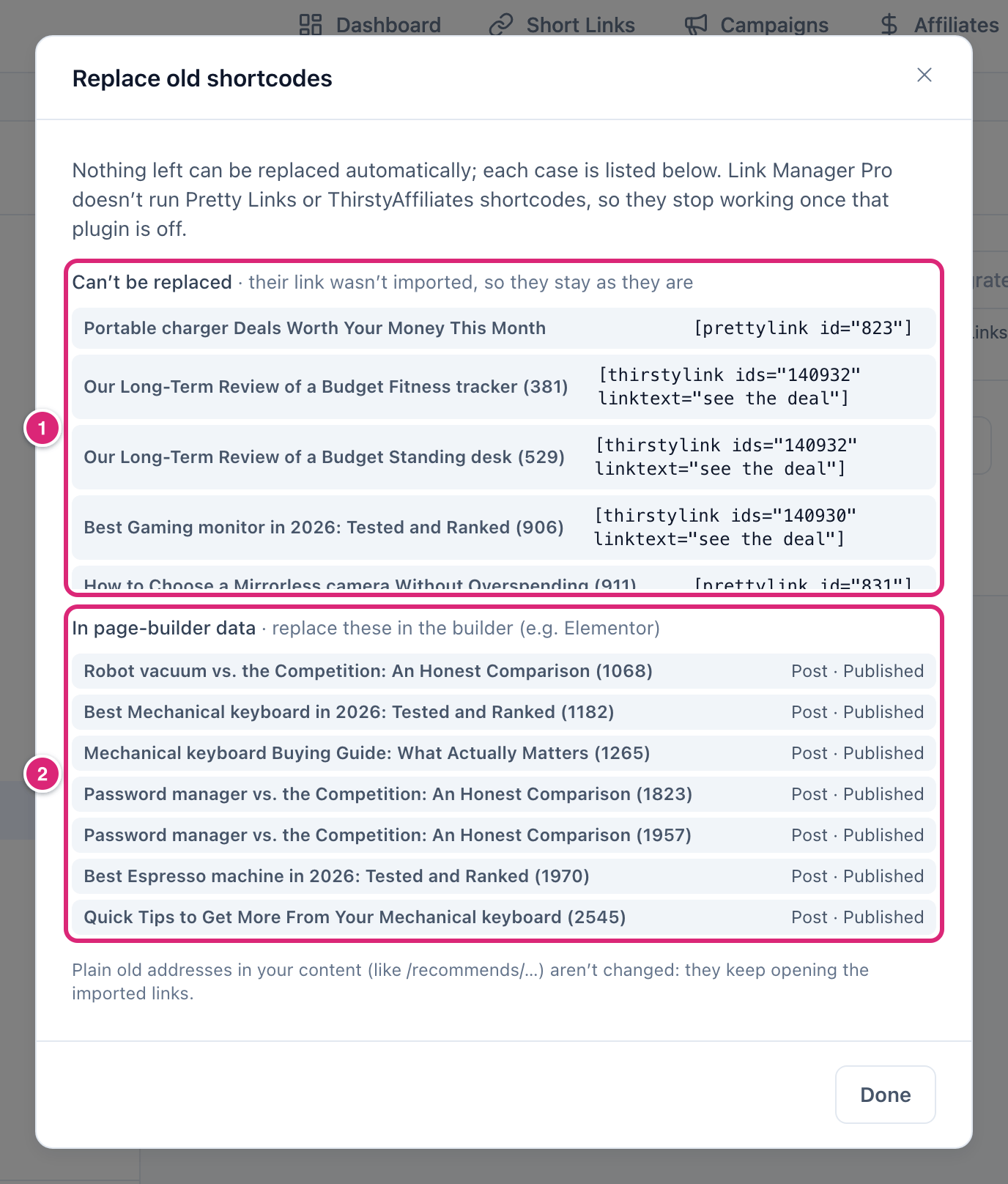
Replace the shortcodes in your posts
The replace button in the review rewrites your posts in batches of 25. It doesn't send the reviewed list: it replaces the shortcodes it finds in each post at the moment it runs, so a post edited after the review is replaced as it is then.
WARNING
This edits your posts. Link Manager Pro saves each post's previous content as a revision first, so you can restore it, but only where WordPress keeps that revision:
- If revisions are turned off on your site or for a post type, there's no copy from before.
- If your site keeps only one revision per post, the save replaces it at once, so the copy from before is gone.
- With a small limit, later edits can push it out.
To check, open a post of each type you'll change that you've edited before: its Revisions count should be above 1. If you're not sure, make a full-site backup with your host or a backup plugin before you replace.
- In the review, select the button that names how many posts change, for example Replace in 12 posts.
- The confirmation Replace shortcodes? says the shortcodes become links to the imported short links, and that WordPress saves a revision of each post first (true only under the conditions in the warning above).
- If you haven't backed up, select Back up posts and pages first. It closes the confirmation and opens Link Manager › Settings › Backup & restore. Back up as in Before you start, then go back to Link Manager › Settings › Migration and start again at Review and replace.
- Select Replace.
- Wait while the dialog shows Replacing… with a progress bar. It can't be closed until it's done.
- Read the result, Shortcodes replaced:
- "Replaced X shortcodes in Y posts." with a reminder to restore from a post's revisions. If nothing was replaced, it says No shortcodes were replaced.
- A list of posts that weren't changed, each with the reason.
- How many shortcodes were left as they are because their link wasn't imported.
- Select Done. The Old shortcodes in your content row shows the new count, and goes away once no post uses the old shortcodes.
To check it worked, open one of the posts on your site in a private window. Its links now point at your short links, like https://example.com/link/deal.
If the replacement stops part-way (lost connection, closed tab), posts already changed keep their new links. Select Review and replace again: it finds only the shortcodes that are left.
What do [prettylink], [thirstylink] and <ta linkid> become?
Each old shortcode whose link was imported becomes a normal HTML link (<a>) to that short link, with the same visible text. The link uses your short link's full address as it shows today, with your current Short link prefix, or your Affiliate link prefix when the destination is on an affiliate's domain. For a link ThirstyAffiliates showed uncloaked, the new link points straight at the destination instead, so visitors don't pass through the short link.
| Old shortcode | Link text | Kept from the shortcode or link |
|---|---|---|
[prettylink id="12"] or [prettylink slug="deal"] | The shortcode's text, else the link's name from Pretty Links, else the short link address | The class (added after pretty-link pretty-link-shortcode) and target. A target="_blank" also gets noopener |
[thirstylink ids="12" linktext="see the deal"], [thirstylink linkid="12"], or [thirstylink ids="12"]text[/thirstylink] | The enclosed text, else linktext, else the link's name from ThirstyAffiliates | class, target and title from the shortcode. Missing ones come from the link: class thirstylink (thirstylinkimg around an image) plus its old CSS classes, a new window if it had one, its name as the title. The shortcode's rel is kept, plus the link's old rel values |
<ta linkid="12">text</ta> (block editor) | The text inside the tag | Class, new window, old rel values and title from the link, as above |
<ta href="...">text</ta> with no link id | The text inside the tag | Becomes a plain link to that href |
A few more rules:
- Several links in one shortcode (
ids="12,14"): the new link points at the first of them that was imported. relvalues: the link's own (for example Nofollow and Sponsored in its link attributes), plus your domain rules under Link Manager › Settings › Redirection, plus any from the shortcode. A link whose destination is on your own site doesn't getnofolloworsponsored.- Block editor: a Shortcode block that holds nothing but one old shortcode becomes a Paragraph block with the link.
- The link's name is the name it had in the old plugin. Link Manager Pro shows it as Name in the link's details.
For example, a Pretty Links shortcode without text, for a link named Airbnb:
- Now:
[prettylink id="493"] - Becomes:
<a href="https://example.com/link/airbnb" class="pretty-link pretty-link-shortcode" rel="nofollow noopener">Airbnb</a>
What stays as it is, and why
Three kinds of shortcode aren't replaced. The review lists each kind, so you know what's left to fix by hand.
| Section | Why it stays | What to do |
|---|---|---|
| Can’t be replaced | No imported short link matches it. For example: the import left the link out (a trashed or payment link, or a destination that isn't a web address). Or the link was added after your import, or deleted since. Or your site's address changed after the import and more than one earlier address has import references, so they can't be matched. Up to 10 shortcodes show per post | Import again if the link is newer than your import. Otherwise link the text to a short link yourself, or remove the shortcode |
| Can’t be changed now | Saving the post now would be refused or would change more than its content. The reason shows next to it | See the reasons below, then review again |
| In page-builder data | The shortcode is stored in post meta, usually a page builder's own data, which the builder owns. Link Manager Pro only counts these posts. The first 20 are named, then a count of the rest | Open the post in its builder and replace the shortcode with the short link's address |
The reasons under Can’t be changed now (and in the result's list of posts that weren't changed):
- You can’t edit this post. Your account isn't allowed to edit it.
- Saving it would remove markup WordPress doesn’t allow for your account. WordPress would strip some HTML from the post if your account saved it, so the post is left alone.
- Saving it now would also change its status or address (e.g. a scheduled post that is due). For example, a scheduled post whose time has passed would be published by the save. Publish or reschedule it first.
- It was edited while the replacement ran. Run it again. Shown only in the result: someone saved the post during the run.
- It couldn’t be saved. WordPress refused the save. Try again later.
Also left alone: shortcodes written with double brackets ([[prettylink]], which WordPress shows as text on purpose), posts in the trash, and revisions. Drafts, pending, scheduled and private posts are included, and so are custom post types.
Undo a replacement from the post's revisions
Before it changes a post, Link Manager Pro saves the post's current content as a revision, which stays only where WordPress keeps revisions (see the warning for when it doesn't). Restoring that revision brings the shortcodes back.
- Open the post in the WordPress editor.
- In the block editor's sidebar, select the number next to Revisions. In the classic editor, select Browse next to Revisions in the Publish box.
- Pick the revision from just before the replacement. Its content still shows the old shortcodes.
- Select Restore This Revision.
Restoring puts back the whole post as it was, so any edit made after the replacement is lost in that post. The shortcodes work again only while the old plugin is on.
A backup made with Posts and pages is a second way back for posts and pages. Restoring it puts back the content of every post and page in the file, not only the replaced ones, and works only on the site it came from. See Backup and restore.
Replace shortcodes with WP-CLI
wp link-manager-pro replace-shortcodes does the same replacement from WordPress's command line, 25 posts at a time. Run it with --dry-run first: it counts the shortcodes and posts that would change, lists the posts it would skip, and doesn't change any post.
bash
wp link-manager-pro replace-shortcodes --dry-runA dry run ends with a summary like this one, from a site where every remaining shortcode stays:
text
Warning: 45 shortcode(s) left as they are: their link wasn't imported.
Warning: 21 post(s) have shortcodes in page-builder data (e.g. Elementor). Replace those in the builder.
Success: Dry run: 0 shortcode(s) would be replaced in 0 post(s).
A dry run runs the same save checks, so it lists the posts a real run would skip as [skipped] lines with the reason.
WARNING
The real run edits your posts, like the browser. The revision it saves first is kept only where WordPress keeps revisions (see the warning above), so back up first.
When the counts look right, replace for real. --yes skips the question before it starts. You don't need --user: without it, WP-CLI saves posts without WordPress's HTML filter. One exception: a pending post that already has a slug is skipped with Saving it now would also change its status or address (e.g. a scheduled post that is due)., because saving it would clear the slug. To replace those, run again with a --user that can publish them. If you add --user, name an account that can publish posts and unfiltered HTML (on multisite, a super admin). Otherwise posts where the filter would remove markup for that account (changes to formatting alone don't count) are skipped with Saving it would remove markup WordPress doesn’t allow for your account.
bash
wp link-manager-pro replace-shortcodes --yesAfter an import, wp link-manager-pro import also says how many posts use the old shortcodes and suggests the dry run. All commands are on WP-CLI commands.
Details
| What | Value |
|---|---|
| Who can use it | Administrators |
| Shortcodes it finds | [prettylink], [thirstylink] and <ta> in post content |
| Where it looks | The content of every post type except WordPress's internal ones (for example attachments, menu items and revisions) and the old plugins' own link posts; every status except trash and auto-draft |
| Page-builder data | Searched in post meta and counted, never changed |
| Review | Posts are checked 100 at a time; the first shortcode that will be replaced in each post is shown as Now and Becomes |
| Replacement | 25 posts per batch, one batch at a time (a second window that starts while a batch runs gets "The replacement is already running in another window.") |
| Undo | A revision of each post before it changes, kept only where WordPress keeps revisions (none when they're off; gone at once with a limit of 1) |
| Count on the Migration screen | Refreshed after each import and replacement, otherwise at least once an hour |
| WP-CLI | replace-shortcodes, with --dry-run and --yes. No --user needed, except for pending posts with a slug (they need a --user that can publish them); a --user without permission to publish unfiltered HTML gets posts skipped where markup would be removed |
Get more out of it
A few habits make the replacement safer and leave less to fix by hand.
- Settle your prefixes first. Replaced links are written into your posts with the full address and the prefix in use at that moment: the Short link prefix (default
link), or the Affiliate link prefix for links to your affiliates' domains. If you plan to change the prefix, do it before you replace. See Change the link prefix. - Import again before you replace. A link created in the old plugin after your first import shows under Can’t be replaced. A second import brings it in, and the next review turns its shortcodes into links.
- Set link attributes before you replace. The new links take their
relvalues from each link and from your domain rules at the moment of the replacement. Set Nofollow and Sponsored for your partner domains under Link Manager › Settings › Redirection first. See Add nofollow or sponsored. - Work through page-builder posts from the list. Open each post named under In page-builder data, find the shortcode in the builder, and put the short link's address in its place. In Short Links, the link's Copy link action copies its address.
If something goes wrong
- If Old shortcodes in your content doesn't show, then no link from Pretty Links or ThirstyAffiliates has been imported yet, or no post uses the shortcodes. Import first (Migrate to Link Manager Pro).
- If a post still shows
[prettylink]or[thirstylink]as text after the replacement, then its shortcode is under Can’t be replaced or In page-builder data, or the post was skipped (Can’t be changed now, or listed in the result with a reason). Fix it in the post or the builder. If the post looks right in the editor, clear your page cache. - If the replacement stopped part-way, then select Review and replace again. Posts already changed keep their links, and the second run handles the rest.
- If you see "The replacement is already running in another window.", then wait for that run to finish, and review again.
- If a replaced post looks wrong, then restore its revision (Undo a replacement).
More fixes are on Troubleshooting.