
Appearance
Editor tools
Search, create and insert short links without leaving your post, and set nofollow or sponsored as you insert them.
You can insert a short link in Gutenberg, the WordPress block editor, without leaving your post. The Short link button in the block toolbar searches your short links and can create a new one. As it inserts the link, it sets Nofollow, Sponsored or Open in new tab. The classic editor has the same tool, called Insert short link.
The post editor also gets these:
- Your short links and affiliates in WordPress's own link search, in both editors.
- The Internal link optimization box, which counts the post's internal links.
- The AI Link Assistant, which has its own page: AI Link Assistant.
Who can use the editor tools?
Anyone who can edit posts can use the editor tools, Authors and Contributors included, without access to the Link Manager menu. In WordPress terms that's the edit_posts capability, which every role from Contributor up has on a standard install. Creating a new short link needs the right to publish: Authors and up can create, and Contributors can't.
- Searching and inserting short links needs
edit_posts. Creating one also needspublish_posts. For anyone withoutedit_posts, including a visitor who opens the search address directly, the search returns nothing. - The Internal link optimization box shows to anyone with
edit_posts, and it analyzes only posts that person can edit. - The two widgets on the WordPress Dashboard aren't editor tools. Only people with access to Link Manager Pro see them.
Contributors can't create short links, because a new short link redirects at once, before anyone reviews their post. The toolbars hide New short link for them, and they can still search and insert existing ones.
Without access to the Link Manager menu, a writer can't change a short link after creating it, delete it or open its report. A link they create gets a destination and a slug, and safe defaults for everything else (what a new short link gets). Access for editors explains who gets the menu.
Use the Short link button in the block editor
The Short link button turns the words you select into a link to one of your short links. It sits in the toolbar of a text block, such as a paragraph or a heading. Look for a group of its own with the Link Manager Pro logo. Hover over the logo to see its name.
- In your post, select the words you want to link. With nothing selected, the button inserts a link instead: its text is the link's name for a result you pick, or the short URL for Create & insert.
- In the block toolbar, select Short link (the Link Manager Pro logo).
- In Search short links… 1, type part of the slug, a keyword or part of the destination.
- Select a result. Its name shows under the list.
- Turn Open in new tab, Nofollow or Sponsored on or off. Nofollow starts on, the other two start off. Your ticks stay as you left them while you work in the same block. In another block they start again from these defaults.
- Select Apply.
Your words are now a normal WordPress link to the short link's address, for example https://yoursite.com/link/tent-deal. If the link leads to one of your affiliates' domains and you set an Affiliate link prefix, the address uses it instead (General settings). Save or update the post as usual to keep it.
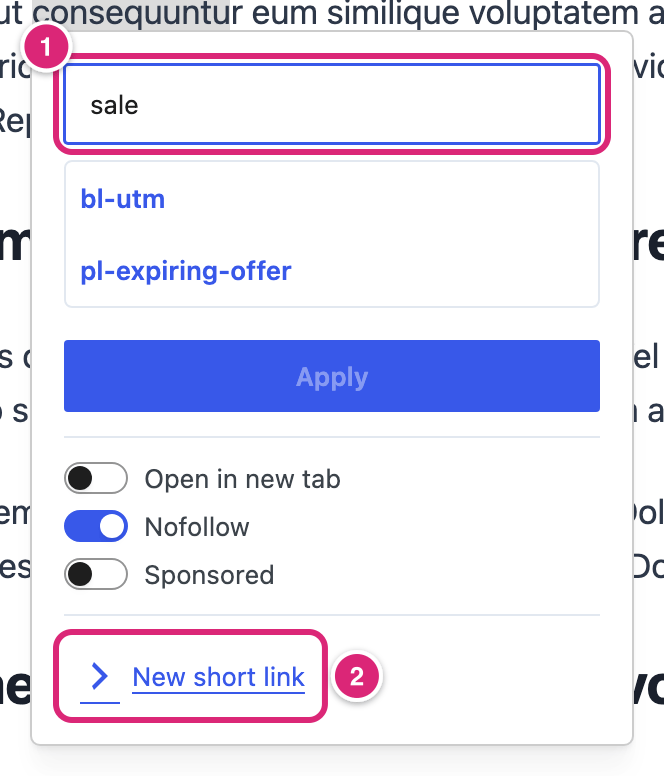
In the picture, 1 is the search field and 2 is New short link, which opens the form described in the next section.
Results show each short link's slug. Affiliates come first, with their name and the label Affiliate. Apply stays grayed out until you pick a result. To close the box without changing anything, press Escape or select Short link again.
Create a short link without leaving the post
When the short link you need doesn't exist yet, Authors and up can create it in the same box. Contributors don't see New short link. Link Manager Pro saves the new short link and links your selected words to it in one step.
- Select the words, then select Short link (in the classic editor, Insert short link).
- Set Open in new tab, Nofollow and Sponsored first. They apply to the link you create.
- Select New short link.
- Enter the Destination URL, a full address that starts with
https://orhttp://. - Enter a slug in Slug (optional), or leave it empty for a random one.
- Select Create & insert.
Note
Create & insert saves the short link straight away, even if you never save the post. Taking the link out of your text later doesn't delete the short link.
Each Create & insert makes a new short link, even when you already have one for that destination. Search for the destination first if you might have one.
What a new short link gets
What the new link gets depends on whether you also have access to the Link Manager menu.
| With access to Link Manager | Without it (can only edit posts) | |
|---|---|---|
| Destination URL and slug | What you entered. A destination on an affiliate's domain gets the affiliate's tag | The same |
| Redirect type | The affiliate's Redirect type for an affiliate's domain, otherwise your Default redirect type | The same |
| Link attributes saved on the link | Nofollow and Sponsored as you ticked them | None ticked |
| Auto-linking and Forward query parameters | Off | Off |
| Categories, tags, schedule, password, UTM parameters, routing rules | None. Add them later in Short Links | None |
The rel written into your post comes from the ticks in the box. Nofollow adds nofollow and Sponsored adds sponsored. Open in new tab adds target="_blank" and noopener. Your sitewide rel settings don't change it (Redirection settings). To change the new link later, open it under Link Manager › Short Links (Create and edit a short link).
Insert a short link in the classic editor
The classic editor gets an Insert short link button with the Link Manager Pro logo. It's in the first row of the toolbar on the Visual tab. It opens a dialog of the same name with the same search, the same ticks and New short link, plus a Link text field.
- Select the words to link, or click where the link should go.
- In the toolbar, select Insert short link.
- In Search short links…, type part of the slug, a keyword or part of the destination, and select a result.
- Enter Link text if you want different words than your selection.
- Tick Open in new tab, Nofollow or Sponsored as you need.
- Select Apply, or Cancel to close without changes.
What ends up in the post:
| You did this | The post gets |
|---|---|
| Selected words, left Link text empty | Your selected words, linked |
| Filled in Link text | A link with that text, in place of your selection |
| Selected nothing, left Link text empty | A link whose text is the link's name: the slug, or the affiliate's name. The block editor does the same, but it has no Link text field, so Create & insert uses the short URL as the text |
To create a link here (Authors and up), use New short link, Destination URL, Slug (optional) and Create & insert, exactly as in the block editor.
Find short links in WordPress's own link search
You don't need the Link Manager Pro button to insert a short link. WordPress's own link tools also list your short links as you type a search.
- In the block editor: in the box of WordPress's link button, matching short links show above your posts and pages, labeled Short link. Affiliates are labeled Affiliate. They show only once you type something.
- In the classic editor: in WordPress's insert or edit link dialog, your short links show among the search results once you type something. Link Manager Pro is named next to each. Affiliates show with their name, marked as an affiliate.
These are WordPress's own tools. In the block editor, WordPress's link box has its own Open in new tab and Mark as nofollow; the classic editor's link dialog offers only Open link in a new tab. Neither has a sponsored option. Use the Short link or Insert short link button when you need Sponsored.
What happens to the short link when you delete the post?
Nothing happens to it: the short link stays and keeps working. A short link made in the editor is its own item in Short Links, not part of the post. You can remove it from your text, trash the post or delete the post for good. The short link keeps working everywhere else you used it.
To remove a short link you no longer need, delete it from the Short Links list (Delete a short link). That needs access to the Link Manager menu, so a writer without it asks an administrator. Deleting a short link does affect posts: it stops working in every post that still links to it.
The Internal link optimization box
The Internal link optimization box shows how many internal links a post has next to how many it should have for its length. In the block editor, it's a panel at the bottom of the Settings sidebar's Post tab (Page for pages). If the sidebar is closed, open it with the Settings button at the top right. In the classic editor, it's a box in the right-hand column. It shows in every content type that uses the WordPress editor.
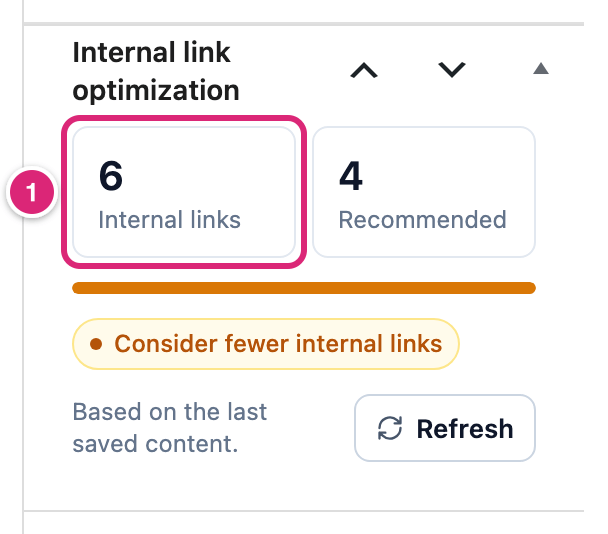
The box shows Internal links 1, Recommended and a status: Well optimized, Add more internal links or Consider fewer internal links. It reads the last saved version of the post (Based on the last saved content.). In the block editor it updates after each save; Refresh reads the saved post again.
How Recommended is worked out, with an example, is on Link Intelligence settings. An administrator can turn the box off for everyone with Internal link optimization under Link Manager › Settings › Link Intelligence. It's on by default.
AI Link Assistant and the dashboard widgets
The AI Link Assistant lists links in your post that aren't short links yet and can suggest short links to insert. In the block editor it's a sidebar of its own and a panel on the Settings sidebar's Post tab. In the classic editor it's a box in the right-hand column. It shows by default, and goes away only if an administrator turns both its switches off. Everything about it is on AI Link Assistant.
Two widgets on the WordPress Dashboard complete the set, for people with access to Link Manager Pro only:
- The Quick Add widget creates a short link from a destination and an optional slug (Add a short link from the WordPress dashboard).
- The Overview widget shows your total clicks, short links and broken links, and your top short links (What Link Manager Pro does).
Details
| Item | Value |
|---|---|
| Who can search, insert and create | Search and insert: users with edit_posts. Create: users with publish_posts, or full plugin access. Developers can change these with the link_manager_pro_picker_capability and link_manager_pro_picker_create_capability filters |
| Where the buttons show | Short link: the block editor, in any content type that uses it. Insert short link: the classic editor's Visual toolbar |
| What a search matches | Short links: the slug and the keywords, and the destination too, except for password-protected links. Affiliates: their Affiliate name, domain, Affiliate URL and Keywords |
| Links that never show | Expired short links, and redirects (they aren't short links). Scheduled and password-protected links do show |
| Order and number of results | Affiliates first, then short links, newest first. The Short link box and the block editor's link search: up to 5 of each. The classic dialog and classic link search: up to 10 of each |
| Picking an affiliate | Inserts the affiliate's own short link instead of its raw URL. If the affiliate has none yet, Link Manager Pro creates one the first time the affiliate shows in a search |
| Inserted link | A plain link to the short link's full address, for example <a href="https://yoursite.com/link/tent-deal" rel="nofollow">. The slug is URL-encoded. The prefix is your Short link prefix, your Internal link prefix for your own pages (with Mask internal links on), or your Affiliate link prefix for an affiliate's domain |
| Starting ticks | Nofollow on, Open in new tab and Sponsored off. Filter: link_manager_pro_picker_toolbar_defaults |
| Slug of a new link | Empty means a random slug of Slug length characters (8 by default). A taken slug shows This short link slug is already in use. |
| Other developer filters | link_manager_pro_picker_enabled (false removes both buttons and the link-search results; the AI Link Assistant stays), link_manager_pro_picker_per_page (1 to 20), link_manager_pro_picker_excluded_statuses (default expired; can add scheduled or password), link_manager_pro_picker_include_affiliates, link_manager_pro_picker_item, link_manager_pro_picker_debounce_ms (the wait before each search, 250 ms by default) |
Get more out of it
- Give links you insert often a readable slug. Results show slugs, and two random slugs like
WLhrHGoHandIPfLFIcdare hard to tell apart. A slug liketent-dealis easy to find and tells readers where the link goes. - Search before you create. Create & insert always makes a new short link, so a second link to the same shop splits its clicks across two reports. Typing a word from the destination finds the link you already have.
- Add your partners as affiliates first. Picking an affiliate in the search inserts its own short link, and a new short link to its domain gets its tag (Affiliates).
- Tick Sponsored on paid and affiliate links as you insert them. The ticks go straight into the post's HTML, and Nofollow is already on. For a short link to one of your own pages, turn Nofollow off.
- Check the Internal link optimization box after you save. It counts the saved post, so a quick save and Refresh tell you whether to add a link to another of your posts.
If something goes wrong
- If you don't see the Short link button, then click into the text of a paragraph or heading. The button shows only in the toolbar of the text block you're in. If it's still missing, your account can't edit posts, or a developer turned the tools off.
- If nothing is linked after Apply or Create & insert, then no words were selected. Apply creates nothing. Create & insert still created the short link: select the words, then pick it in the search instead of creating it again.
- If the search says no short links match, then the link may be expired: expired links never show. Or it's password-protected and you searched its destination, so search its slug instead.
- If the box says Couldn’t search short links. Try again., then the search request failed. Try again; if it keeps failing, save your work and reload the editor.
- If Create & insert shows "Enter a full URL, starting with https://", then the destination has no
https://orhttp://in front, or starts with another scheme such asftp:,mailto:orjavascript:. Fix the address and try again. - If Create & insert shows This short link slug is already in use., then pick another slug. Or leave Slug (optional) empty for a random one.
- If the Internal link optimization box shows an old count, then save the post, then select Refresh. The box reads only the saved version.