
Appearance
Migrate to Link Manager Pro
Import your links from Pretty Links, ThirstyAffiliates or BetterLinks, check the result, and turn the old plugin off in the right order.
You can migrate to Link Manager Pro from Pretty Links, ThirstyAffiliates or BetterLinks in one import. Your links become short links, their clicks come along, and their old addresses keep opening them.
The move in short
The whole move takes six steps, and the old plugin stays on until the fifth:
- Back up your site.
- Import your links under Link Manager › Settings › Migration, or with WP-CLI.
- Read the result and fix what it lists.
- Replace old shortcodes in your posts.
- Import again, then turn off the old plugin.
- Check address conflicts.
Can you switch link plugins without breaking links?
Yes. The import turns every link it can bring over into a short link and keeps the old address as one of its other addresses. Once the old plugin is off, that old address opens the short link, as long as nothing else on your site uses it.
- Each link keeps its slug (the part after
/link/) where it can. A taken or unusable slug gets a new one, unless it's the same link (step 3). - Clicks come along when you tick Click history, and a link's count rises only by the clicks added.
- BetterLinks page redirects from its Simple 301 Redirects importer become Redirects.
- Affiliates are made only for the domains you tick. Their links stay short links, and their auto-linking stays off.
Which plugin are you moving from?
Link Manager Pro imports from three plugins: Pretty Links, ThirstyAffiliates and BetterLinks. The import screen offers different items for each, listed below. Your plugin's page explains how its data maps over and what its notes mean.
| Moving from | What you can tick |
|---|---|
| Pretty Links | Short links, Groups, Categories, Tags, Click history, Settings (never ticked to start with), Affiliates |
| ThirstyAffiliates | Short links, Categories, Click history, Auto-linking keywords, Redirect rules (geo, schedule), Settings (never ticked to start with), Affiliates |
| BetterLinks | Short links, Categories, Tags, Click history, Passwords, Auto-linking keywords, Geo rules, Settings (never ticked to start with), Affiliates |
Redirects from Rank Math or SEOPress have their own import under Link Manager › Settings › Integrations: see Import SEO plugin redirects.
Browser or WP-CLI?
Use the browser for most sites. Use WP-CLI, WordPress's command line, for a large import or when you'd rather not keep a tab open. Both run the same import. Once setup is finished, administrators see a notice about a detected plugin until they import from it or dismiss it. The notice reads "We detected … with data available for migration." and has a Migrate now link. For large data (10,000 records or more), it adds the line "For large imports, use WP-CLI:" with the command, such as wp link-manager-pro import --source=prettylinks. Settings are never ticked to start with. They replace some of yours; your plugin's page lists which. WP-CLI brings them over only with --items=...,settings. The commands are under Import with WP-CLI.
Before you start
You need an administrator account, a fresh backup, and the old plugin's data still in your WordPress database.
- Only administrators can run the import.
- Back up first, because the import can't be undone. Go to Link Manager › Settings › Backup & restore, select Backup, then Back up now. To go back later, restore that backup (Backup and restore).
- Keep the old plugin's data. Link Manager Pro reads it straight from your database, so the plugin can be active or deactivated. If it's still active, leave it on: it keeps answering its old addresses until step 5.
Import your links
The import runs in one dialog with three questions: what to bring over, what to do with a taken slug, and which domains become affiliates.
Link Manager › Settings › MigrationUnder Import from, choose your old plugin, then select Migrate. If the dialog says "No … data found on this site.", the plugin left nothing in your database. It doesn't need to be active.
Under Select data to migrate, check the ticks. Everything that has data is ticked to start with, except Settings. Settings can be ticked when it shows a number above 0, the settings an import would change. The numbers are what the old plugin holds, which can include links that won't come in, such as trashed ones. ThirstyAffiliates is the exception: its Short links count leaves out trashed and payment links. An item with nothing to import shows (0) and can't be ticked. Affiliates is the exception: when the import found at least one destination domain, it shows how many and can be ticked even at 0.
Note
Auto-linking keywords (from ThirstyAffiliates or BetterLinks) brings those keywords over. They don't auto-link while the old plugin is active, so the same words aren't linked twice. They start by themselves once you switch the old plugin off. Keywords you added yourself always link. The result carries a note about this while the old plugin is still active.
Under If a slug already exists, choose what happens when one of your short links already has an imported link's slug:
Choice What happens Keep existing short links (an imported link with the same slug gets a new one) (Recommended) Your link keeps its settings. If its destination is the same too, the two count as one link: yours gets the old address and the clicks. Otherwise the imported link gets a new slug. Update a short link with the same slug and destination with the imported settings (its clicks are kept) From any of the three plugins, only a link with the same slug and destination is updated. Otherwise the imported link gets a new slug. Your link keeps its slug, its clicks and its origin. If Affiliates is ticked, select Continue to affiliates. If not, select Continue and go on to step 7.
Tick the destination domains that belong to your partners 2. Domains that look like affiliate links are ticked already, and Why it’s ticked 1 says why, for example a
tag=in the link. Domains under No affiliate signs start unticked; 8 show, and Show more opens the rest. From ThirstyAffiliates, every domain is ticked. Your own site is never offered, and a domain that's Already an affiliate is reused. In the example, every domain with an affiliate sign is already an affiliate from an earlier import, so none is ticked as new.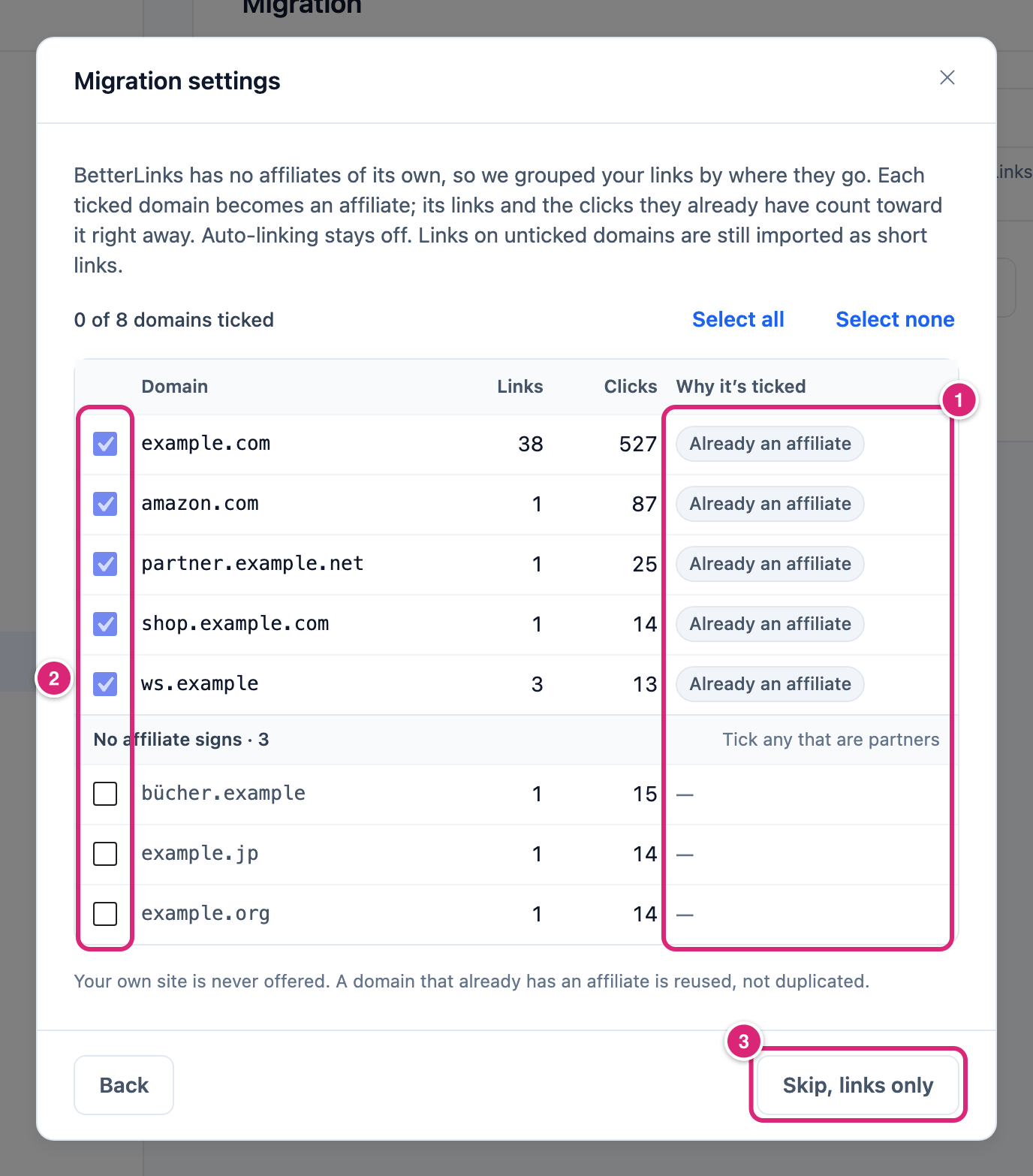
The affiliates step: ticked domains become affiliates, and the rest still come in as short links. Select the button that creates the affiliates. It names how many, for example Create 3 affiliates and migrate. With no new domain ticked, that button isn't shown (rows that are Already an affiliate stay ticked but don't count). Only Back and Skip, links only 3 remain, so select Skip, links only. Links on unticked domains come in as short links either way.
WARNING
The next step writes to your site and can't be undone. If you chose the Update option, your existing short links change too. If you haven't backed up, use the Back up first link in the confirmation.
- The confirmation lists what will be imported. Select Start migration.
- Keep the tab open until the result shows. The import runs in this tab, in small batches. If you try to leave the page, Link Manager Pro asks first. To stop on purpose, select Cancel migration. Stopping or leaving keeps what was already imported.
Read the result
When the import finishes, the dialog shows counts, a Link check and notes: what came over and what needs a look.
- The counts table lists Migrated, Skipped and Failed for each data type.
- Link check 1 tests every imported short link and old address the way a visit would. It counts working, password-protected, switched-off and scheduled links, and names up to 100 to fix.
- Old addresses that open something else are listed too, up to 100. If a redirect or another link's address holds one, Send it here 2 gives it to the imported link. A short link or a page keeps it.
- The notes 3 are grouped by data type: one note per case, with a count and the first few links. Up to 200 show, then a count of the rest.
WARNING
Send it here can't be undone. Whatever answered the address before stops answering it, and a redirect that held it is deleted.
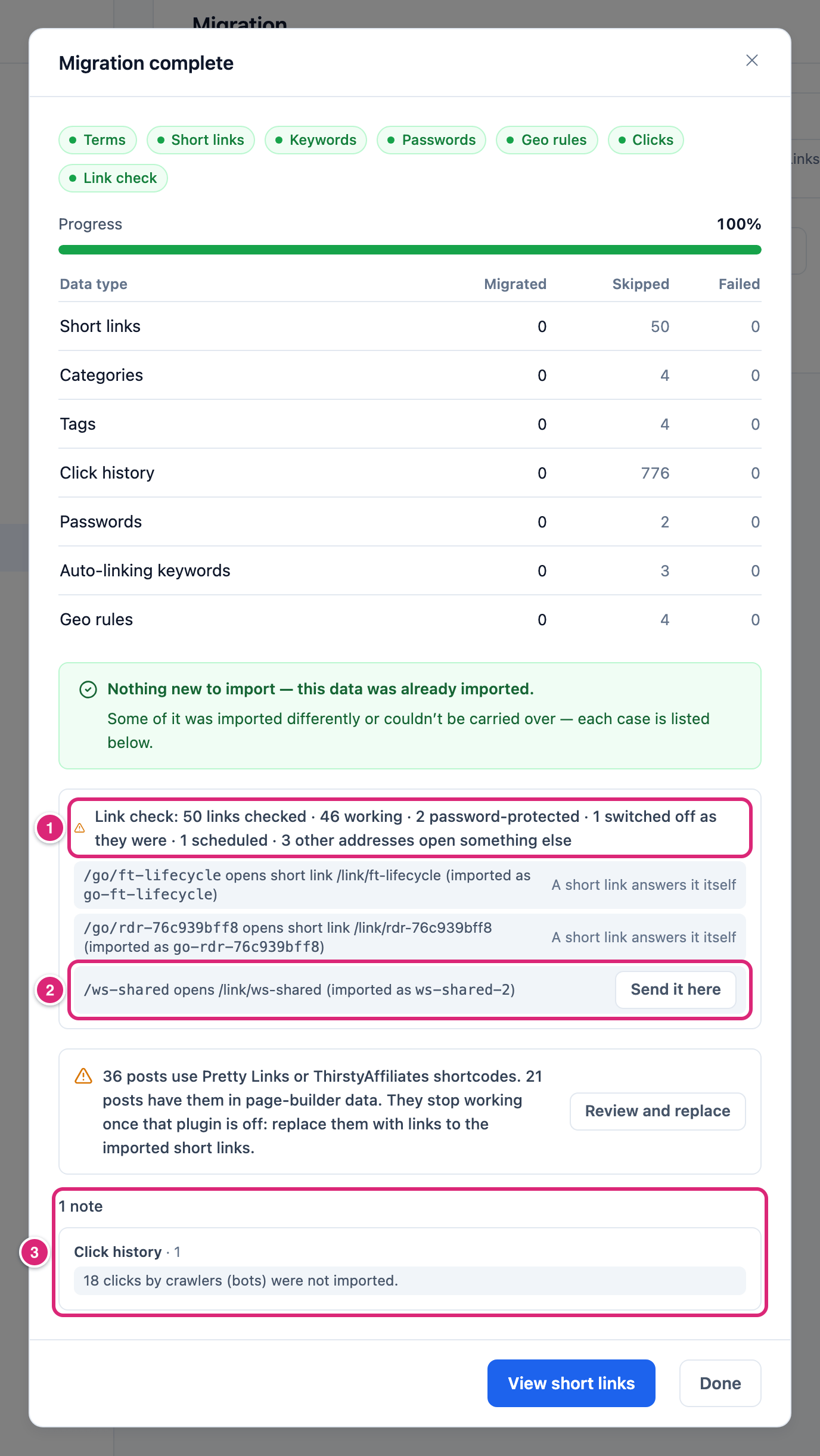
The example is a repeat of an import that already ran, so every row shows as skipped.
Replace old shortcodes
Link Manager Pro doesn't run Pretty Links or ThirstyAffiliates shortcodes. So [prettylink], [thirstylink] and <ta> in your posts stop working once that plugin is off. Replace them while it's still on.
When posts still use them, Old shortcodes in your content appears on the Migration screen and under the result, with page-builder posts counted too. Review and replace lists each post with its shortcode count and one example before anything is saved. Replacing edits your posts, so back up first; the steps and how to undo are on Replace old shortcodes.
Plain old addresses in your posts, like /recommends/deal, need no change. They're other addresses of the imported short links now, unless a note says an address wasn't kept.
After a ThirstyAffiliates import, the result can also offer its prefix as your Affiliate link prefix, so short links to your affiliates' domains get addresses like yoursite.com/recommends/amazon-deal. Nothing is saved until you select the offer, for example Use /recommends/ for affiliate links. WP-CLI prints the same suggestion. See Use your ThirstyAffiliates prefix for affiliate links.
Import again, then turn off the old plugin
Clicks and links the old plugin recorded since your first import come over only if you import once more before you turn it off. From BetterLinks, clicks still waiting in its clicks.json file need BetterLinks switched on for up to an hour before they can be imported.
Note
All three importers follow one rule. Each item that comes with a link (keywords, rules, categories, tags, a password) is imported once per link. A later run adds it only if it was never imported for that link and the link has none now. Something you removed stays removed.
- Run the import again with the same choices.
- In WordPress, go to Plugins and deactivate the old plugin.
- Open a few old addresses in a private window. Each opens its short link, except where the Link check or a note named it. Password-protected links ask for the password, and switched-off or scheduled links don't open.
How a second run works:
- Links already imported aren't overwritten: their destination and settings stay as you edited them. After a site move, a re-run still recognizes links imported under the old address, so nothing is duplicated. The shortcode replacer finds those links too, for up to 10 earlier site addresses, as long as they point to one link.
- Only clicks newer than the last imported one come over, so none is counted twice.
- If nothing changed in the old plugin, every row shows as skipped.
- An address you removed from a link doesn't come back.
- Items you didn't tick the first time come over in a later run, by the one rule above. Clicks always do. Your plugin's page says what a later run adds.
- A short link you deleted does come back: the import skips only imported links that still exist. Delete it after your last import.
When one of the three plugins is deactivated or deleted, Link Manager Pro rebuilds WordPress's rewrite rules, like saving Settings › Permalinks. That clears rules the old plugin left, such as ThirstyAffiliates' /recommends/ rule. It also checks every other address for conflicts again. A one-time notice counts the addresses that now open their short link, and says separately how many clash with a page, a redirect or another link. Above 300 addresses, it gives one count worded "can now open".
Check address conflicts
An old address opens its short link only when nothing else on your site answers it. A page, a redirect or another short link at the same address wins. Link Manager Pro lists these clashes so you can decide.
On Link Manager › Short Links, the Address conflicts tab lists the links whose other addresses open something else. The tab shows only while there's at least one.
What each status means and what you can do is on Other addresses and conflicts.
Import with WP-CLI
wp link-manager-pro import runs the same import from WordPress's command line and prints the same counts, notes and link check. Without options, it lists the plugins it found and what each has, then stops:
bash
wp link-manager-pro importName a source to import everything that has data, with the suggested affiliates:
bash
wp link-manager-pro import --source=prettylinksThe options, with their defaults:
--source:betterlinks,prettylinksorthirstyaff. Without it, the command lists what it found and stops.--items: a comma-separated list oflinks,groups,categories,tags,clicks,passwords,keywords,geo_rules,rules,settings,affiliates(only those the source offers). Default: every item with data, which never includessettings.--conflict:skip(default) keeps existing short links;overwriteupdates them, as in step 3.--affiliates:suggested(default, the domains that look like affiliate links),none, or a comma-separated list of domains. Used only with theaffiliatesitem.--yes: skips the question before it starts.
All other commands are on WP-CLI commands.
What isn't carried over
Some things can't come over. Each case gets a note with a count and the first few links.
- Links that were in the Pretty Links or ThirstyAffiliates trash.
- Payment links: PrettyPay and ThirstyPay.
- Links whose destination isn't a web address, such as an email or phone link.
- A setting a link had that Link Manager Pro has no place for. It's kept with the link and named in a note.
Each plugin's page lists the rest.
Get more out of the move
A few habits make the move easier to check and tidy up afterwards.
- Find a link by its old address. In Short Links, search for the old path, like
/recommends/deal. The search also looks in other addresses. - Review by the old plugin's categories. Categories imported from any of the three plugins, and Pretty Links groups, become categories here. The Category filter in Short Links shows one at a time. A link's report also keeps the old plugin's name and note.
- Work through conflicts from the Dashboard. When any old address opens something else, Needs attention shows Other addresses open something else. Select that row (it shows Review when you point at it) to open the Address conflicts list.
- Split a large import in WP-CLI. Run the first import with every item except
clicks, then--items=clickson its own. Clicks are the one item every plugin adds in a later run, so leave nothing else for the second run.
If something goes wrong
- If the dialog says the plugin is not installed, then its data isn't in this site's database. Restore it from a backup of your site, then try again.
- If the import stopped part-way (tab closed, connection lost, an error), then start it again with the same choices. A second run skips what's already in (how it works).
- If an old address doesn't open its short link after you turn the old plugin off, then check the Address conflicts tab and the notes. If neither names it, clear your page cache and try again in a private window.
- If posts show
[prettylink]or[thirstylink]as text, then replace them with Replace old shortcodes.
More fixes are on Troubleshooting.