
Appearance
Auto-linking settings
Decide whether keywords in posts become links, set the limits, and see how matching and priority work.
The Auto-linking tab holds the site-wide auto-linking settings. They decide whether keywords in your posts become links, how many links a post gets, how keywords are matched and where they're never linked. The keywords themselves belong to each short link and affiliate.
Where to find it
Link Manager › Settings › Auto-linkingIn the screenshot, the Auto-linking tab 1 is open. The main switch is Link keywords in posts automatically 2. The limits start with Max links per keyword 3, and Skip headings 4 keeps headings free of auto-links.
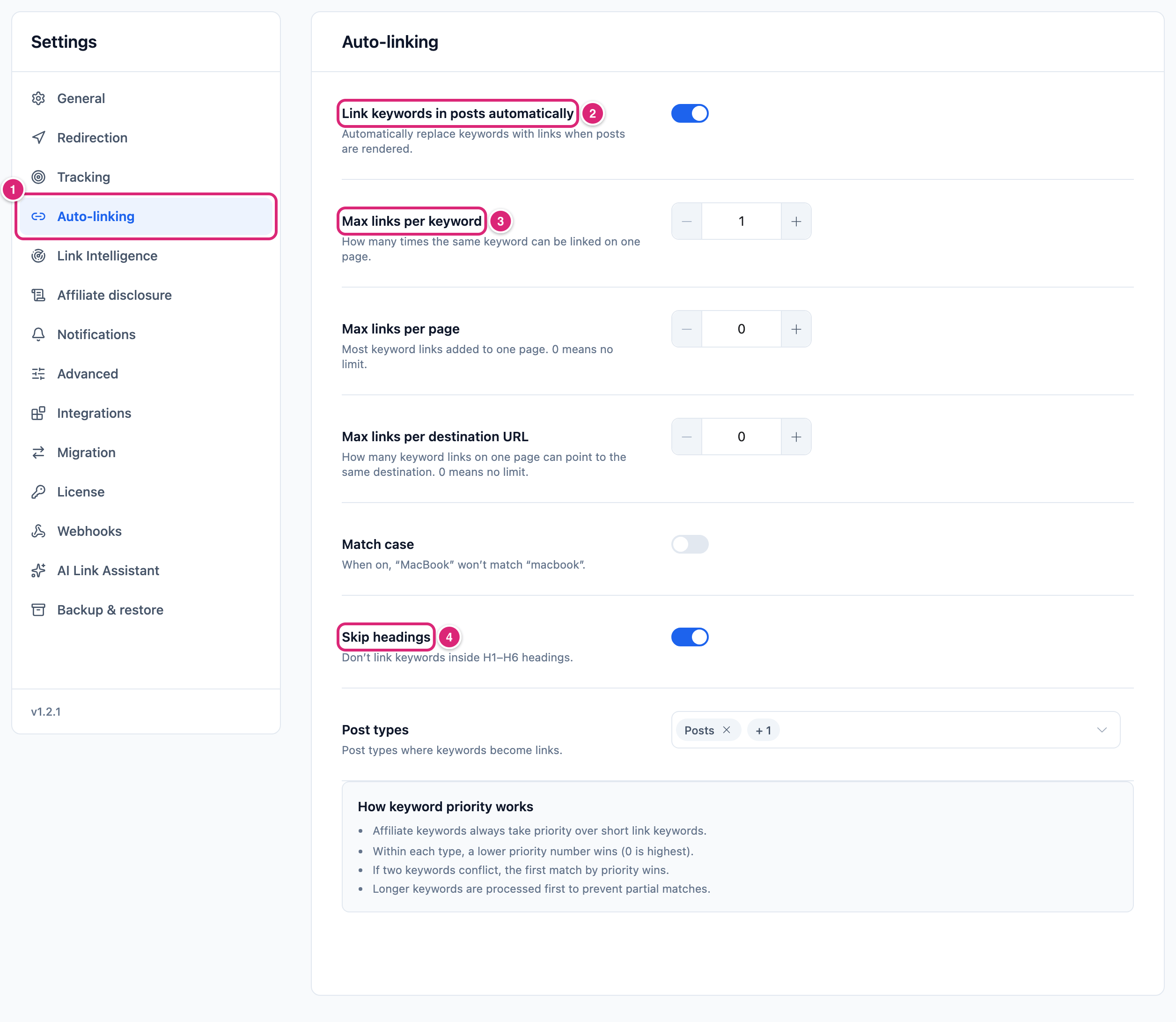
Only administrators see Settings. Changes take effect when you select Save changes (or press Ctrl+S, ⌘S on a Mac). Until then, each changed row shows Edited, and Cancel puts back the saved values. If saving fails, Couldn’t save. Your edits are kept. appears next to the buttons and Save changes becomes Retry.
Saved changes apply the next time a post is shown. Auto-links are added to the page each time it's shown, so the content saved in your posts never changes. A page cache can still serve older copies: see If something goes wrong.
Settings and defaults
Each row links to its section below. New sites get the same defaults. Every row after the first works only while Link keywords in posts automatically is on.
| Setting | Default | Choices | What it does |
|---|---|---|---|
| Link keywords in posts automatically | On | On or off | Turns keywords into links when a post is shown. Off pauses all auto-linking on the site. More |
| Max links per keyword | 1 | 1 to 50 | How many times one keyword is linked in a post. More |
| Max links per page | 0 (no limit) | 0 to 500 | The most keyword links one post gets. More |
| Max links per destination URL | 0 (no limit) | 0 to 500 | How many keyword links in one post can go to the same destination. More |
| Match case | Off | On or off | On: a keyword matches only in the exact letter case you saved. More |
| Skip headings | On | On or off | Leaves keywords in H1 to H6 headings alone. More |
| Post types | Posts and Pages | Your site's public post types; at least one | Where keywords become links. More |
Under the rows, How keyword priority works explains who wins a keyword. It's not a setting (How keyword priority works).
Link keywords in posts automatically
Link keywords in posts automatically is the main switch for auto-linking. It's on by default. While it's on, the keywords of every short link and affiliate with Replace keywords automatically on become links in your posts, within the limits below.
- Links are added to the page when it's shown, not saved in the post. The editor shows your text without them, so view the post to check.
- Excerpts get no auto-links. Neither do posts a theme loads with AJAX, like a load more button, or content an app or headless front end reads through the WordPress REST API.
- Each auto-link goes to the short link (for an affiliate, the affiliate's short link). A short link's keywords get the
relvalues from your Redirection settings plus the link's own Link attributes (Create and edit a short link). - An auto-link's address follows your prefixes. A short link to an affiliate's domain uses the Affiliate link prefix when you set one, a link to your own pages uses the Internal link prefix while Mask internal links is on, and all others use the Short link prefix (General settings).
- For an affiliate's keywords, the affiliate's own Link attributes replace the site settings when any are ticked. A link to your own site never gets
nofolloworsponsored.
Turning the switch off pauses all auto-linking on your site, for short links and affiliates alike. Each link keeps its keywords and its own switch, so turning it back on brings every auto-link back.
Note
WP-CLI's unlink command can also turn this switch off, as part of a run that changes your posts (WP-CLI commands).
Imported ThirstyAffiliates and BetterLinks keywords don't auto-link while that plugin is active. They start by themselves once it's switched off, so the same words aren't linked twice. Keywords you added yourself always link (Migrate to Link Manager Pro).
Max links per keyword, per page and per destination URL
The three limits decide how many auto-links one post gets. Each counts from the top of the post down, so the first matches get the links.
- Max links per keyword (default 1): how often the same keyword is linked. With 1, only its first match in the post becomes a link. It takes 1 to 50; there's no "no limit" value.
- Max links per page (default 0): the most auto-links in one post, across all keywords. 0 means no limit. Once the limit is reached, the rest of the post is left as it is.
- Max links per destination URL (default 0): how many auto-links in one post can go to the same destination. 0 means no limit. Two short links to the same page share one count. The page is the same when the domain (with or without
www), path and query match.
Each limit counts within one post's content, each time it's shown. On a page that lists several full posts, like a blog page, each post gets its own count.
The fields take whole numbers in their range. A number outside it is saved as the nearest allowed value.
Match case and whole words
Match case decides whether letter case matters. It's off by default, so the keyword running shoes also matches "Running Shoes". The link keeps the text as it's written in your post.
With Match case on, a keyword matches only in the exact spelling you saved: "MacBook" doesn't match "macbook".
With Match case off, keywords that differ only in letter case count as one keyword, and the first link in line wins. With it on, Apple and apple are separate keywords, and each links where the post spells it that way (How keyword priority works).
Whatever the setting, keywords match only as whole words:
shoedoesn't match "shoes", andphonedoesn't match "smartphone" or "téléphone". A letter (in any language), digit or underscore right before or after stops the match.- Keywords with symbols, like
C++or.NET, still match.
Skip headings and text that is never linked
Skip headings keeps auto-links out of H1 to H6 headings. It's on by default. Turn it off and keywords in headings can become links too.
Some text is never auto-linked, whatever the setting:
- Text that's already a link.
- Code:
code,pre,kbdandsampelements. - Page parts that aren't running text: scripts, styles, form fields and buttons, SVG images, math, and the
noscriptandtemplateelements. - HTML tags and their attributes, like image alt text and titles, and HTML comments.
- A keyword whose Destination URL is the address of the post being shown. It's skipped on that post. The check compares the domain and path, so the same post written another way, like
?p=123, isn't caught.
Everything else in the post's content can get links, including lists, tables and quotes. Auto-linking runs after WordPress has turned blocks and shortcodes into HTML. So text that a block or shortcode outputs can get links too, unless it sits in one of the elements above.
Post types
Post types lists where keywords become links. By default that's Posts and Pages. The field shows Posts and a + 1 tag; open it to see Pages ticked.
- The list shows your site's public post types. Media isn't listed.
- You need at least one. With none, the row shows Select at least one post type. Selecting Save changes then shows Select at least one post type for auto-linking. and saves nothing.
- Only the post's main content is linked: the text WordPress passes through its
the_contentfilter. Titles, comments and widgets aren't part of it.
How keyword priority works
When more than one link has the same keyword, one link gets it in each post. The box on the tab sums it up; here are the exact rules.
- An affiliate always beats a short link, whatever their Priority numbers.
- Among affiliates, and among short links, the lower Priority wins (0 to 100; 0 is highest). New short links and affiliates start at 10.
- With the same Priority, the one added to your site first wins.
The order above is checked for each post. If the first link doesn't apply to a post, the next link with that keyword is used. That happens when the post is outside the first link's Auto-link only on categories or tags, or when the link is scheduled or expired.
When two different keywords overlap in the text, the one that starts first wins. Where both start at the same word, the longer keyword wins, so running shoes beats running. Priority decides only between links with the same keyword, not between overlapping keywords. The box on the tab has the same four rules.
Auto-linking uses up to 200 different keywords on your site, picked in the order above: affiliates first, then short links by Priority, then the oldest. Keywords past that number aren't linked.
You set Keywords, Priority and Auto-link only on in each link's edit dialog (Create and edit a short link) and each affiliate's (Affiliates).
Get more out of it
- Keep long posts readable. Set Max links per page to a number like 5: each post then gets at most five auto-links, the first five from the top.
- Add the forms people write. Keywords match whole words only, so give a link
trail shoe, trail shoesto catch both. - Link a product once per post. A short link with several keywords can show up once for each. Set Max links per destination URL to 1 and each post links to that short link at most once. Two short links to the same page count as one destination, so the post links to that page once.
- Plan an import around the old plugin. Imported keywords start auto-linking once ThirstyAffiliates or BetterLinks is switched off, so check the new links after that (Migrate to Link Manager Pro).
- Know what your reports count. Clicks on an auto-link count as clicks on that short link and record which post they came from. The affiliate report's auto-link figure counts only those post clicks. A link report's Placed in number leaves auto-links out.
If something goes wrong
- If a keyword doesn't become a link, then check Link keywords in posts automatically here and Replace keywords automatically on the link. Then check the post type, the letter case with Match case on, and whole-word matching. A heading, an existing link, a limit, the 200-keyword limit or another link that wins the keyword can also keep it off (How keyword priority works).
- If auto-links still show after you turn the switch off, then a page cache is serving older copies. Saving this tab clears the cache of the supported cache plugins while Clear page cache when links change is on (Integrations settings). It clears at most once every 30 seconds. If the old links still show a minute later, or you use another cache, clear your cache.
- If posts get too many links, then lower Max links per keyword, set Max links per page, or both.
- If Save changes doesn't save, then check Post types: at least one must be chosen.
More fixes are on Troubleshooting.