
Appearance
Affiliates
Save a partner once so new short links get your tag, then read its click report.
An affiliate in Link Manager Pro is a partner's domain plus your affiliate tag, saved once. New short links to that domain get the tag when it's missing. The partner's keywords can become links in your posts, and its clicks add up in one report. Here's how the Affiliates screen of this WordPress affiliate links plugin works.
Before you start
- You need access to Link Manager Pro. Administrators always have it; editors only when you allow it (Access for editors).
- For keywords to become links, Link keywords in posts automatically must be on under Link Manager › Settings › Auto-linking. It's on by default.
Add an affiliate and its tag
Paste one of your affiliate links, and Link Manager Pro reads the domain and the tag from it.
Link Manager › Affiliates- Select New affiliate at the top right.
- Enter an Affiliate name, like
Outdoor Gear Shop. It's only a label for you. - Paste one of your affiliate links into Affiliate URL 1, for example
https://outdoor.example.com/?ref=yoursite-21. - Check the line that appears under it 2: it names the domain and the tag, here
?ref=yoursite-21. If the tag isn't yours, paste a different link. - Leave Redirect type on your default, or pick the type this partner's links should use.
- Open Link attributes (
nofollowandnoopenerstart ticked; ticking any box means the Sponsored domains list doesn't apply to this affiliate's links) or UTM parameters if you need them. - To turn words in your posts into links to this partner, open Auto-linking 3. Turn on Replace keywords automatically and enter Keywords, pressing Enter or a comma after each one.
- Select Create affiliate.
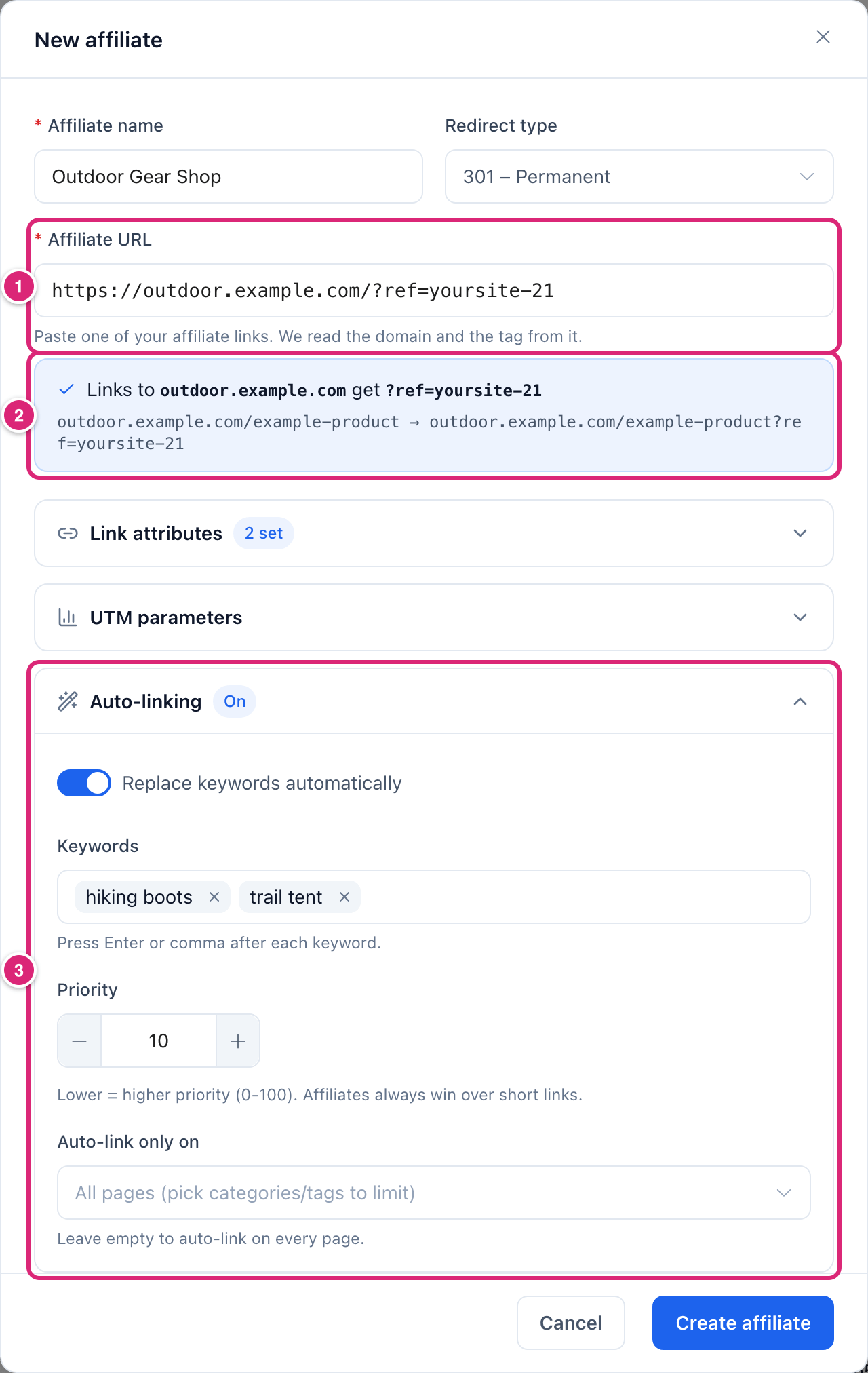
Affiliate created. appears. Link Manager Pro also makes (or reuses) a short link to the Affiliate URL itself: the link its keywords point to.
What the form may tell you:
- Enter a name for the affiliate. means Affiliate name is empty.
- Enter a full URL, starting with https:// means the address isn't a full
http://orhttps://link. - "outdoor.example.com is already an affiliate (Outdoor Gear Shop). Edit that affiliate instead." means the domain has one already. Each domain can have only one.
Which links get your affiliate tag?
Only new short links to the partner's domain get the tag, when they're created and only if it's missing. Links you already have keep their saved destination, and the redirect never adds the tag later.
The tag is the part of the Affiliate URL after ?, like ?ref=yoursite-21. If there's no ?, it's the path, like /ref/yoursite. The list shows it in Adds to links. An Affiliate URL that ends in ? with nothing after it adds nothing, and the list shows a dash.
With ?ref=yoursite-21 saved for outdoor.example.com, new links to https://outdoor.example.com come out like this:
/tentbecomes/tent?ref=yoursite-21./tent?color=redbecomes/tent?color=red&ref=yoursite-21./tent?ref=minestays as it is: a value you typed is never replaced. Only parameters the link doesn't have yet are added.- The domain must match exactly.
www.is ignored, but subdomains are not:shop.outdoor.example.comneeds its own affiliate.
A path tag goes into the address's path, before any ? or #. With /ref/yoursite saved:
/tentbecomes/tent/ref/yoursite./tent?color=redbecomes/tent/ref/yoursite?color=red./ref/yoursite-bstill gets the tag, because only whole path parts count as present./ref/yoursiteitself stays as it is.
A link stored earlier with the path after a ? or # is reused, not duplicated.
| New links get the tag from | Nothing is added for |
|---|---|
| The short link form (New short link) and the Quick Add widget | Edit on an existing link, even when you change its destination to the partner's domain |
| The editor's Short link and Insert short link buttons | Links that existed before you added the affiliate or changed its tag |
| Mask links when saving posts and Scan posts | Links imported from Pretty Links, ThirstyAffiliates or BetterLinks |
| Other ways links are made, for example the AI Link Assistant and AutomatorWP | Redirects to the partner's domain, and links put back from a backup |
New links to the domain also start with the affiliate's Redirect type when you leave that field untouched. Quick Add and the editor buttons follow the same rule; Redirection settings lists every case.
What an affiliate changes on clicks and in posts
An affiliate also adds UTM parameters to clicks, sets rel on some links in posts and can link its keywords. UTM parameters and keywords reach old links too; link attributes reach a link when it's masked.
UTM parameters on every click
The affiliate's UTM parameters are added each time a visitor goes through a short link or redirect to the partner's domain, old links included. They replace a link's own value for the same parameter (the full order). If a routing rule sends the visitor to another domain, they aren't added.
Link attributes in your posts
The affiliate's Link attributes cover two kinds of links to its domain: links in your posts that masking turned into short links, and the links its own keywords make. When any box is ticked, they replace your site's rel settings under Link Manager › Settings › Redirection for those links. With every box unticked, the site settings apply. Short links' keywords and replaced shortcodes ignore the affiliate's boxes.
The address of its short links
With an Affiliate link prefix set, short links to an affiliate's domain get their address under that prefix, like yoursite.com/recommends/amazon-deal. Links to other sites keep your usual prefix. The domain match is the one the tag uses: www. is ignored, and subdomains need their own affiliate. Every prefix of yours still opens every short link. Set it under Link Manager › Settings › General (General settings). The affiliate's keyword links use it too. Adding, editing or deleting an affiliate changes the address shown for links to its domain. Links already saved in your posts keep their address, and it keeps opening.
Auto-linking the affiliate's keywords
With Replace keywords automatically on, the affiliate's Keywords become links to its own short link when a post is shown. The post itself isn't changed. An affiliate always wins a keyword over any short link; between affiliates, the lower Priority wins (0 to 100, starting at 10). Auto-link only on limits it to some post categories or tags.
Limits per post, matching and post types come from Auto-linking settings and are explained in Auto-linking keywords.
The Affiliates list
The Affiliates screen lists every partner with what it adds and how its links perform.
| Column | What it shows |
|---|---|
| Affiliate | The name and the domain |
| Adds to links | The tag new links get, or a dash when the Affiliate URL has none or ends in a bare ? |
| Short links | Short links whose destination is on the domain |
| Clicks | Clicks recorded on those short links, all time |
| Unique clicks | First clicks per visitor on them (How clicks are counted) |
| Auto-linking | Off, or On with the number of keywords (for example "On · 3 keywords") |
- The tabs All, Auto-linking on and Auto-linking off filter the list.
- Search affiliates… looks in the name, the domain, the Affiliate URL and the keywords.
- Each row has three icons: View report, Edit and Delete. Selecting the row also opens the report.
Every short link whose destination is on the domain counts, including older and imported links. Redirects to the partner don't.
Read an affiliate's click report
The affiliate click report shows every click to the partner across all its short links, all time. Open it with View report in the list, or by selecting a row.
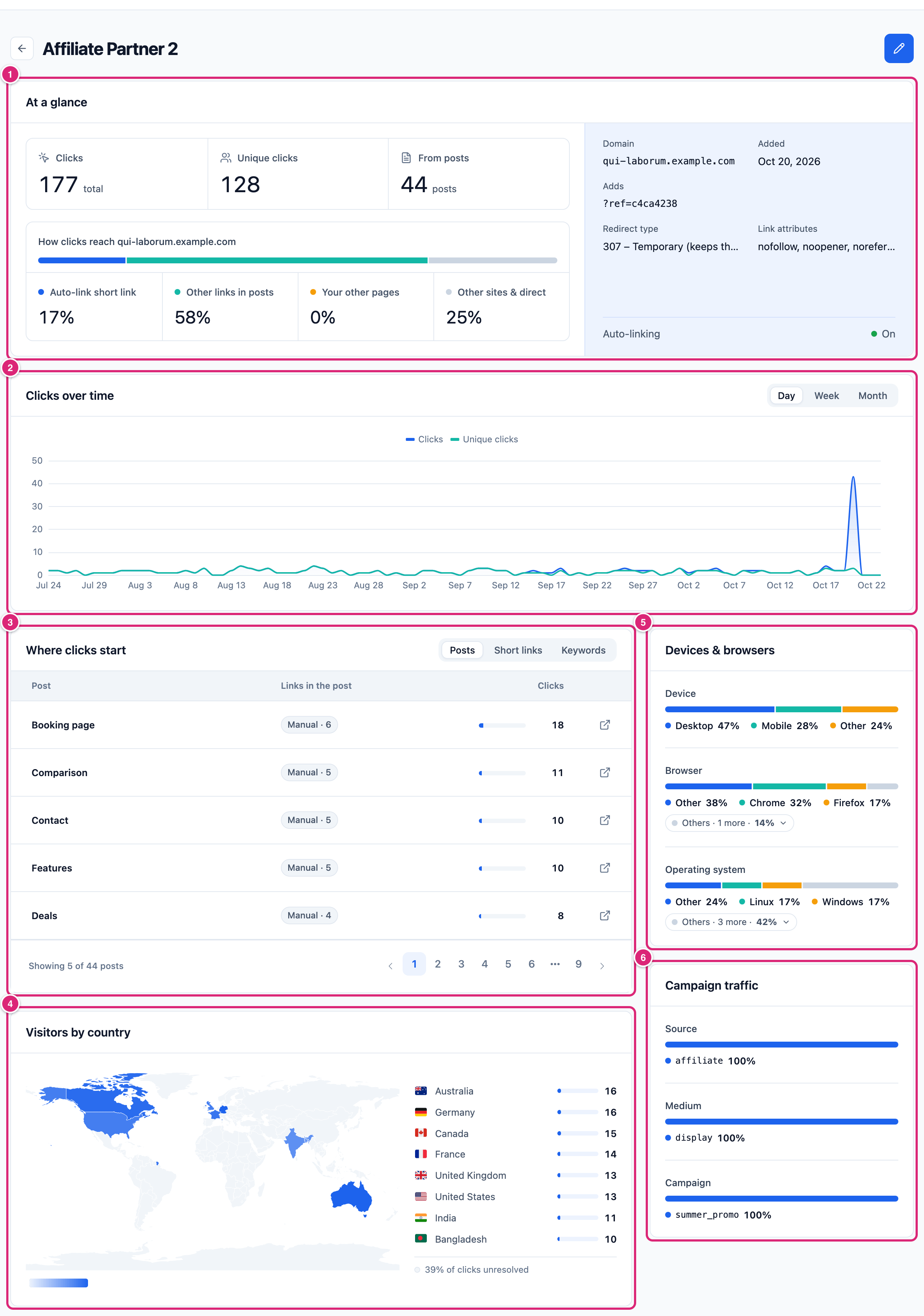
The report has six areas, from top to bottom:
- 1 At a glance: the totals, how clicks reach the partner and the partner's settings.
- 2 Clicks over time: a chart of clicks and unique clicks.
- 3 Where clicks start: the posts, short links and keywords behind the clicks, one tab at a time.
- 4 Visitors by country: a map and a list of countries.
- 5 Devices & browsers: the share of each device, browser and operating system, in the right-hand column.
- 6 Campaign traffic: the UTM values behind the clicks, also in the right-hand column.
The pencil at the top right opens Edit affiliate. The arrow at the top left goes back to the list.
At a glance
At a glance shows Clicks, Unique clicks and From posts (how many posts sent clicks). The split below 1 shares out all clicks four ways:
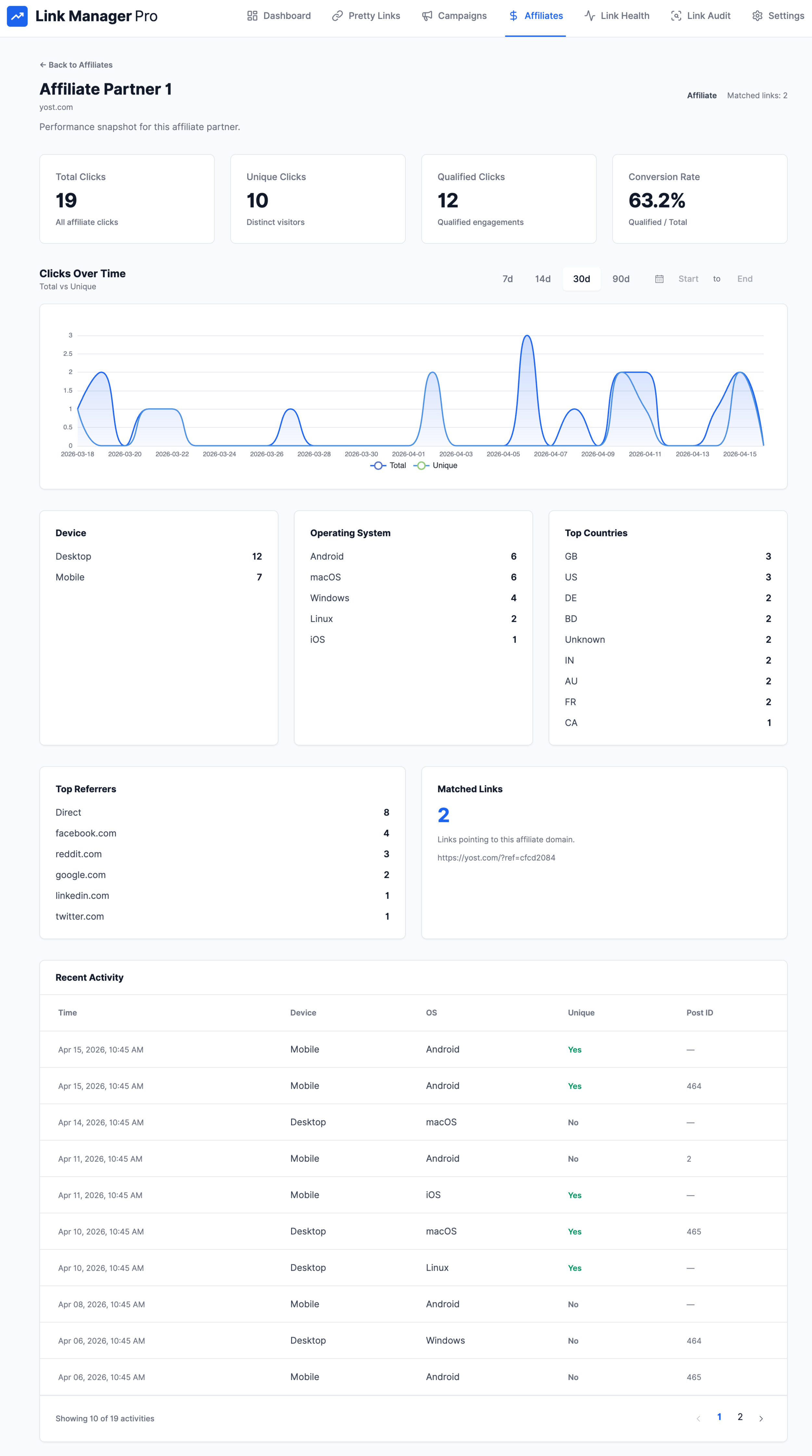
- Auto-link short link: clicks from a post on the affiliate's own short link, where its keywords point. That link inserted by hand, for example from the editor's link search, counts here too, but only when the click came from a post.
- Other links in posts: the rest of the clicks from your posts.
- Your other pages: clicks from your own pages that aren't posts, such as menus, widgets and archives.
- Other sites & direct: everything else, including email apps. The auto-link short link clicked with no post lands in Your other pages or here.
The panel on the right shows the Domain, when it was Added, what the affiliate Adds, its Redirect type and Link attributes. Auto-linking at its bottom says On or Off.
Clicks over time
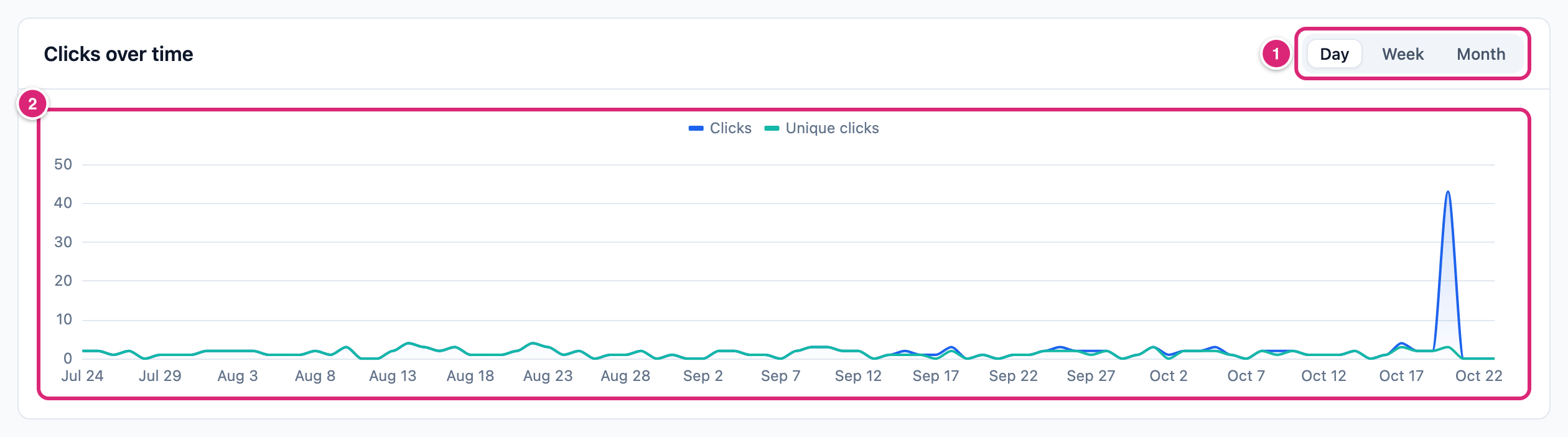
- 1 Switch between Day, Week and Month. The chart opens with the grouping that fits how long the affiliate has had clicks.
- 2 The chart draws Clicks and Unique clicks. It runs from the affiliate's first day or first click, whichever is earlier.
Where clicks start
One card with three tabs 1. Posts and Short links list five rows at a time, Keywords ten. The page numbers at the bottom 4 move through the rest.
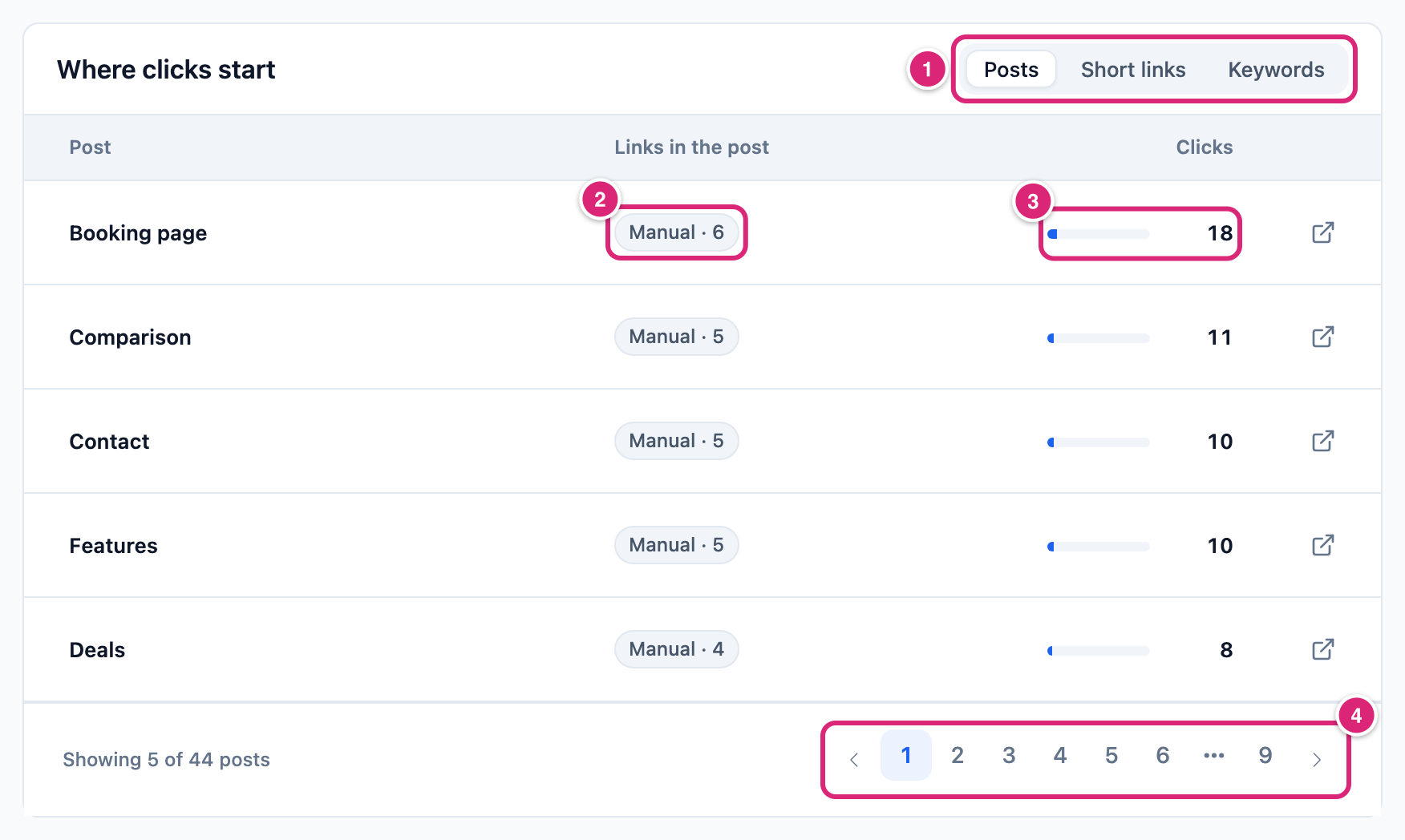
Posts lists the posts that sent clicks, most clicks first.
- 2 Links in the post counts the post's links to this partner, marked Auto-link or Manual.
- 3 Clicks gives the post's number and its share of all the partner's clicks as a small bar. The icon at the row's end opens the post in a new tab.
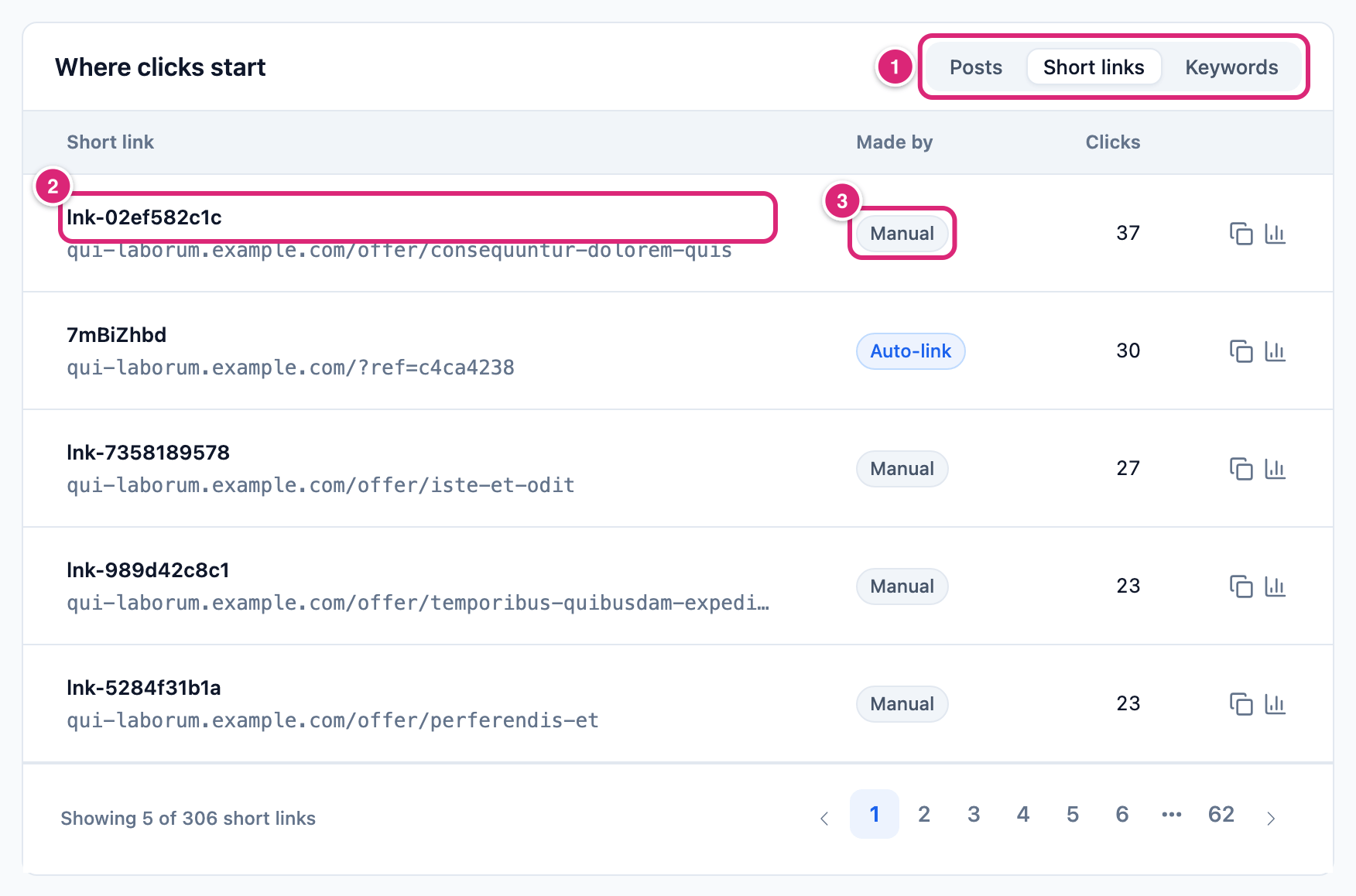
Short links lists the partner's links by clicks.
- 2 Each row shows the short link and the destination under it. Selecting the row opens that link's report.
- 3 Made by says Auto-link or Manual. The two icons at the end copy the link and open its report.
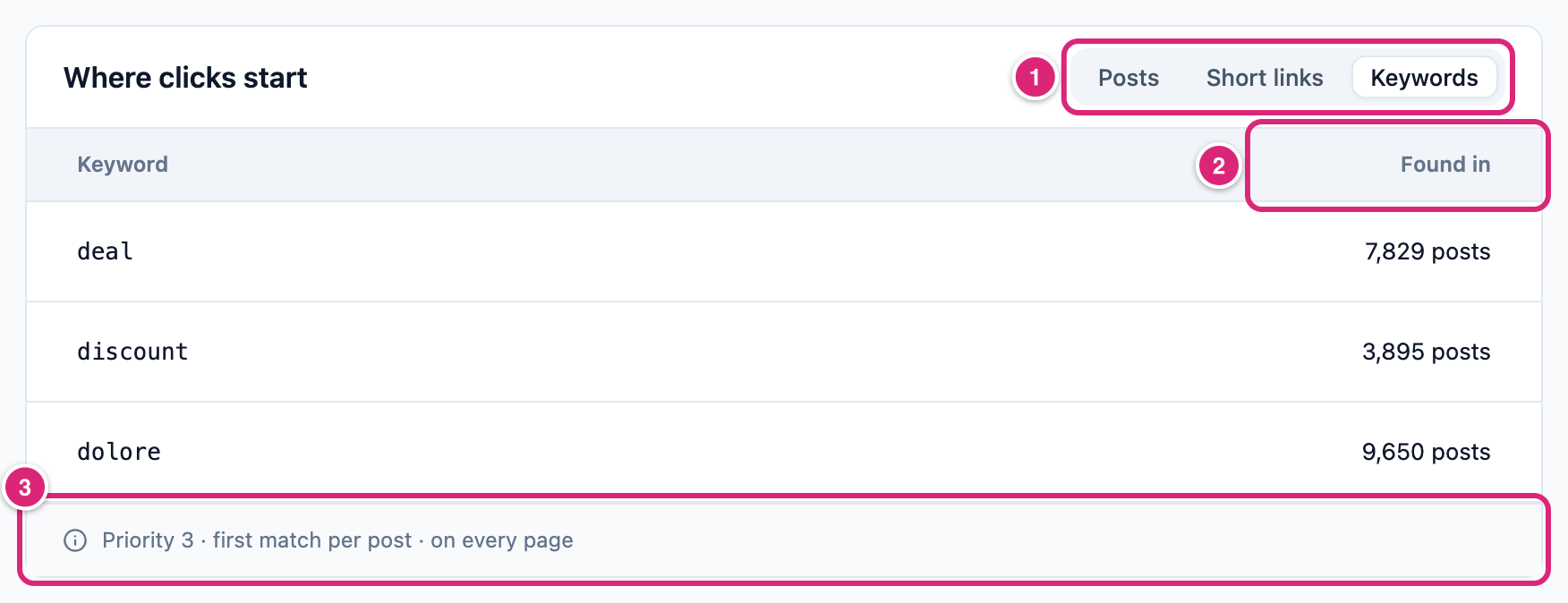
Keywords shows how many published posts contain each keyword as a whole word (2 Found in), not its clicks. "deal" isn't found in "ideal", and text inside tag attributes is ignored. It's an upper bound: per-post limits and other links can keep many of those from being linked (Auto-linking keywords). For a keyword with over 1,000 candidate posts, or after 5,000 posts read in one count, the count falls back to plain text-contains. 3 The line under the list sums up the affiliate's Priority, matches per post and where it may link.
Visitors by country
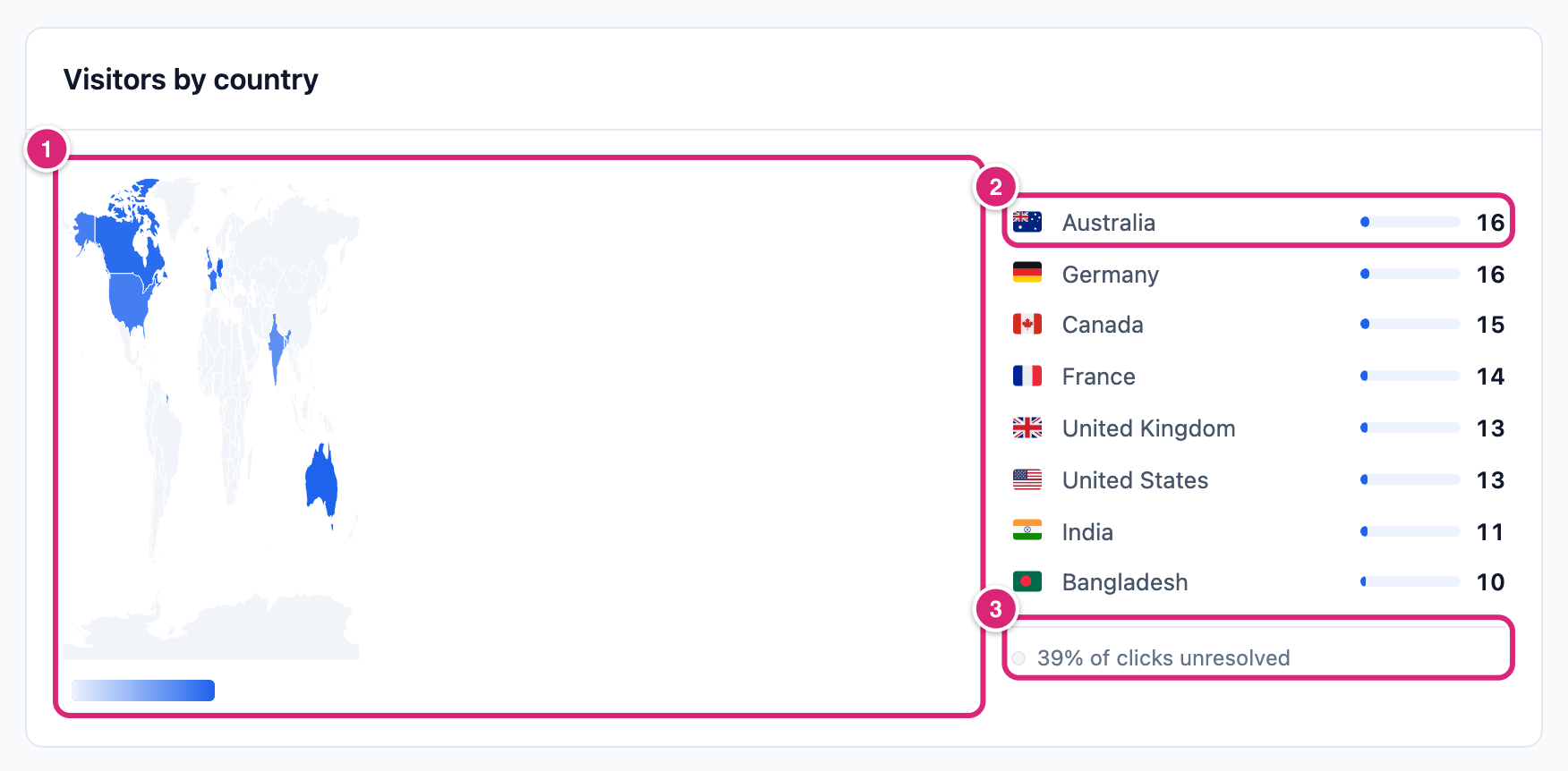
- 1 The map shades the countries that sent clicks.
- 2 The list names up to eight countries with their clicks.
- 3 The note at the bottom gives the share of clicks with no known country.
Devices & browsers and Campaign traffic
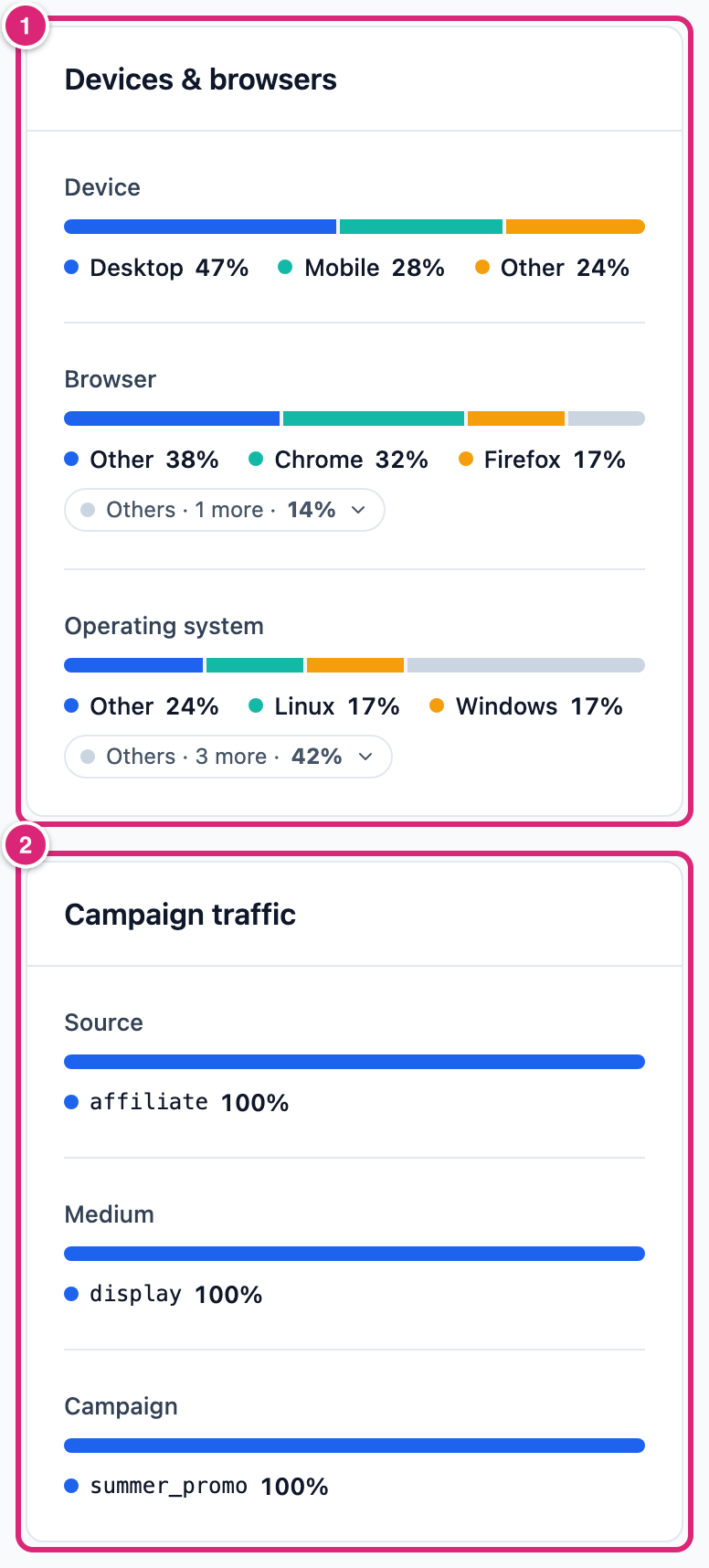
- 1 Devices & browsers has one bar each for Device, Browser and Operating system. An Others chip under a bar opens the smaller values.
- 2 Campaign traffic: the
utm_source,utm_mediumandutm_campaignvalues visitors had in the short link address they opened. Clicks without them count under the affiliate's own UTM values, if it has any.
Change or delete an affiliate
Select Edit in the list, or the pencil in the report, change what you need and select Save changes. A new tag or Redirect type applies only to short links created from now on (which links get your tag). A new Affiliate URL also moves the keywords to a short link for that URL; the old one keeps working. UTM parameters apply from the next click. Keyword settings and Link attributes apply the next time a post is shown, but links masked earlier keep the rel they got.
WARNING
Deleting an affiliate can't be undone. Its keywords, link attributes and UTM values are deleted with it: keywords stop linking, new links to its domain stop getting your tag, and clicks stop getting its UTM parameters. Short links already made keep working with the tag they have. To pause only the keywords, turn off Replace keywords automatically instead.
To delete one, select Delete in its row or at the bottom left of Edit affiliate, then Delete in the confirmation.
Details
| Field | Starts with | Limits | What it does |
|---|---|---|---|
| Affiliate name | Empty (required) | Up to 100 characters | Your label for the partner |
| Affiliate URL | Empty (required) | A full http:// or https:// link, up to 2,048 characters; one affiliate per domain | Gives the domain and the tag |
| Redirect type | Your Default redirect type (301 on a new site) | 301, 302 or 307 | The type new links to the domain start with |
| Link attributes | nofollow and noopener ticked | Four boxes | rel on masked links and its keyword links |
| UTM parameters | Empty | Five fields, up to 200 characters each; Select campaign… fills them from a saved campaign | Added to every click to the domain |
| Keywords | None (Replace keywords automatically off) | Up to 100 characters each in the form | The words that become links |
| Priority | 10 | 0 to 100, lower wins | Order between affiliates for the same keyword |
| Auto-link only on | Empty (every page) | Your post categories and tags | Where its keywords may link |
More facts for technical readers:
- The list and the report count every short link to the domain, however many.
- Auto-linking uses up to 200 keywords on your site, affiliates' first.
- The Dashboard's Affiliate clicks counts clicks on short links to all your affiliates' domains in the chosen period (Dashboard).
- There's no WP-CLI command to add or edit affiliates. The import command creates them with
--affiliates(Import with WP-CLI).
An import from Pretty Links, ThirstyAffiliates or BetterLinks can create affiliates from the domains you tick (Migrate to Link Manager Pro). They're named after the domain, with auto-linking off. Their Affiliate URL is the site's address plus the tag its imported links share, like https://shop.com/?tag=abc-20, or just the domain. Their redirect type and nofollow or sponsored follow most of those links.
WARNING
Affiliates an earlier import made can carry a product path. Check each one's Adds to links before you save posts or make links to its domain. That product link's query string or path became the tag, like ?color=red or /landing, and every new link to the domain gets it: example.com/shoes becomes example.com/shoes/landing. With Mask links when saving posts on, saving a post that links to the domain makes such links by itself. Edit the affiliate and paste a link with only your tag, like https://partner.example.com/?ref=yoursite, or the bare https://partner.example.com/ if you have none. Links already made keep the wrong destination: fix each one in its own form. New imports carry no path, and earlier affiliates aren't rewritten. A closable warning on the Affiliates page names up to 5 such domains.
Get more out of it
- Check affiliates imported earlier first. Their tag can be part of a product link, and the warning on the Affiliates page names them; the warning under Details says how to fix it.
- Add the partner before you link to it. Only new links get the tag. For links you made earlier, open the report's Short links tab: it lists the links to the domain with their destinations. Open one and select the pencil next to Copy link to add the tag.
- Mark partner links sponsored in two places: tick
sponsoredon the affiliate, and list its domain under Sponsored in Link Manager › Settings › Redirection on Selected domains only. The first covers masked links and its keywords, the second short links' keywords and replaced shortcodes (Add nofollow or sponsored). - Link a partner from the editor. Type the partner's name in the editor's link search: it offers the affiliate and inserts the affiliate's own short link. Those clicks count under Auto-link short link in the report when they come from a post.
- Try keywords before they go live. In Edit affiliate, turn on Replace keywords automatically, add the keywords, turn it off again and select Save changes: the keywords are kept. The report's Keywords tab then shows Found in for each, the most posts it could reach. A phrase like
hiking bootsin a dozen posts fits better thanbootsin hundreds.
If something goes wrong
- If a new short link didn't get your tag, then check its domain against the affiliate's: a subdomain doesn't match. A link that already had the parameter keeps its own value.
- If an old link has no tag, then add it in the link's Destination URL: only new links get it.
- If Adds to links shows a product path or product parameters, then follow the warning under Details.
- If the affiliate's keywords don't become links, then check Replace keywords automatically and Auto-link only on on the affiliate. Also check Link keywords in posts automatically in the settings.
- If visits through a redirect to the partner don't show in its report, then that's expected. The Affiliates screens count clicks on short links only.
More fixes are on Troubleshooting.