
Appearance
Dashboard
Read your click numbers for the dates you pick, and use Needs attention to see what to fix on your site.
The Dashboard is where Link Manager Pro shows your link analytics in WordPress. It tells you how many clicks your short links got in the dates you pick. It also shows how many went to your affiliates, and what on your site needs fixing. It opens on the last 14 days, in your site's time zone. Every click number counts recorded clicks, so known bots are left out while Ignore bots is on.
Before you start
- You need access to Link Manager Pro. Administrators always have it. Editors have it only when an administrator allows it (Access for editors).
- Clicks appear only while Click tracking is on, under Link Manager › Settings › Tracking. It's on by default (Tracking settings).
Open the Dashboard and pick a date range
The Dashboard is the first screen of Link Manager Pro. The date range at the top right decides which days the click numbers, the chart, the map and the hour grid cover.
Link Manager › Dashboard- Look at the date range 1. 14D is selected when the page opens: today and the 13 days before it.
- To change it, select 7D or 30D for the last 7 or 30 days, today included.
- For other dates, select the calendar button at the end of the same row (its tooltip says Choose dates). Pick the first day, then the last day. Days after today can't be picked. The button then shows the dates you chose.
- Read the four numbers at the top 2, then the Needs attention card on the right 3.
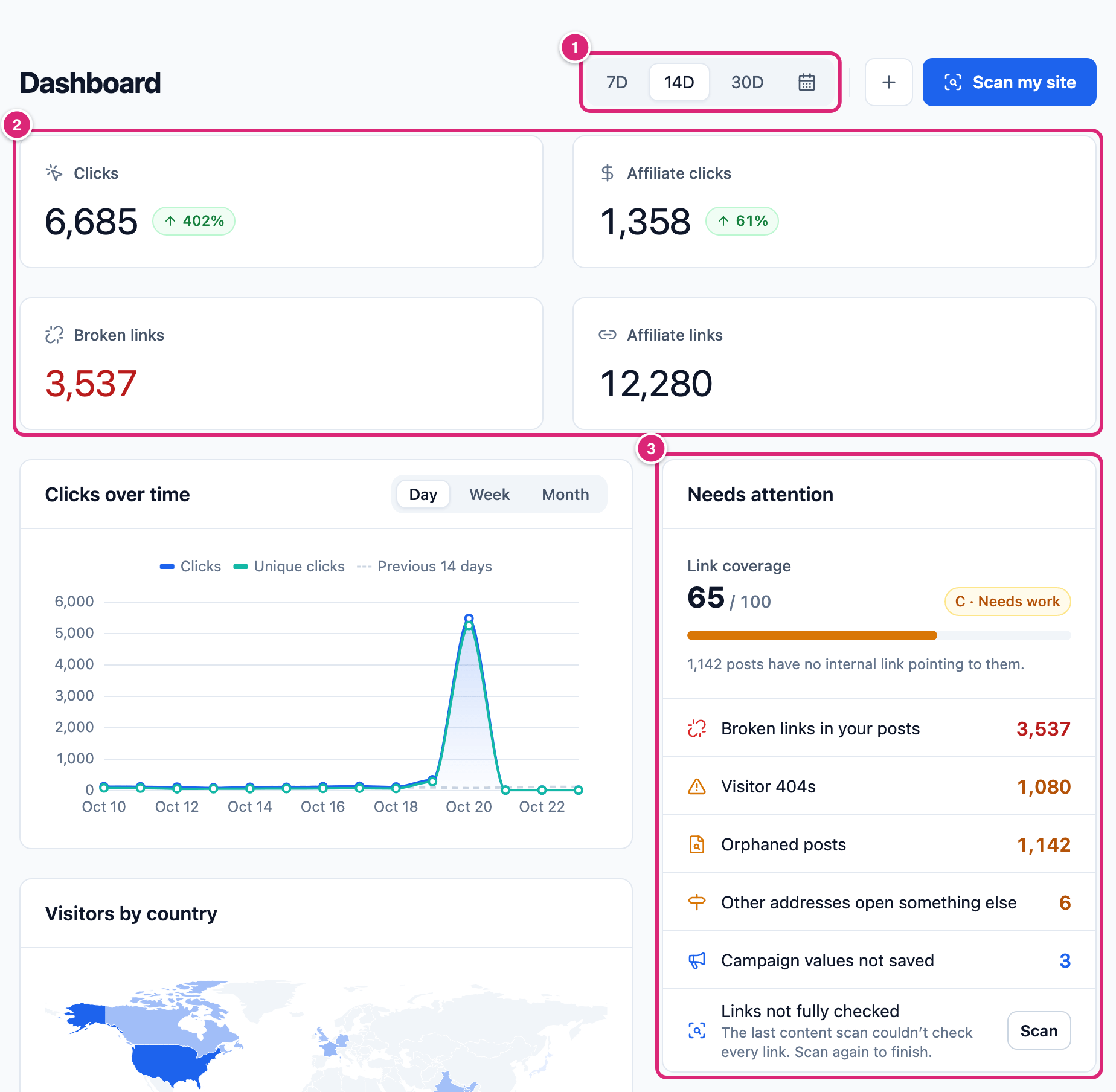
The Dashboard doesn't remember your choice: it opens on 14D every time.
Not every card follows the range. Broken links, Affiliate links and Needs attention show how things stand now. What’s working and All time count all the clicks you still keep.
"Today" is your site's today, not your computer's. Click days and hours follow the time zone set under Settings › General in WordPress.
Read the Dashboard in a minute
A short routine, for example once a week, covers what the Dashboard is for: fix what's open, then see how your clicks move.
- Start with Needs attention. Work through the red rows first, then the orange ones. Each row's next step is in the table below.
- Look at the badge next to Clicks, with today's unfinished day in mind.
- Look for a spike or a dip on Clicks over time. Point at that day to see its numbers.
- To find out what caused it, think of what you published or sent that day, like a post or a newsletter. Open the link report of a short link in it: its chart counts that link alone. What’s working ranks all time, so it won't show what happened in one week.
Clicks, affiliate clicks and the other numbers at the top
Clicks and Affiliate clicks count your date range and compare it with the period before. Broken links and Affiliate links are current totals.
| Number | What it counts | Follows the date range |
|---|---|---|
| Clicks | Every recorded click on your short links in the range. Each click counts, not only a visitor's first one. Hits on your redirects and clicks on links to your own pages aren't included | Yes |
| Affiliate clicks | The part of Clicks that went to short links whose destination is on one of your affiliates' domains | Yes |
| Broken links | Broken links that Link Health found in your published posts and that still need attention. Issues that are Fixed or Ignored, and visitor 404s, aren't counted. The number turns red when it's above 0 | No, it's the current count |
| Affiliate links | Short links whose destination is on one of your affiliates' domains | No, it's the current count |
What the percentage next to Clicks means
The small badge next to Clicks and Affiliate clicks compares your range with the same number of days just before it. With 14D, that's the 14 days before those 14.
A green arrow up means more clicks than before, a red arrow down fewer, in whole percent. There's no badge when the period before had no clicks, or when the change rounds to 0%. For example, 1,000 clicks in the last 14 days and 800 in the 14 days before show ↑ 25%.
Every preset ends today, and today is still running. The period before is all full days. So in the morning, the badge can show a drop that isn't there. For a fair comparison, choose a custom range that ends yesterday.
Which links count as affiliate links
A short link counts for an affiliate when its Destination URL is on the affiliate's domain. www. doesn't matter: an affiliate on example.com counts links to www.example.com too. A subdomain is a different domain, so links to shop.example.com count only for an affiliate on shop.example.com. Links you made before adding the affiliate count as well (Affiliates). A click counts by the link's own Destination URL, so a click that a routing rule sent to another domain still counts for the affiliate of that Destination URL. There is no limit on how many short links count per domain.
What counts as a click on the Dashboard
A click on the Dashboard is a visit to one of your short links that Link Manager Pro recorded. Some visits are sent on but never recorded, so the Dashboard can show fewer clicks than your links really got.
- Clicks are recorded only while Click tracking is on. Visits while it's off still reach their destination.
- Known bots aren't recorded while Ignore bots is on, and neither are visits from your Blocked IP addresses. Clicks after the 30th within 5 minutes, from one IP address on the same short link, aren't recorded either. All these visitors still reach the destination.
- Your own clicks count. A click you make as an administrator is recorded like anyone's.
- With Keep click data for set, clicks older than that are deleted once a day. The Dashboard then shows fewer clicks for those dates.
- The four numbers, What’s working and All time keep their figures for up to 60 seconds (Broken links for up to about 2 minutes). The chart, the map and the hour grid read live, so a new click shows there first.
Unique clicks, on the chart, are first clicks: a visitor's first click on a given short link. One visitor who clicks three different short links adds three. Two things change who counts as the same visitor. With Anonymize IP addresses on (the default on new sites), people on one network with the same browser count as one. And once Keep click data for deletes a visitor's earlier clicks, their next click is unique again (Anonymize IP addresses).
Which bots are known is on Tracking settings. How the different counts fit together: How clicks are counted.
Needs attention: what each row asks you to do
Needs attention lists open problems on your site, each with a count and a button. It doesn't follow the date range. Rows show only when there's something to report. Red rows come first, then orange, then blue.
Select anywhere on a row. On a row with a number, the button replaces the number when you point at it. The button only opens the page: nothing is fixed, scanned or imported until you act there.
| Row | Shows when | The button opens | What to do there |
|---|---|---|---|
| Broken links in your posts | Link Health has open broken links in your published posts (the same number as Broken links) | Fix: Link Health, on its In your content tab | Select Fix with a redirect on a row. For a link to another site, that only makes a short link: replace the link in the post with it (Edit the post), or the next scan brings the issue back (Fix a broken link with a redirect) |
| Visitor 404s | Link Health logged addresses on your site that visitors opened and that don't exist | Redirect: Link Health, on its Visitor 404s tab | Select Fix with a redirect on the address |
| Orphaned posts | Link Audit found posts that no other post links to | Suggest links: Link Audit, on its Orphaned tab | Select Suggest links on a post (Link Audit) |
| Other addresses open something else | One of a short link's other addresses opens a redirect, a page or another link instead. The number counts addresses | Review: the Address conflicts tab of Short Links | Open each link's report and choose Send it here or Keep the other for the address (Fix a short link address conflict) |
| Campaign values not saved | Your links or affiliates use utm_campaign values that aren't saved as campaigns | Review: Campaigns | Select Save as campaign on a row, or Sync for all of them (Campaigns) |
| Posts not checked for broken links | Link Health has never scanned your posts | Scan: Link Health | Select Scan content |
| Links not fully checked | The last content scan couldn't check every link | Scan: Link Health | Select Scan content again |
| Internal links not scanned yet | You have published posts, but Link Audit has never scanned them | Scan: Link Audit | Select Scan all posts |
| Import from, with the plugin's name (for example Import from Pretty Links) | Another plugin's links were found and you haven't imported or dismissed them. Administrators only, always last | Import: Link Manager › Settings › Migration | Follow the import for that plugin (Migrate to Link Manager Pro) |
With a count of 1, a row's label is singular, for example Visitor 404.
The Link coverage score
Once Link Audit has scanned your posts, the card starts with Link coverage. It's a score from 0 to 100 with a grade from A to F. One word sums it up: Good (75 or more), Needs work (40 to 74) or Poor (below 40). The line under the bar counts posts with no internal link pointing to them. With none, it reads How well your posts link to each other. How the score works: Link Audit.
When there's nothing to fix
With no rows and every check loaded, the card shows All clear and "No broken links, 404s or orphaned posts." It adds the date of the last content scan, shown in your computer's time zone. If some checks don't load, the others still show, with Retry.
Clicks over time, visitors by country and when clicks happen
Three cards show the clicks of your date range from three sides: by day, by country, and by weekday and hour. All three count recorded clicks on your short links only.
Clicks over time
Clicks over time draws one point per day of your range. The blue line is Clicks and the green one Unique clicks. A dashed line shows the period before, named after its length, for example Previous 14 days.
Day, Week and Month group the points. The chart starts on Day for ranges up to 120 days, Week up to 730 days and Month beyond. Weeks start on Monday. Point at the chart to see the numbers of a day, week or month.
Visitors by country
Visitors by country shows a map and the 8 countries with the most clicks in your range, with Others for the rest. A line under the list gives the share of clicks with no known country (unresolved).
A country comes from the GeoIP database. A CF-IPCountry or X-Country-Code header from your CDN is read only in two cases. Either Trust proxy headers is on, or your proxy is listed under Trusted proxy IPs or CIDR ranges. Both are on the Advanced tab (GeoIP database). A header value of XX or ZZ means no country, so it is skipped and the next header or the GeoIP database decides.
- No location data yet: your range has clicks, but none has a country. Administrators get an Open Tracking settings button.
- No visitors in this period: your range has no clicks.
When clicks happen
When clicks happen is a grid of 7 rows, Monday to Sunday, by 24 hours, in your site's time zone. Each square adds up that weekday and hour across your range, for example every Tuesday at 9 AM.
- The darker a square, the more clicks, compared with the busiest square. One burst, like a single newsletter, can make one square the darkest.
- Point at a square to see its day, hour and number of clicks.
- The rows always start on Monday, whatever first day of the week WordPress is set to. With no clicks in the range, the card says No clicks in this period.
What’s working: your top short links, campaigns, affiliates and posts
What’s working ranks your five most-clicked short links, campaigns, affiliates or posts of all time. It doesn't follow the date range.
- Choose a tab: Short links, Campaigns, Affiliates or Posts.
- Read each row's Clicks and Share of clicks. The share is its part of all recorded clicks on your short links, not just of the five.
- Select a row to open it. A short link opens its link report, an affiliate its report. A saved campaign opens its report; a campaign found only in your links doesn't open. A post opens in a new tab, in the editor if it isn't published yet. A trashed or deleted post doesn't open.
Rows with no clicks aren't listed. The line under the list, like "Top 5 of 22 · all time", gives the total. That's all your short links, campaigns or affiliates, or the posts with a click. Next to it, a link such as All short links opens the full list. The Posts tab has no such link.
A click counts for a post when the visitor clicks a short link inside that post's content on your site. A short link you shared elsewhere, like in an email, gets clicks that count for no post. A post that isn't public shows its status after its title, for example Draft. A post that no longer exists shows as Deleted post.
The All time card
The All time card adds up the clicks you still keep, whatever the date range.
| Row | What it counts |
|---|---|
| Clicks today | Clicks on your short links since midnight, in your site's time zone |
| All clicks | Every recorded click on your short links that's still kept |
| Affiliate clicks | The part of All clicks that went to your affiliates' domains |
| Redirect hits | Visits through your redirects, counted apart from clicks |
| Internal link clicks | Clicks on links to your own pages. The row shows only while Track clicks on internal links and Click tracking are both on (Clicks on links to your own pages) |
| Auto-linking | How many short links have auto-linking on. It says Off when Link keywords in posts automatically is off, or when no short link and no affiliate has auto-linking on |
All clicks can be lower than the total of the All-time clicks column in Short Links. That column keeps counting while Click tracking is off. It doesn't drop when old clicks are deleted either (The Short Links list).
The Dashboard's buttons
Two buttons sit next to the date range: a plus button and Scan my site.
- The plus button (its tooltip says New short link) opens the short link form. After you create a link, you land on its report (Create and edit a short link).
- Scan my site opens Scan posts. It turns links to other sites in your published, scheduled and private posts into short links. Drafts and pending posts are left alone.
WARNING
Scan posts edits your posts: it replaces link addresses in their content. Make a backup first under Link Manager › Settings › Backup & restore. How to run the scan and how to undo it: Shorten every link in your posts.
Notices and empty cards
When there's nothing to count, the Dashboard says why.
- Click tracking is off shows at the top while tracking is off. New clicks still reach their destination but aren't recorded. Administrators get a link to the Tracking tab. A report that already has clicks shows the same notice at its top.
- No clicks yet: no click has been recorded so far.
- No clicks in the kept history: your links have clicks, but none in the click data you keep. Keep click data for deleted them, or they were counted while tracking was off.
- A card that couldn't load says so, with Retry.
Details
| Item | Detail |
|---|---|
| Custom range | Any first and last day up to today, both included. The longest range is 20 years |
| Period before | The same number of days, ending the day before your range starts. A one-day range labels its dashed line Previous day |
| Midnight | A Dashboard left open past midnight moves its preset to the new day when you come back to the tab |
| Not the same as | The Overview widget on the WordPress dashboard (What Link Manager Pro does) |
Get more out of it
- Install the GeoIP database before you judge the map. Until a click has a country, it goes into the unresolved share. Clicks recorded before the database was installed keep no country (GeoIP database).
- Time your posts and newsletters with When clicks happen. Switch to 30D for more data. Then look for a run of dark squares across several days, not one dark square: that's when your readers usually click.
- Save the campaign values you use. A saved
utm_campaignvalue gets its own report and opens from What’s working. It also leaves the Campaign values not saved row (Campaigns).
If something goes wrong
- If Clicks stays at 0 while your links get visits, then check that Click tracking is on under Link Manager › Settings › Tracking. Known bots, Blocked IP addresses and clicks beyond 30 in 5 minutes aren't recorded.
- If a click you just made doesn't show in Clicks, then look at the chart first: it reads live. The four numbers catch up within 60 seconds, so reload the page after a minute. The Dashboard doesn't refresh by itself.
- If Affiliate clicks is 0, then check that the partner's domain is added as an affiliate, spelled as the links' destination domain. A subdomain needs its own affiliate.
- If most clicks are unresolved on Visitors by country, then download the GeoIP database under Link Manager › Settings › Tracking.
- If All clicks is lower than the All-time clicks in Short Links, then that's expected. The column also counts clicks made while tracking was off. It keeps clicks that Keep click data for deleted, too.
More fixes are on Troubleshooting.